
Welcome To Asta

Getting Started
Platform Capabilities
Content Management
User & Role Management
Project Management
Customization & Branding
Licensing & Legal
Adding a Live Stream to Campaign
Introduction
Easily add live streams to your Asta campaigns. Follow these quick steps to integrate and customize your video.
How to Add a Live Stream
- Create a Campaign
- Add the Live Stream
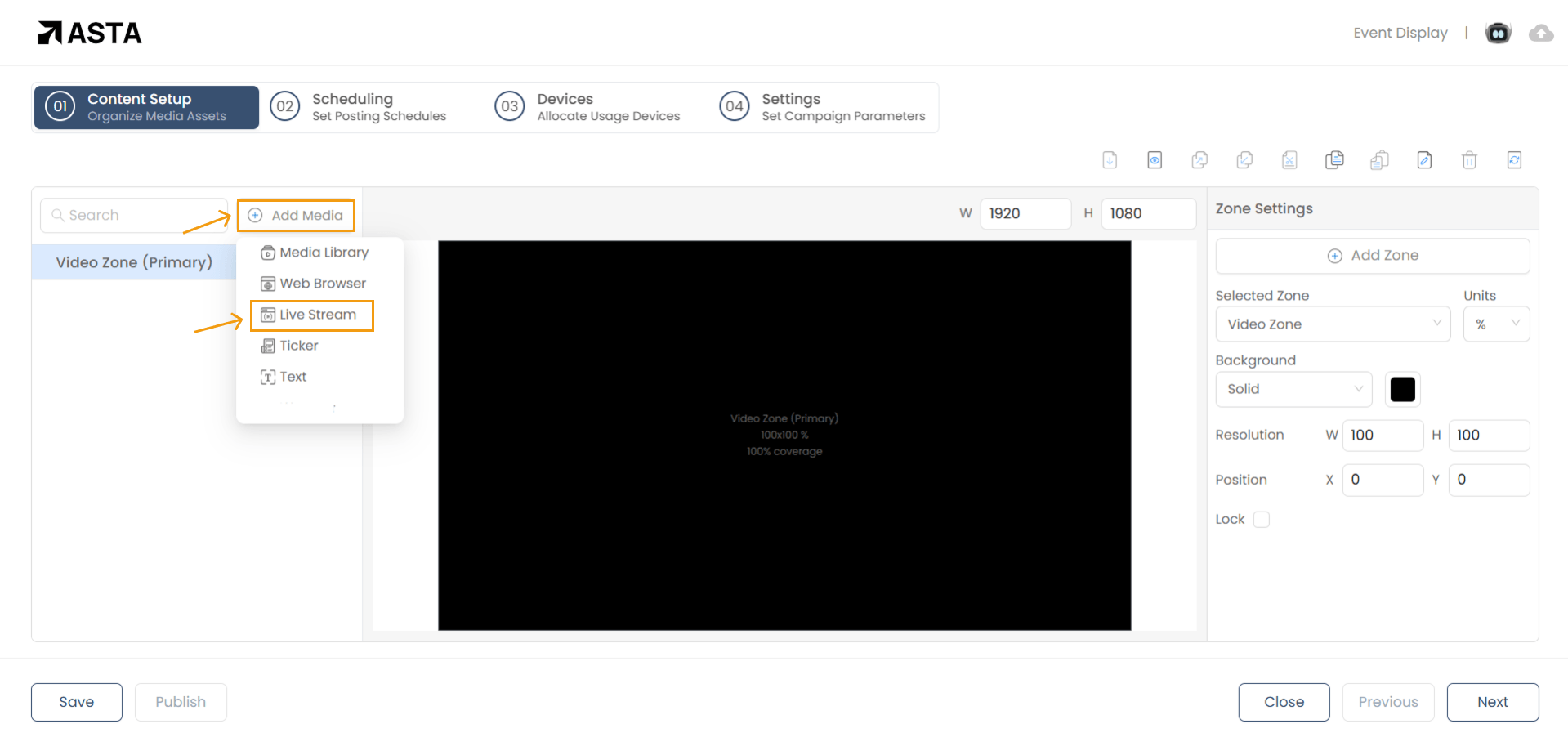
- Click on "Add Media" and select Live Stream from the dropdown menu.
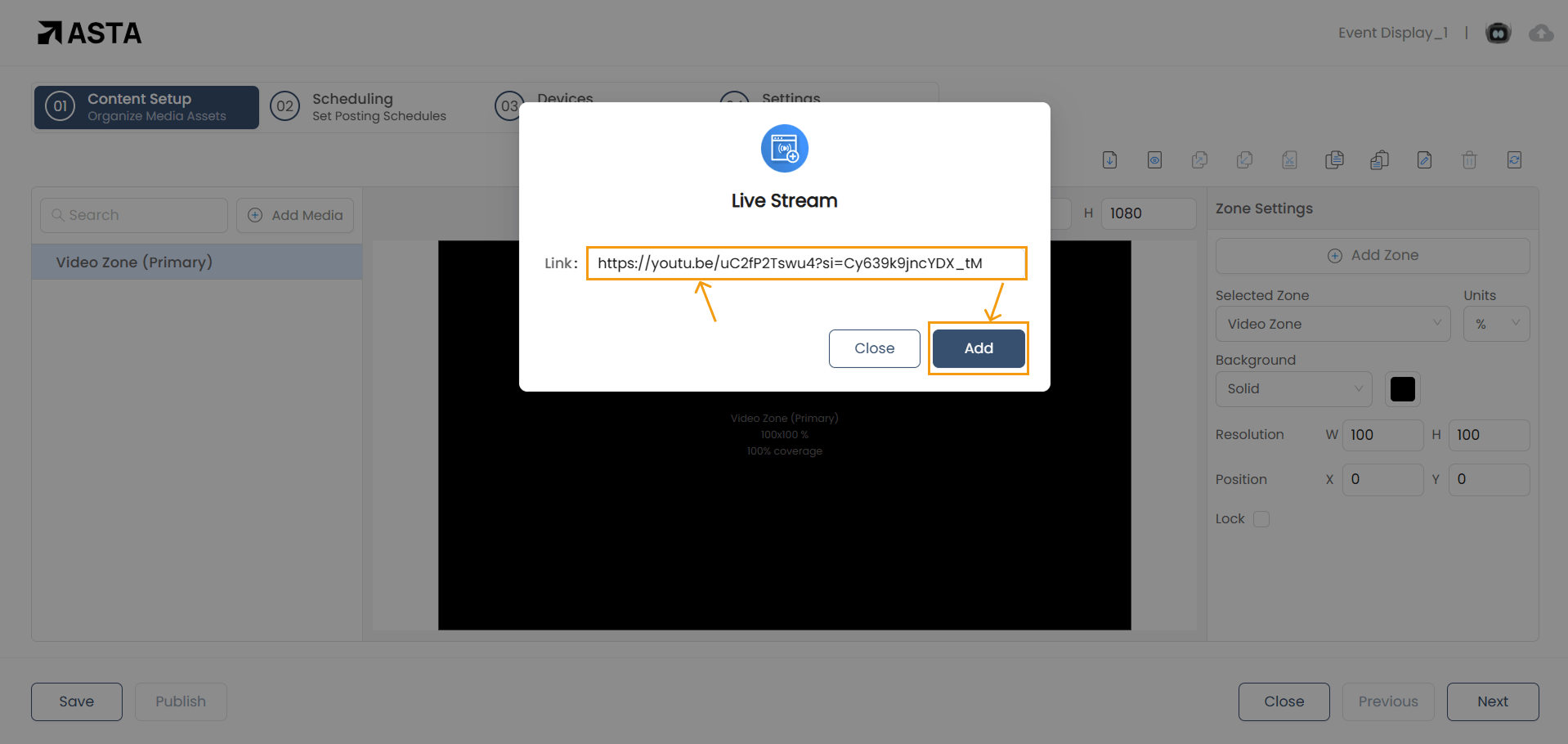
- Enter the URL of the YouTube link you want to add.
- Click Add to finalize the process.
Before you begin adding the Live stream, make sure you’ve opened a campaign. If you don’t have a campaign yet, click here to learn how to create one.
Note: A campaign supports only one YouTube video at a time
To add a YouTube video to your campaign, follow these simple steps:
Your live stream is now successfully added!
Note: Asta supports two types of links that can be integrated into campaigns:
- YouTube Links – For playing videos directly from YouTube, such as company videos from the official YouTube channel, product showcases, and promotional content to enhance audience engagement.
- Cloud-Stored Media Links – For streaming videos seamlessly within campaigns. For example, Amazon S3 allows direct video hosting, ensuring smooth playback without relying on third-party platforms.
These links can be added as needed to enrich campaign content. However, platform-dependent links (such as Twitch, TikTok, DailyMotion, and Facebook ,etc) are not supported. These platforms impose restrictions or require proprietary players, preventing direct integration into campaigns. To ensure compatibility, only supported link types should be used.
Adjust Playback Settings
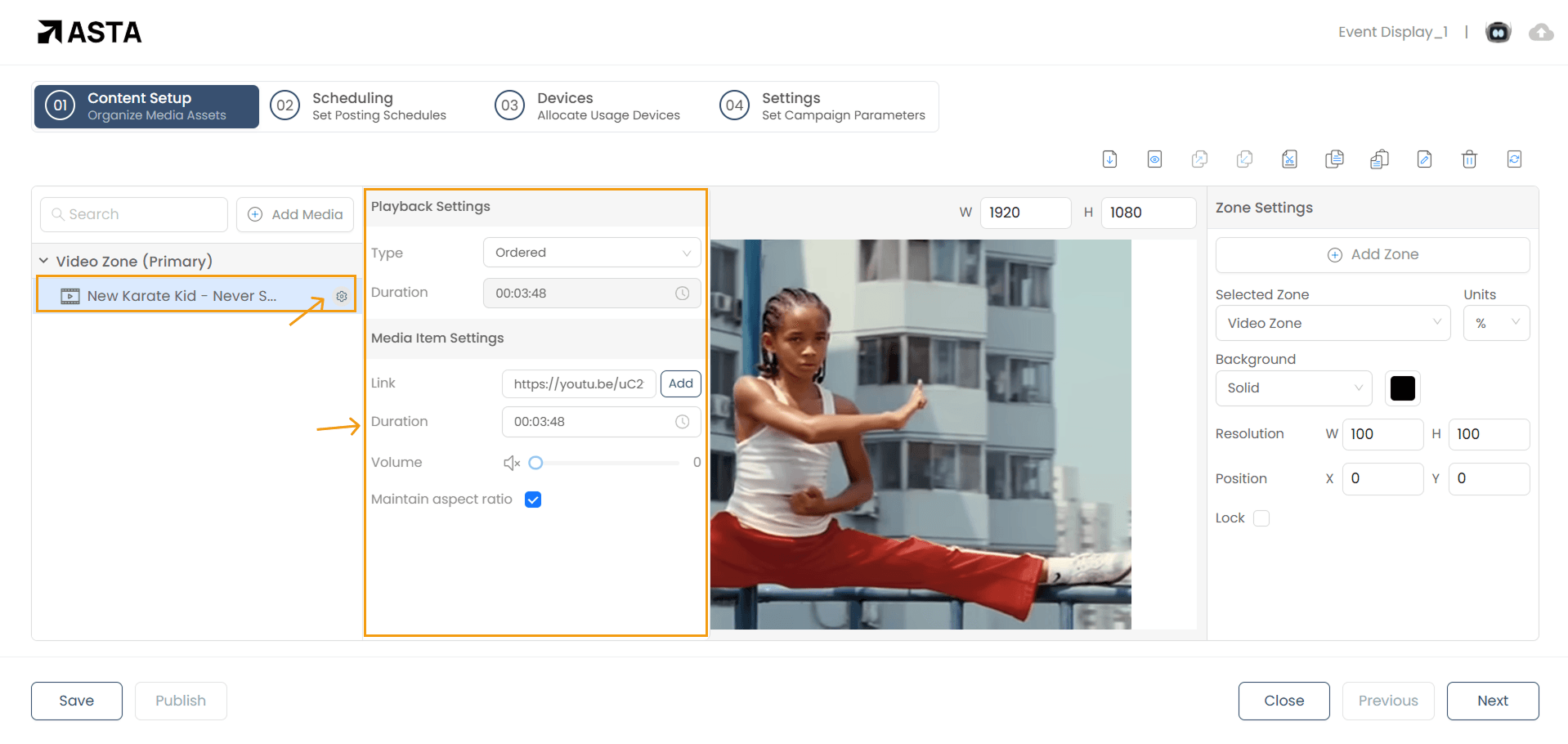
To modify the live stream settings, click the Settings Icon next to the added live stream. The following options are available:
- Link: Update the live stream URL if needed.
- Duration: Define how long the live stream should play within the campaign.
- Volume: Adjust the audio level from mute to maximum.
- Aspect Ratio: Toggle this option to maintain the original proportions of the video.
Conclusion
That’s it! Your YouTube live stream is now part of your campaign. Need more help? Watch our video tutorial.