
Welcome To Asta

Getting Started
Set-up guide
Platform Capabilities
Dashboard
Campaigns
Media Library
Device Management
Commands Management
Content Management
Add & Manage Media in Asta
Customize Your Media Experience
User & Role Management
Users
Roles & Permissions
Account Settings
Project Management
Projects Overview
Navigating the Project Dropdown Menu
Customization & Branding
Rebranding the Asta Application
Licensing & Legal
Licenses
Domain Quota
Adding Media Files from the Media Library
Easily add media items from the Media Library to your campaigns. Follow these quick steps to integrate and customize your media.
How to Add Media
Create a CampaignIf you don’t have a campaign yet, click here to learn how to create one.
Add Media from the Library
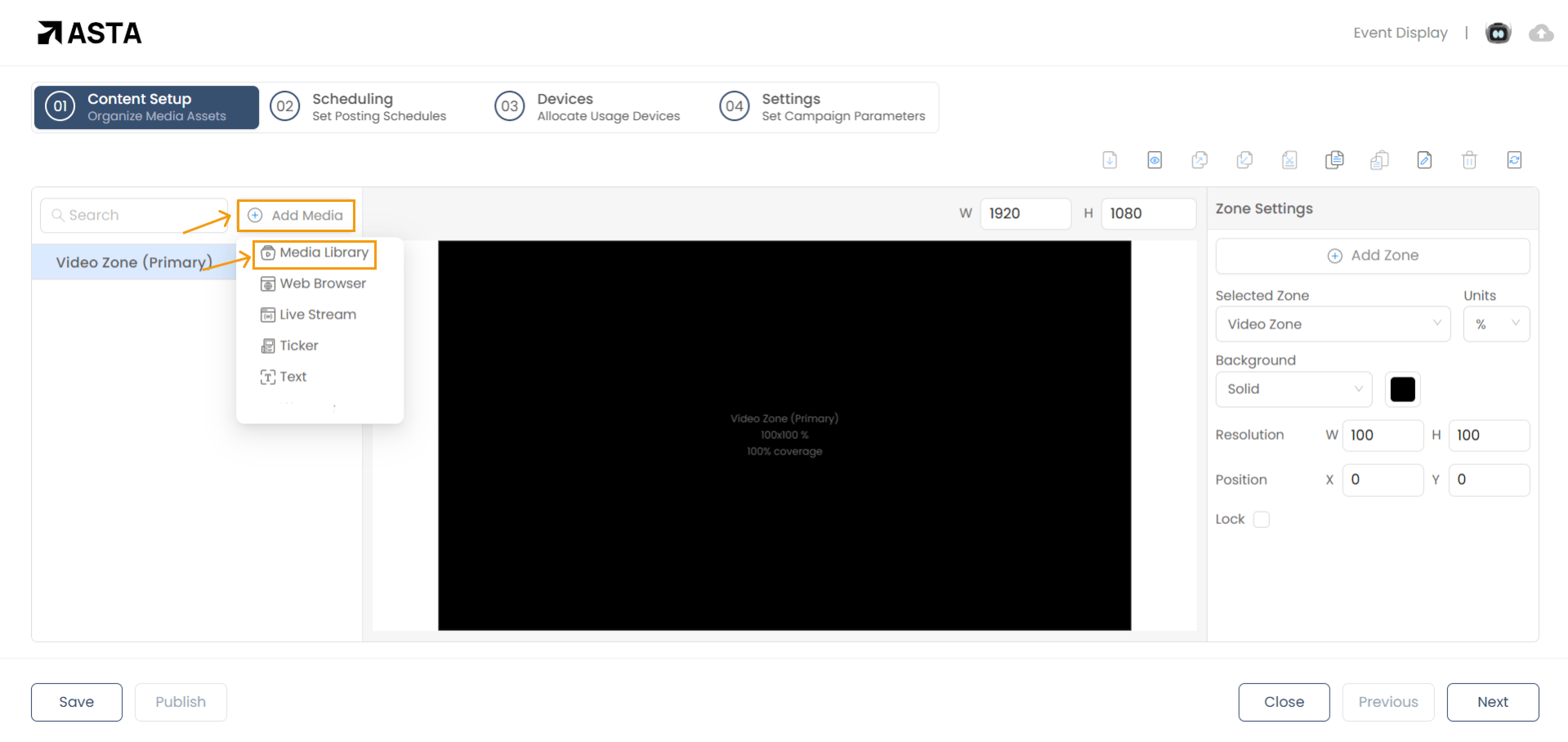
To add images or videos from the Media Library, follow these steps:
- Click on "Add Media" and select Media Library from the dropdown menu.
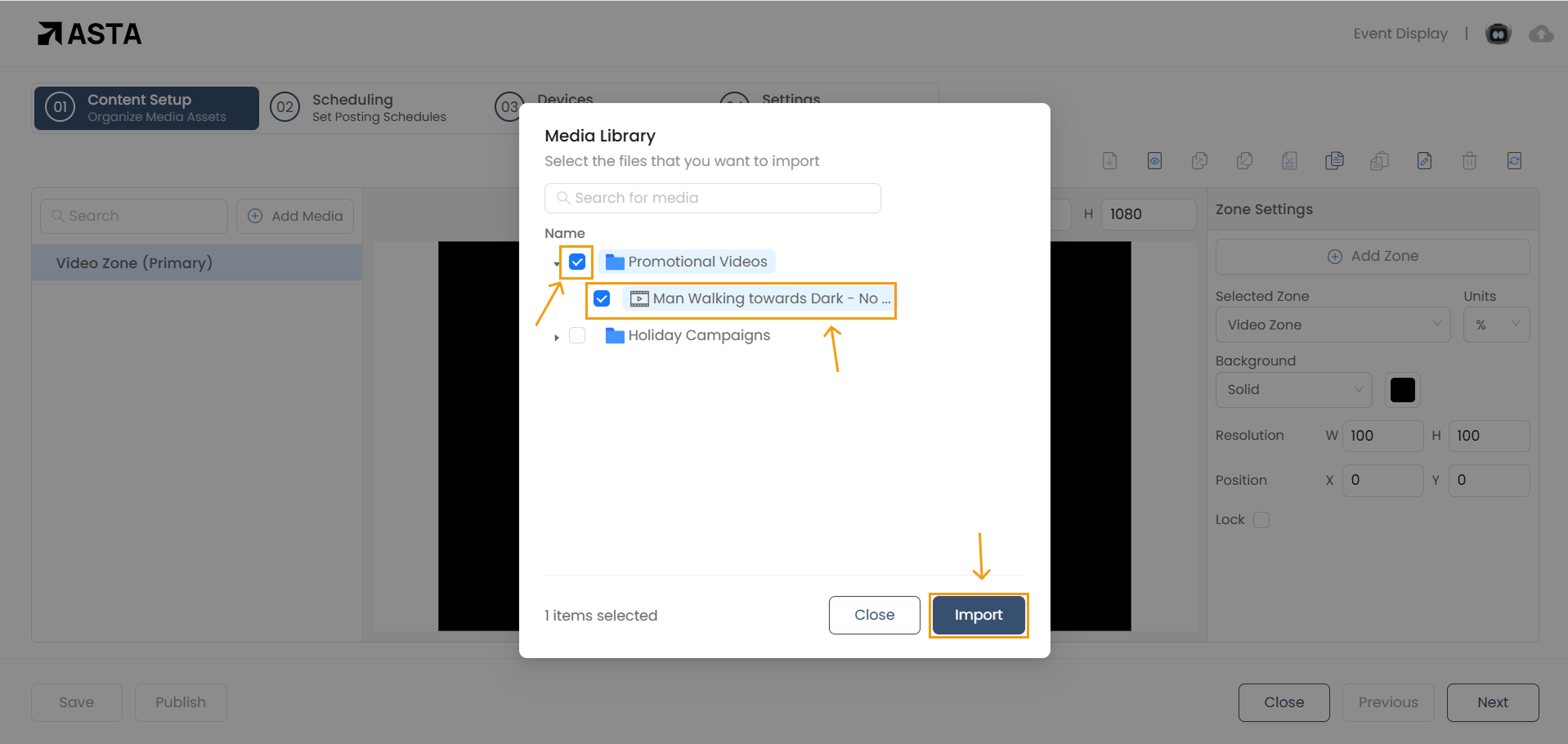
- Browse or search for the media file you want to add.
- Select the file and click import.
Your media item is now successfully added!
Adjust Media Settings
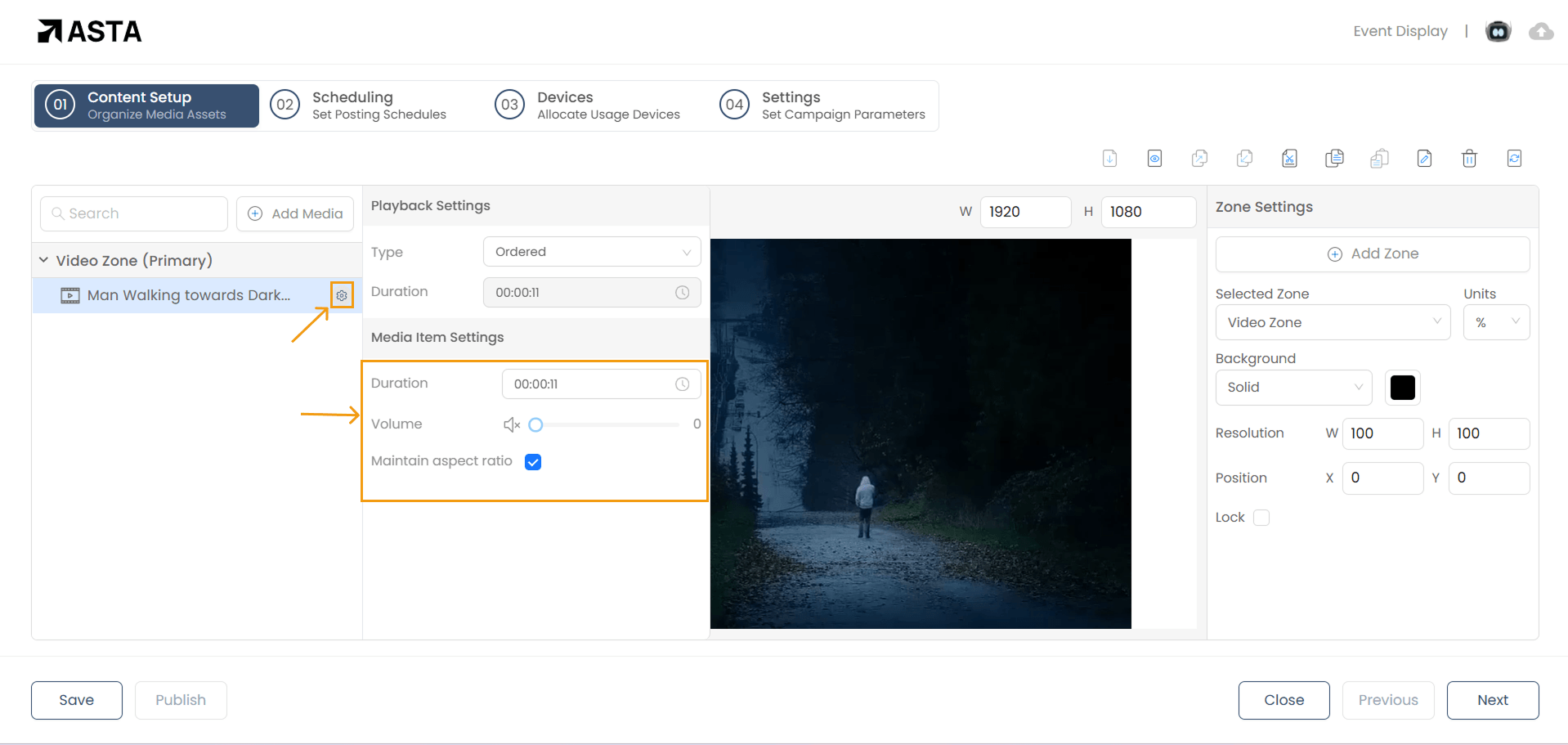
To modify the media settings, click the Settings Icon next to the uploaded file. The following options are available:
- Duration: Define how long the media should play.
- Volume: Adjust the audio level for videos.
- Aspect Ratio: Toggle this option to maintain the original proportions of the media.
That’s it ! Your Media Files are now part of your campaign. Need more help? Watch this video .