
Welcome To Asta

Getting Started
Platform Capabilities
Content Management
User & Role Management
Project Management
Customization & Branding
Licensing & Legal
Adding Text to Campaign
Follow this guide to add and customize text content in your Asta campaigns. These simple steps help to integrate and personalize your text.
How to Add Text
To add text to your campaign, follow these easy steps:
- Click on "Add Media" and select Text from the dropdown menu
- Enter your desired content in the text editor.
- Click Add to finalize the process
Your text is now successfully added!
Text Settings
To modify the text settings, click the Settings Icon next to the text zone. The following options are available:
- Resolution (Width and Height):
- Width (W): Set the width of the text zone.
- Height (H): Set the height of the text zone.
- Position:
- X (Horizontal Position)
- Y (Vertical Position)
- Font Settings:
- Font Size: Set the size of the text (e.g., 12).
- Font Weight: Choose Bold or Normal.
- Font Style: Use Italic for italicized text.
- Font Color: Choose the color of the text
- Alignment:
- Left, Center, or Right.
- Angle:
- Rotate the text by specifying an angle.
- Drop Shadow:
- Enable or disable a drop shadow effect on the text.
- Paragraph Spacing:
- Adjust the space between paragraphs.
- Letter Spacing:
- Control the spacing between individual letters.
AI Text Optimization
Once your text is in place, the magic wand icon in the bottom-right corner gives you a set of AI-powered options to help shape your message for the screen.
Text written for general use doesn't always translate to a display. It can feel too long, uneven, or hard to scan at a glance. These options let you adjust quickly — without rewriting from scratch.
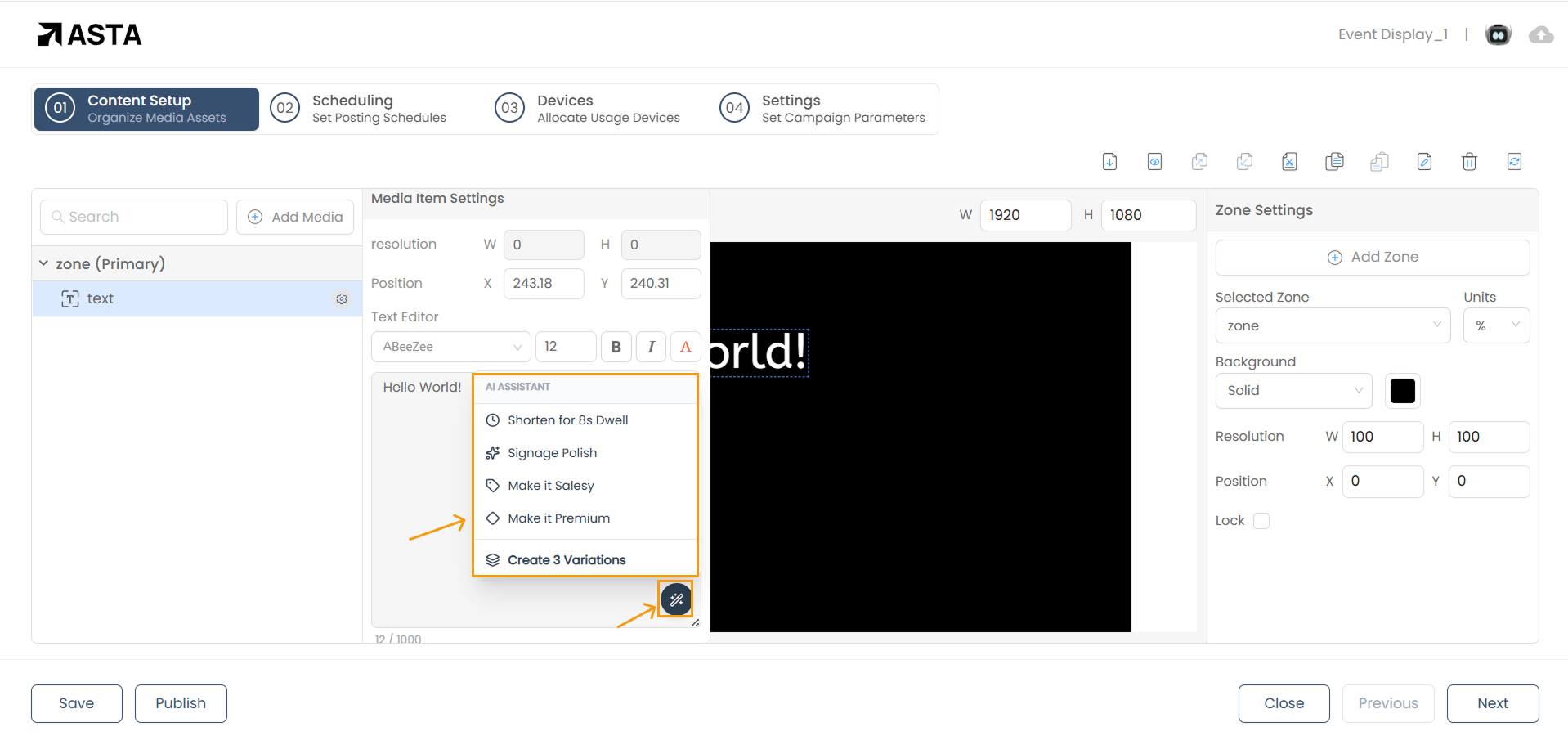
- Shorten (8s Dwell): Tightens the message to read within a typical 8-second view
- Signage Polish: Smooths wording and improves overall clarity
- Make it Salesy: Shifts the tone to something more action-driven
- Make it Premium: Refines the tone for a more elevated feel
- Create 3 Variations : Generates three different takes on your message. Slide between them to preview each one, then hit Replace to apply whichever fits best — or Recreate to get a fresh set of three.
The AI works with what you've written — it won't add information or change your meaning. Key details like prices, offers, or conditions are carried through; only the structure and tone are adjusted.
You can always keep your original. If the suggestion doesn't fit, simply dismiss it.
Conclusion
That’s it! Your text is now part of your campaign. Need more help? Watch our video tutorial.