
Welcome To Asta

Getting Started
Platform Capabilities
Content Management
User & Role Management
Project Management
Customization & Branding
Licensing & Legal
Adding a Ticker to Campaign
Before you begin setting up a ticker, make sure you’ve created a campaign. If you need help with that, check out the Campaign Creation Documentation.
Once your campaign is ready, let's dive into adding and configuring your ticker!
Adding a Ticker
To add a ticker to your campaign, follow these easy steps:
Go to the Campaign Content Setup page: This is where you can manage everything related to your campaign's media.
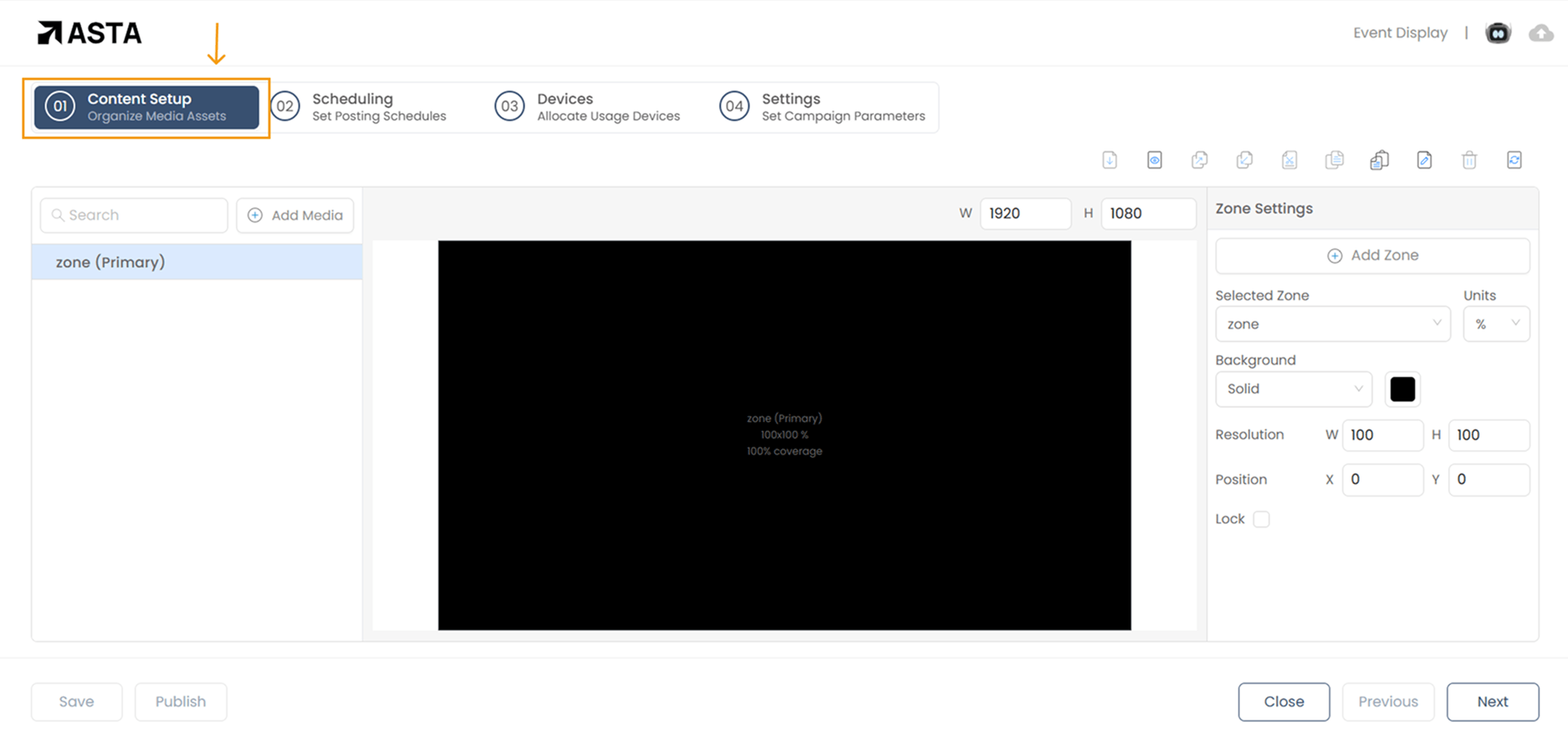
Click on "Add Media" and select "Ticker" from the dropdown menu to open the ticker settings.
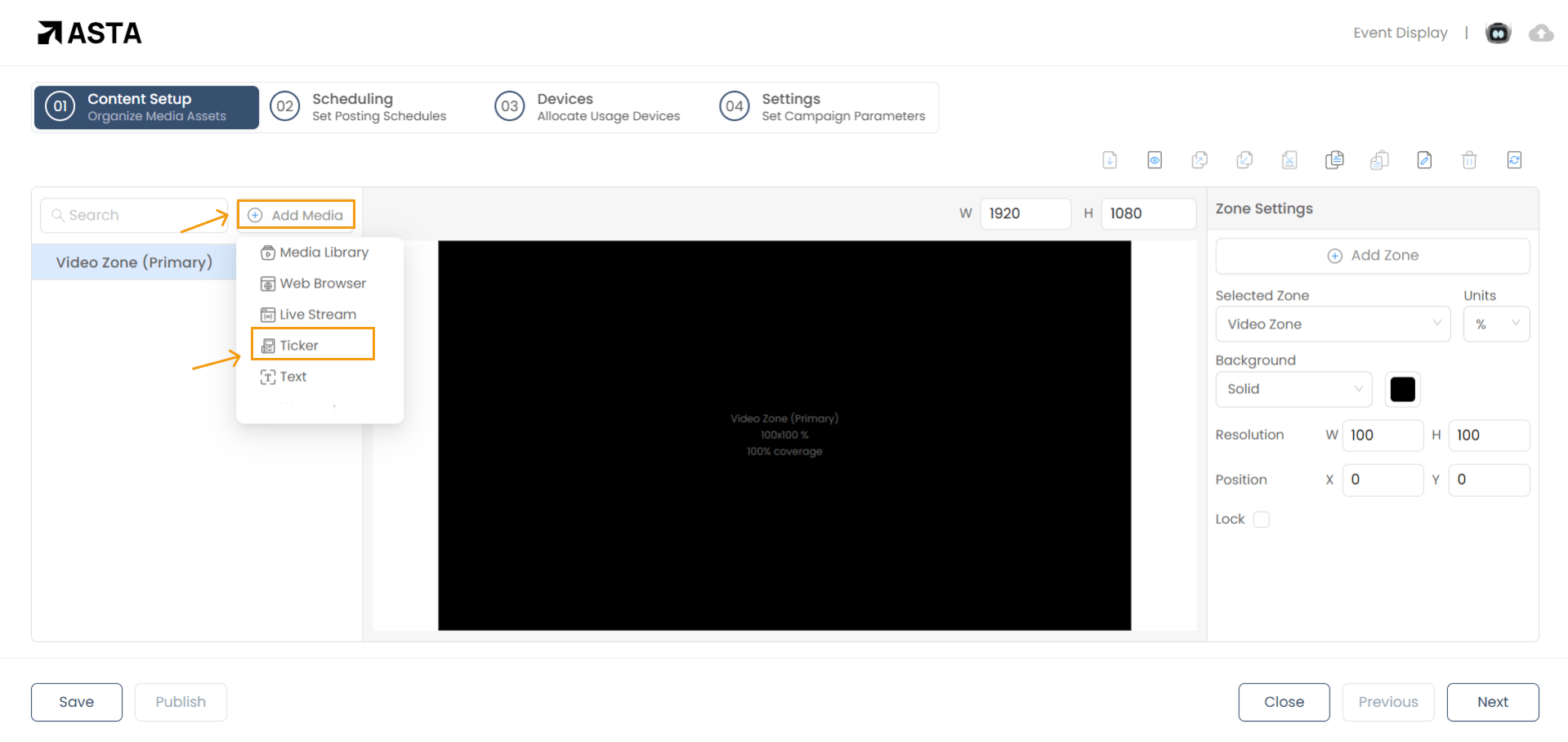
Name your ticker and click "Add" to create it
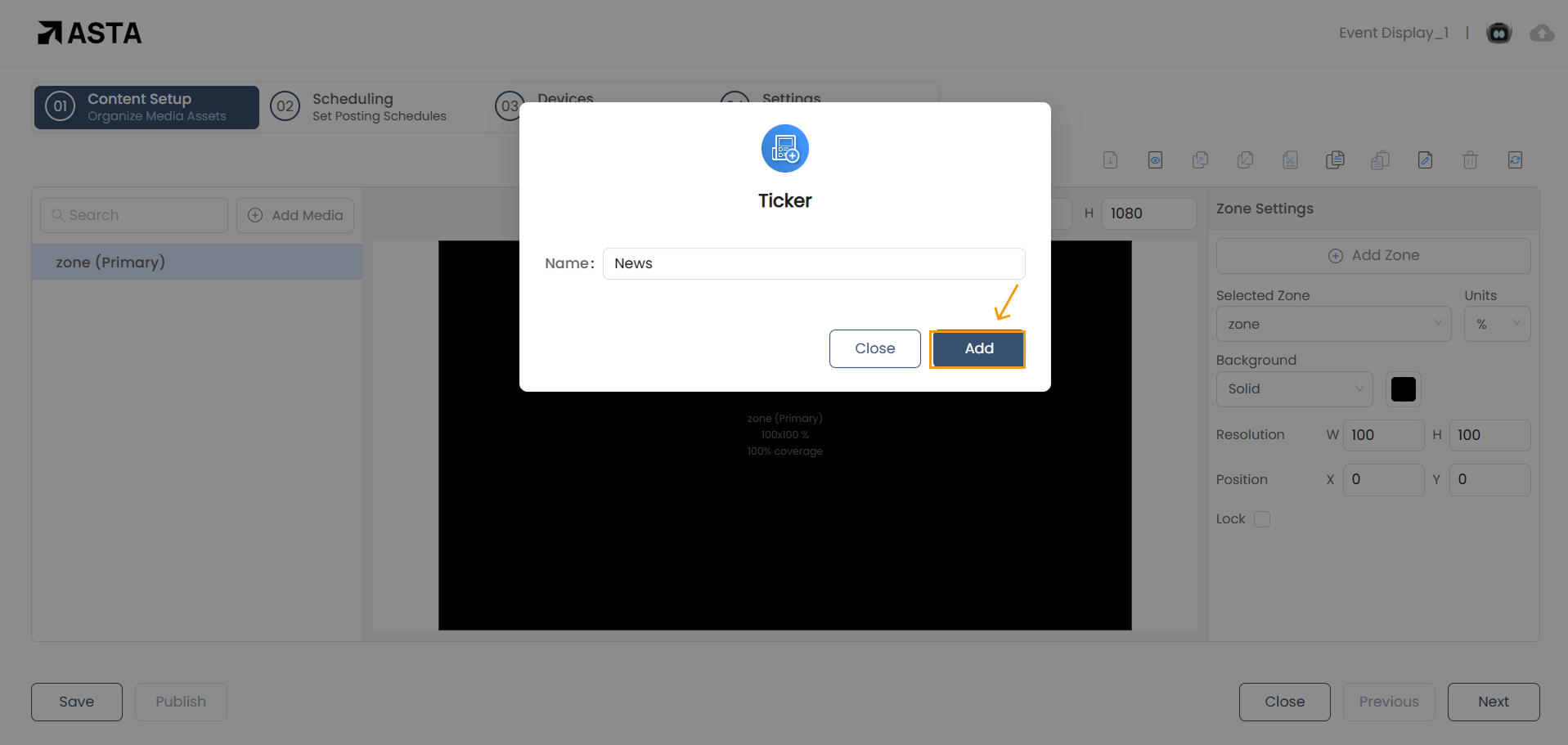
Difference Between Static and Automatic Ticker
A Static Ticker is best for displaying content that doesn’t change frequently. You manually enter the text, and it stays the same until you update it. This is ideal for fixed messages like event schedules, promotions, or announcements. For example, if you're running a conference and want to display a fixed schedule, a Static Ticker is perfect as it won’t need constant updates.
On the other hand, an Automatic Ticker pulls live content from an RSS feed and updates automatically. It’s ideal for displaying real-time information like news, stock prices, or live scores. For instance, a sports event campaign can use an Automatic Ticker to show live game scores, automatically updating as the game progresses. Choose a Static Ticker for fixed content and an Automatic Ticker when you need live, constantly updated information.
What Are the Settings You Can Configure for the Static Ticker?
The Static Ticker is ideal for displaying fixed content. Here are the settings you can configure:
- Resolution (Width and Height)
- Width : 1920px
- Height: 270px
- Position:
- X (Horizontal Position)
- Y (Vertical Position)
- Font Size and Weight:
- Title: You can change the size and the weight the font type font colour or make it italic.
- Description: You can change the size and the weight the font type font colour or make it italic.
- Date: You can change the size and the weight the font type font colour or make it italic.
- Background Color: Choose a background color for the ticker.
- Scroll Speed: Adjust how fast the ticker moves.
- Item Display Duration: Set how long each ticker item stays visible.
- Fixed Title: Keep the title fixed while the content scrolls.
- Drop Shadow: Add a shadow effect for better visibility.
- Scroll Direction: Set the ticker to scroll Left to Right.
- Alignment: Choose where to align the ticker (Top, Center, or Bottom).
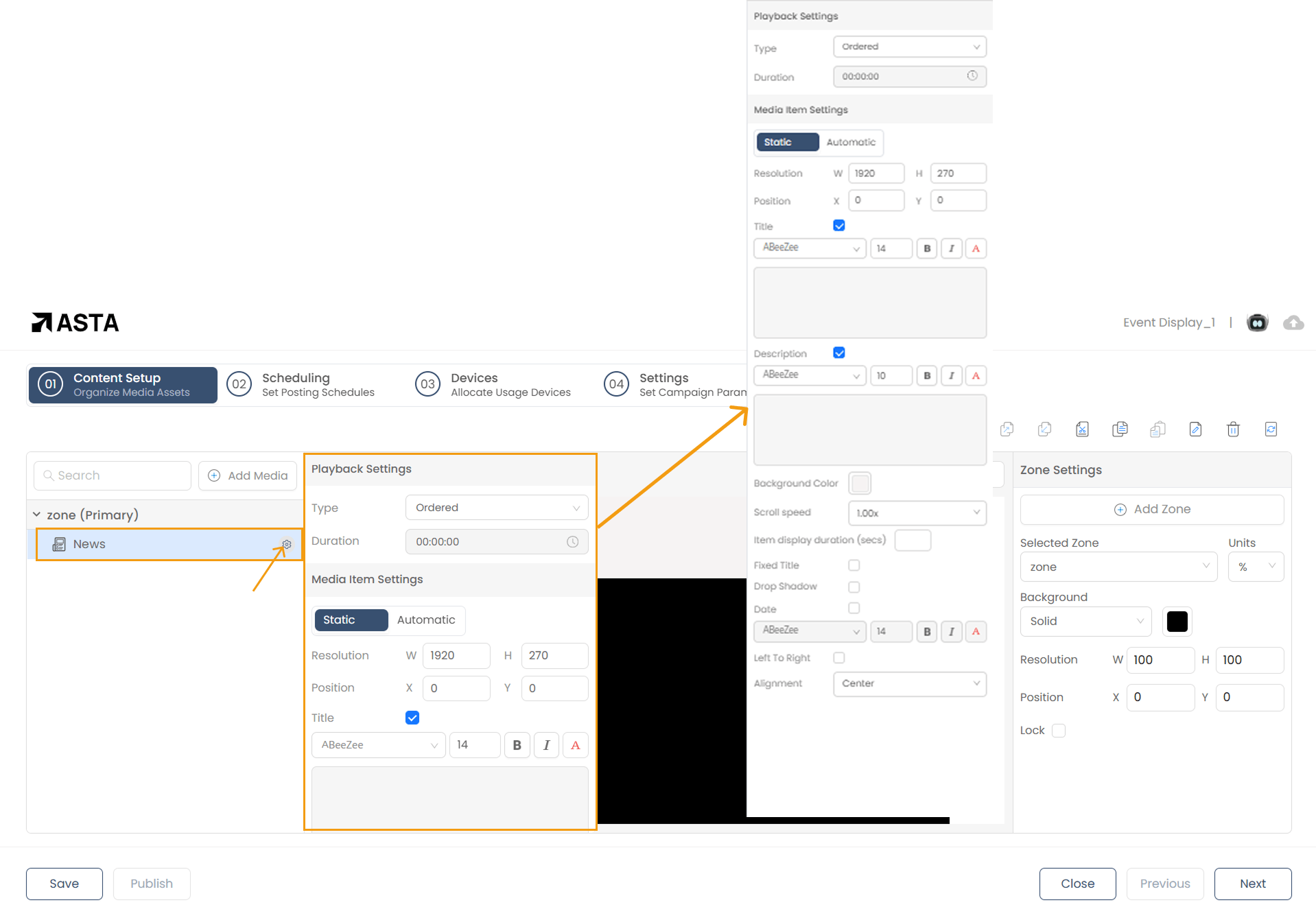
What Are the Settings You Can Configure for the Automatic Ticker?
The Automatic Ticker is ideal for displaying real-time information like news, stock prices, or live scores. Here are the settings you can configure:
- Resolution (Width and Height)
- Width: 1920px
- Height: 270px
- Position:
- X (Horizontal Position)
- Y (Vertical Position)
- Font Size and Weight:
- Title: You can change the size and the weight the font type font colour or make it italic
- Description: You can change the size and the weight the font type font colour or make it italic
- Date: You can change the size and the weight the font type font colour or make it italic
- Background Color: Choose a background color for the ticker.
- Link: Enter the RSS Feed URL to fetch live content.
- Scroll Speed: Adjust how fast the ticker moves.
- Item Display Duration: Set how long each ticker item stays visible
- Fixed Title: Keep the title fixed while the content scrolls.
- Drop Shadow: Add a shadow effect for better visibility.
- Scroll Direction: Set the ticker to scroll Left to Right.
- Ticker Logo Image: If you want to display the ticker logo along with the ticker content, you should enable it.
- Alignment: Choose where to align the ticker (Top, Center, or Bottom)
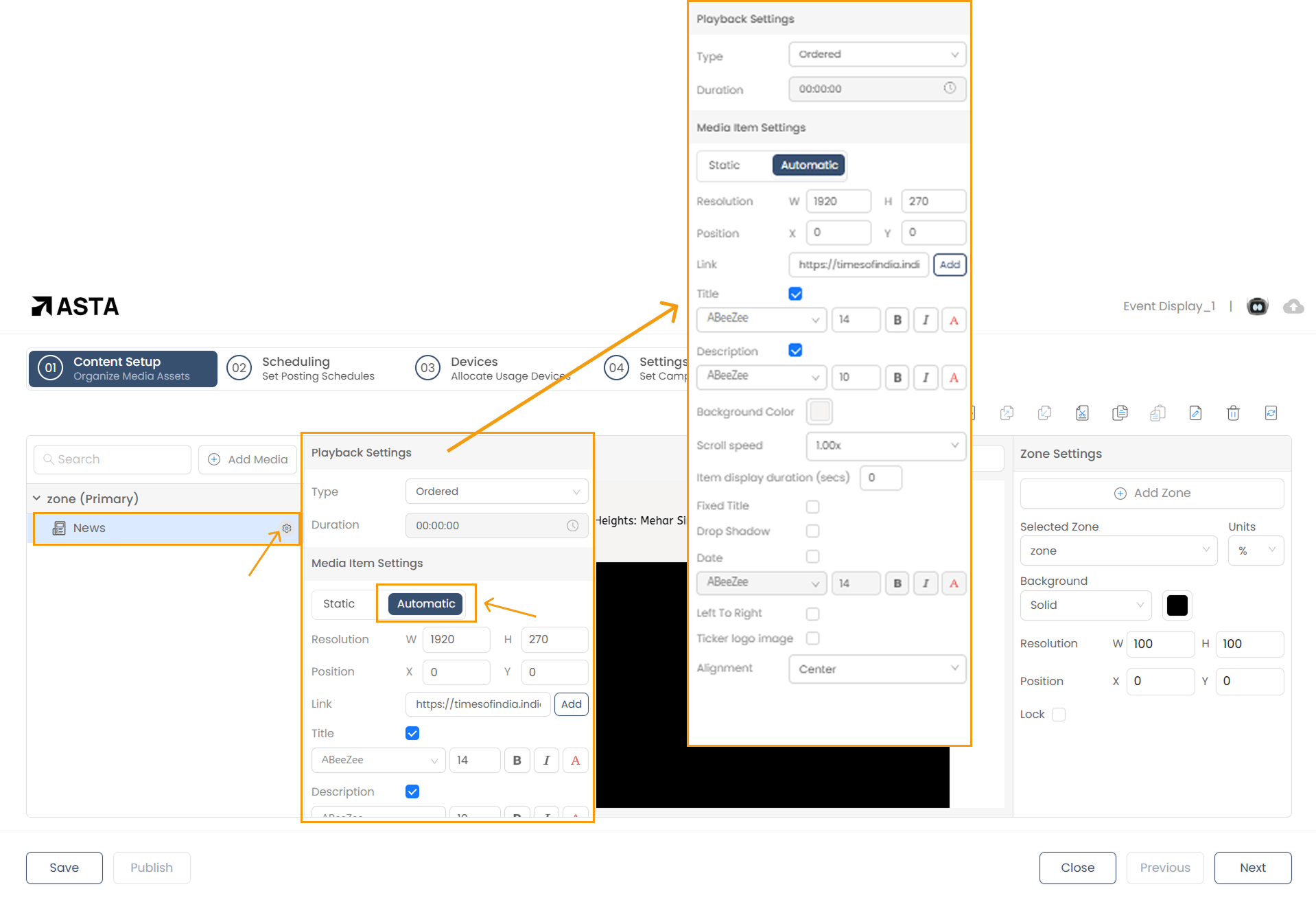
How to Add an RSS Feed Link to Your Campaign
Go to the Campaign Content Setup page and click "Add Media" > "Ticker" to open the ticker settings.
Name your ticker and click "Add" to create it.
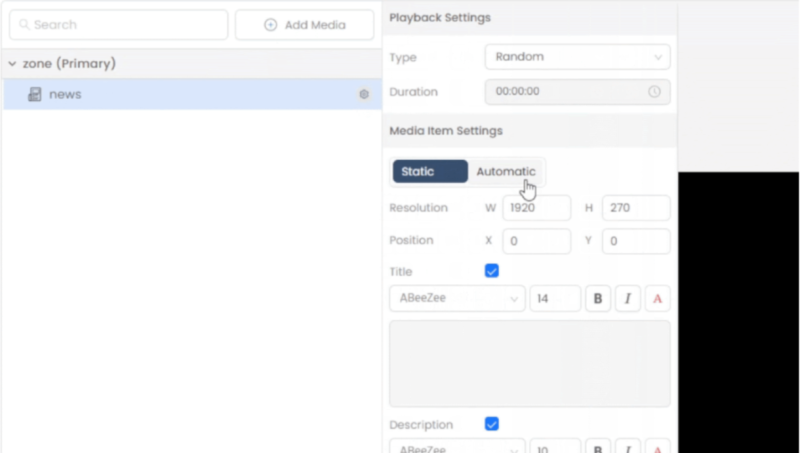
Go to the ticker settings and switch from Static to Automatic to convert to an Automatic Ticker.
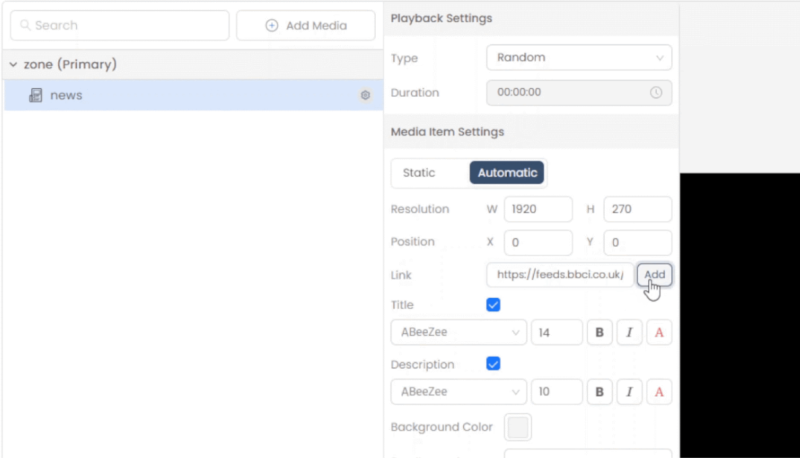
Paste the RSS feed URL in the Link field and click “Add” , this will add the RSS ticker to the campaign.
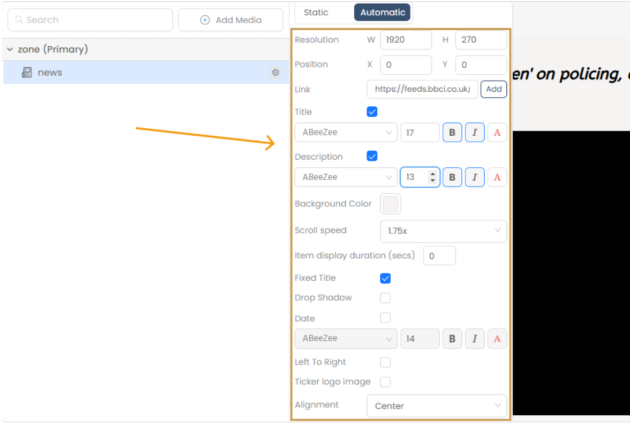
There are many settings you can tweak to personalize your ticker, similar to those available for the static ticker. Adjust them to match your campaign’s style.
Once you’ve set everything up, save your changes.
That’s it! Your Automatic Ticker is now part of your campaign.