
Welcome To Asta

Getting Started
Platform Capabilities
Content Management
User & Role Management
Project Management
Customization & Branding
Licensing & Legal
Adding Web Browser Content to Campaign
Introduction
You can easily integrate your web pages to the campaigns that are played in the campaigns.Web browser supports content such as websites or web applications. This guide provides step-by-step instructions for adding and customizing a webpage display
Add Web Browser Content
To add a webpage to your campaign, follow these simple steps:
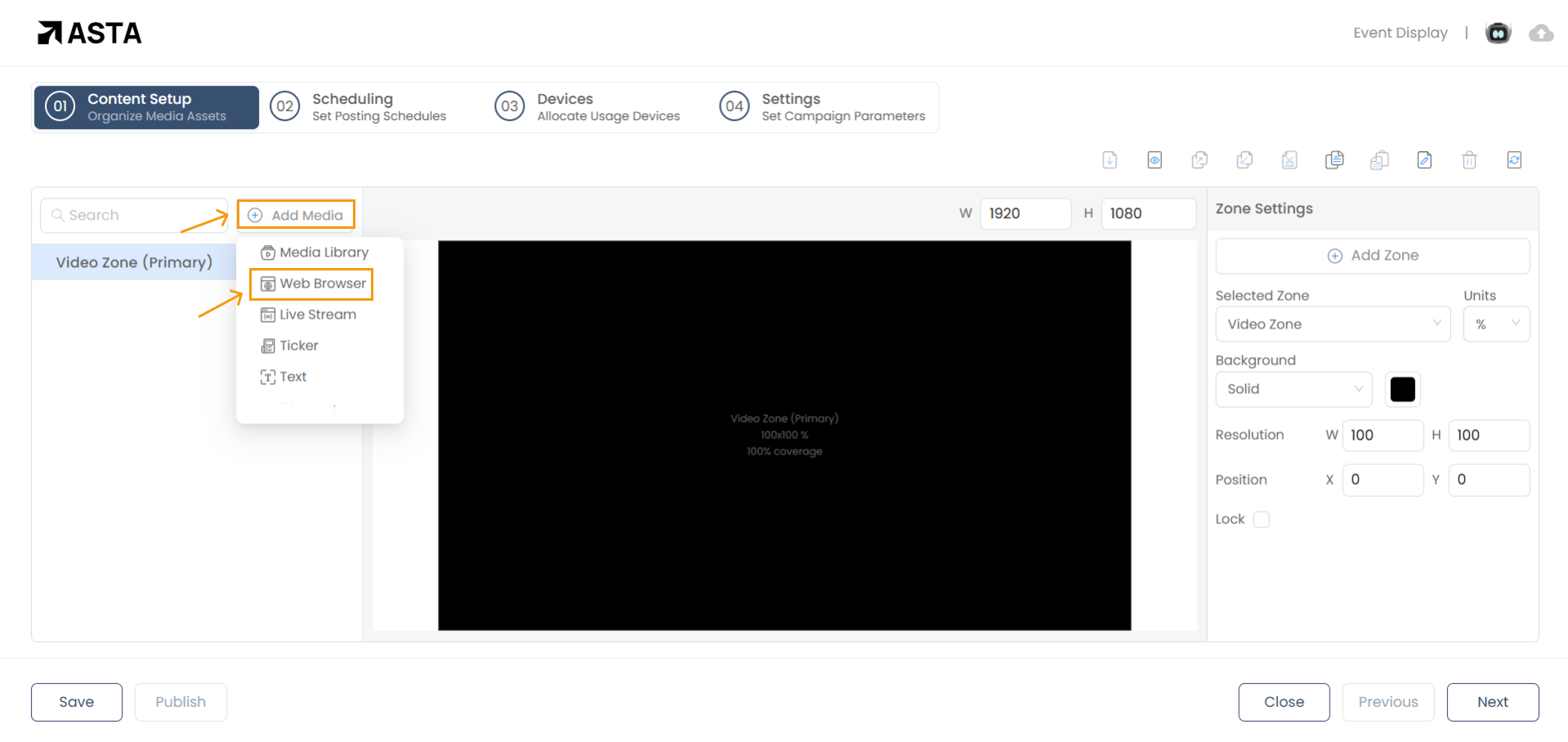
Click on "Add Media" and select Web Browser from the dropdown menu.
Enter the URL of the website you want to display, click Check Availability to verify if the webpage allows digital signage display, and then click Add to finalize the process.
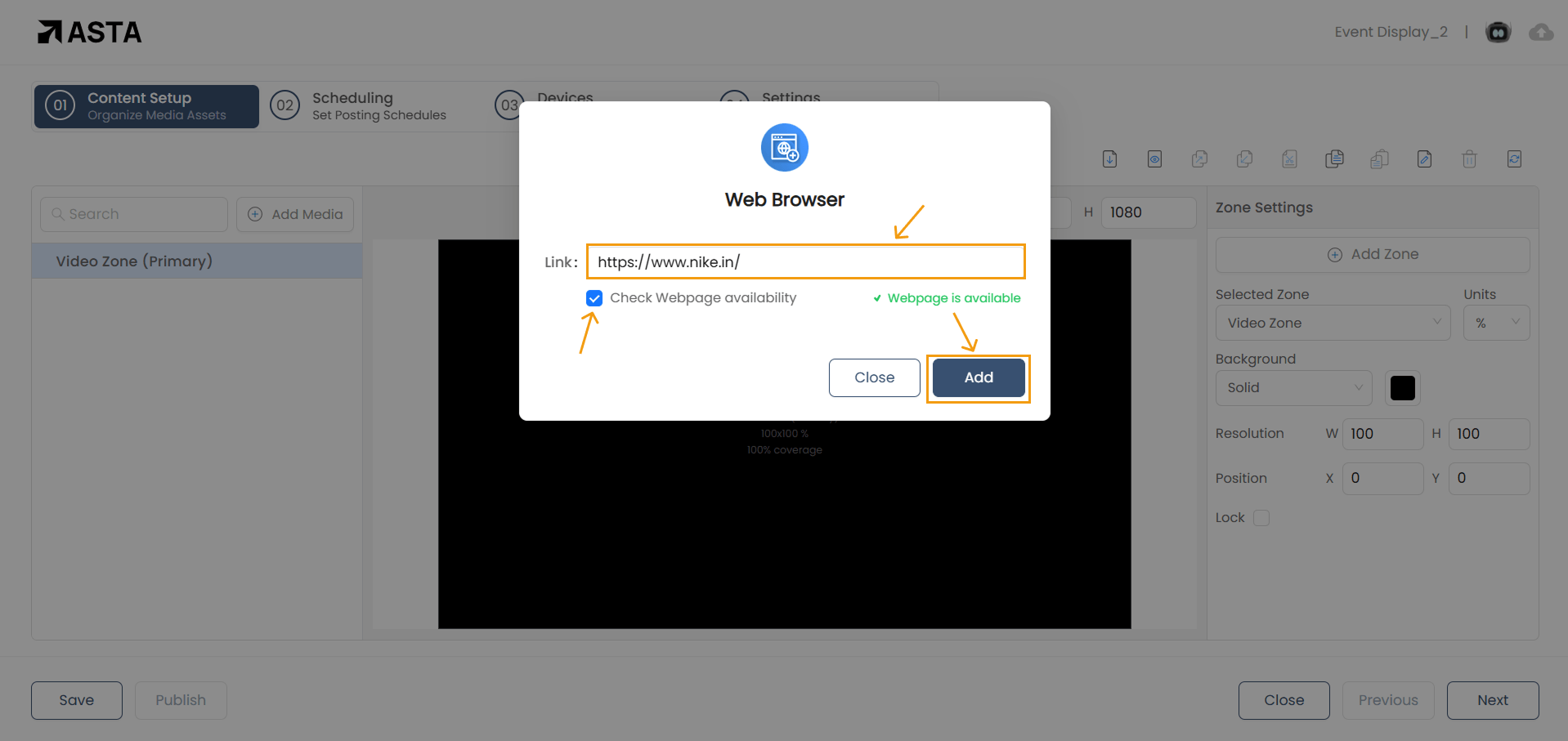
Your webpage is now successfully added!
Customizing Web Browser Settings
To modify the Web Browser settings, click the Settings Icon next to the Web Browser Media Item.
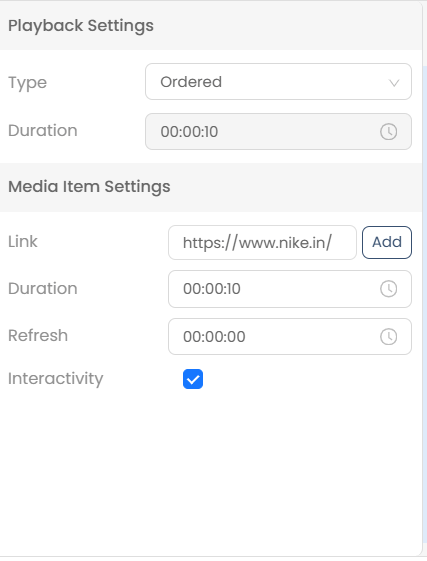
The following options are available to edit for the Web browser:
Link:- Enter or update the URL of the website.
- Example: https://www.wikipedia.org//
- Define how long the webpage will be displayed
- Example: 00:00:10 (10 seconds).
- Enable Interactivity if you want users to interact with webpage elements (e.g., buttons, forms).
That’s it! Your Web Browser is now part of your campaign. Need more help? Watch our video tutorial.