
Welcome To Asta

Getting Started
Platform Capabilities
Content Management
User & Role Management
Project Management
Customization & Branding
Licensing & Legal
Add a Watermark to the Campaign
A watermark is a semi-transparent image or text overlay that helps to protect media content from unauthorized use and lets the audience know that this is your content. Adding a watermark to a campaign ensures branding consistency and prevents unauthorized reproduction of content.
Even though Asta does not come with a built-in watermarking feature, you can use tools within Asta to achieve this effect. Let’s break it down step by step.
Follow these Simple Steps to Add a Watermark
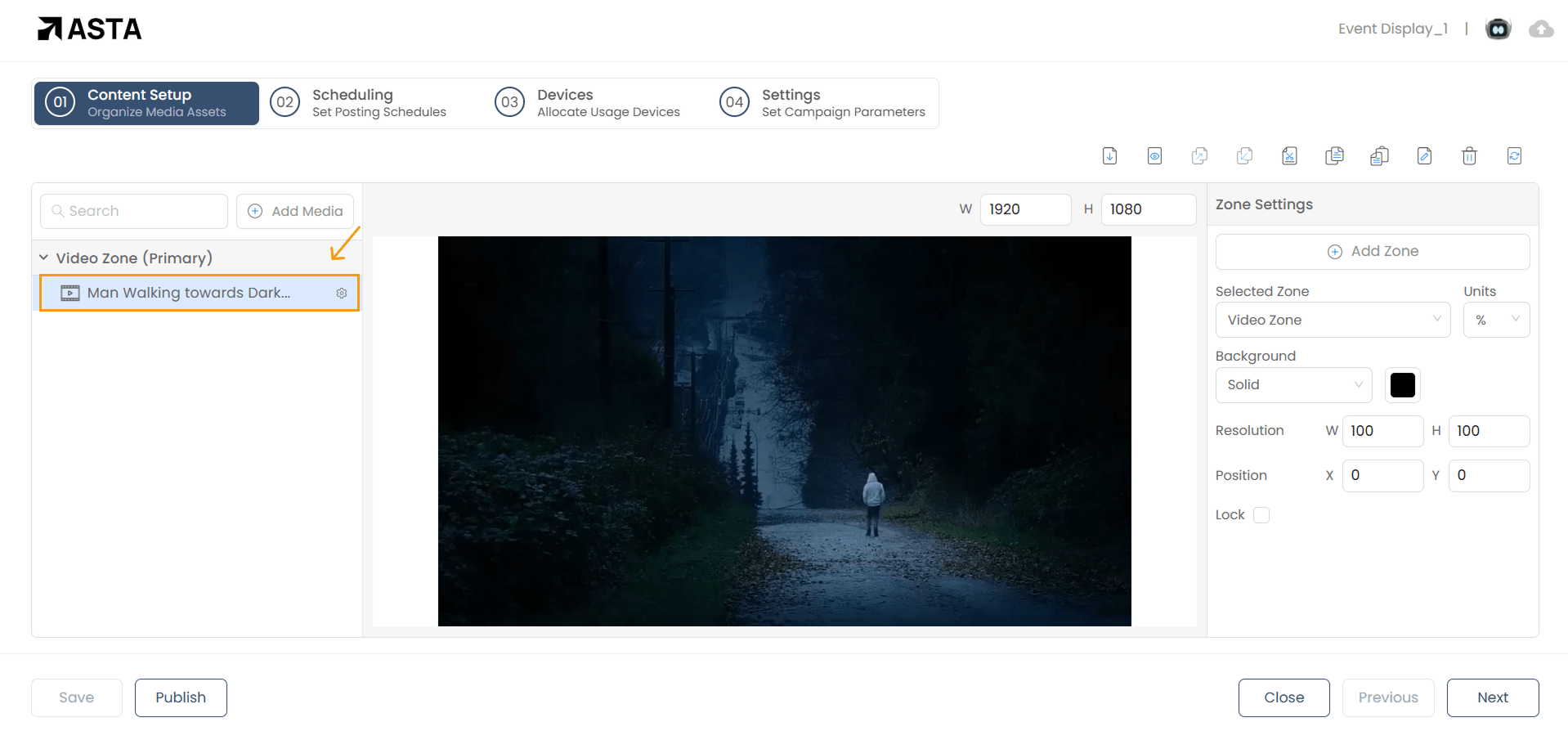
1. Have a Running Campaign
Ensure you have an active campaign where you want to add the watermark.
2. Add a Zone for the Watermark
Create a new Zone that will serve as your watermark.
3. Add Logo to the Zone
Add the logo image that has been uploaded to the Media Library to your campaign by selecting it from the Media library.
To upload a logo to the Media Library, you can follow this guide :
Link to uploading to media library .4. Adjust Transparency and Position
Reduce the transparency of the Zone so the watermark does not overpower the content.
5. Save and Preview
Once positioned correctly, save your settings and preview to ensure it appears as intended.
And that’s it! You have successfully added a watermark to your campaign.