
Welcome To Asta

Getting Started
Set-up guide
Platform Capabilities
Dashboard
Campaigns
Media Library
Device Management
Commands Management
Content Management
Add & Manage Media in Asta
Customize Your Media Experience
User & Role Management
Users
Roles & Permissions
Account Settings
Project Management
Projects Overview
Navigating the Project Dropdown Menu
Customization & Branding
Rebranding the Asta Application
Licensing & Legal
Licenses
Domain Quota
Rebranding the Asta Application
Overview
The Control Panel in Asta allows you to manage various settings for your CMS application, with the primary feature being Rebranding. This functionality enables you to customize your Asta instance by uploading your brand’s logos in different sections.
How to Access the Control Panel
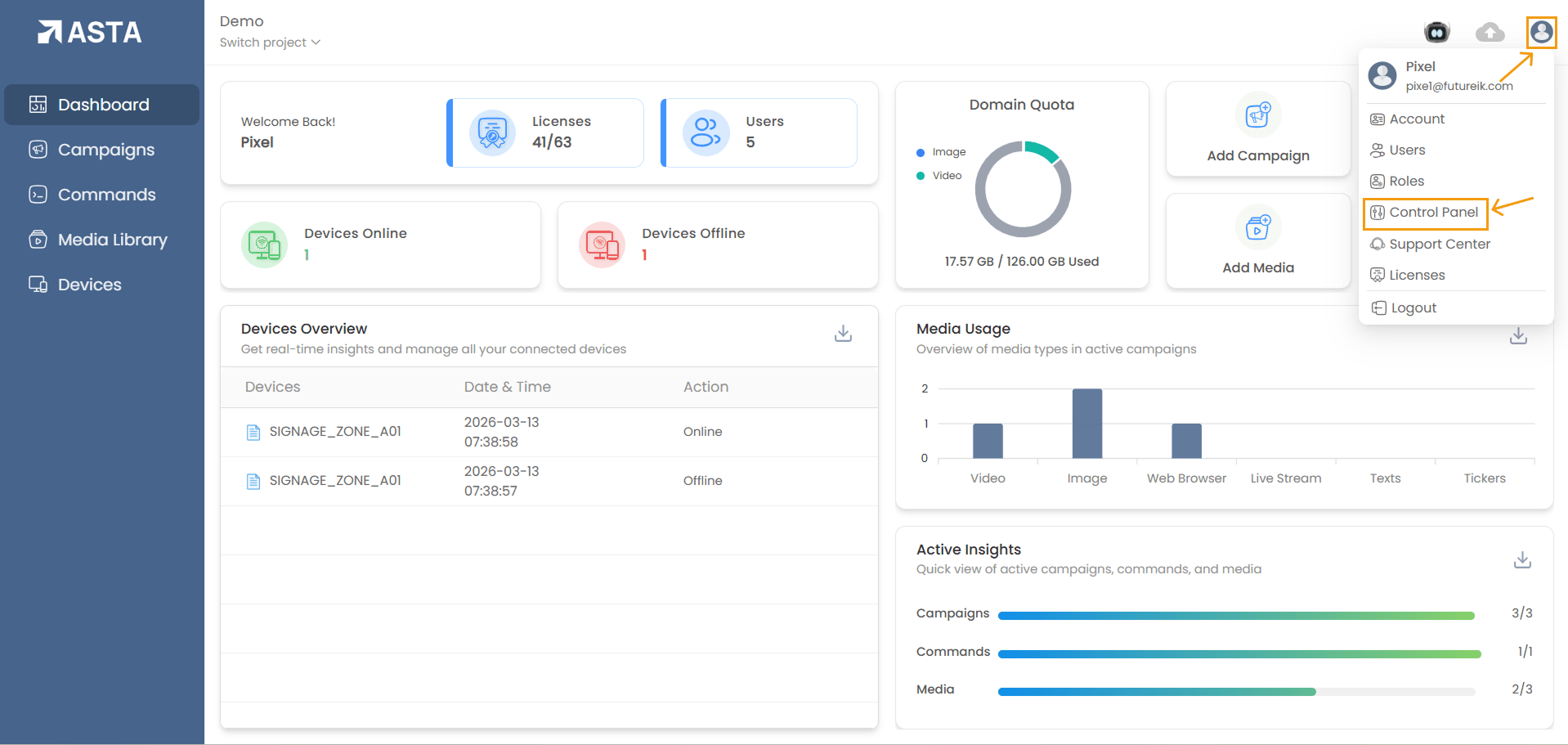
- Click on the profile icon (usually located in the top-right corner of the screen).
- From the dropdown menu, select Control Panel.
Available Rebranding Customization Options
- Primary Logo on CMS Dashboard
- Usage: The Primary Logo is shown in the top left corner of the fixed sidebar, so it stays visible on every page without appearing inside the page content.
- Ideal Use Case: Best for the official company logo or a custom brand representation.
- File Format: PNG, GIF, or SVG.
- File Size: Must be less than 2 MB.
- Recommended Dimensions: 1350x380px
- Secondary Logo on CMS Dashboard
- Usage: The Secondary Logo is used in specific sections as an alternate logo and is displayed inside the page content, such as within the campaign, device, command, and other similar sections.
- File Format: PNG, GIF, or SVG.
- File Size: Must be less than 2 MB.
- Recommended Dimensions: 1350x380px
- Splash Screen Logo on CMS Application
- Usage: The splash screen logo appears during the initial loading of the application and also shows up when the device is refreshed or restarted.
- File Format: PNG, GIF, or SVG.
- File Size: Must be less than 2 MB.
- Recommended Dimensions: 1350x380px
- Idle Page Logo on CMS Application
- Usage: This logo will be displayed on the application's idle screen after a device is paired.
- File Format: PNG, GIF, or SVG.
- File Size: Must be less than 2 MB.
- Recommended Dimensions: 1350x380px
- Hamburger menu Logo on CMS Application
- Usage: Appears inside the hamburger menu.
- File Format: PNG, GIF, or SVG.
- File Size: Must be less than 2 MB.
- Recommended Dimensions: 1350x380px
How to Rebrand Your Asta Application
Step 1: Select the Logo Type You Want to Change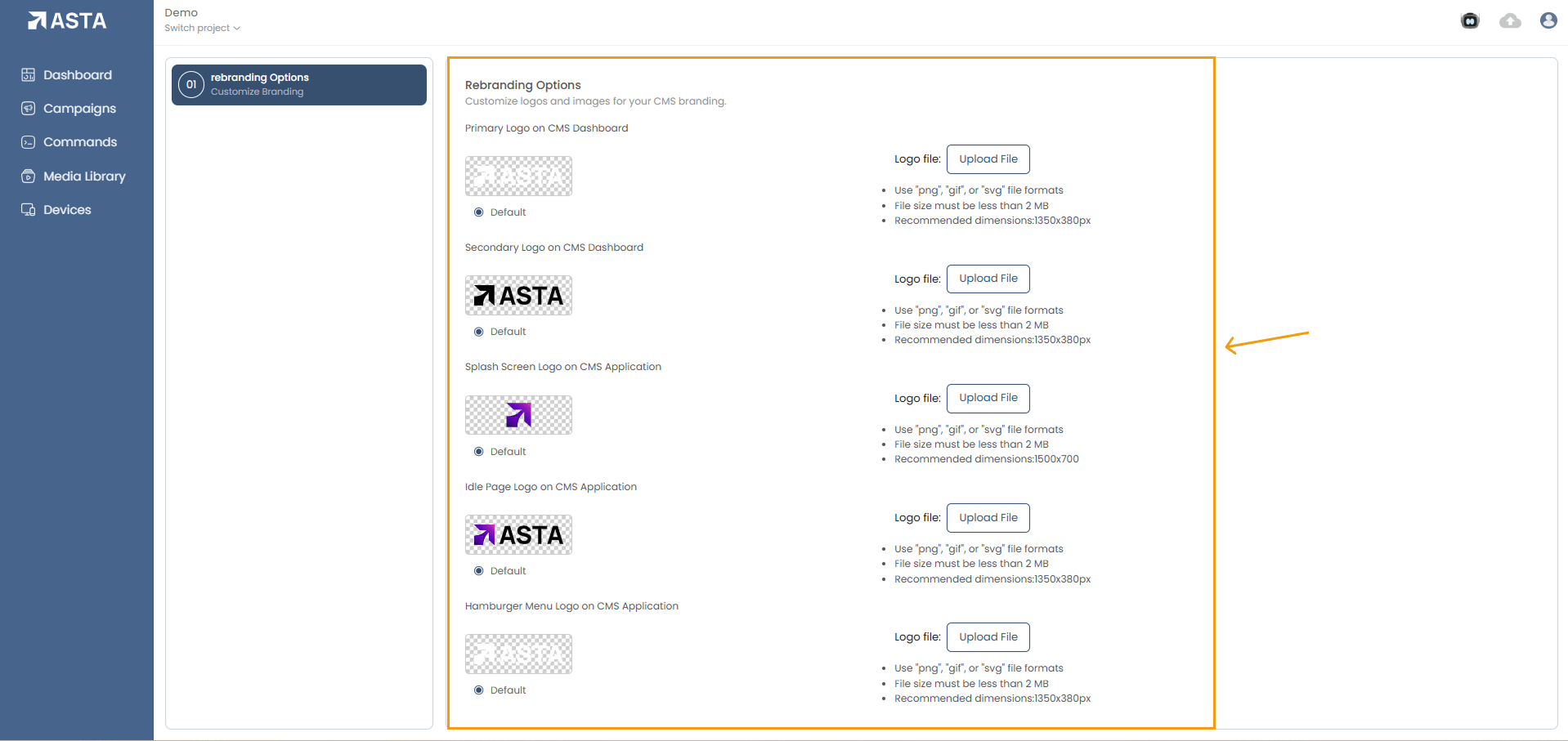
- Choose from Primary Logo, Secondary Logo, Splash Screen Logo, Idle Page Logo, or Hamburger Menu Logo.
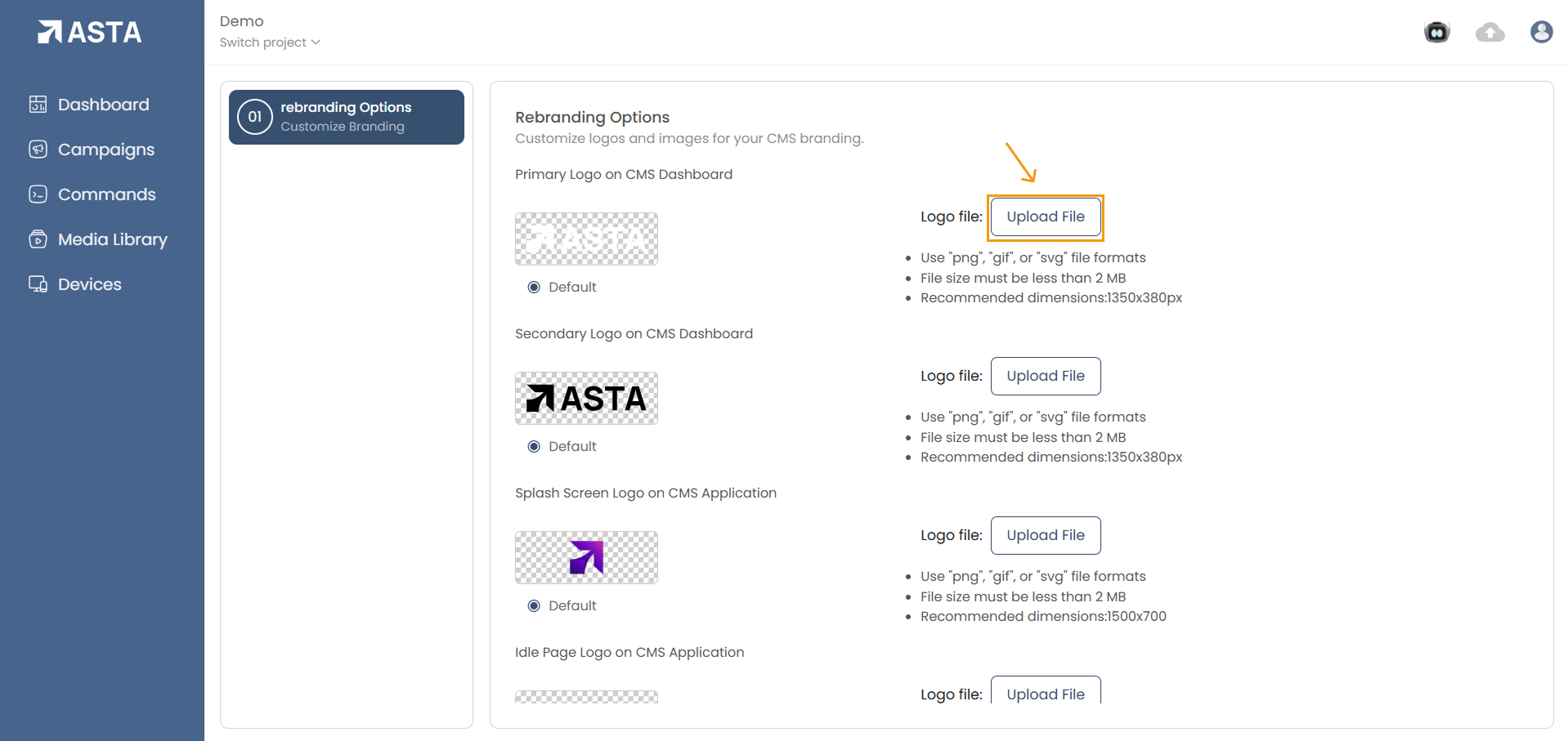
- Click the Upload File button next to the logo type you want to customize.
- Select the desired logo file from your computer.
- Ensure the logo meets the file format and size requirements.
- Click open to upload the logo.
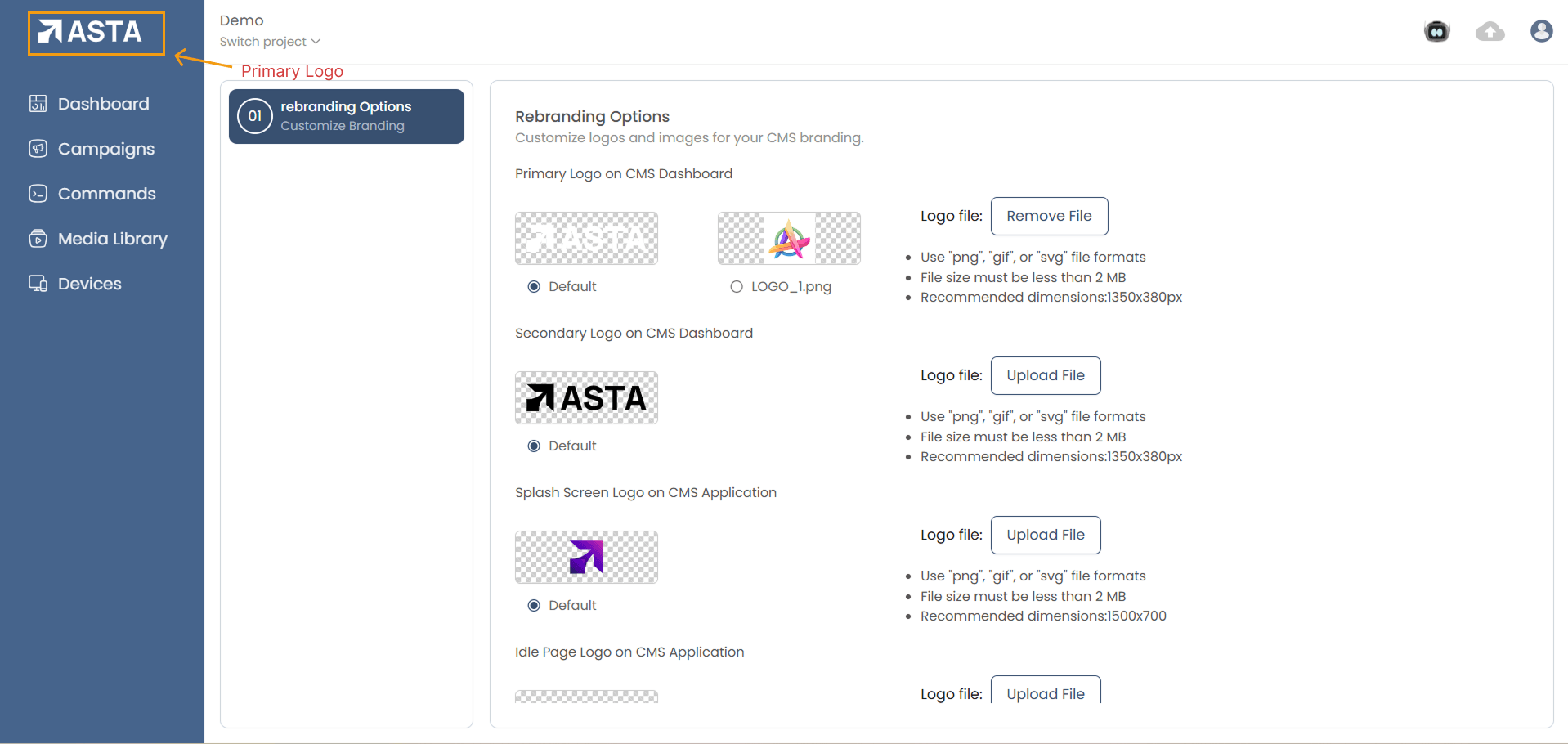
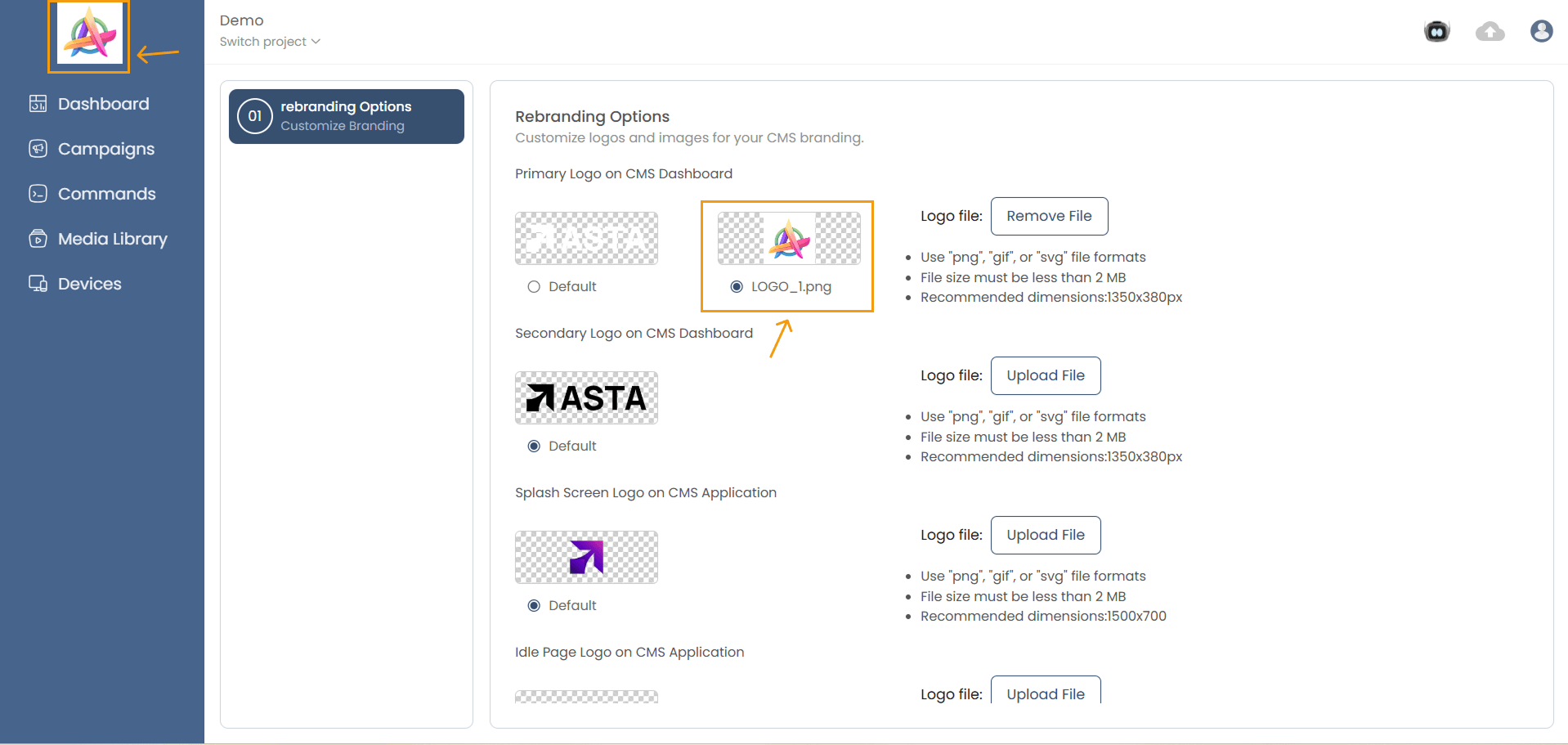
- Once uploaded, set the new logo as default.
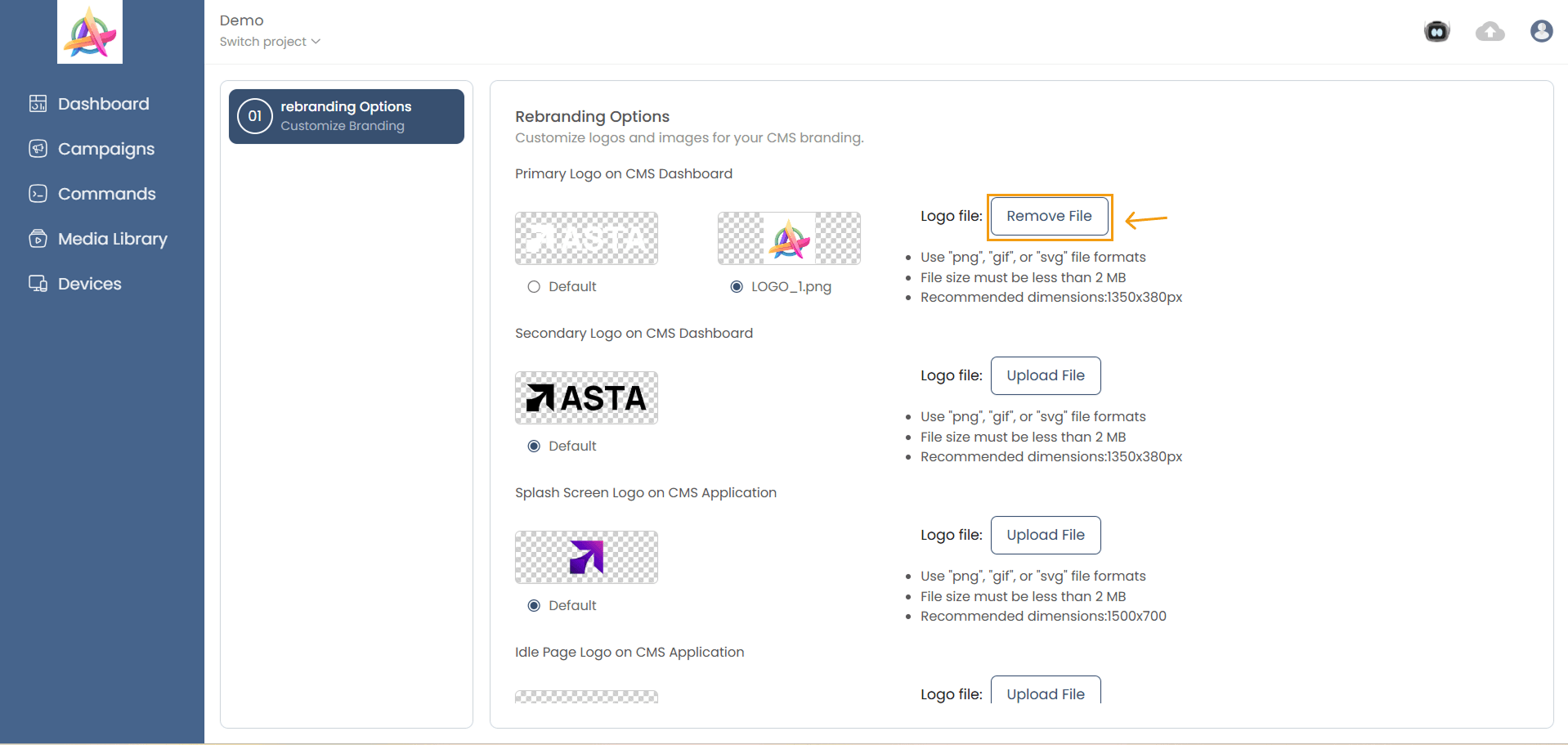
- To remove an existing logo, click the Remove File button next to the respective logo.
Important Considerations
- Logo Dimensions: Follow the recommended size for each logo to ensure proper display.
- File Format: Choose PNG, GIF, or SVG for high-quality, scalable images.
- Color Palette: Ensure the logos align with your brand’s color scheme for consistency.
Permissions and Access Control
- The Rebranding section is only accessible to users who have the appropriate permissions. These permissions can be managed via the Roles section.
- Users without the required permissions will not be able to access or modify the rebranding settings.
By using these rebranding options, you can personalize your Asta instance to reflect your company’s identity, creating a seamless and professional user experience.