
Welcome To Asta

Getting Started
Platform Capabilities
Content Management
User & Role Management
Project Management
Customization & Branding
Licensing & Legal
Licenses Overview
The Licenses section allows users to manage licenses, which are essential for enabling campaign playback on devices. A license is tied to a specific device, and once assigned, it allows the device to play content from campaigns.
What We’ll Cover
Accessing the Licenses Section
Click on the profile icon in the top-right corner of the screen, select "Licenses" from the dropdown menu
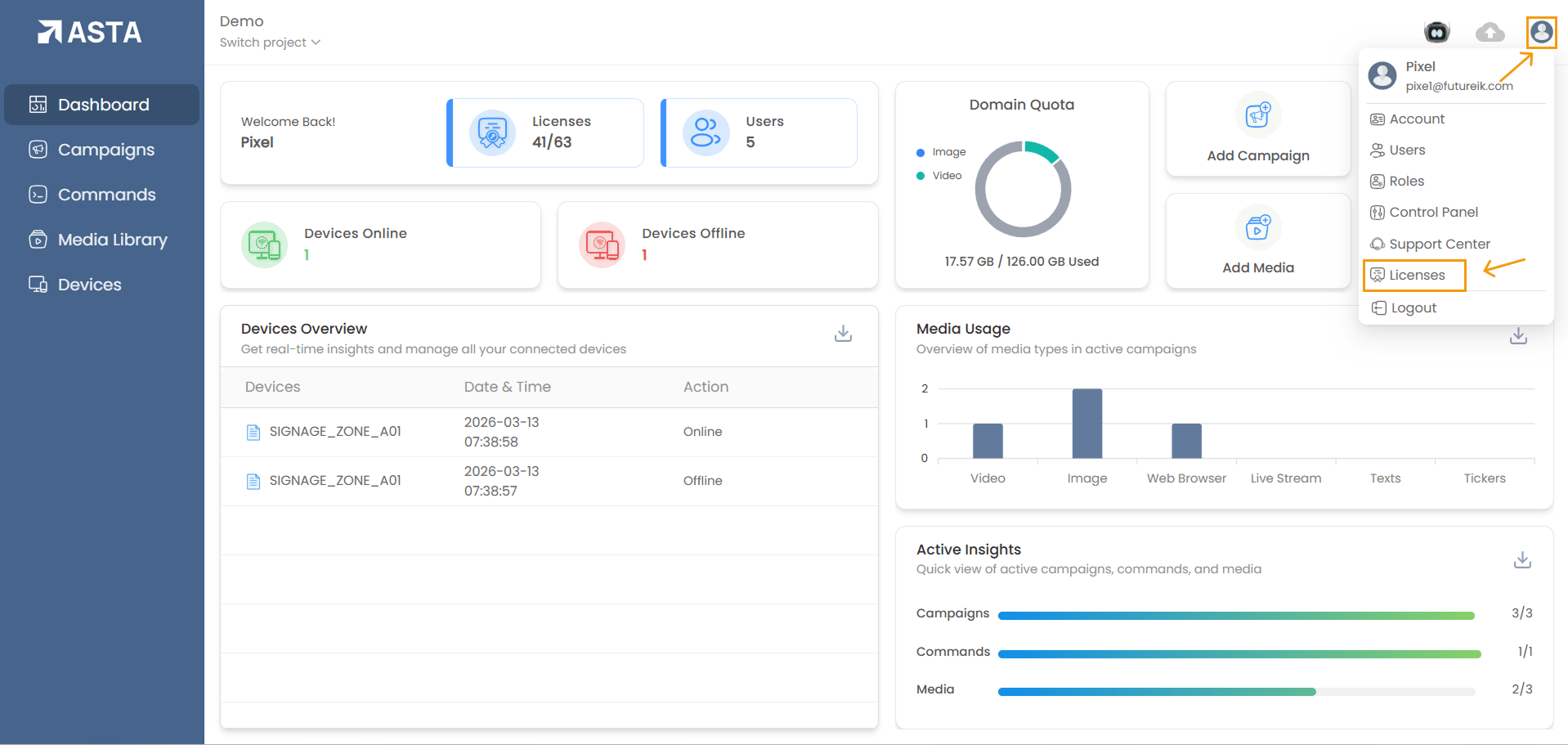
This will take you to a list view of available licenses or license groups.
Searching ,Sorting and Filtering Licenses
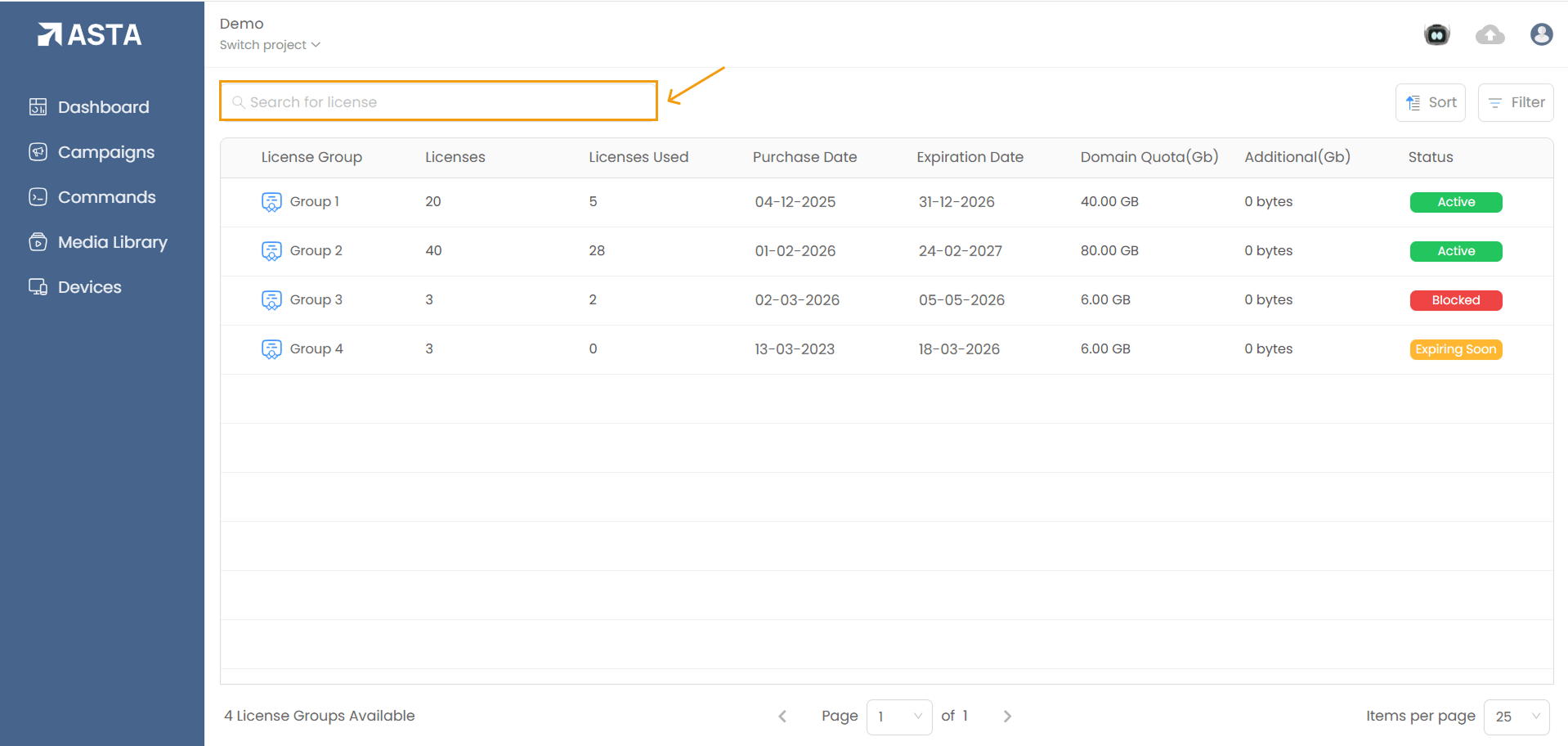
Use the search bar to search for license groups by name.
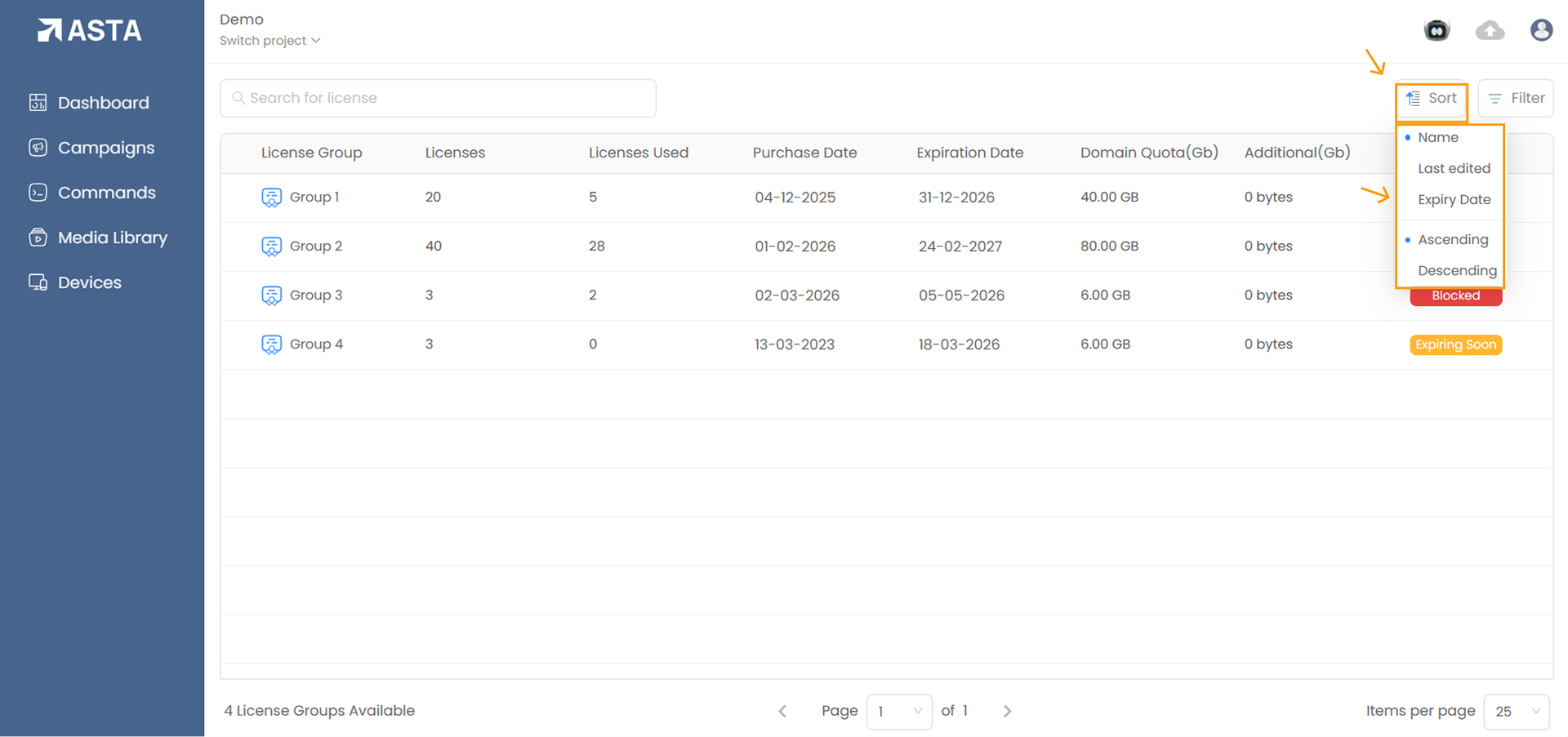
Licenses can be sorted by Name, Last Edited, or Expiry Date.
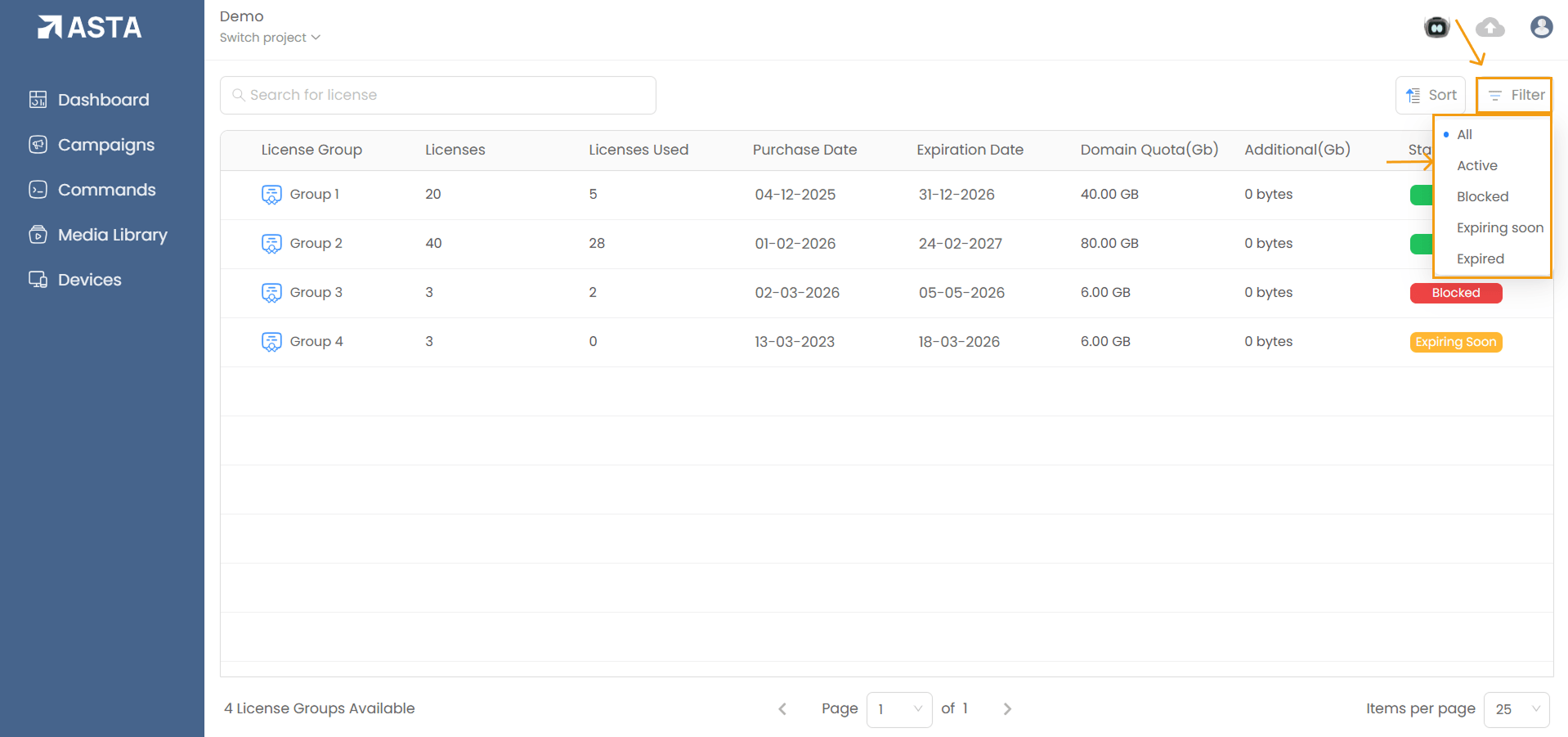
Licenses can be filtered by their status, such as All, Active, Blocked, Expiring Soon, or Expired.
Details Available on the License Page
The list page displays the following columns for each license
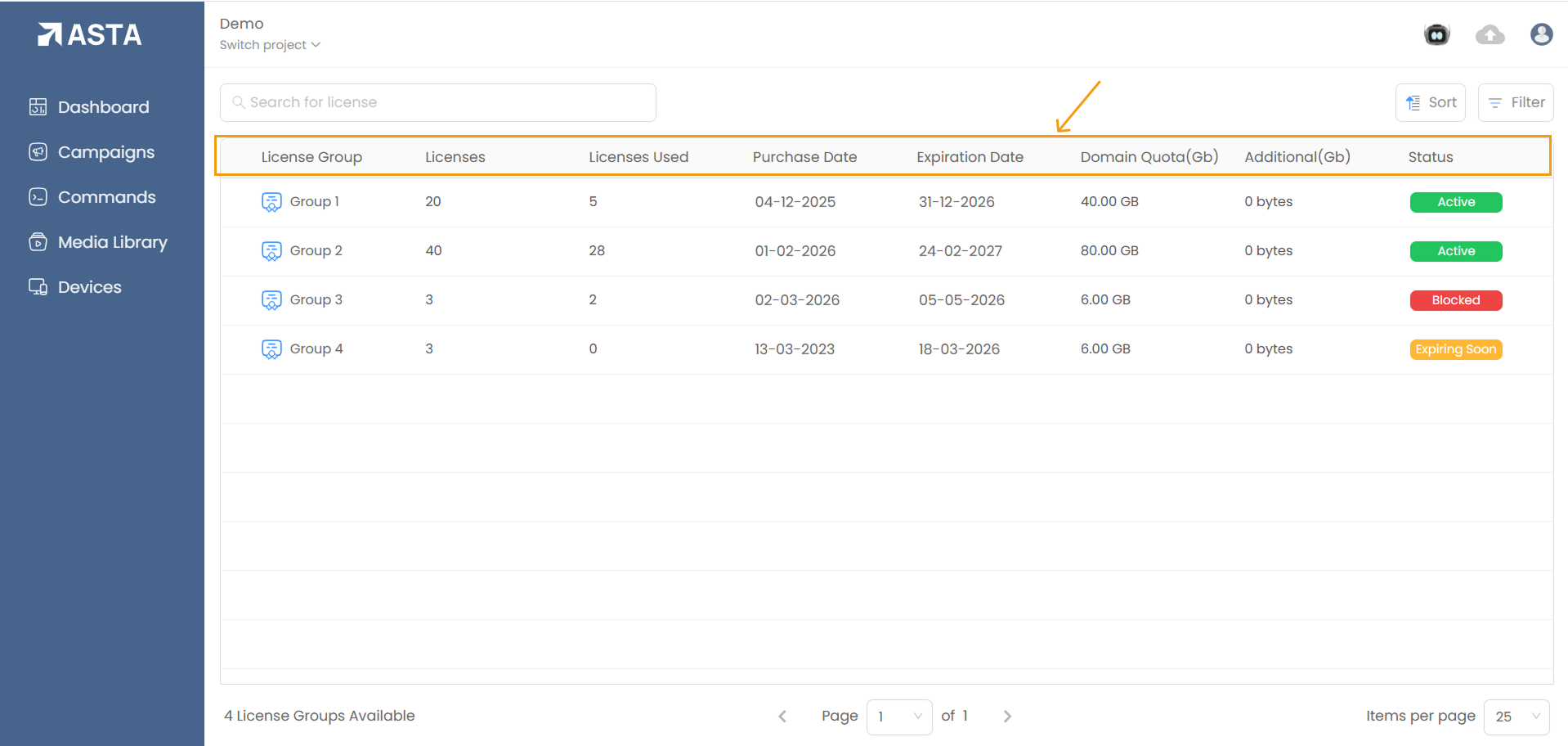
- License Group: The group to which the license belongs
- Licenses: The total number of licenses in the group.
- Licenses Used: The number of devices currently using the license.
- Purchase Date: The date the license was purchased.
- Expiration Date: The date the license will expire.
- Domain Quota (GB): The storage capacity allocated for the license.
- Additional (GB): Extra storage capacity (if applicable).
Assigning Licenses to Devices
1. Select a License Group: If a device has no license assigned, select a license group to proceed.
2. Choose Devices:
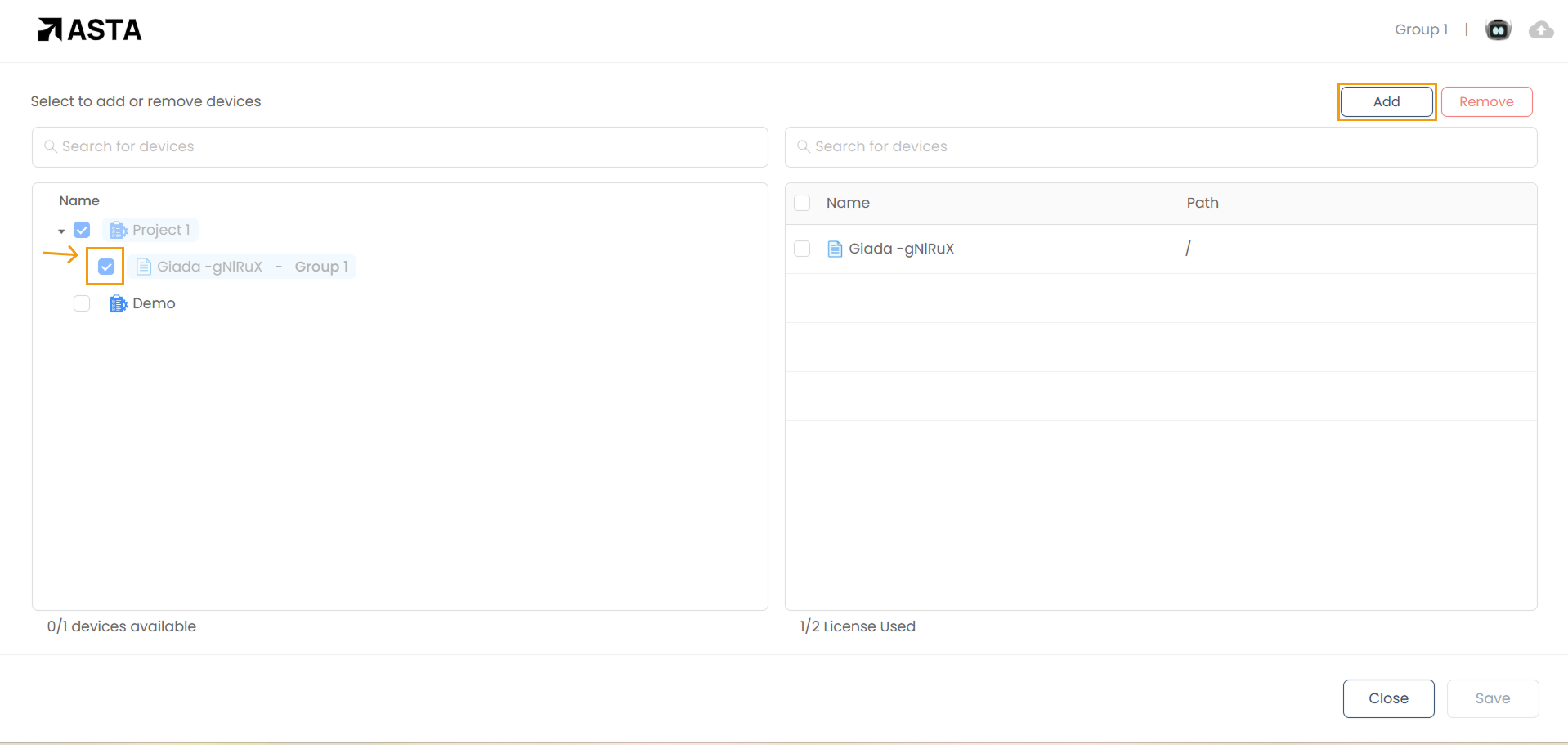
- On the left side, you will see a list of all available devices from the projects.
- On the right side, you will see the list of devices already assigned to the group.
- To add a device to the group, first select it from the available devices list on the left, then click the "Add" button.
- Once added, the device will appear in the list of assigned devices on the right
- Click " Save" to confirm the assignment.
3. Removing Devices:
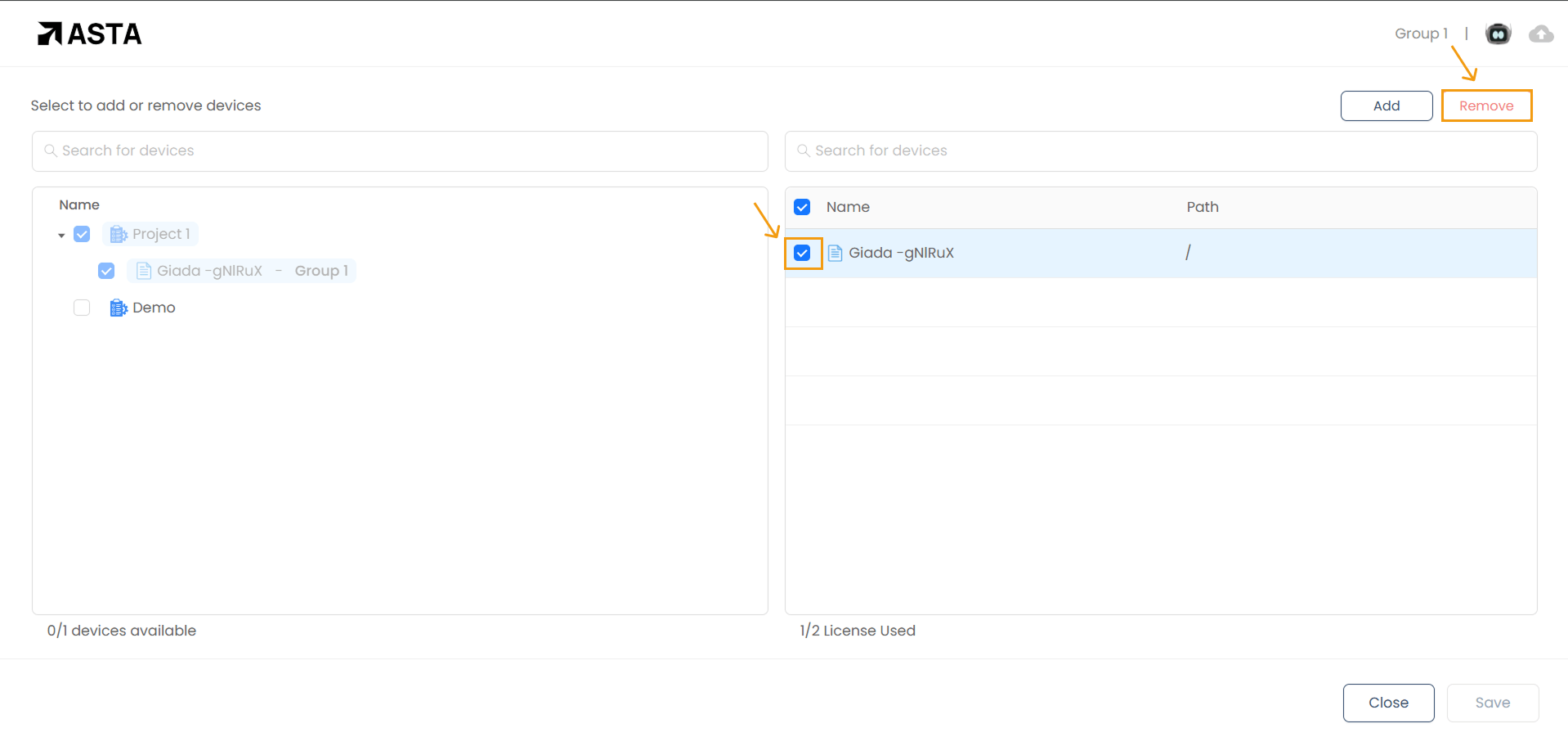
- Select the device from the Assigned Devices list.
- Click Remove to assign the license from the device and then save the license.
Note: If a new device is paired with the console, it will automatically be assigned to the license group that has the longest remaining time before expiration, as long as a license is available.
- When a license expires, the device will remain paired with the web console.for a 7-days grace period. However, any content playing on the display or screen will stop and the device will switch to its idle page. During this grace period, a warning will be displayed that the license has expired.
- During this period the user is only allowed to use unpair and exit options in the device hamburger menu.
- After the grace period, the device will automatically unpair from the console.
License groups are created and managed by the Asta Team. Users do not have the ability to create new license groups themselves.
Each license includes a predefined storage quota. If additional storage is required, users must contact the Asta Team to purchase a new license or update their current storage allocation.
- Renewing Licenses
- Users cannot renew a license themselves; instead, they must contact the Asta Team for renewal assistance.
- Once renewed, the license regains its validity, and the device can continue playing campaign content without interruption.
- If a license is not renewed before the 7-day grace period ends, the device will be unpaired from the console.
- Reassigning Licenses
- Select the License Group where the device should be reassigned.
- Choose the available device from the list.
- Click Add to assign the license to the selected device.
- Save the changes to complete the reassignment.
When a license expires, it must be renewed to restore full functionality to the assigned device(s).
Licenses can be reassigned to different devices if needed, following the same process used for assigning a new license.
The process is the same as assigning a new license: