
Welcome To Asta

Getting Started
Platform Capabilities
Content Management
User & Role Management
Project Management
Customization & Branding
Licensing & Legal
How to Create, Manage & Schedule Campaigns
Creating a digital signage campaign in Asta allows you to manage, schedule, and display dynamic content across various devices. The process is straightforward, offering the flexibility to incorporate different types of media and customize them based on your needs. Whether you're displaying videos, live streams, news tickers, static text, or even websites, Asta provides powerful tools to help you create an engaging campaign.
This guide covers the steps to create a campaign with detailed explanations of each media type and its customization options.
Campaign Overview
In Asta, a campaign can include a variety of media types. Below are the types of content you can include in your campaign:
- Medias: Local media files such as videos and images.
- Live Streams: Display live video feeds, such as from YouTube or other sources.
- Tickers: Scrolling updates, promotions, or real-time content.
- Text: Static messages or announcements.
- Web Browser: Display live websites or webpages.
Each media type has special settings that allow for detailed customization.
Navigating to the Campaigns Section
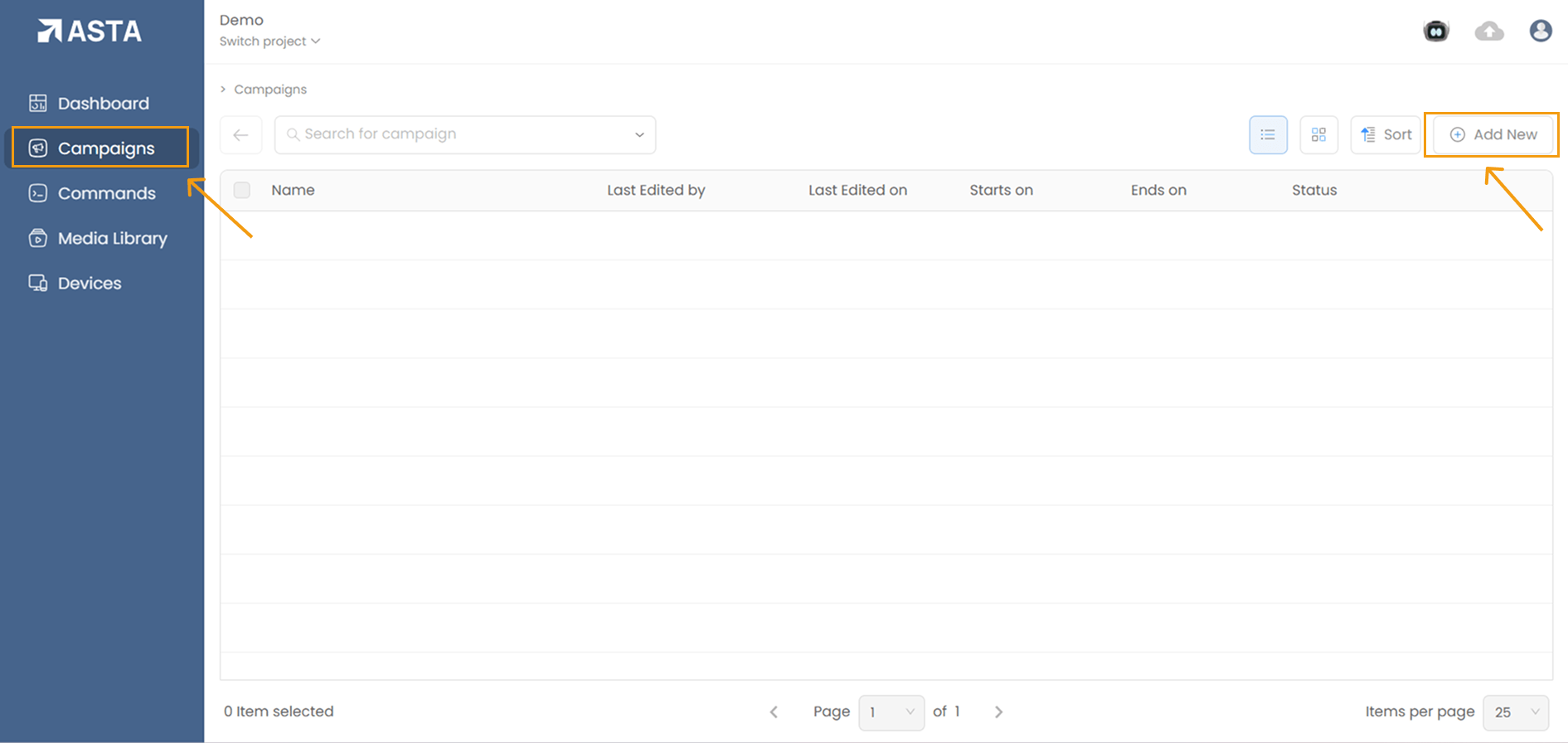
- From the Dashboard, go to the Campaigns tab and click on it.
- Inside the Campaigns section, click the "Add New" button to create a new campaign.
Creating a Campaign
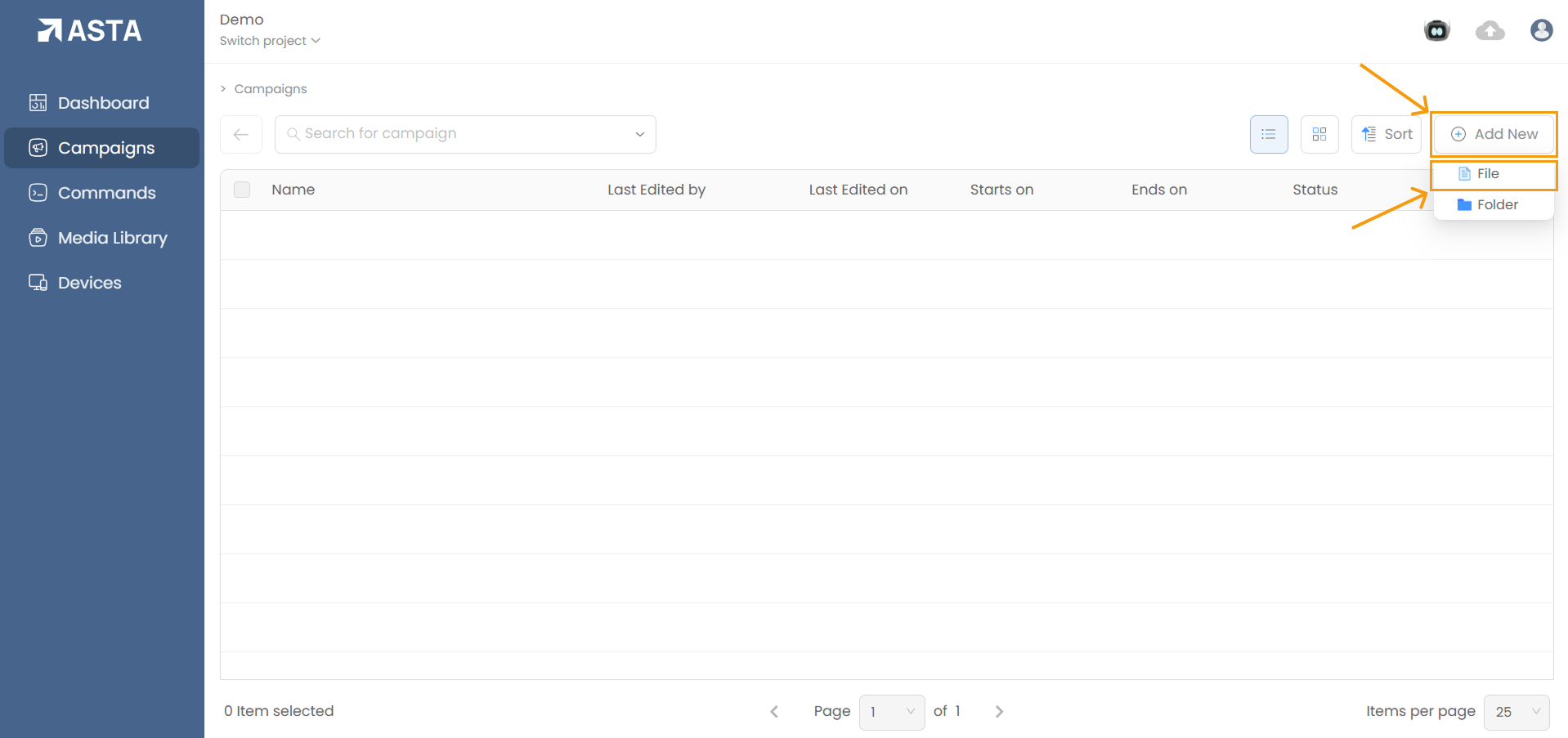
- Create a New Campaign: After clicking "Add New", select the "File" option to start a new campaign.
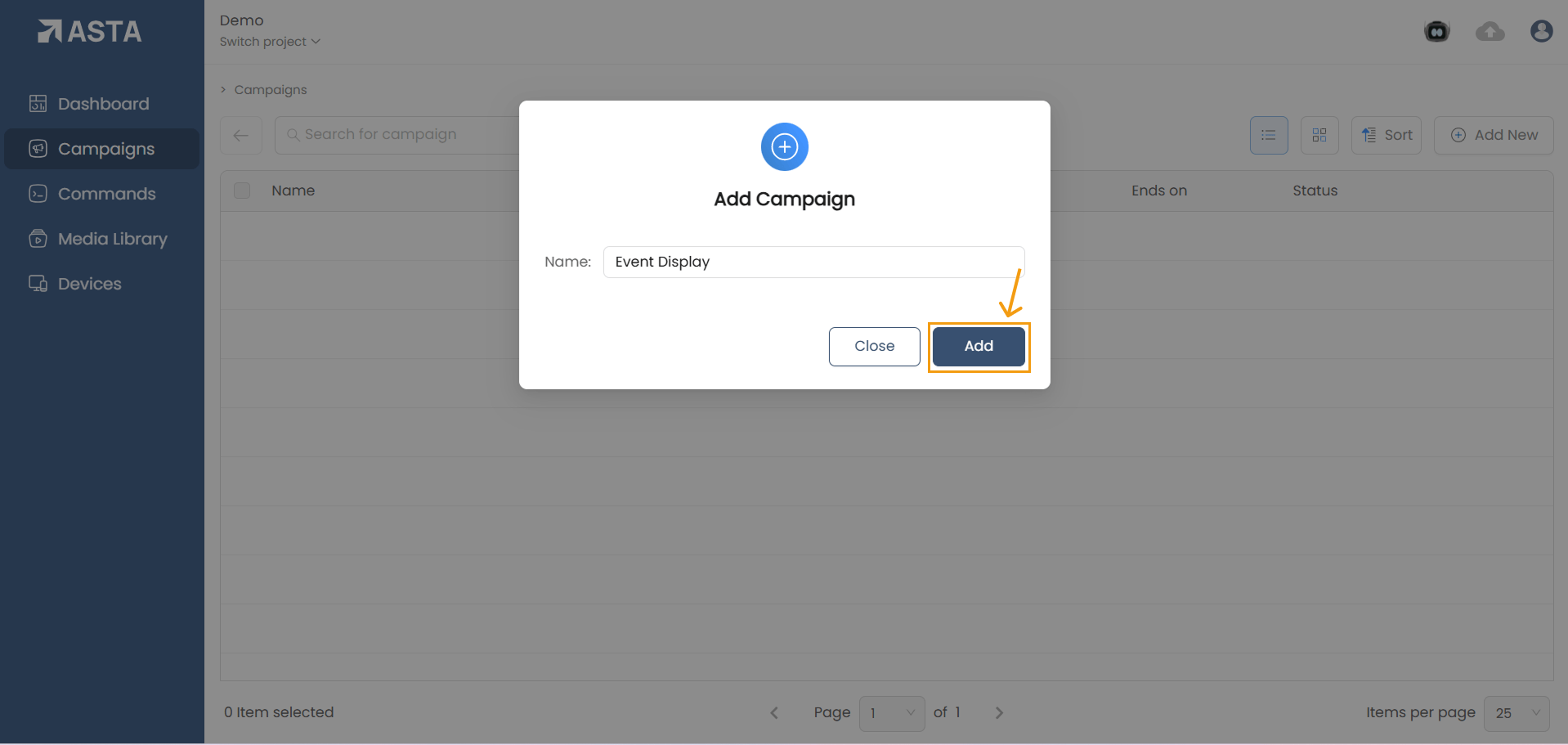
- Name Your Campaign: Give your campaign a descriptive name (e.g., "Marketing Campaign" or "Event Display").
- Enter Campaign Name: A new window will pop up prompting you to name your campaign. Once done, click on Add to continue.
Navigating through a Campaign
Upon entering the campaign creation interface, you will see four main sections:
- Content Setup: Organize and display your media content.
- Scheduling: Set the active dates and times for your campaign.
- Devices: Assign specific devices where your campaign will be displyed.
- Settings: Customized advanced parameters for your campaign (through this guide will focus on the first three).
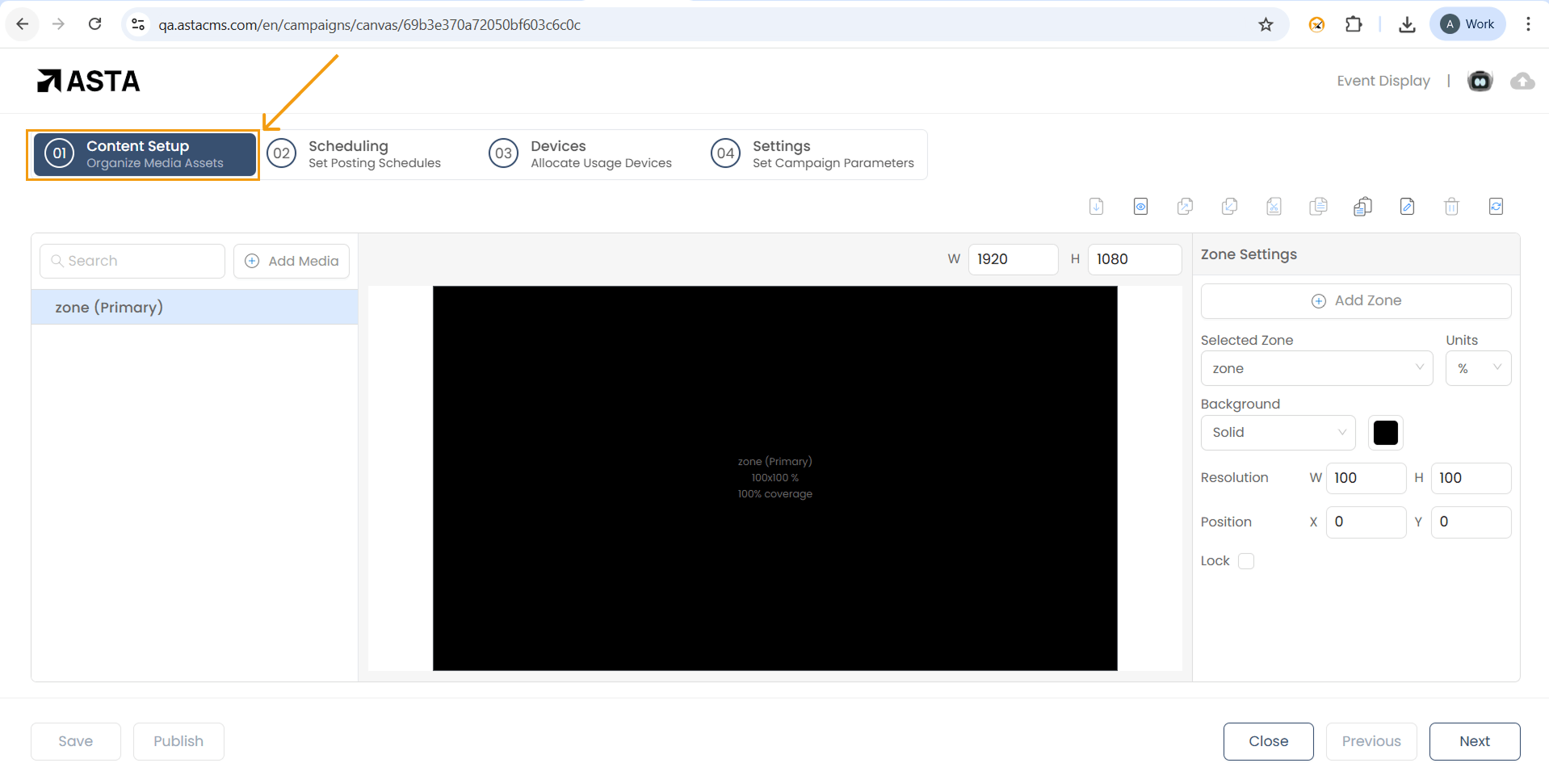
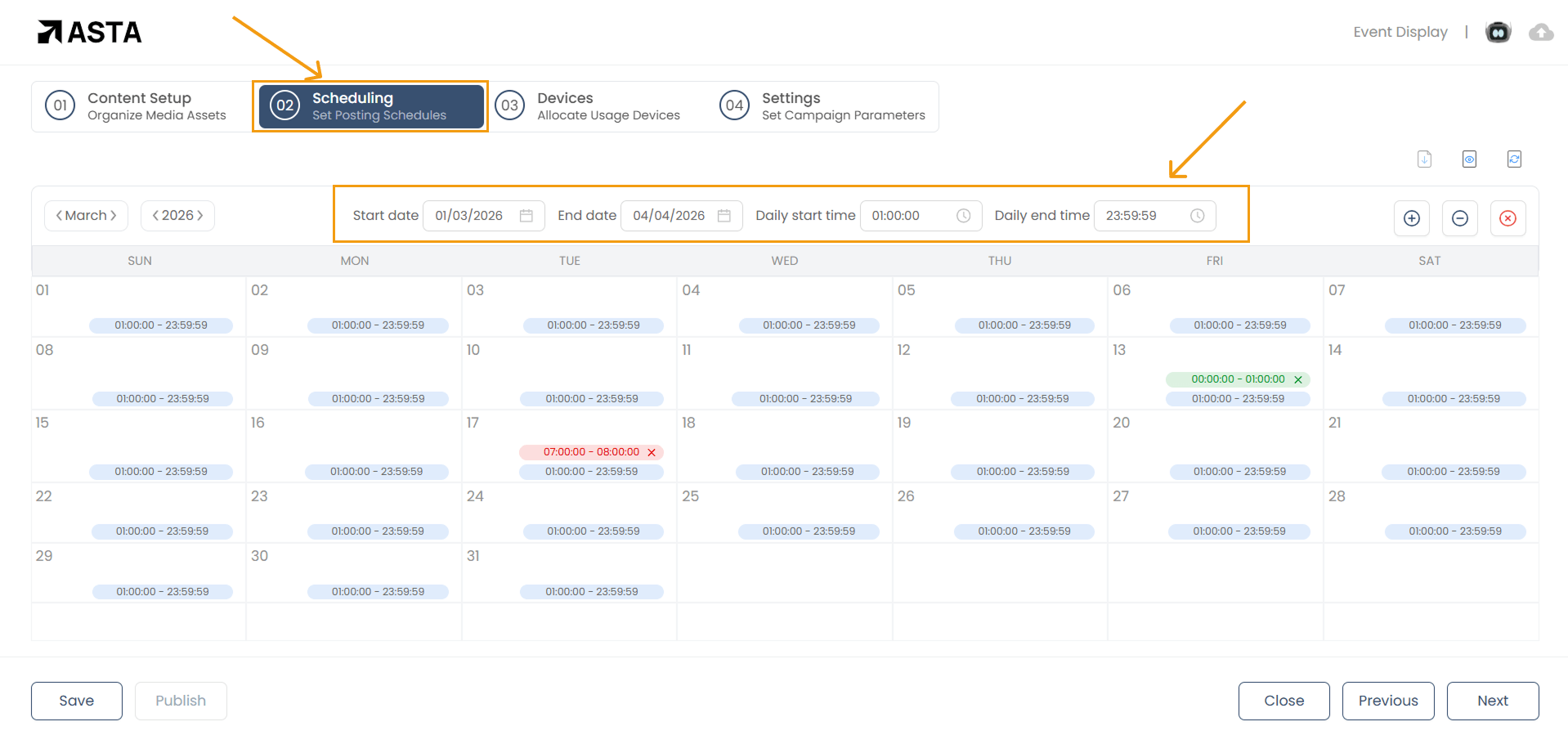
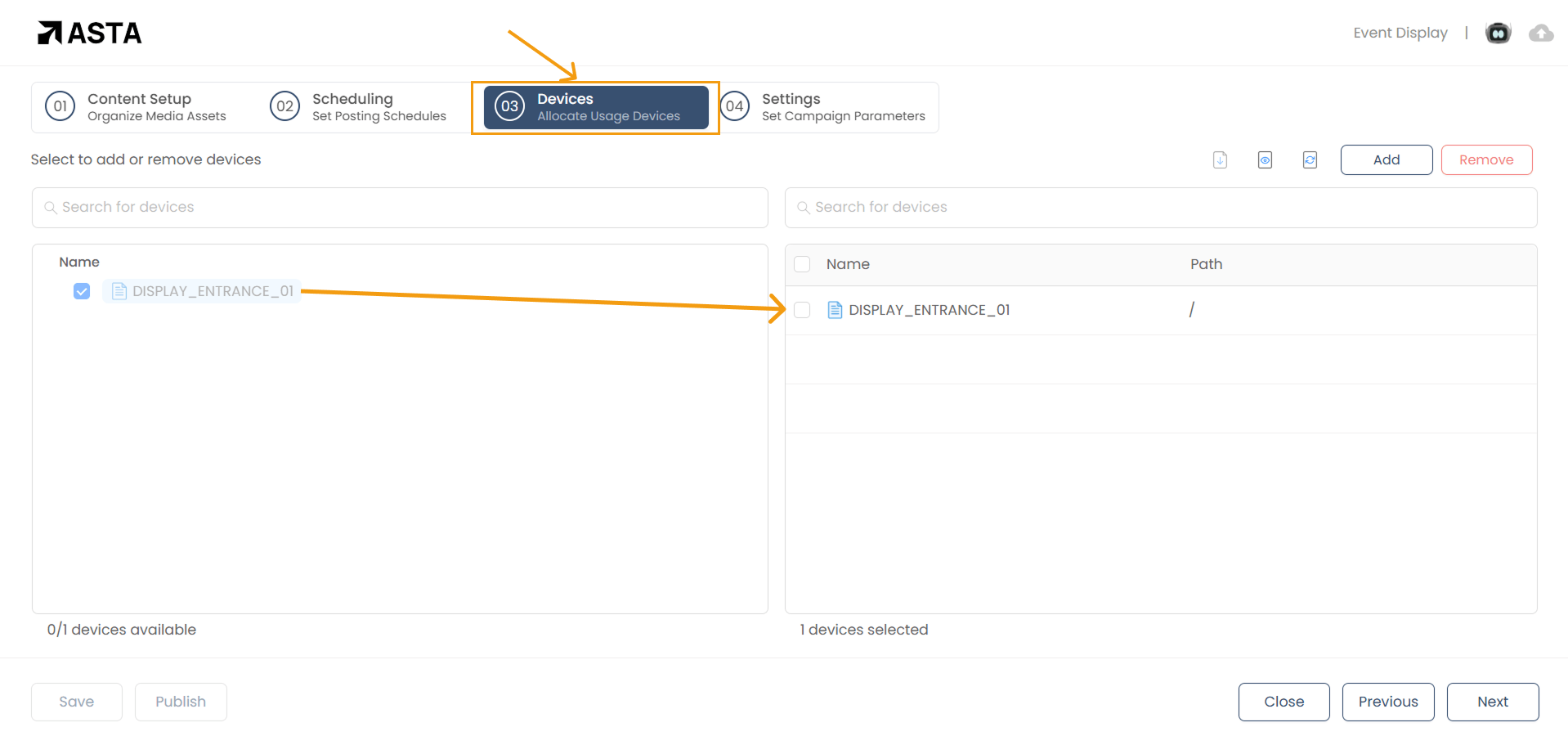
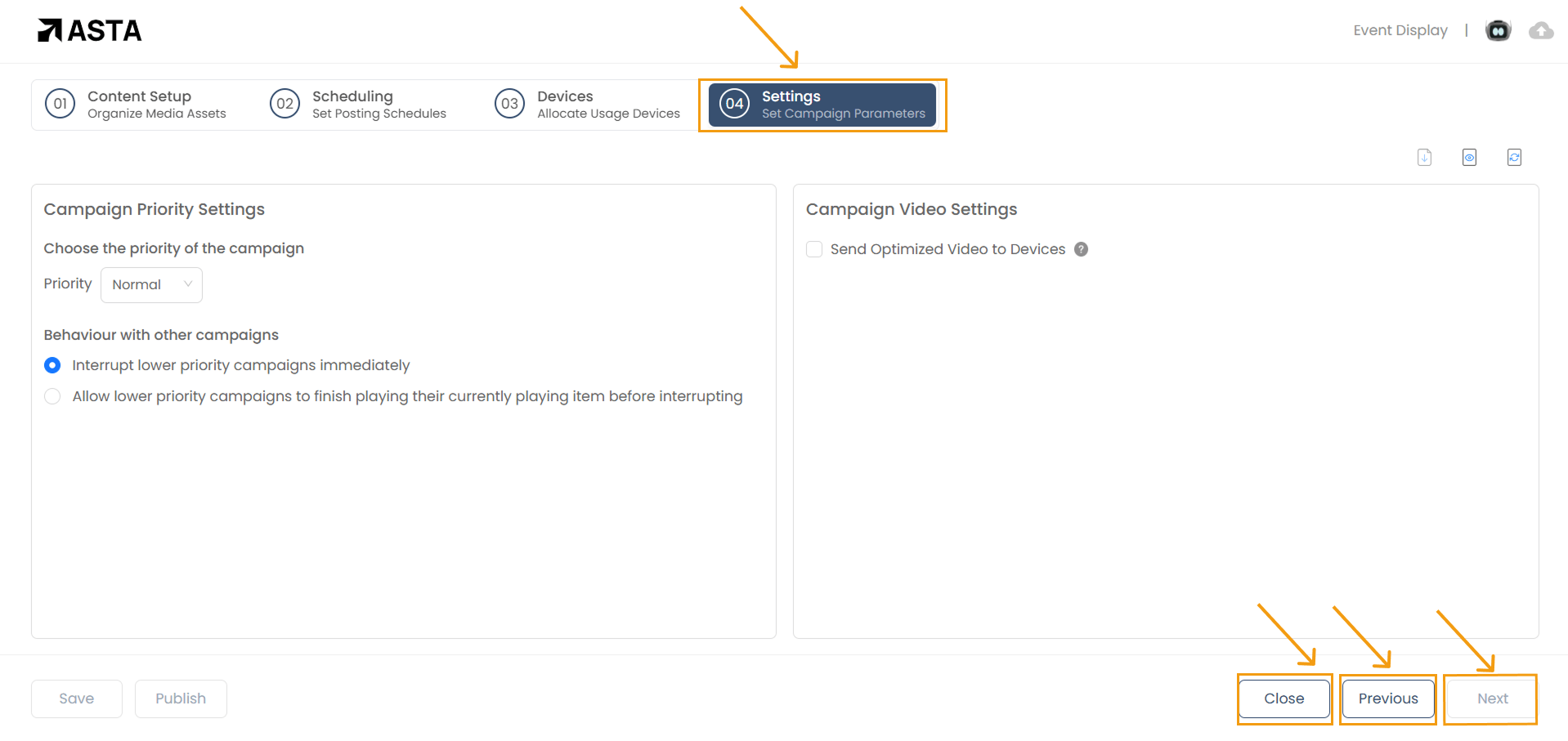
You can navigate between these sections using the Next and Previous buttons at the bottom right of your screen. There is also a Close button to exit the process if necessary.
Organizing Your Content
1. Creating Zones
In the Content Setup section, you will organize your campaign into zones. Zones allow you to divide your screen into sections, each displaying different content. Here's how you can create and customize zones to design your campaign layout effectively:
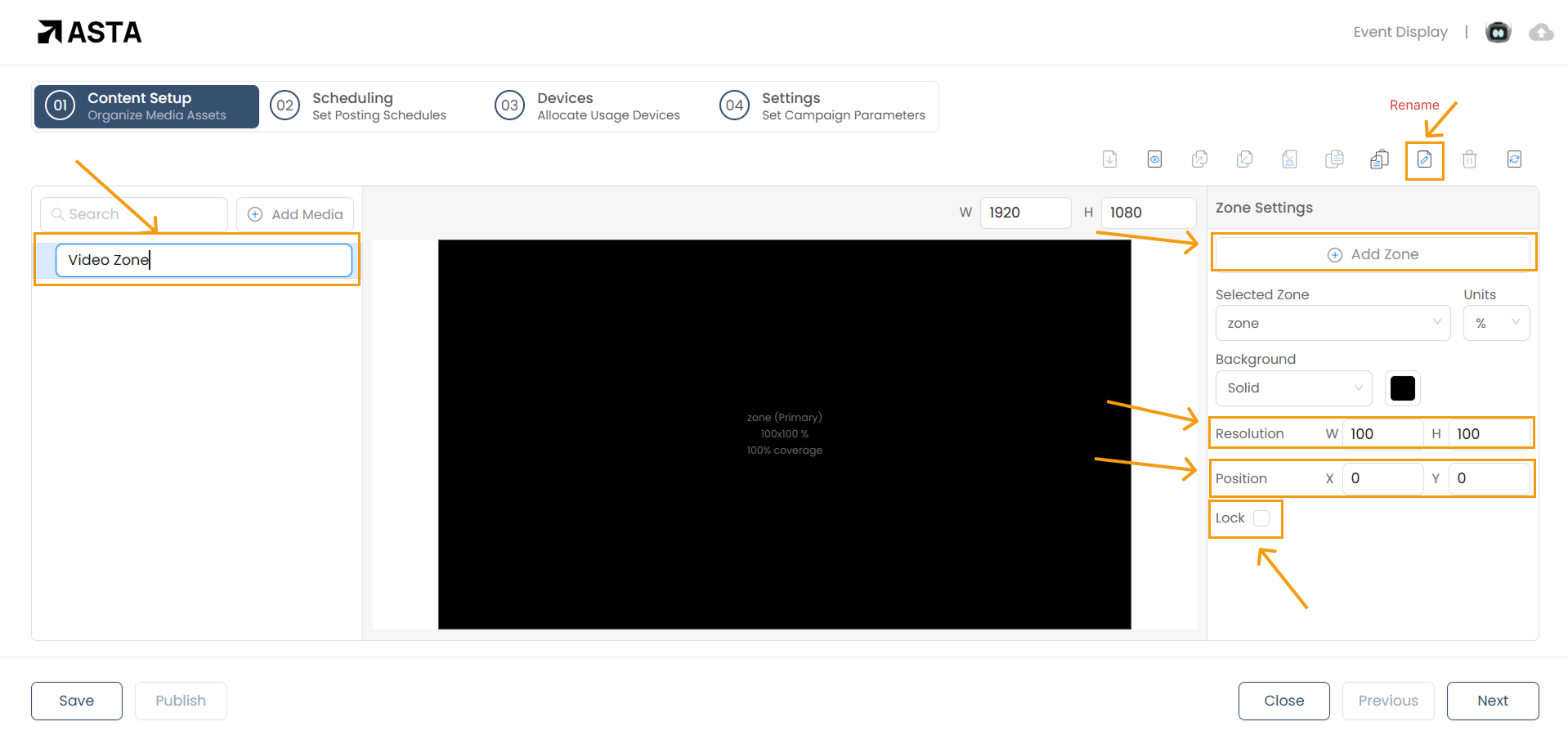
To Create a Zone , click the "Add Zone" button. You can add as many zones as you need, but for the best visual experience, we recommend keeping it between 3 to 6 zones.
2. Customizing Your Zones
Once your zones are created, you can tailor them to fit your layout perfectly:
- Renaming Zones: Give each zone a clear, descriptive name by right-clicking on it.and selecting Rename or selecting the zone and clicking the Rename icon .This helps you stay organized, especially when managing multiple zones
- Resizing Zones: Adjust the size of a zone by dragging its edges or corners. For more precision, you can specify the dimensions in the zone settings:
- Use percentage units to define the zone's width and height relative to the screen size.
- Use pixel units to set exact dimensions with absolute values.
- Repositioning Zones: Move zones around easily by dragging and dropping them into the desired position. Alternatively, you can manually input the exact coordinates for precise placement.
- Locking Zones: Once you're happy with a zone's size and position, lock it in place to prevent accidental changes. This ensures your layout remains intact as you continue designing.
Adding Media to Zones
Asta allows you to add a variety of media types to your campaigns, making it easy to customize and create engaging content. Supported media types include:
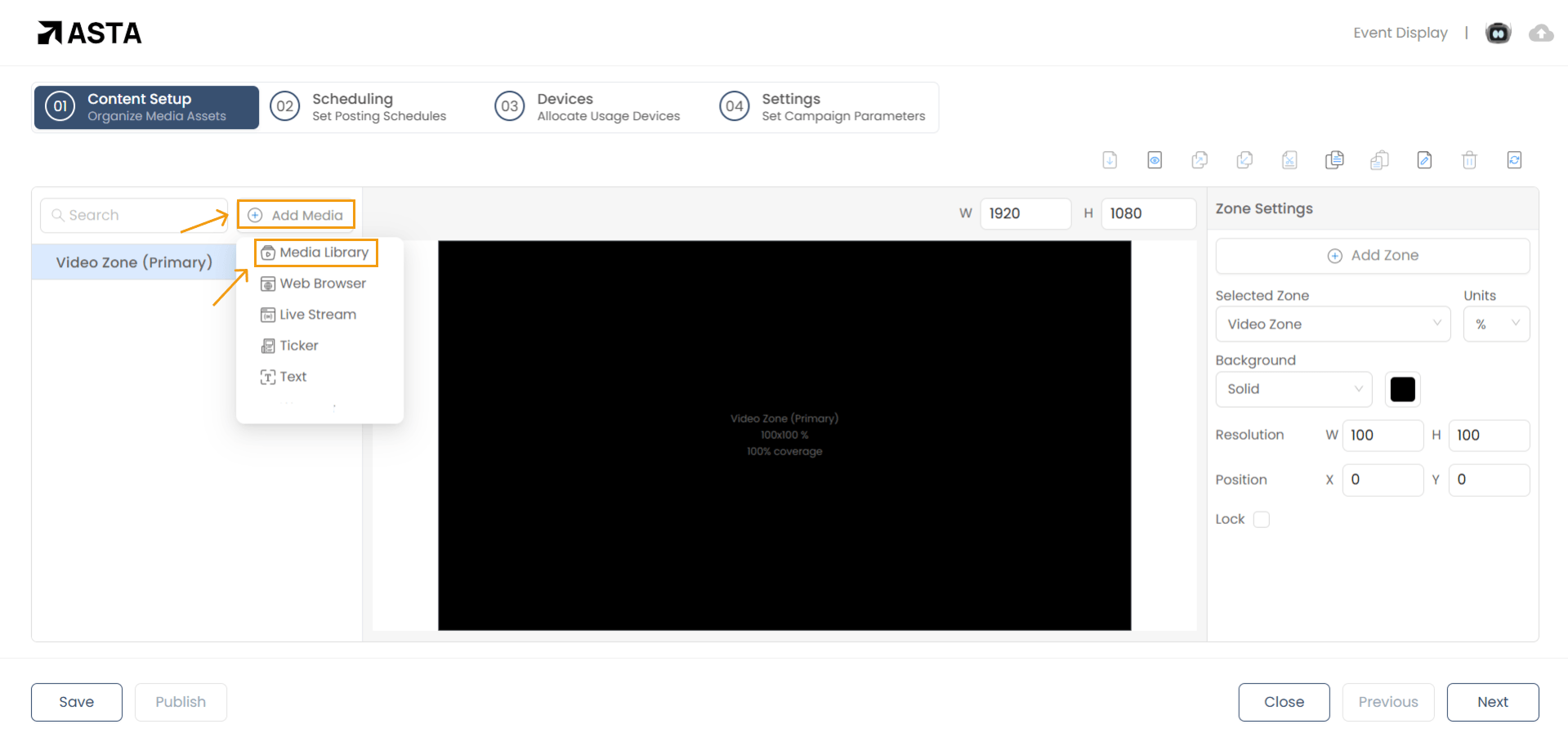
- Media Library: Upload and manage videos, images, and other media.
- Live Stream: Add live streams from platforms like YouTube and media stored in the cloud.
- Ticker: Display scrolling news or updates.
- Text: Include static messages or announcements.
- Web Browser: Showcase live websites or web pages.
Each media type comes with its own customizable settings, such as playback duration, transitions, appearance, and interactivity, allowing you to tailor your campaign to meet specific requirements.
Adding media from the Media Library
- Click the " Media Library" to browse through your uploaded videos, images, and other media.
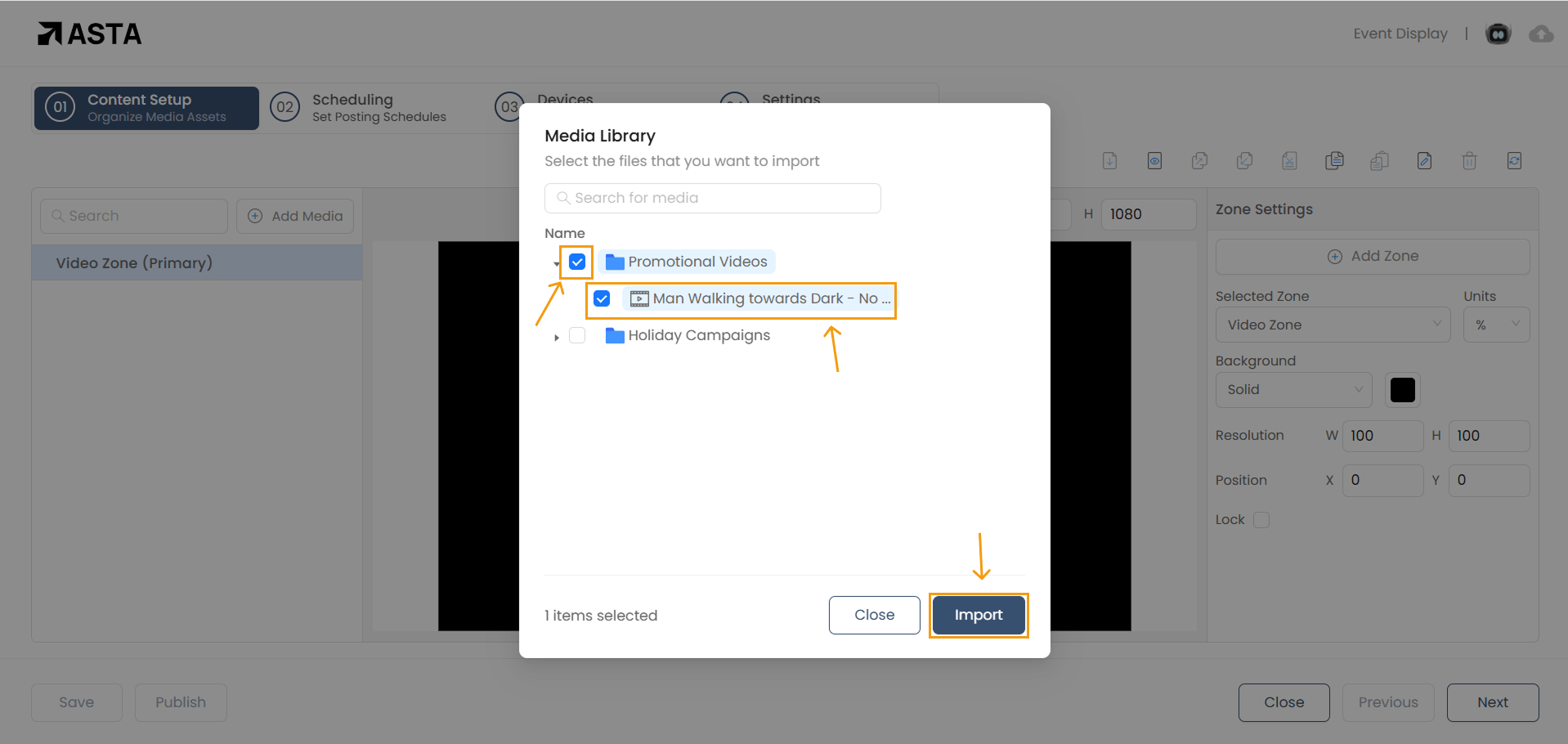
- Select the files you wish to display (e.g., promotional videos, commercials).
- Click on Import to add the selected media to your campaign.
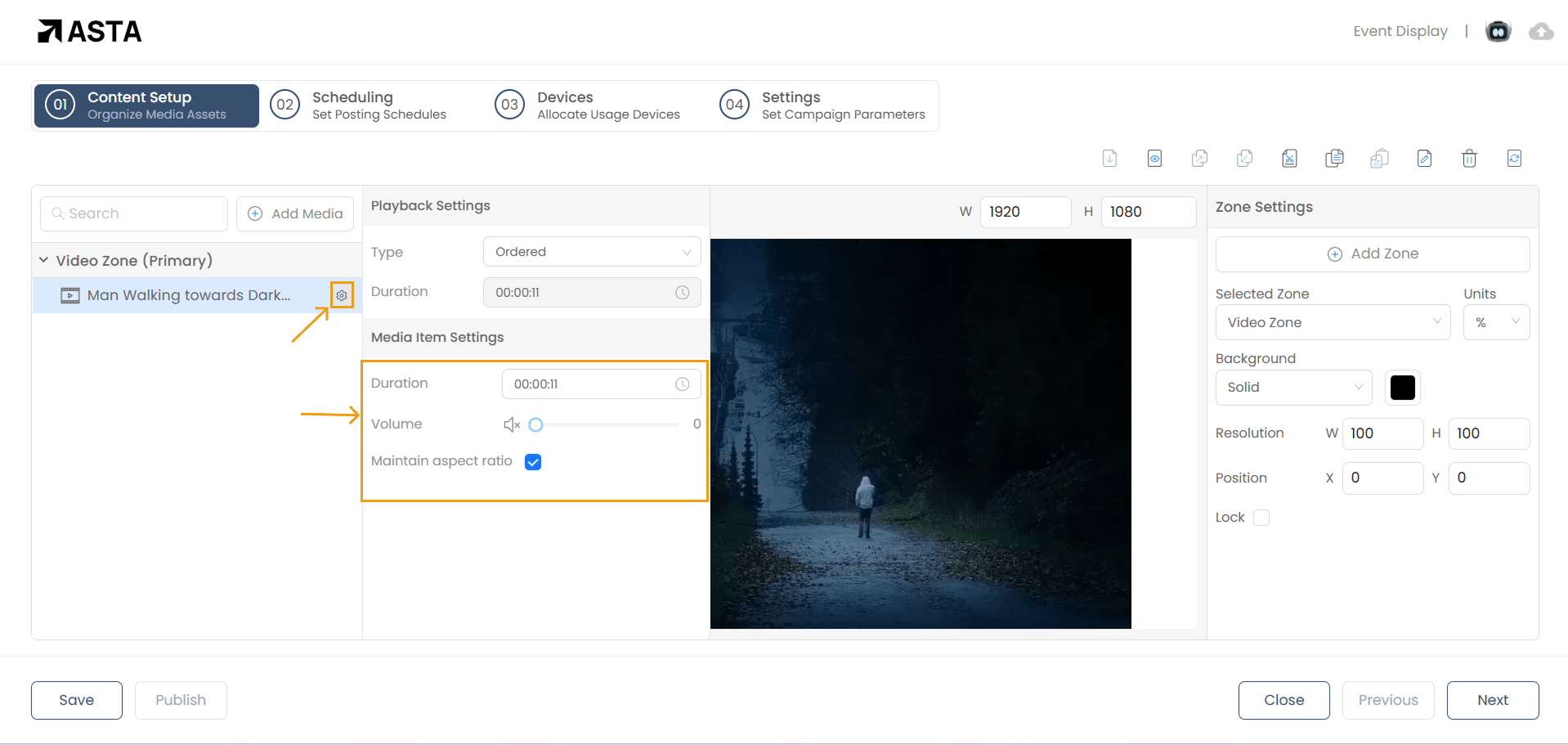
- Settings: You can adjust the playback settings such as volume, duration, or transitions.
Previewing Your Campaign
Before scheduling and publishing, it's important to preview how your campaign will look on the screen.
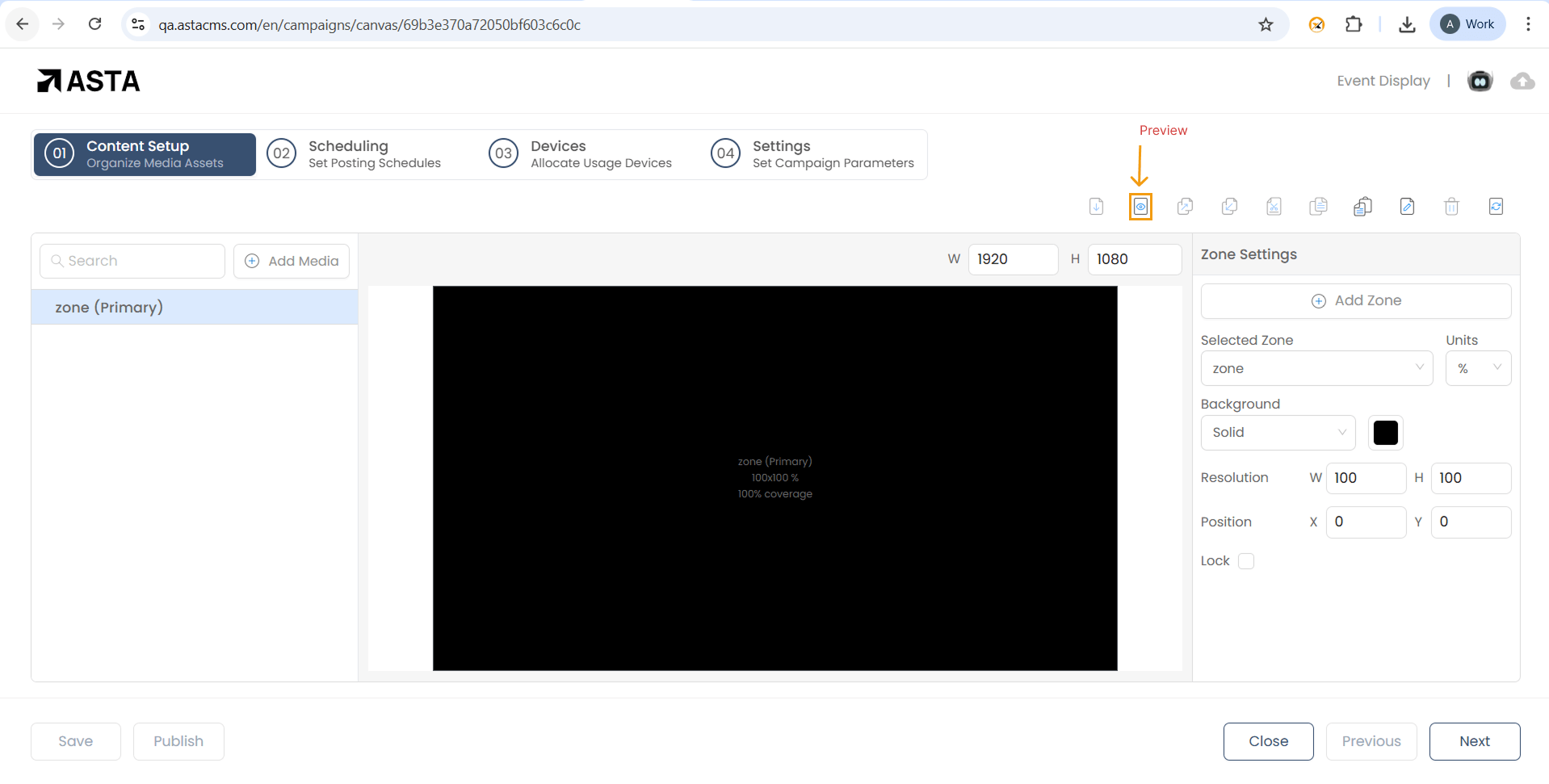
Click the "Preview" icon (eye icon) to see a live preview of the campaign’s playback.
Scheduling Your Campaign
Once you’re satisfied with your campaign, the next step is scheduling it to go live.
- Click Next to move to the Scheduling section.
- Set Start and End Dates: Choose the start and end dates, along with the start and end times for each selected day.
Note : You can publish a campaign without specifying start and end dates, defaulty start and end times are present.
- Inclusions/Exclusions: (Optional) Specify dates or times when the campaign should or should not play. For instance, you can exclude certain times like weekends or holidays.