
Welcome To Asta

Getting Started
Platform Capabilities
Content Management
User & Role Management
Project Management
Customization & Branding
Licensing & Legal
How to Push & Pull a Campaigns
This guide covers everything you need to know about Publishing and Pulling campaigns in your application. Follow these steps to ensure your campaigns are managed efficiently.
Publishing a Campaign
Publishing a campaign is a quick and straightforward process:
1. Prepare Your Content: Ensure your campaign content is ready to go. For detailed steps on creating, managing, and scheduling campaigns, check out this guide.
2. Assign Devices: Select the devices where you want the campaign to be displayed. This step is crucial to ensure your content reaches the right audience. Check out this guide to understand how to assign devices.
3. Save and Publish: Once you've assigned devices, click on Save and then Publish to deploy the campaign to the selected devices.
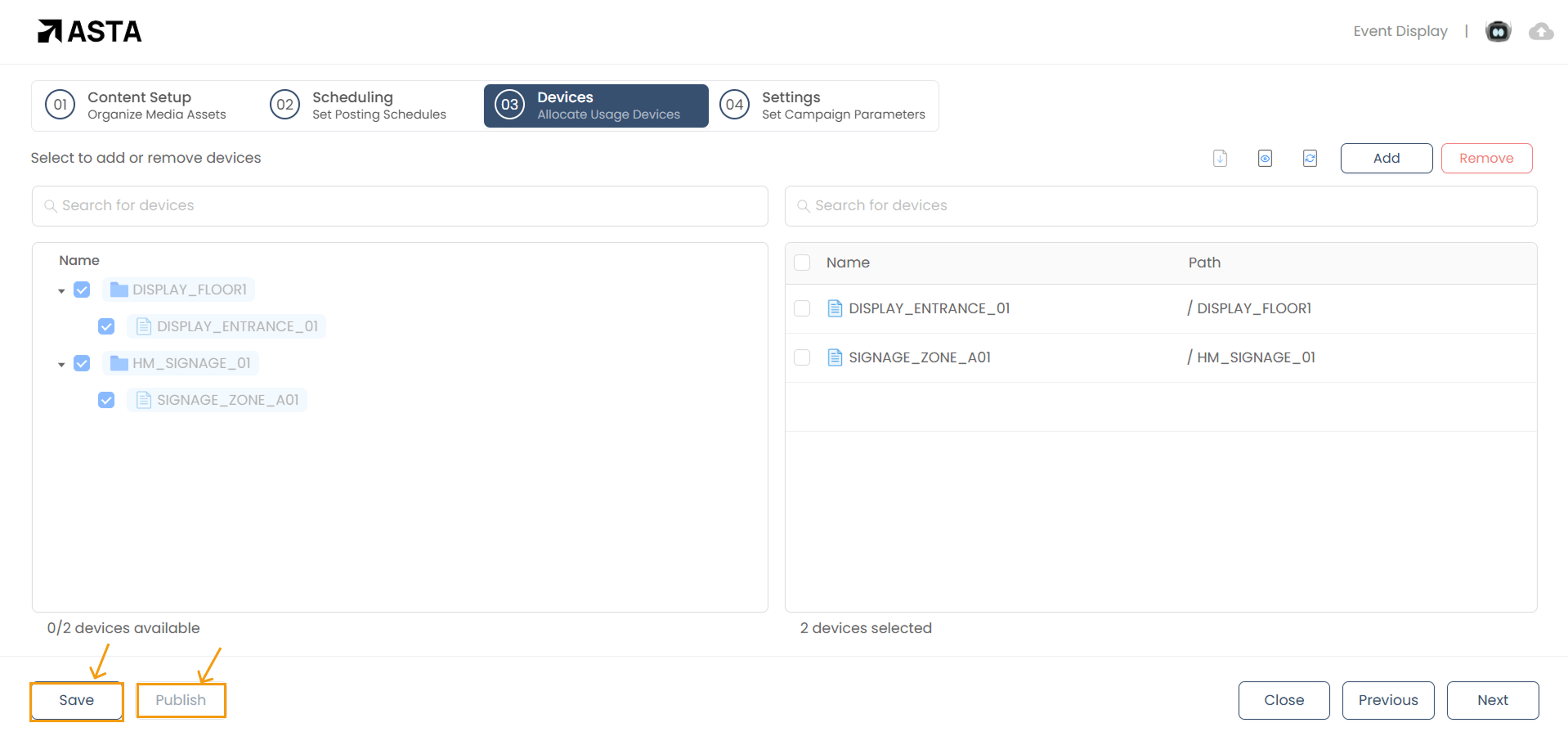
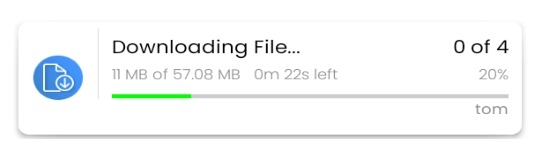
Pro Tip: If the Download Status option is enabled in the device settings, you can monitor the campaign's download progress directly on the device after publishing.
Pulling a Campaign
Pulling a campaign removes it from the assigned devices, helping to optimize device storage and performance. This is useful when a campaign’s schedule has ended, you no longer need the campaign, or you want to free up space for new campaigns.
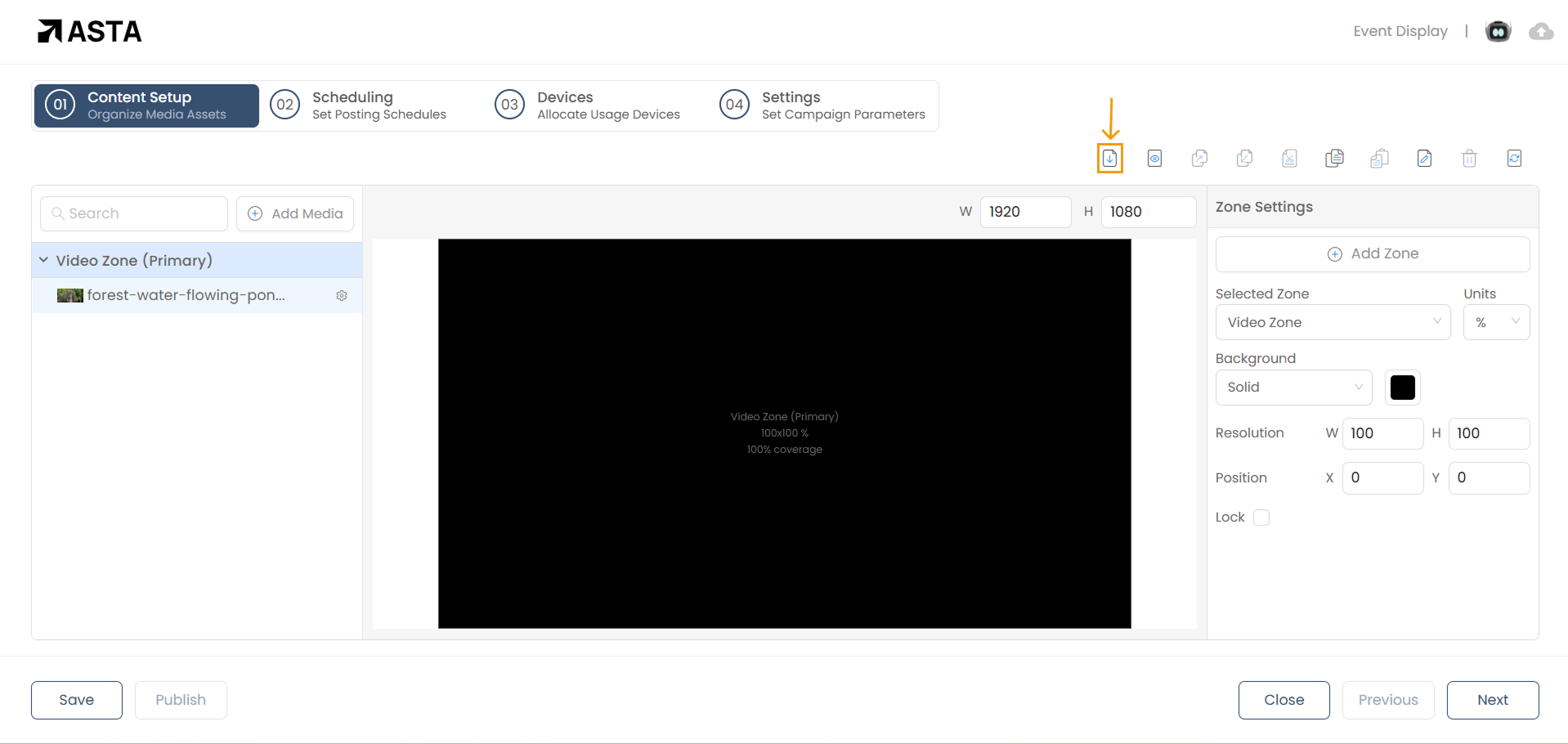
To pull a campaign, open it in the web console and click the Pull button to remove the campaign from all assigned devices.
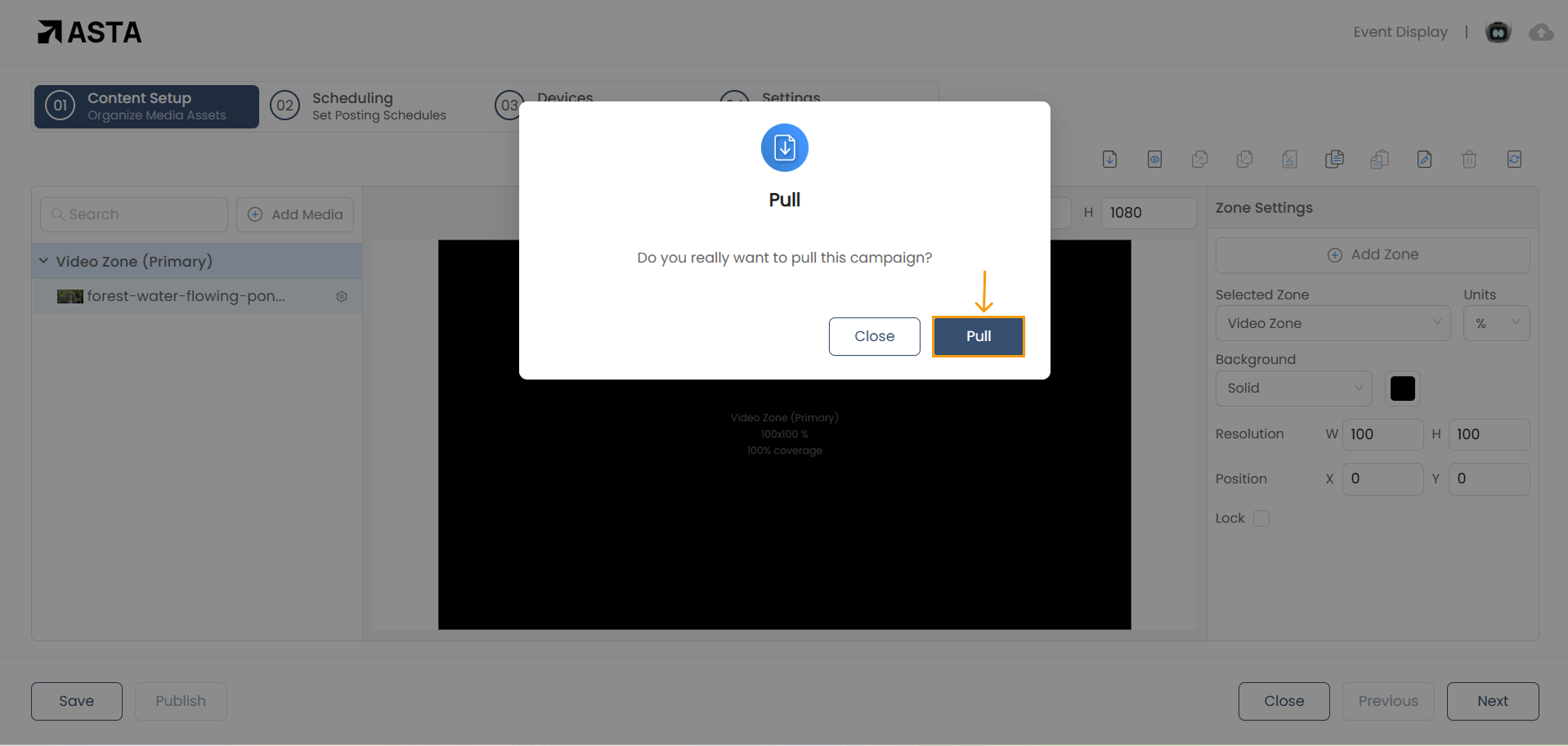
A confirmation modal will appear when you click the pull icon—simply click Pull to confirm, and the campaign will be successfully removed from all devices.
This ensures your devices remain clutter-free and ready for future campaigns.