
Welcome To Asta

Getting Started
Set-up guide
Platform Capabilities
Dashboard
Campaigns
Media Library
Device Management
Commands Management
Content Management
Add & Manage Media in Asta
Customize Your Media Experience
User & Role Management
Users
Roles & Permissions
Account Settings
Project Management
Projects Overview
Navigating the Project Dropdown Menu
Customization & Branding
Rebranding the Asta Application
Licensing & Legal
Licenses
Domain Quota
How to Publish & Pull Commands
Getting Started
Before publishing a command, ensure you have:
- Created the command with the desired configuration (e.g., mute device, adjust brightness).
- Assign the relevant devices where the command will execute.
- Set up the scheduling for when the command should run.
If you haven't completed these steps yet, please refer to the following documentation for detailed guidance on how to do these.
Steps to Publish a Command
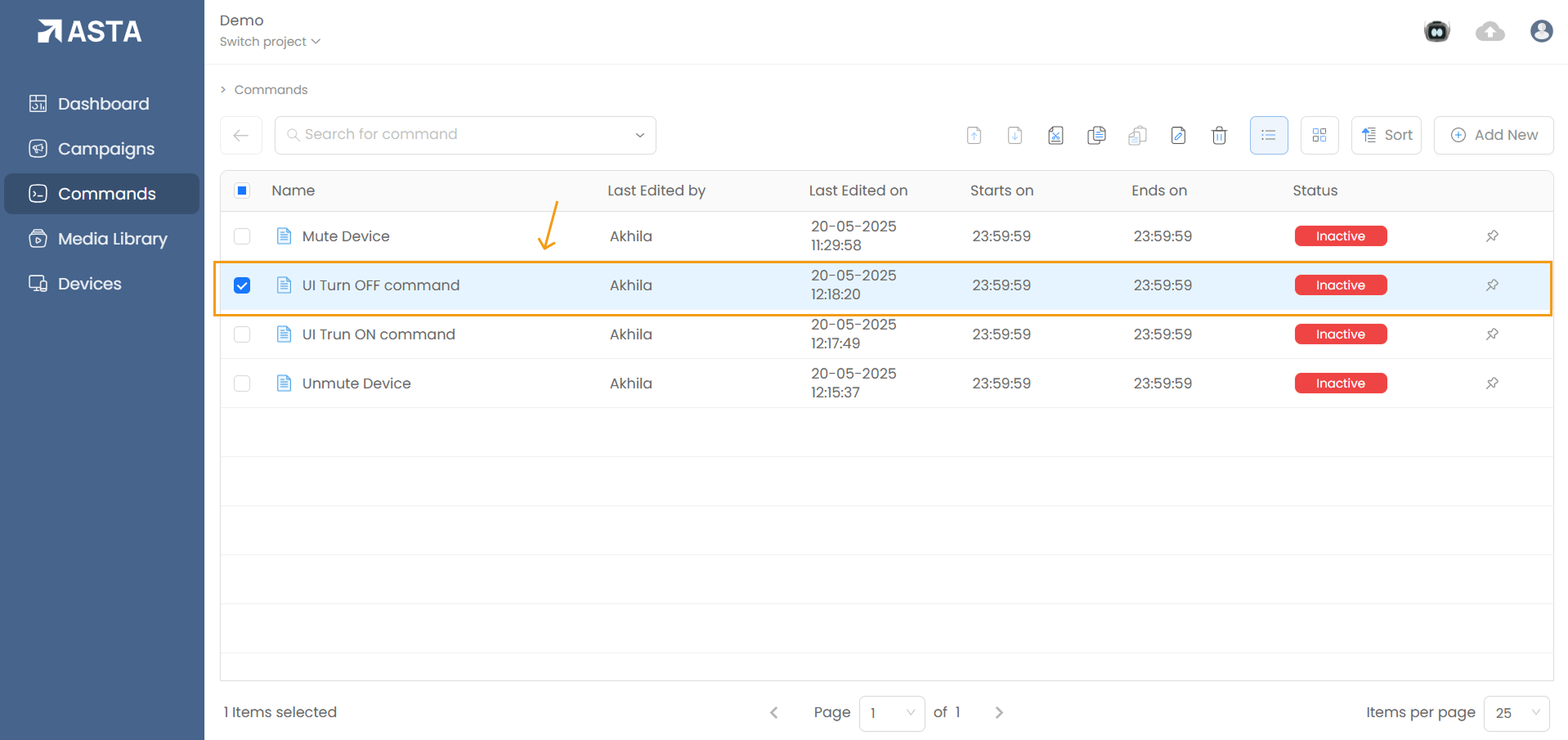
1. Open the Command Page
Navigate to the Commands List Page and locate the command you wish to publish. Click on the command name to open its configuration page.
2. Review Command Details
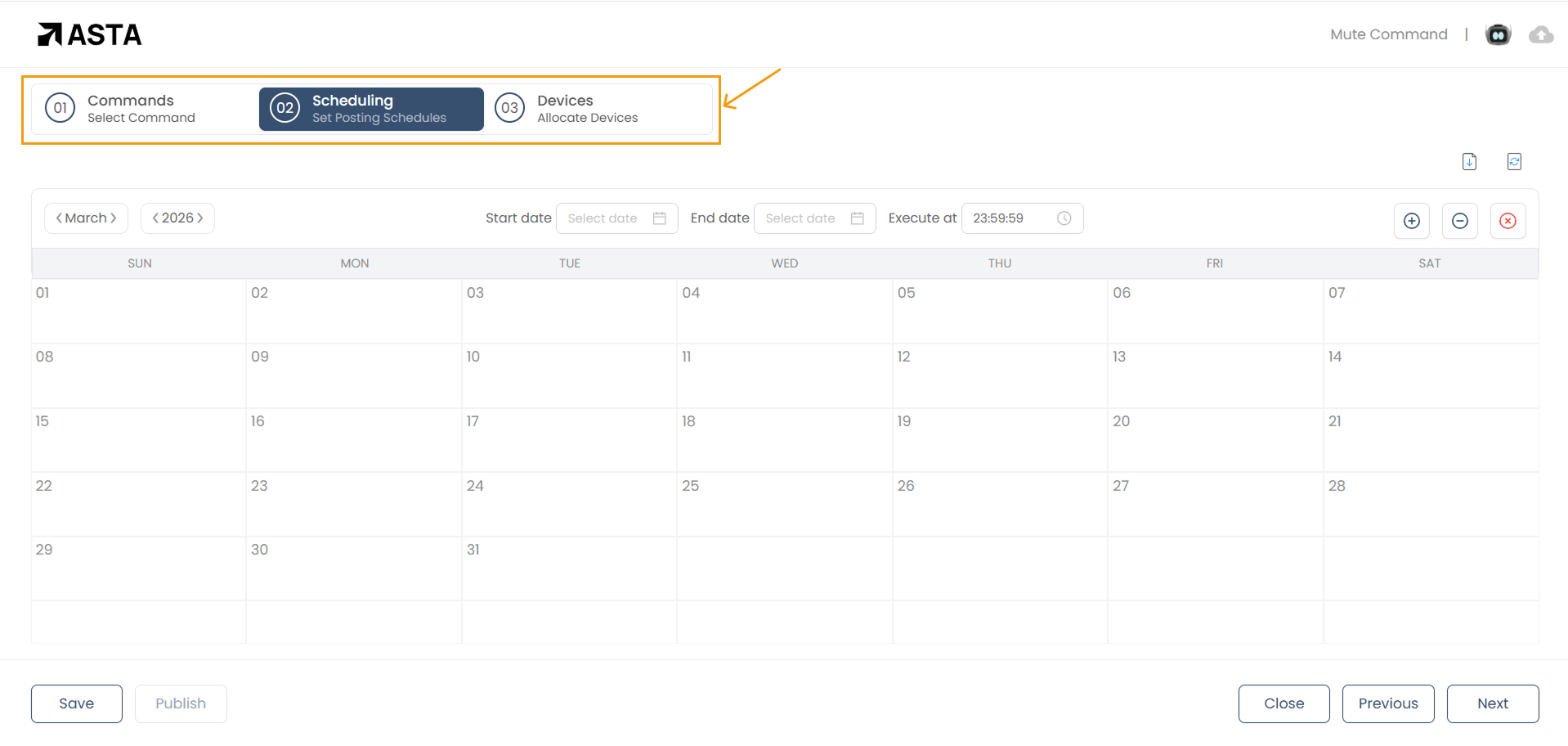
Ensure all sections are correctly configured:
- Command Type: Verify the selected command (e.g., "Turn Sound Off").
- Scheduling: Check the start and end dates, execution times, and any inclusions / exclusions.
- Devices: Confirm the list of devices where the command will execute.
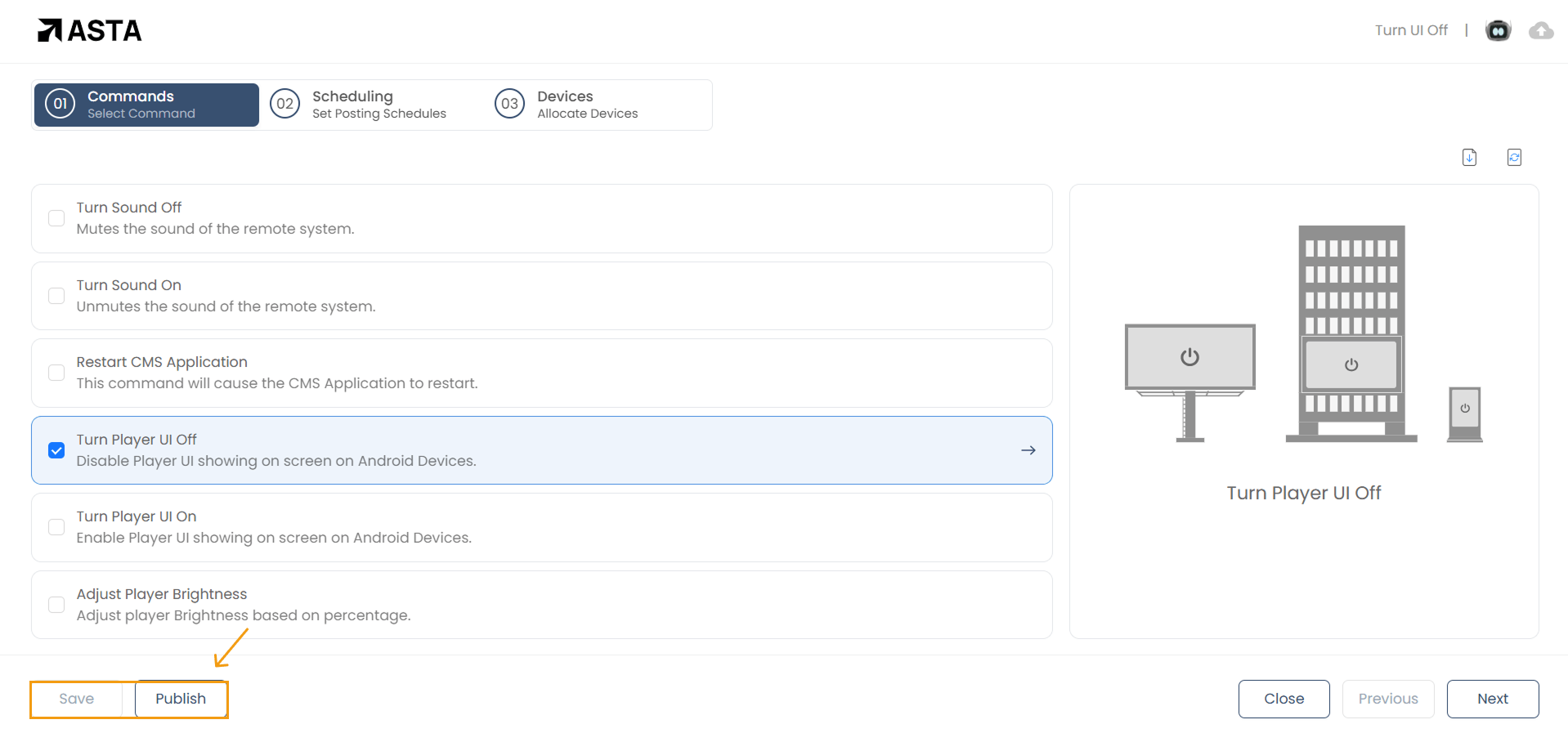
3. Click Publish
Once everything is set, click the Publish button at the bottom of the Command Page.
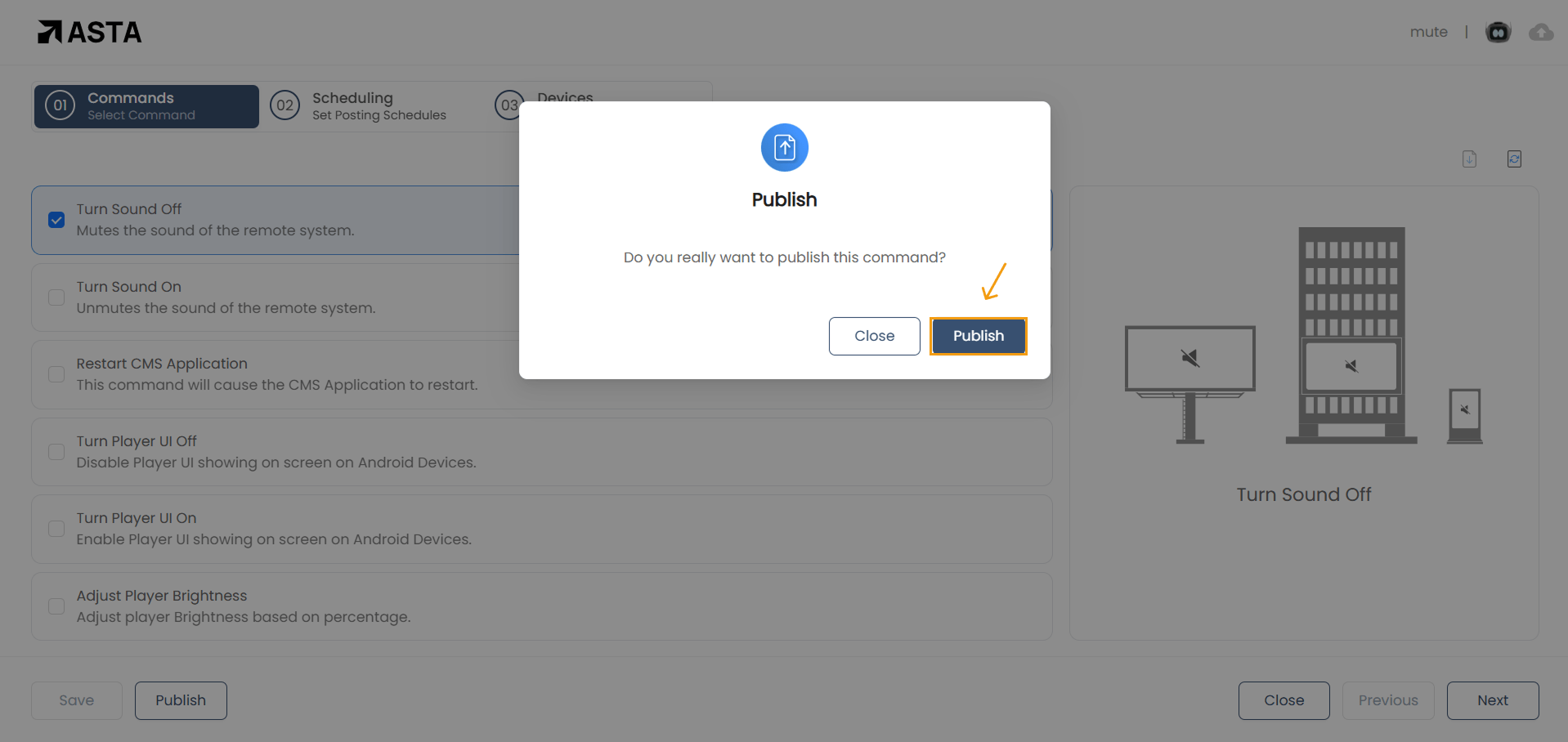
4. Confirmation Modal
Click Confirm in the confirmation modal to finalize publishing the command
Tips for Successful Publishing
- Device Readiness: Ensure all assigned devices are online and connected to Asta.
- Avoid Overlaps: Schedule commands carefully to prevent conflicts with other active commands.
- Monitor Execution: After publishing, check device logs to verify successful execution.
- Organize Commands: Use folders to group similar commands for easier management.
Common Scenarios for Using Commands
- Mute Devices: Ideal for quiet zones or specific hours.
- Adjust Brightness: Optimize screen visibility based on ambient lighting.
- Restart CMS Application: Resolve issues caused by extended usage.
Publishing commands in Asta streamlines device management, giving you precise control over your network. By following this guide, you can ensure that your commands are effectively deployed and executed as intended.