
Welcome To Asta

Getting Started
Set-up guide
Platform Capabilities
Dashboard
Campaigns
Media Library
Device Management
Commands Management
Content Management
Add & Manage Media in Asta
Customize Your Media Experience
User & Role Management
Users
Roles & Permissions
Account Settings
Project Management
Projects Overview
Navigating the Project Dropdown Menu
Customization & Branding
Rebranding the Asta Application
Licensing & Legal
Licenses
Domain Quota
Understanding commands page
The Command Page has three main sections for configuring and managing a command:
Section 1. Commands - Select Command
- Turn Sound Off: Mutes the device.
- Turn Sound On: Unmutes the device.
- Restart CMS Application:
- Restarts the CMS application on the device.
- Useful for resolving stability issues from extended usage.
- Turn Player UI Off: Turns off the media player UI, displaying a black screen and disabling operations on the Asta application.
- Turn Player UI On: Reactivates the player UI, enabling operations on the Asta application.
- Adjust Player Brightness: Allows setting the brightness percentage (0–100%) of the device.
- Adjust Player Volume: Enables remote adjustment of the device’s volume percentage.
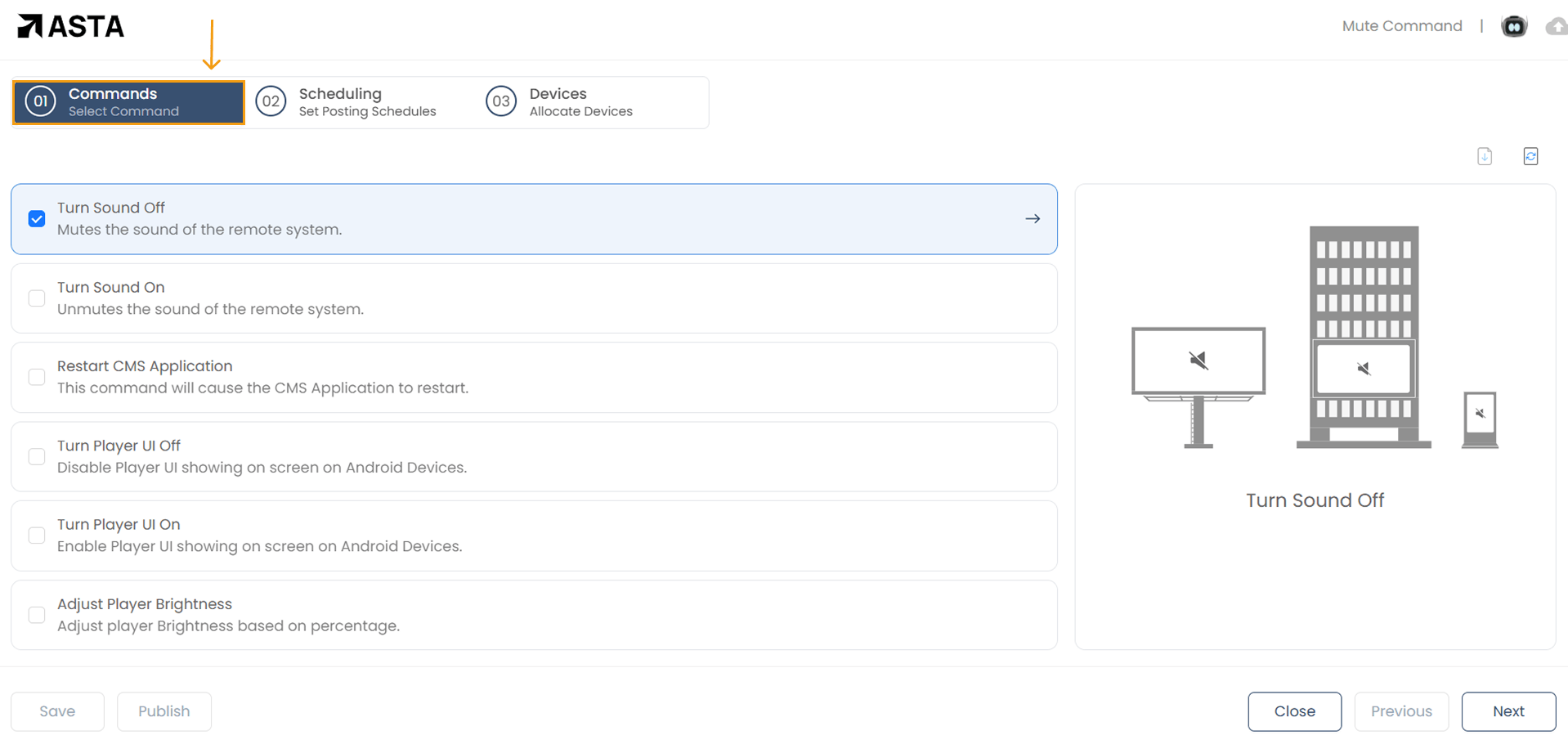
Select the desired command and proceed to the next section.
Section 2: Scheduling – Set Posting Schedules
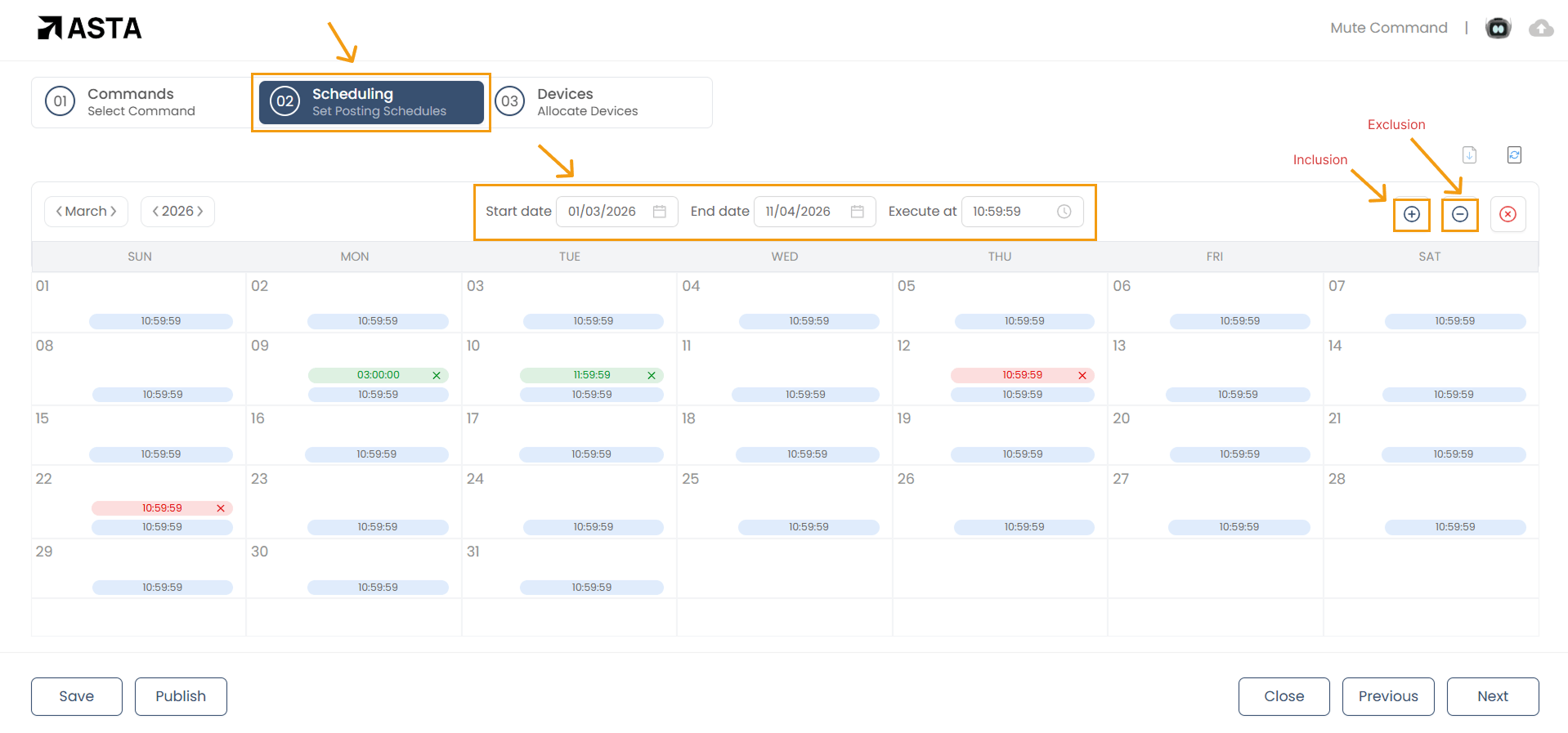
In this section, you can schedule the execution of commands at specific times.
- Viewing the Calendar:
- The scheduling interface provides a monthly calendar view to manage command schedules.
- Navigate between months and years using the controls at the top-left corner of the calendar.
- Adding a Schedule:
- Set the Start Date and End Date:
- Click on the input fields for Start Date and End Date, to select your preferred dates.
- Set the Execution Time :
- Click the Execute At field, to select the exact time for the command to run, and click OK.
- The scheduled command will now appear in the calendar.
- Inclusions and Exclusions:
- Inclusions/Additions:
- Add additional times for the command to execute within the Start and End Dates.
- Exclusions:
- Specify times to exclude from the default schedule.
Section 3: Devices – Allocate Devices
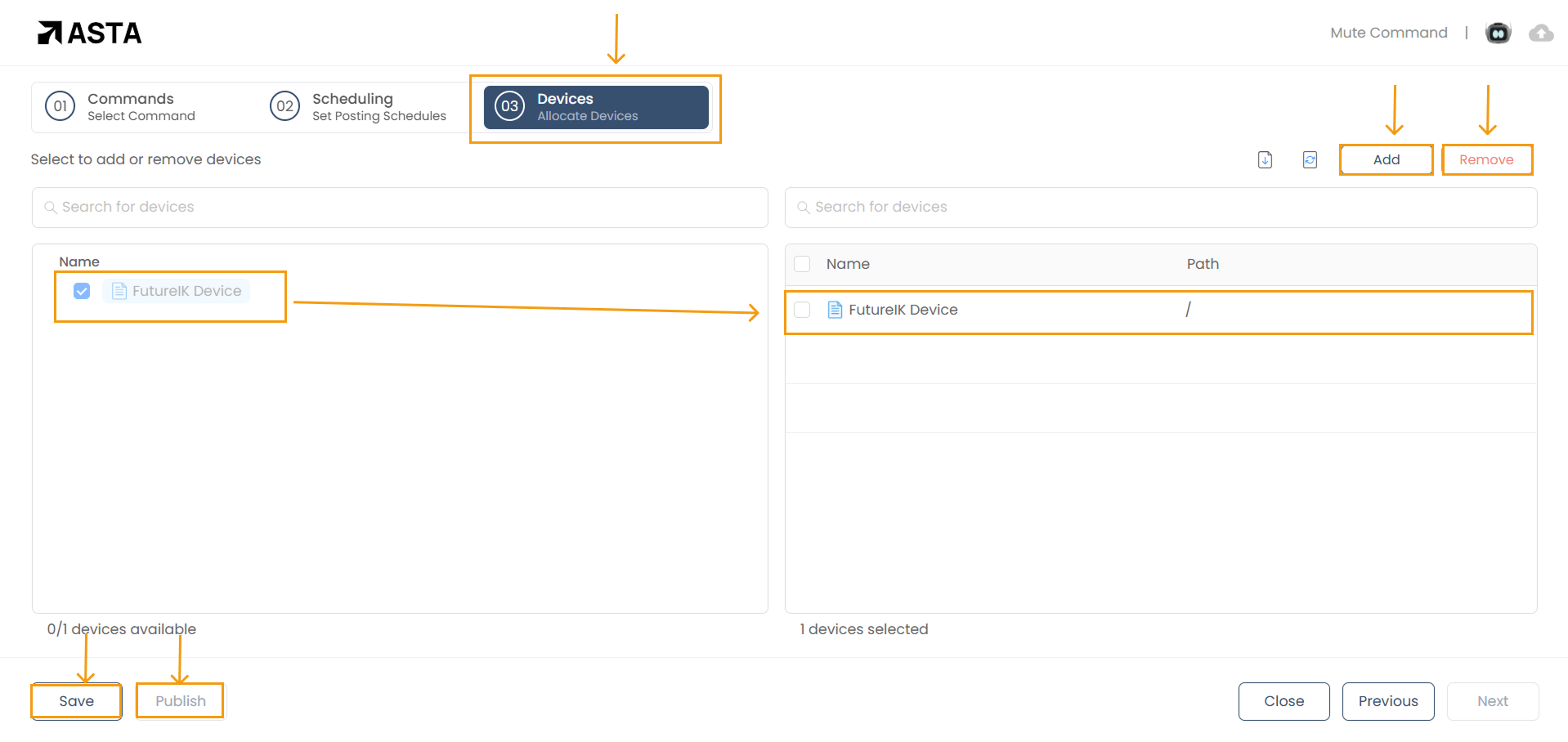
This section lets you assign devices to execute the command.
- Available Devices:
- On the left side, view a list of available devices organized hierarchically in folders and files.
- The footer displays the total number of available devices.
- Selecting Devices:
- Select individual devices by checking their boxes.
- To select devices from a folder, click on the folder dropdown and choose the desired devices .
- Add the selected devices to the Selected Deviceslist using the Add button.
- Selected Devices:
- This section shows the devices where the command will be executed.
- Each device is listed with its Name and Path (relative file path).
- Removing Devices:
- Remove devices from the Selected Devices list using the Remove button.
Navigating Between Sections
Use the navigation controls at the bottom-right of the screen:
- Next: Move to the next section.
- Previous: Return to the previous section.
- Close: Exit the Command Page and return to the Commands List Page.
Finalizing and Executing Commands
After configuring the command, scheduling, and device allocation:
- Click Save to save your configurations.
- Click Publish to deploy the command to the selected devices.
Additional Tips for Commands
- Organize Commands: Use folders to group commands for better management.
- Check Device Status: Ensure devices are online to execute commands successfully.
- Monitor Command Execution: Verify that commands are executed as scheduled by checking device logs.
- Avoid Overlapping Commands: Schedule commands carefully to prevent conflicts.