Welcome To Asta

Getting Started
Platform Capabilities
Content Management
User & Role Management
Project Management
Customization & Branding
Licensing & Legal
Dashboard Overview
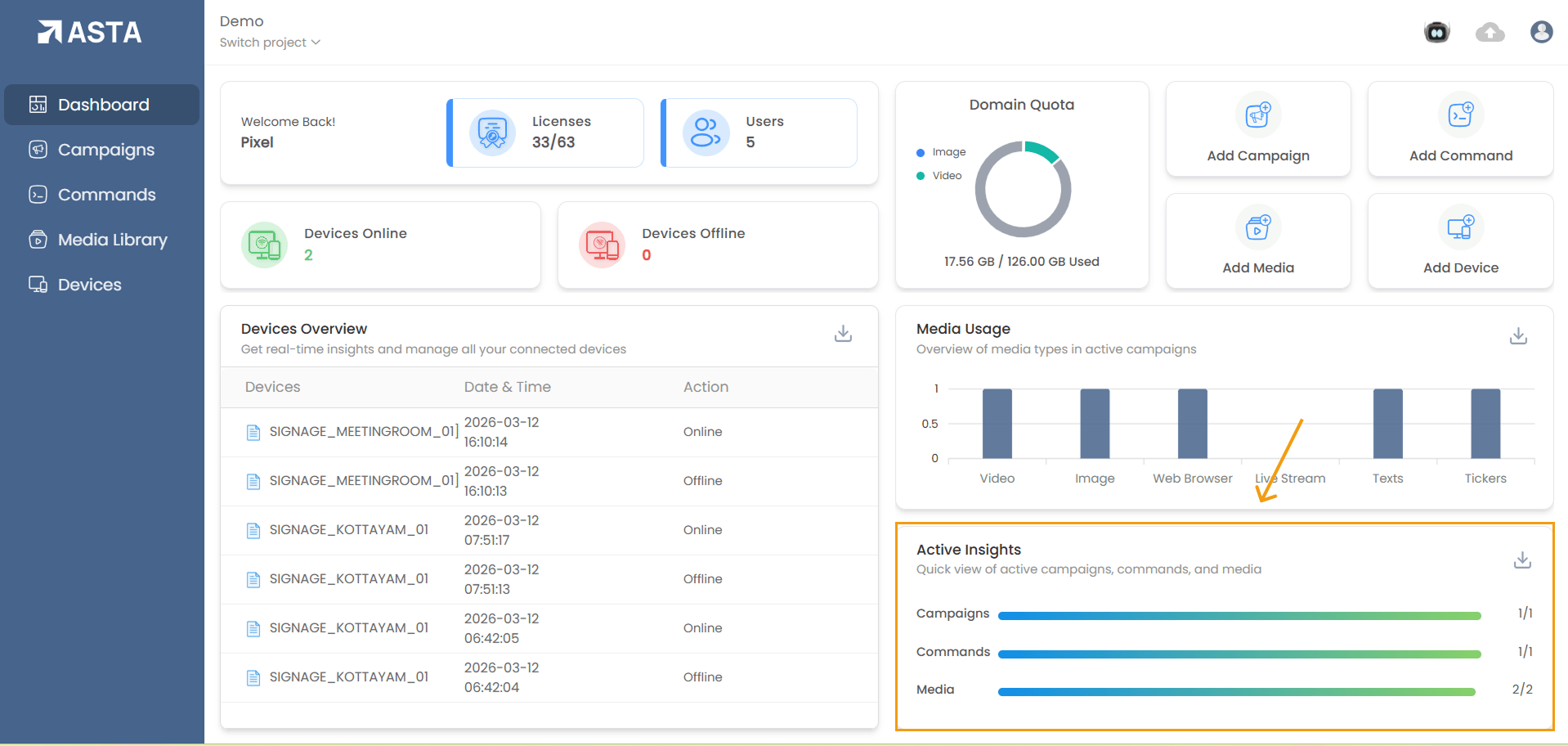
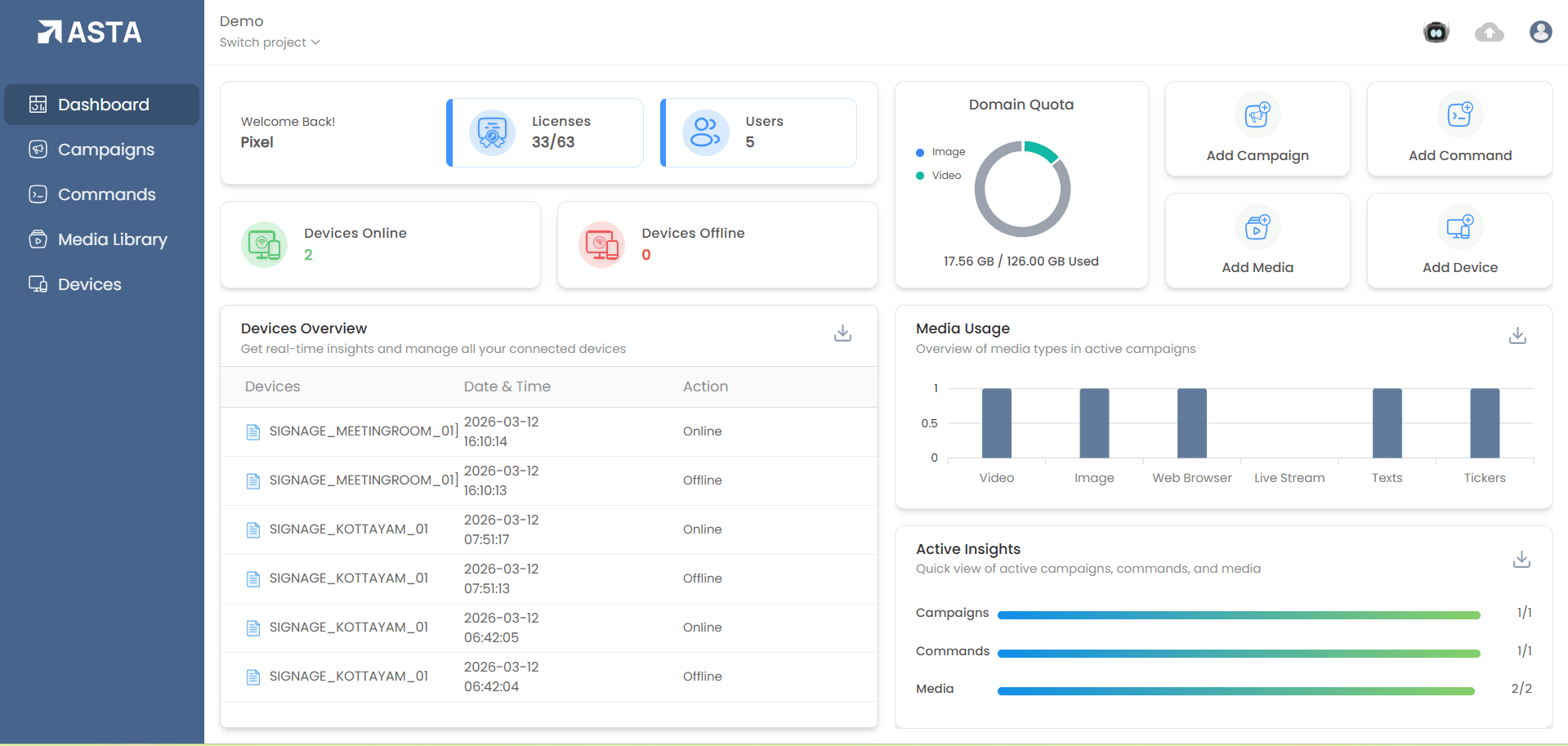
The Dashboard section of the Asta application provides a centralized view of key metrics and functionalities. Upon logging into your Asta account, you are directed to the Dashboard, which acts as the default landing page. This section is divided into two main parts: Client Account Metrics and Project-Specific Metrics, each designed to provide insights and quick actions for managing your account and projects.
Navigation and Usability
Client Account Metrics
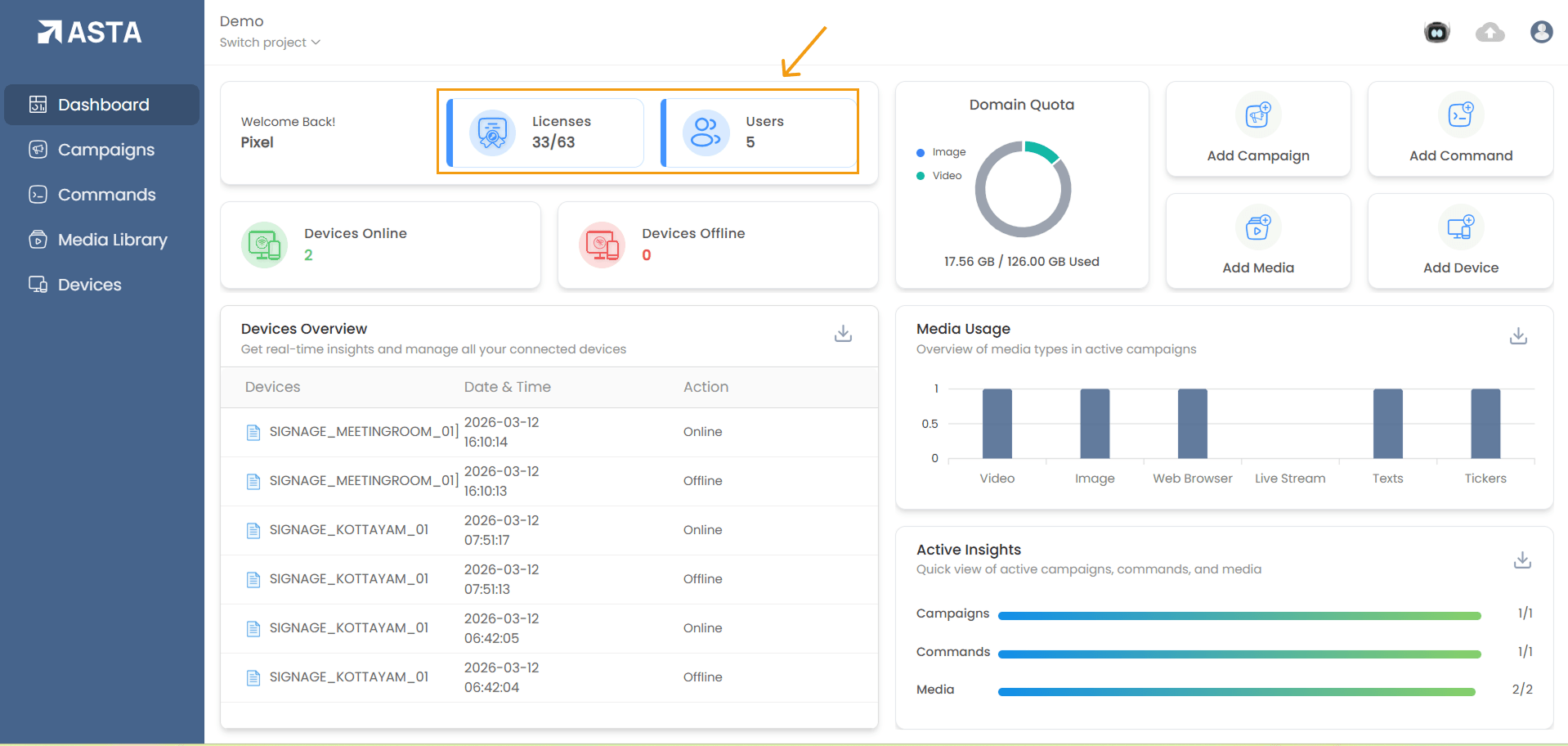
The following metrics provide an overview of your entire client account:
1. Licenses
- Displays the number of active licenses in use against the total number of licenses available.
- Example: 4/21 indicates 4 licenses are in use out of 21 total active licenses.
- Expired licenses are not included in this count.
2. Users
- Shows the total number of users assigned to the client account.
- Example: 10 indicates there are 10 users in the account.
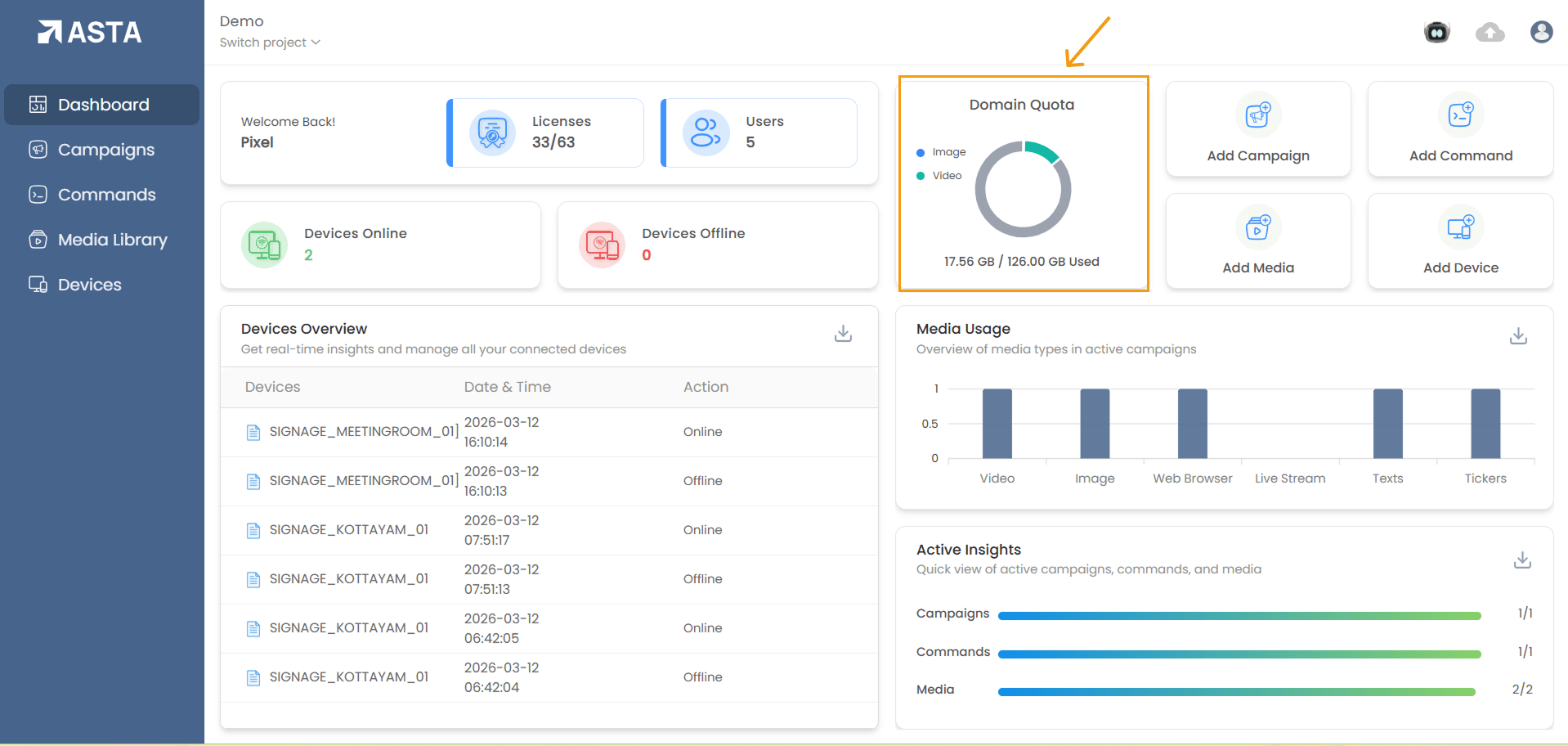
3. Domain Quota
- A donut chart visualizes the storage usage for your account.
- Blue Segment : Space occupied by images.
- Green Segment : Space occupied by videos.
- Example: 71.85 MB / 22.00 GB Used shows the total space used versus the allocated storage limit.
- To free up space:
- Delete media from the Media Library by navigating to each project.
- Alternatively, purchase additional space by contacting customer support.
Project-Specific Metrics
Metrics and quick actions related to individual projects are displayed below the Client Account Metrics.
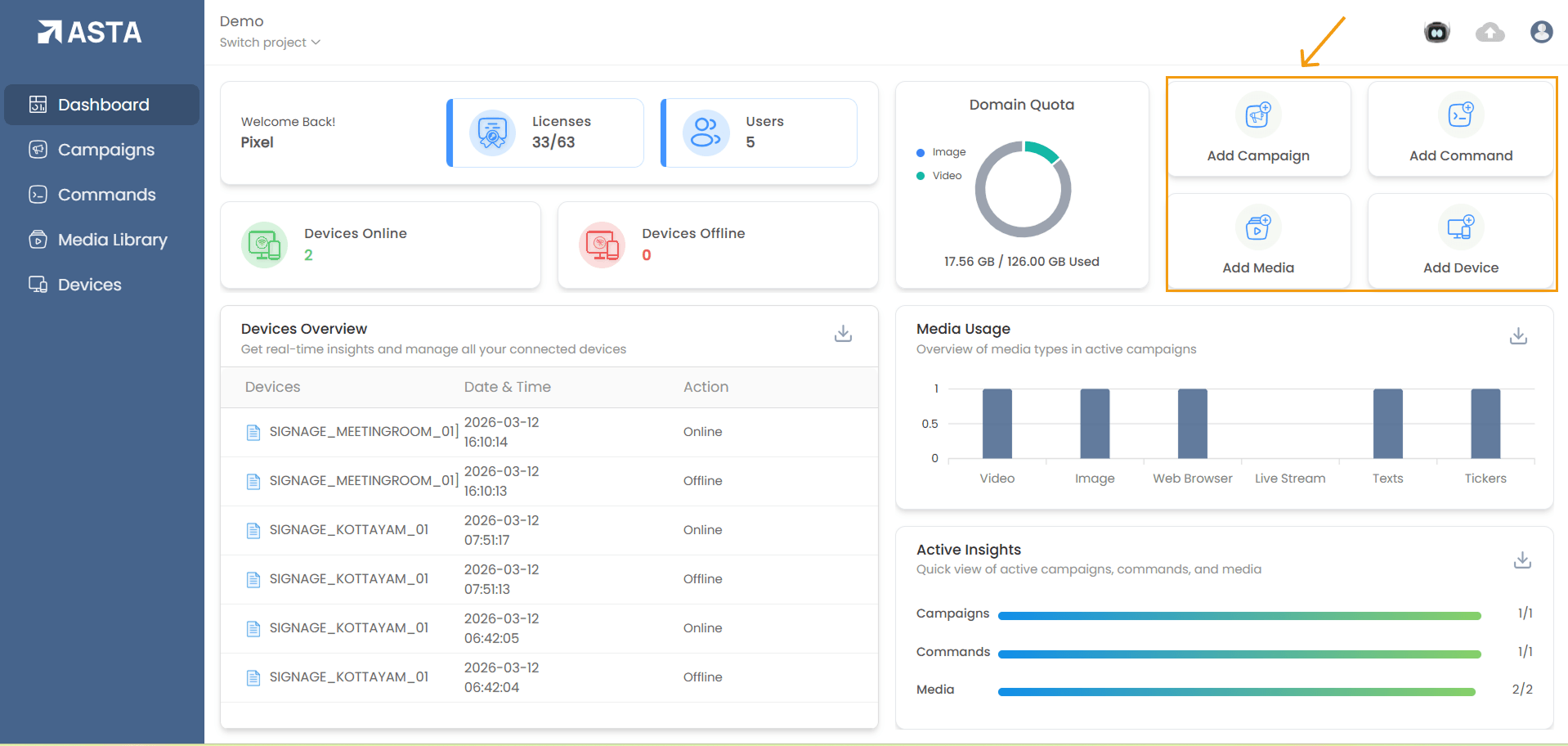
1. Quick Links
Quick links enable you to perform common actions efficiently:
- Add Campaign: Create new Campaign.
- Add Media: Upload new media.
- Add Command: Create a new command
- Add Device: Register a new device
Note
- Items created using these quick links are added to the root directory by default.
- To organize items, navigate to their respective list pages and move them to the desired location.
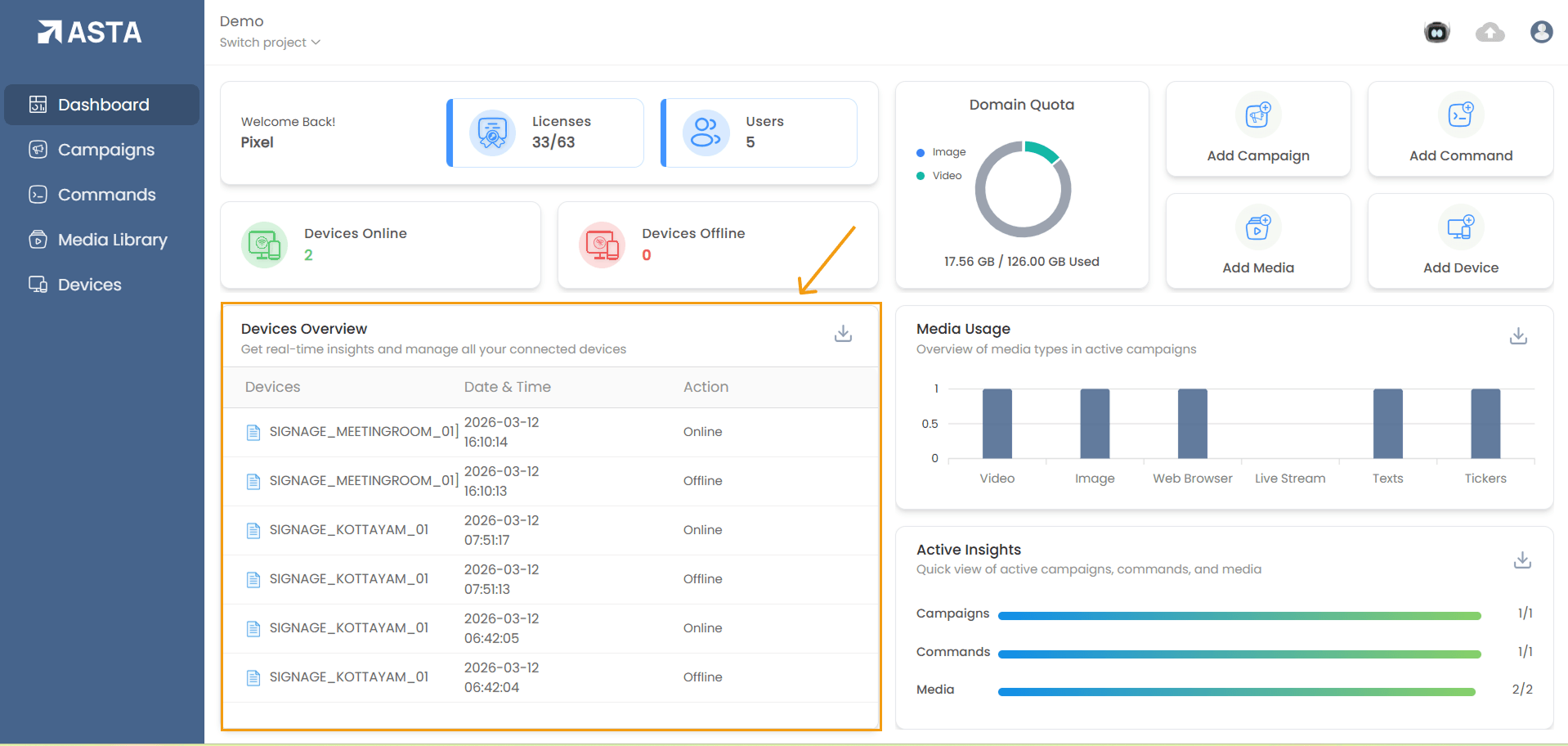
2. Devices Overview
This section provides real-time insights into the status of connected devices:
- Table Columns:
- Devices: Name of the device
- Date & Time: Timestamp of the last status update
- Action: Device status (e.g., Online/Offline).
- Example Entry:
- Device A, 2024-12-13 09:39:32, Online
- Clicking on a device name takes you directly to its settings for further inspection.
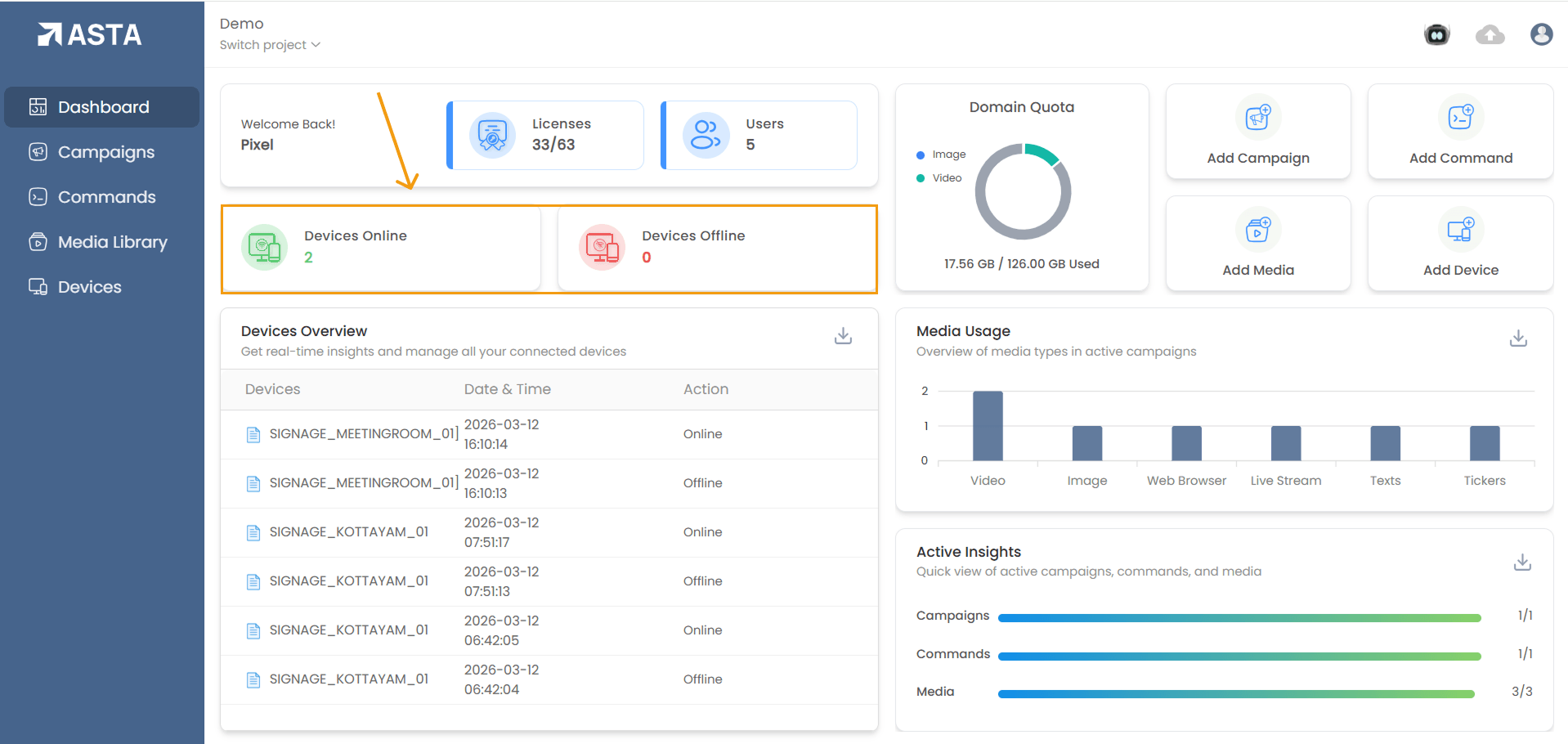
3.Devices Online and Offline
This section shows the number of online and offline devices
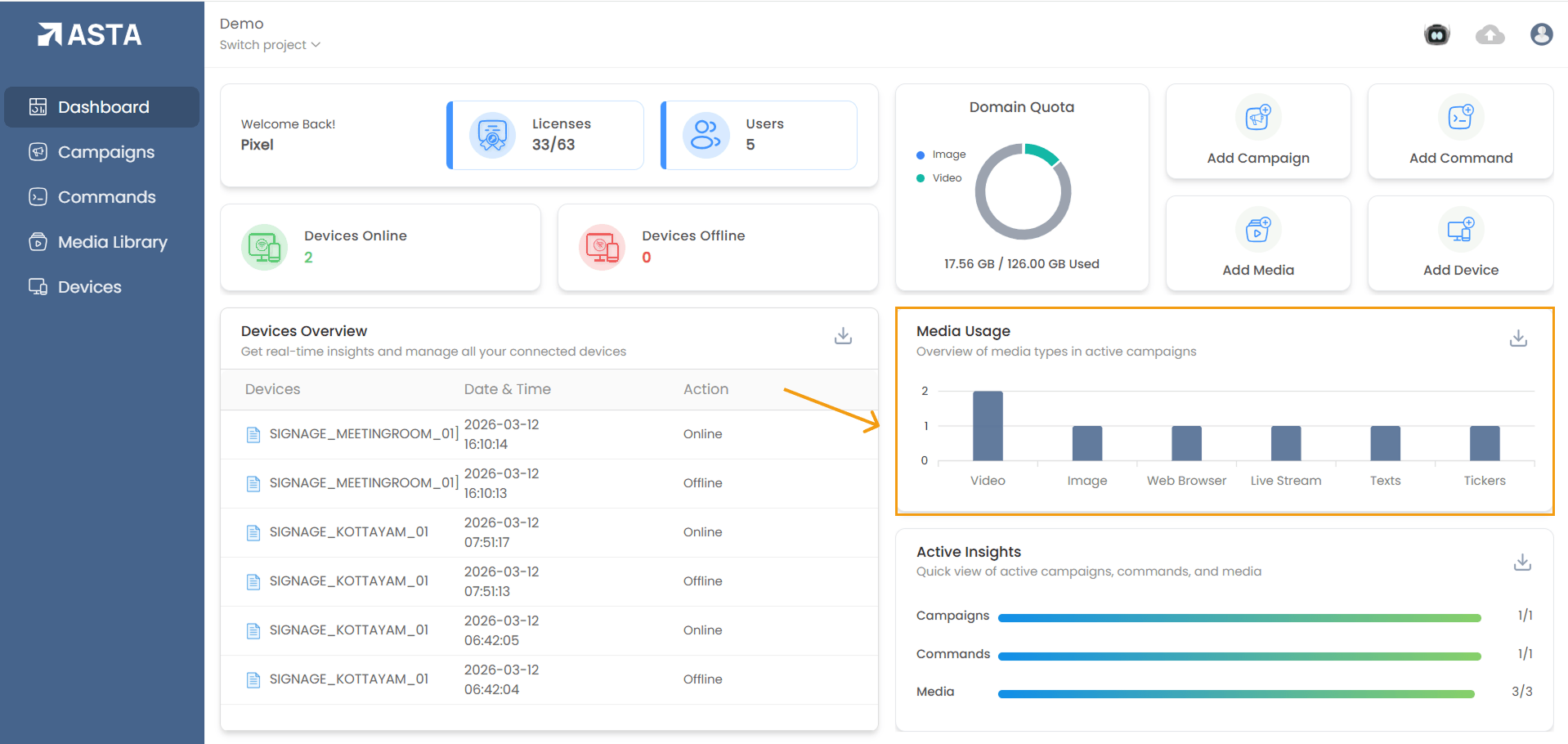
4. Media Usage
This section shows the types and counts of media used in active campaigns:
- Media types include:
- Video
- Image
- Web Browser
- Ticker
- Text
- Live Stream
- Helps users understand the distribution of media across campaigns.
5. Active Insights
Provides a summary of active items:
- Campaign: Number of active campaigns verus total campaigns.
- Example: 0/1 indicates 0 active campaigns out of 1 total campaign.
- Commands: Number of active commands verus total commands.
- Example: 0/0 indicates no active commands.
- Media: Number of media items in use versus total media items.
- Example: 1/2 indicates 1 media item is active out of 2 total items.