
Welcome To Asta

Getting Started
Platform Capabilities
Content Management
User & Role Management
Project Management
Customization & Branding
Licensing & Legal
Setting up & Monitoring Devices
After connecting to a device, click or open the device from the devices section to access the Device Page, where you can configure and monitor the device.
The Device Configurations is divided into three sections:
- General: Basic overview of the device's operational details.
- Settings: Configuration options for device behavior.
- Information: Key details and advanced preferences.
- Monitoring device connectivity and performance from the Basic Overview.
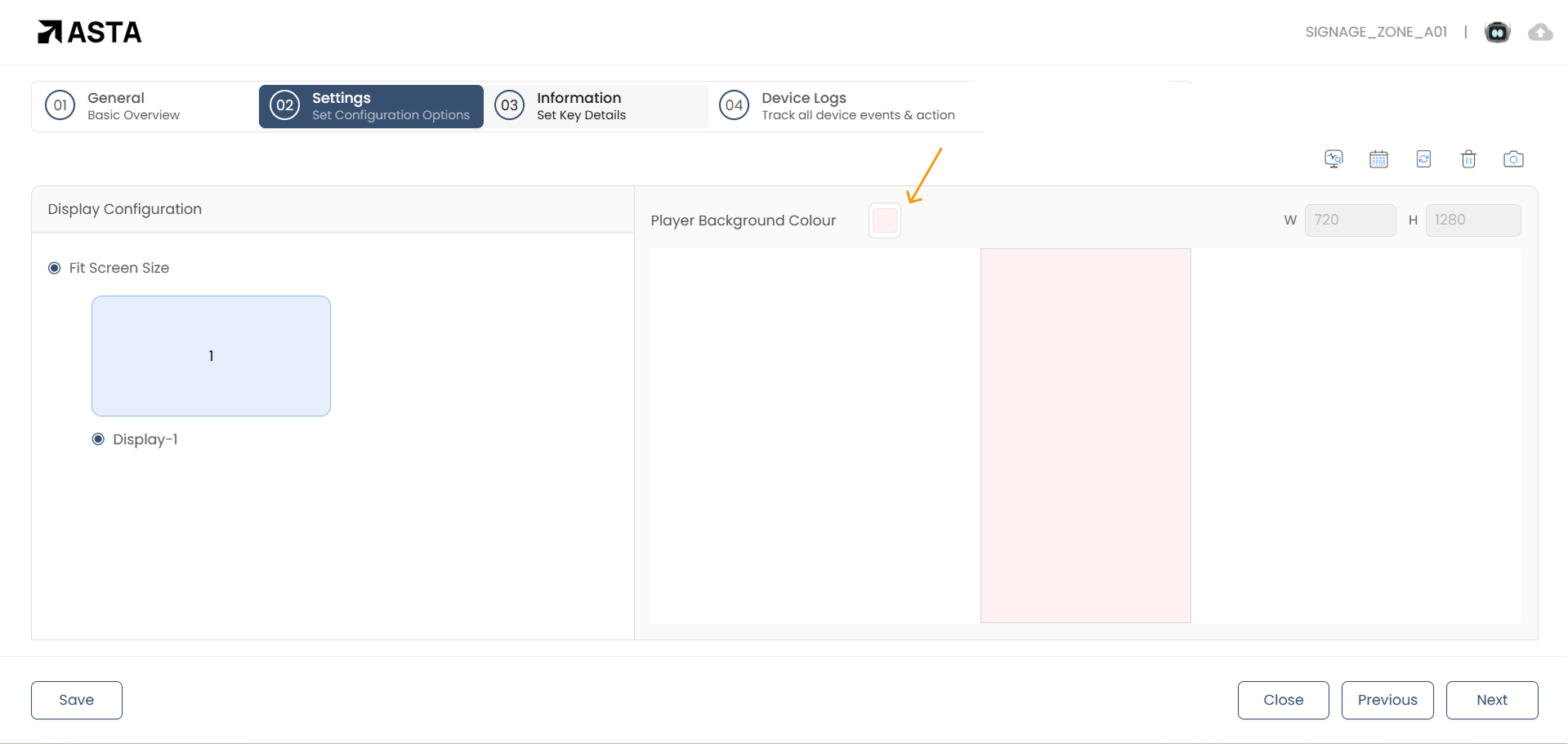
- Configuring Basic settings like screen orientation and Background color
- Configuring the behavior of each device using the key settings.
Navigate through these sections using the Next and Previous buttons, or return to the Devices List Page using the Close button.
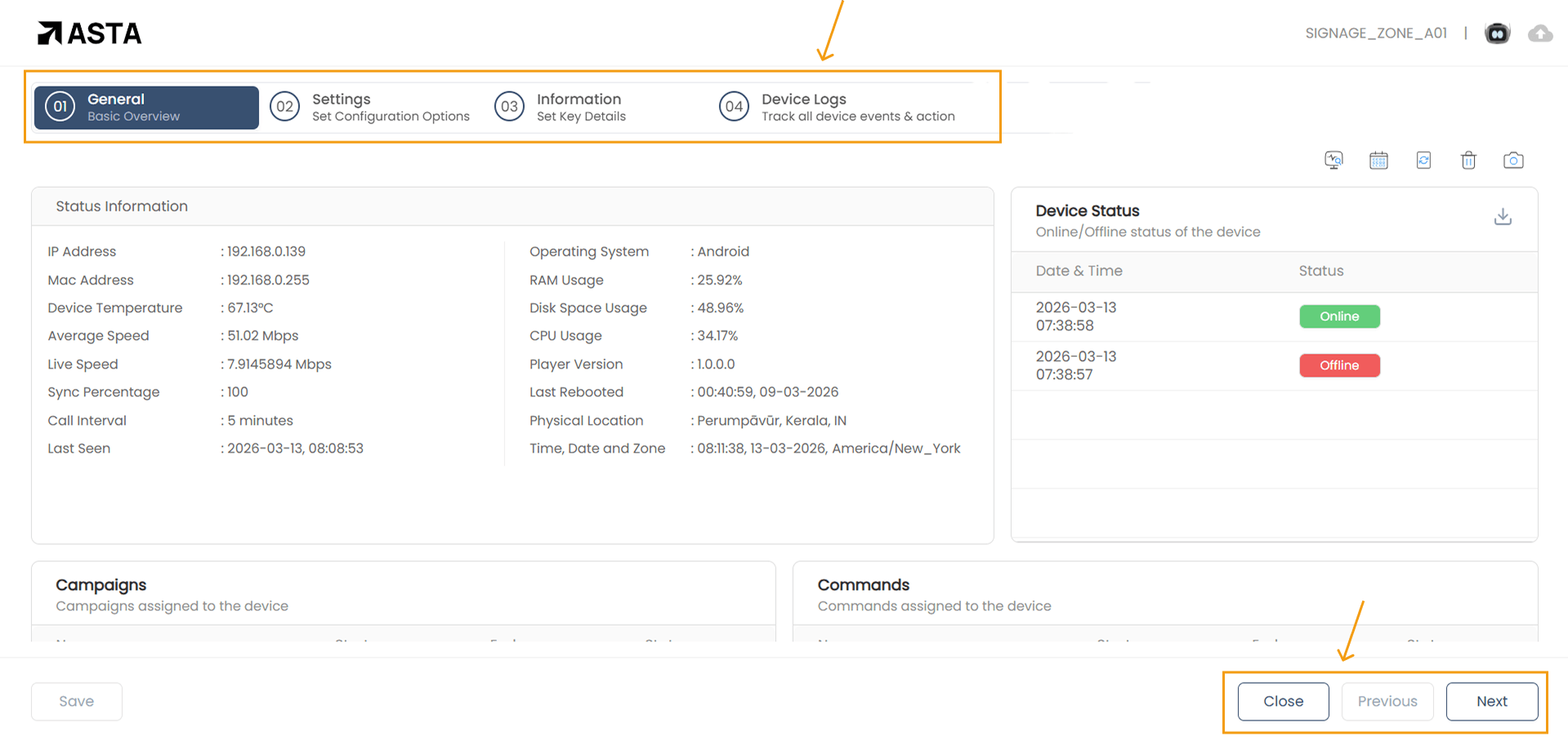
General: Basic Overview
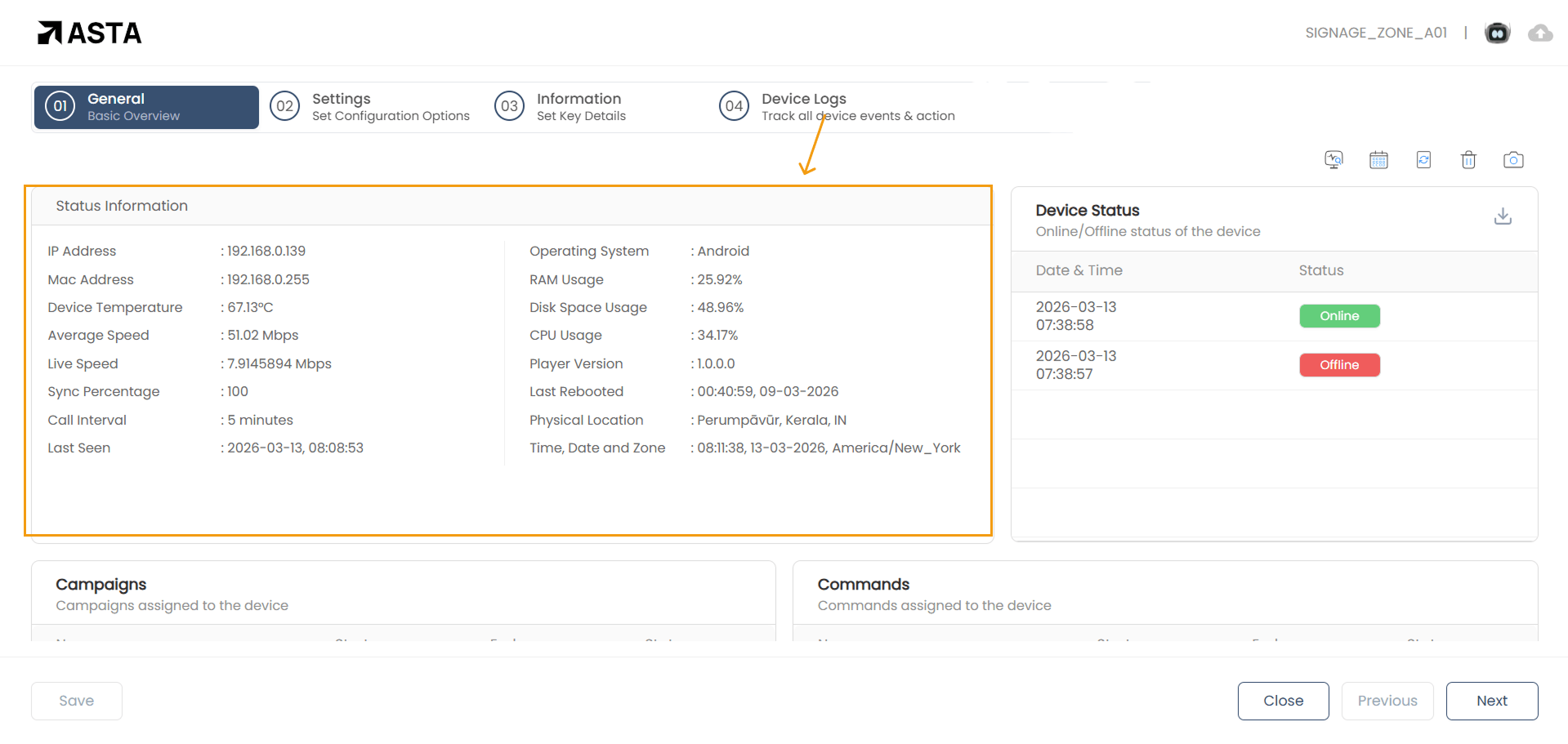
The General section displays:
- Status Information:
- IP Address, Gateway IP, and DNS Name.
- Average and Live Network Speed.
- Synchronization Percentage and Call Interval.
- Last Seen Date/Time and Operating System.
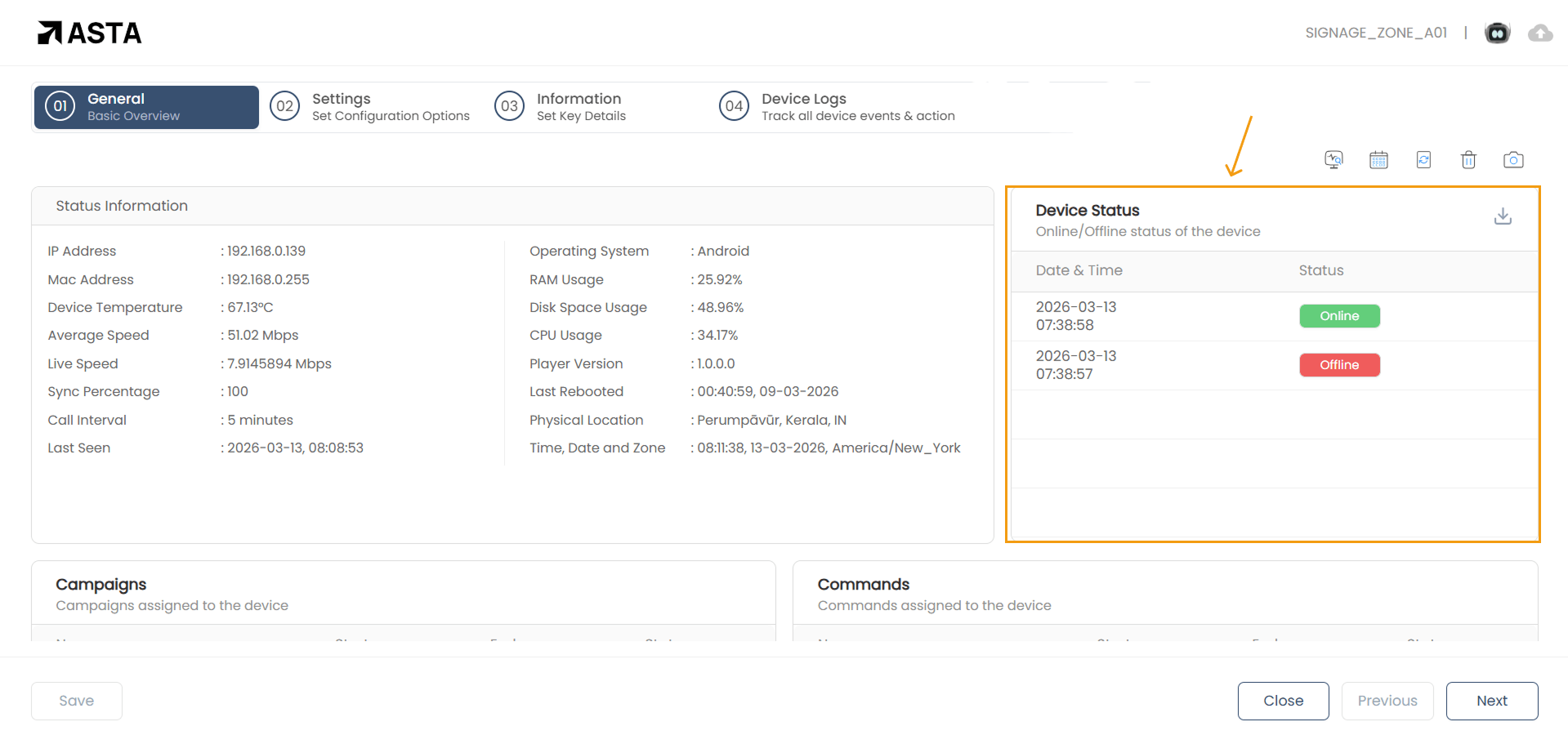
- Device Status:
- Online/Offline Status:
- Green: The device is online, and both the server and WebSocket connection are active.
- Red: The device is offline, either the connection to the server or the WebSocket is down, or both.
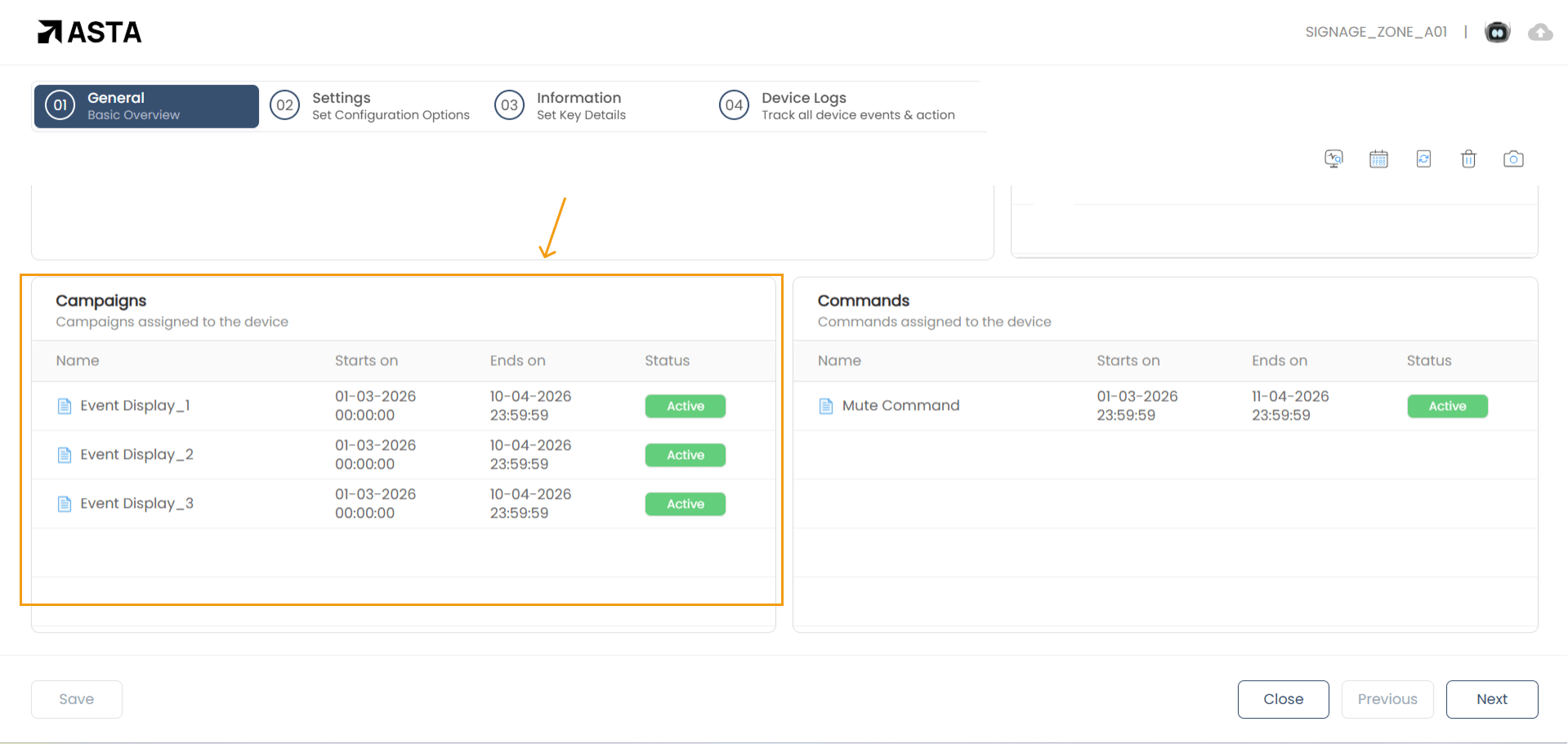
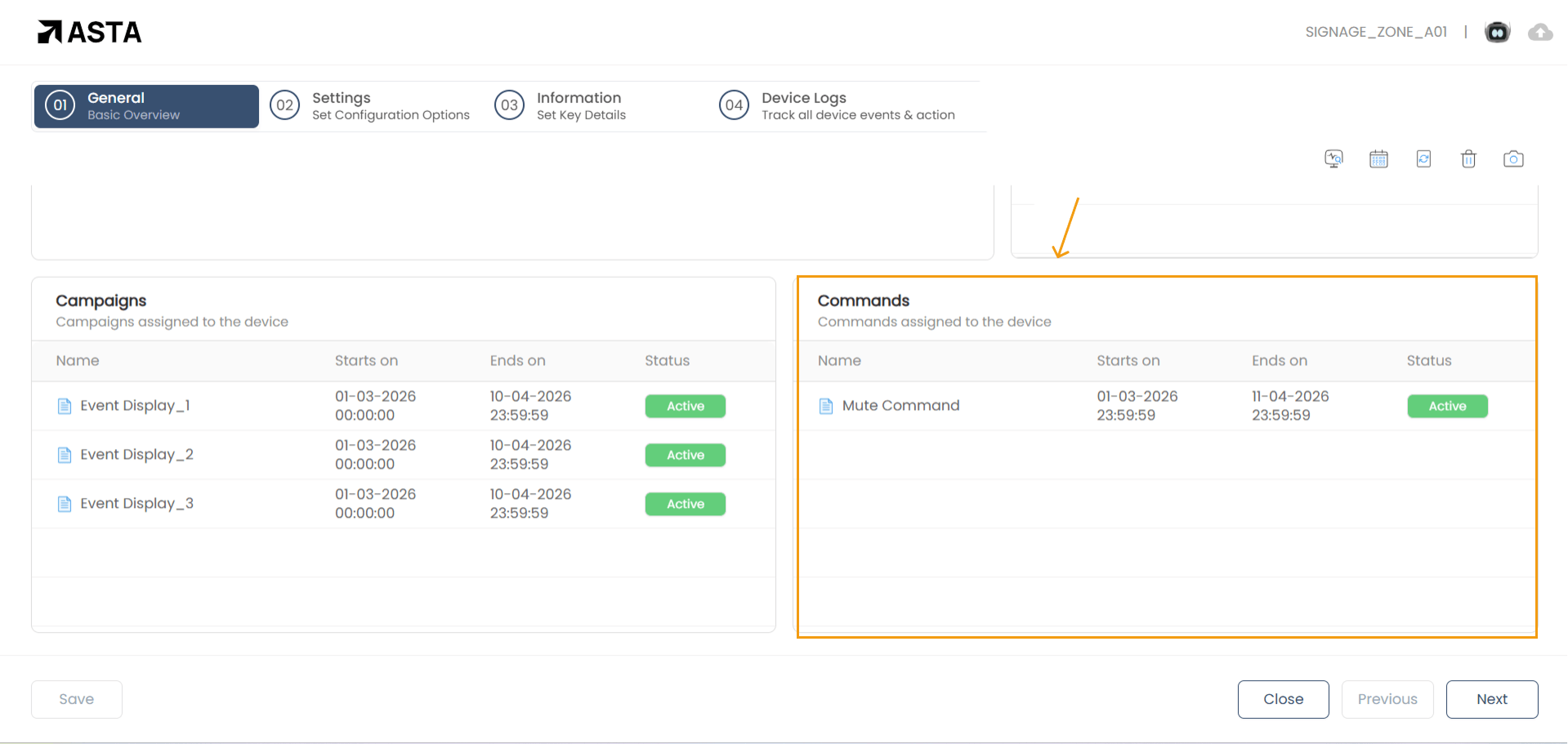
- Campaigns Assigned to the Device:
- Campaign Name: The title of the campaign.
- Start Date: The date and time when the campaign will begin.
- End Date: The date and time when the campaign will end.
- Status: Indicates whether the campaign is currently active or inactive.
- Commands Assigned to the Device:
- Command Name: The title of the command.
- Start Date: The date and time when the command will begin.
- End Date: The date and time when the command will end.
- Status: Indicates whether the command is currently active or inactive.
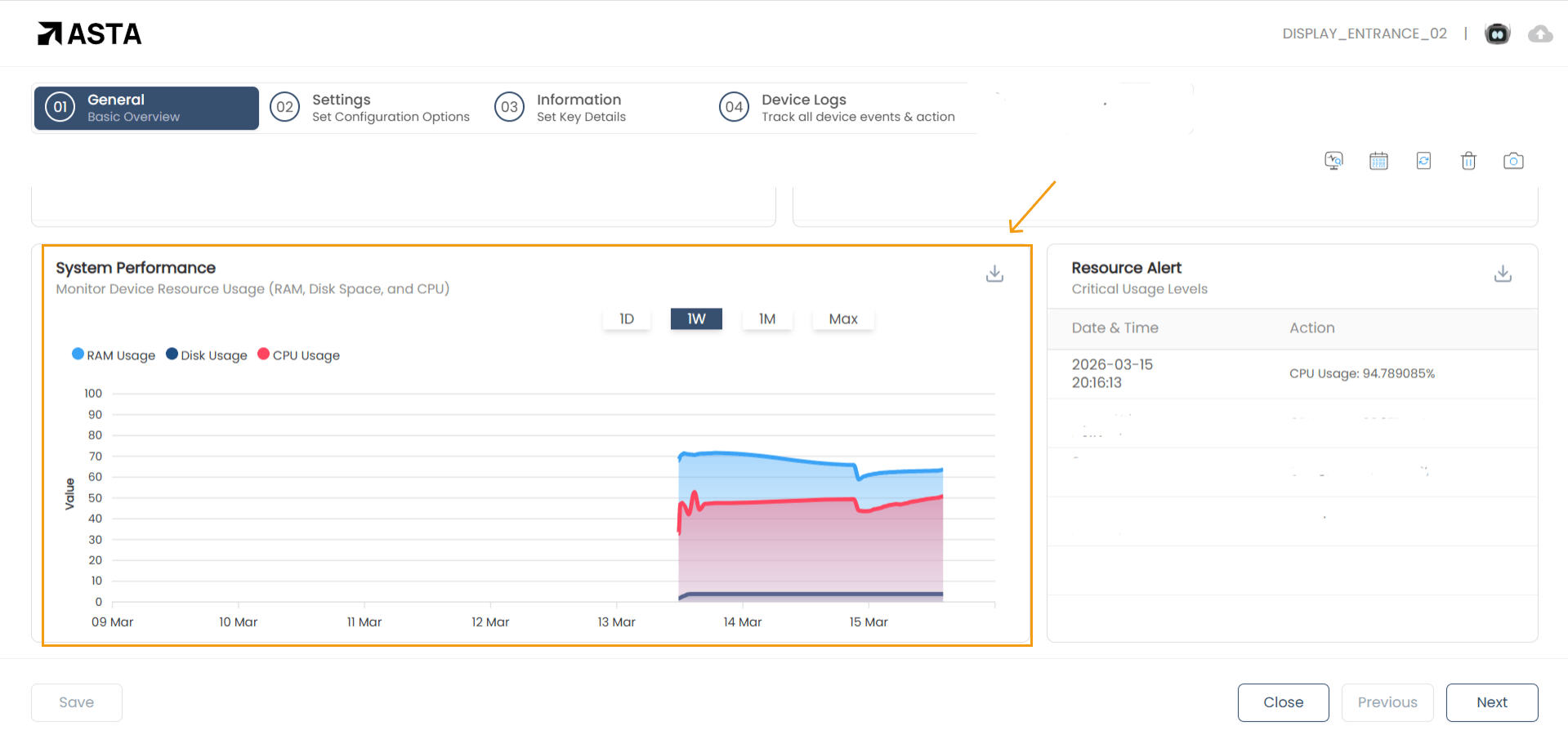
- System Performance:
- Resource Usage (RAM, Disk Space, CPU): Displays current resource consumption.
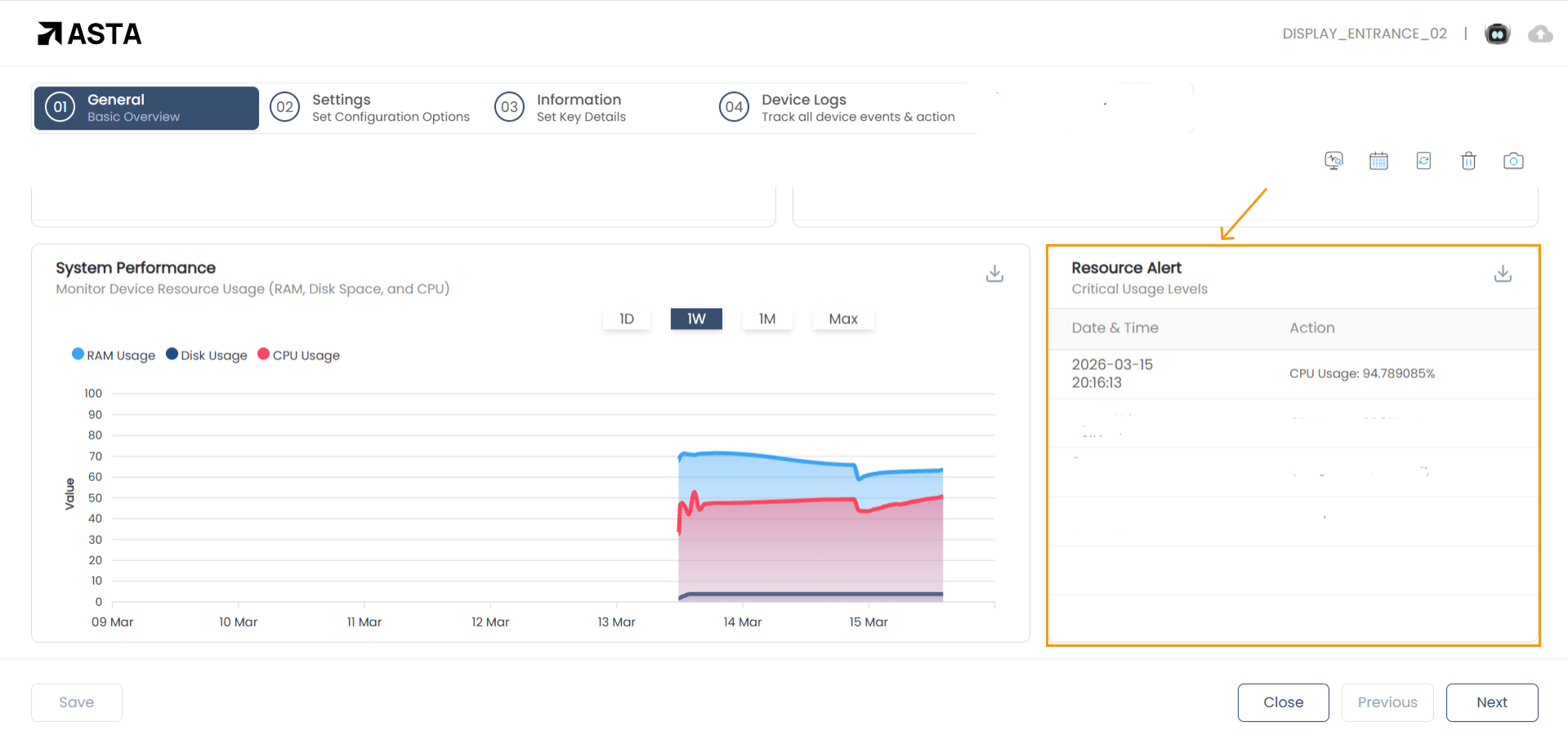
- Resource Alert:
- Alert Levels: Alerts are shown when the device's resources exceed critical thresholds, which may affect performance.
The Device Status section indicates whether the device is connected or disconnected and displays the device's timestamp
Campaigns are scheduled tasks or advertisements assigned to the device:
Commands control actions or processes on the device: eg muting a device at a specific time.
The System Performance section shows the real-time resource usage with a Daily Week , Monthly and a Complete(Max) View:
Settings: Set Configuration Options
Configure device-specific preferences:
- Background Color for the Asta application.
Information: Set Key Details
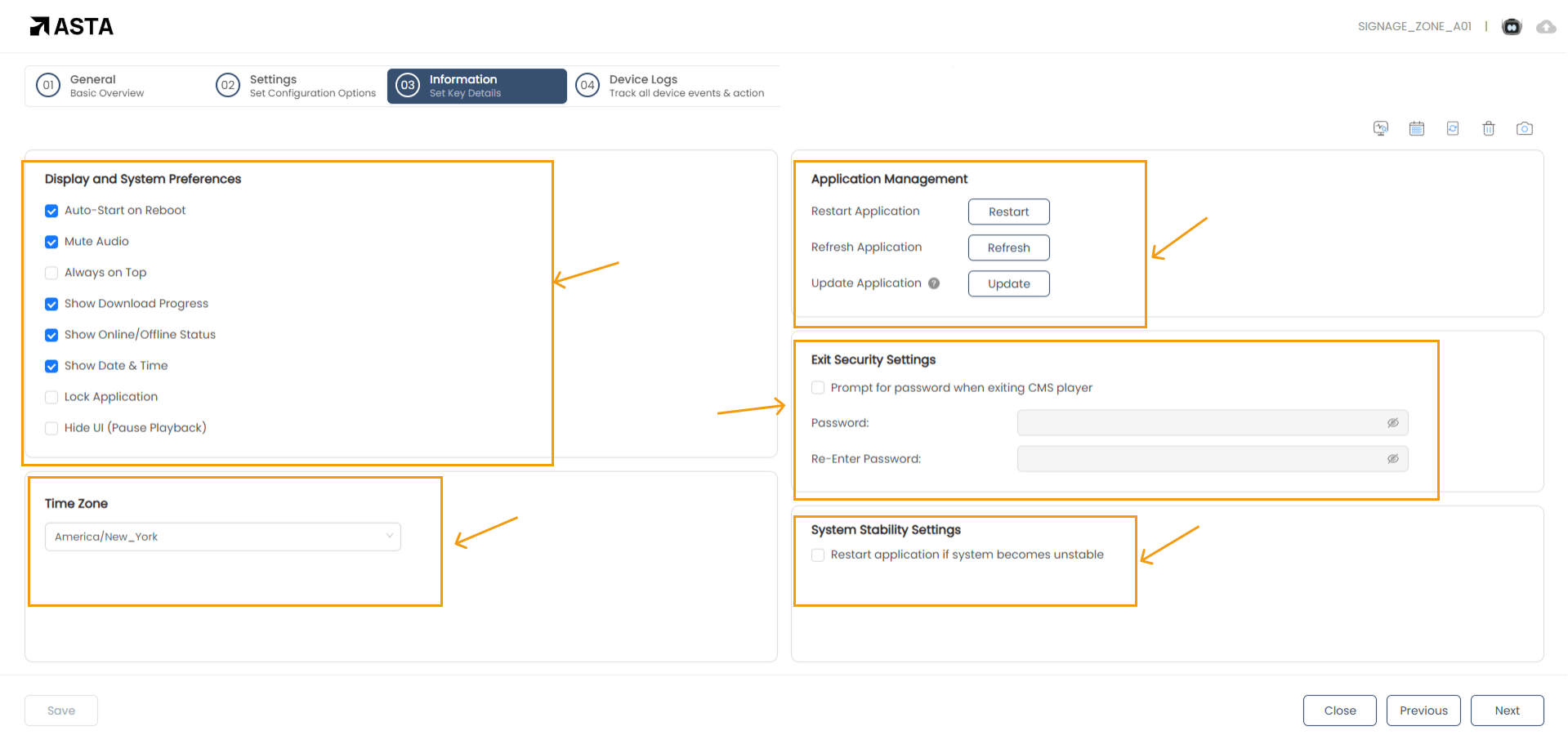
This section contains advanced preferences:
- Display and System Preferences:
- Auto-Start on Reboot: Automatically restarts the Asta application after a device reboot.
- Always on Top: Keeps the Asta application in the foreground.
- Lock Application: Prevents unauthorized access to menus.
- Show Date & Time: Displays the current date and time on the screen.
- Show Download Progress: Shows the download progress of campaigns being published to the device.
- Show Online/Offline Status: Shows the device's online or offline connection status.
- Hide UI: Pause playback and display a black screen instantly.
- Timezone Settings:
- Manually set the device’s timezone.
- Application Management:
- Restart: Restarts the Asta application.
- Refresh: Reloads the application’s current state.
- Check for Update: Ensures the application is running the latest version.
- Security Settings:
- Enable password protection for exiting the CMS Player.
- System Stability Settings:
- Auto-restart the application if instability is detected.
Device Logs
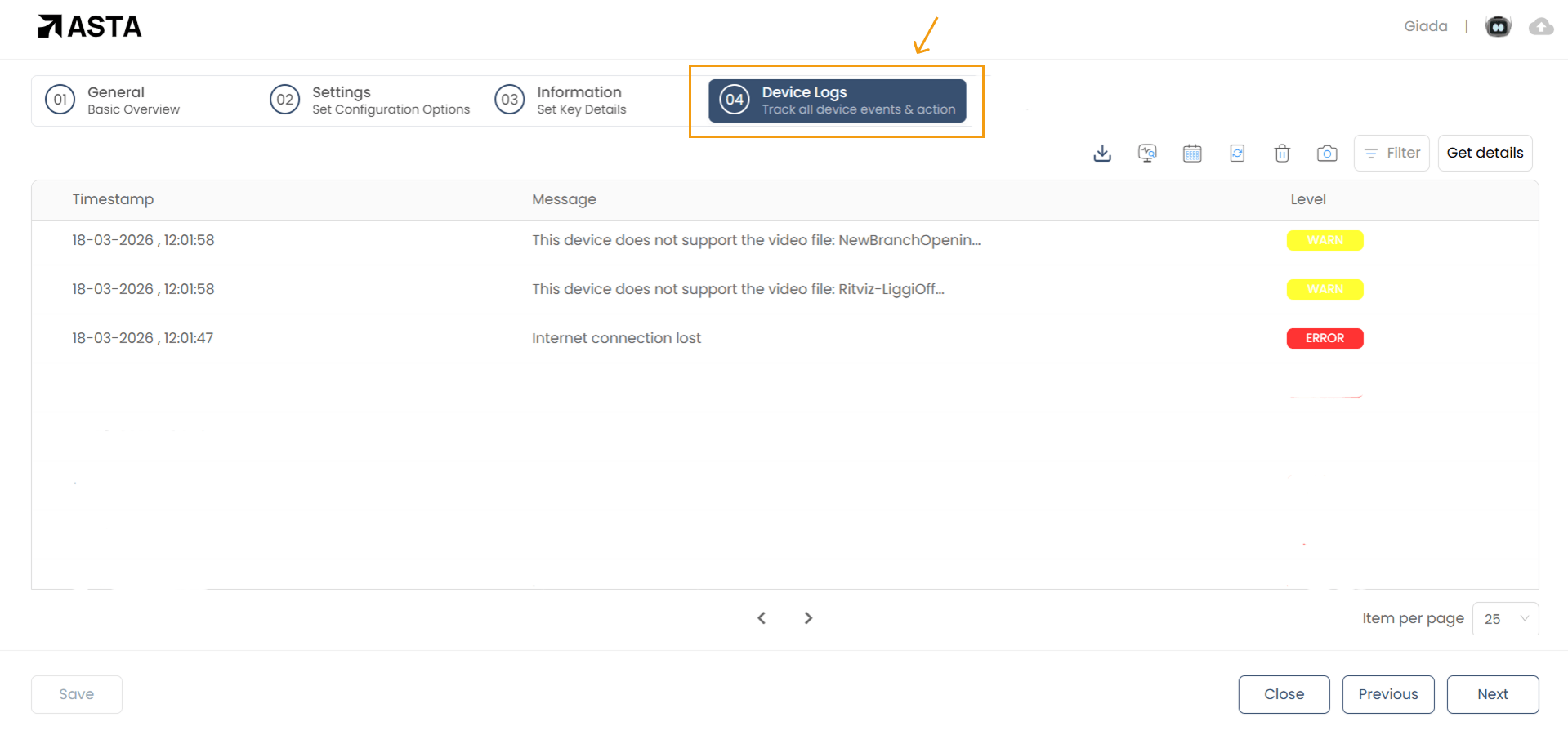
The Device Logs section provides a complete record of all errors and warnings occurring on the app, allowing you to monitor and troubleshoot device activity effectively.
To Access Device Logs:
- Go to the Device section.
- Select the Device File.
- Navigate to the Device Log tab.
Filters
Use the filter option to narrow down logs by type.
- Type — Filter logs by All, Warning and Error.
Get Details
Specify a date range to retrieve logs for a specific period.
- Start Date — Set the beginning of the date range.
- End Date — Set the end of the date range.
Log Details
Each log entry displays the following information.
- Timestamp — Date and time the event occurred.
- Message — Description of the event or issue.
- Level — Indicates whether the entry is a Warning or Error.
Download Logs
Export the logs by specifying the date range and preferred file format.
- Start Date — Beginning of the log period.
- End Date — End of the log period.
- File Format — Choose from XLSX, PDF, TXT, or CSV.
Click Download to export the logs in the selected format.