
Welcome To Asta

Getting Started
Platform Capabilities
Content Management
User & Role Management
Project Management
Customization & Branding
Licensing & Legal
Visual Proof
The Visual Proof feature allows you to capture a live screenshot from the app, providing proof that content is actively playing on the device.
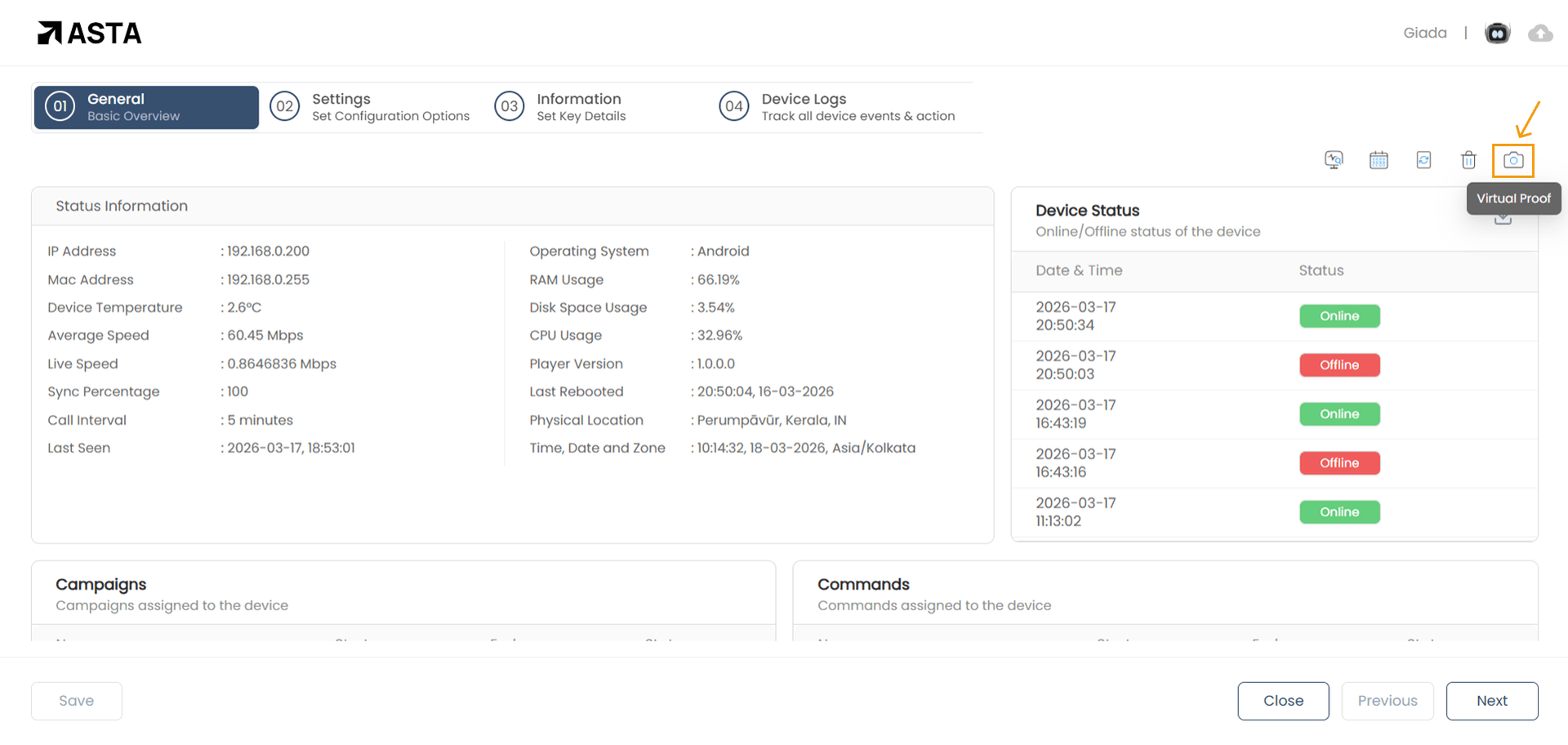
Accessing Visual Proof
Follow the steps below to open the Visual Proof modal:
- 1. Navigate to the Device section.
- 2. Select the device from the list.
- 3. Click the Camera icon to open the Visual Proof modal.
Capturing a Screenshot
Once the modal is open:
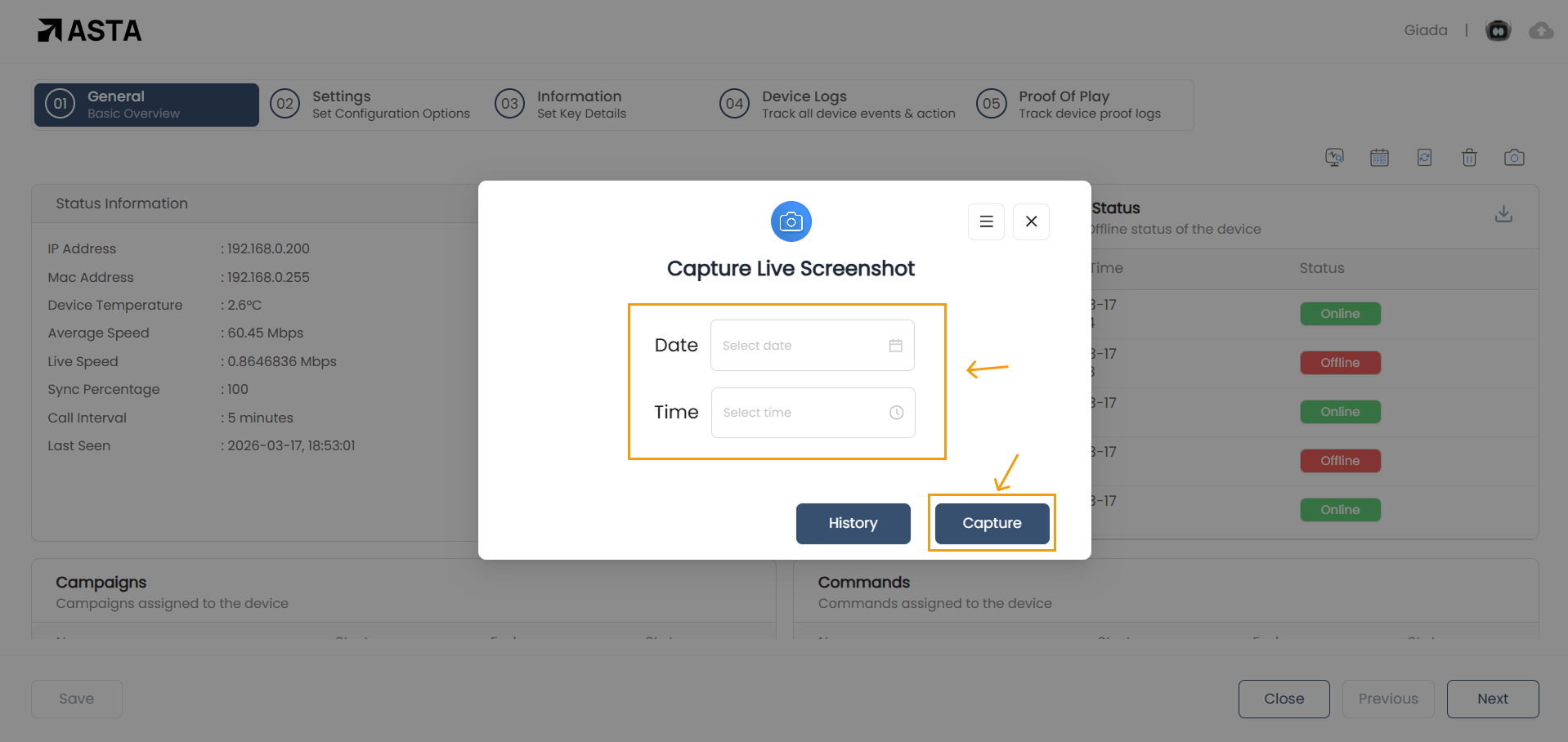
- 1. Select the Date for the screenshot.
- 2. Select the Time for the screenshot.
- 3. Click on the Capture button to schedule the screenshot.
Note: Once scheduled, the screenshot will be captured at the selected date and time. Check the History tab to view the captured screenshot after the scheduled time.
Managing Scheduled Screenshots
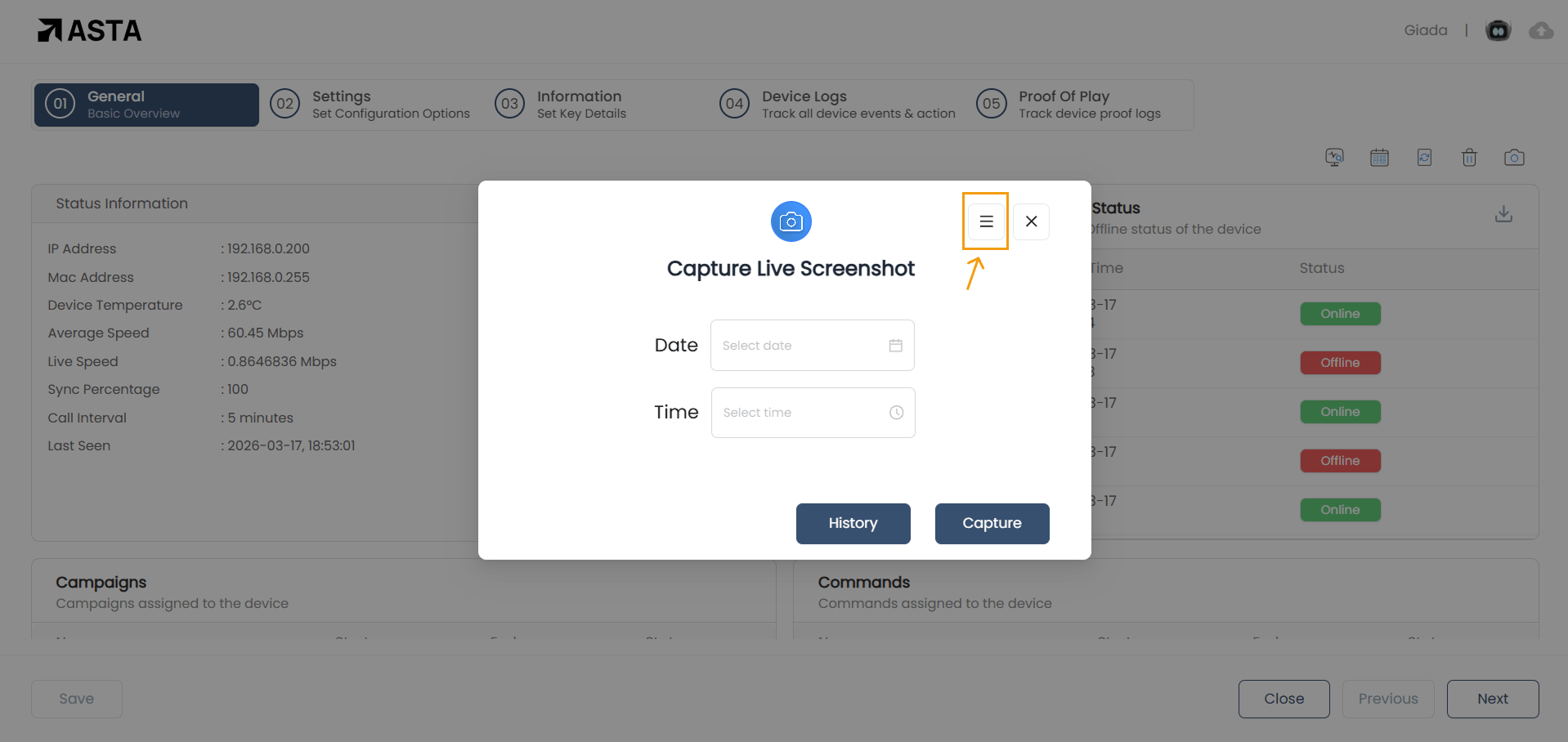
Click the ☰ icon to view all scheduled screenshots. From this view:
- Each entry displays the scheduled date and time of the screenshot.
- To cancel a schedule, click the Delete button next to the entry.
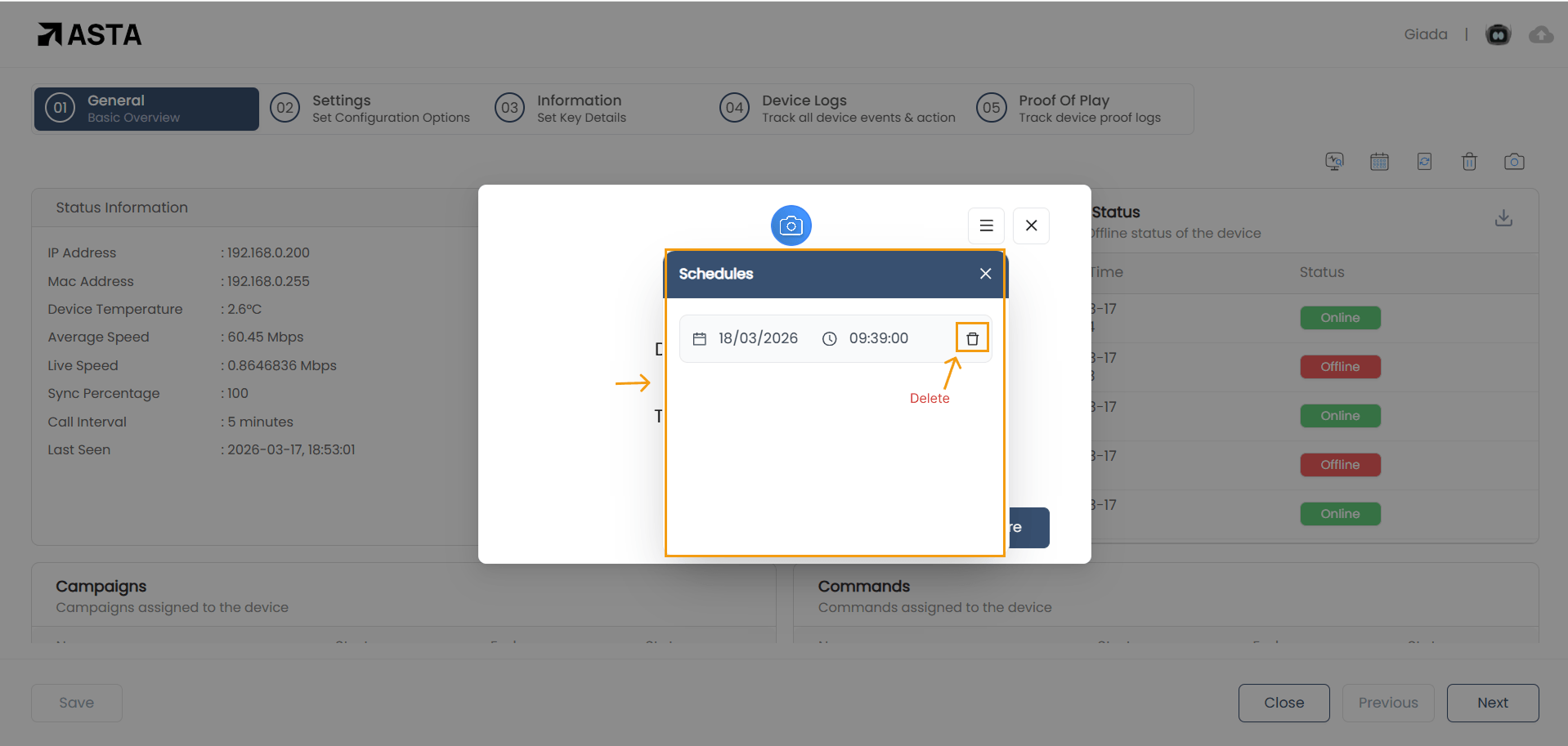
Note: Deleting a schedule will permanently remove it — no screenshot will be captured at that time.
Screenshot History
Click the History button to view all screenshots previously captured and sent from the app.
Each entry in the history includes the following details:
- Date & Time — When the screenshot was captured.
- Screenshot — The captured image from the device.
- Captured By — The user who triggered the capture.
- Name — A default name automatically assigned to the capture.
Click on any screenshot to preview and download it directly.