Welcome To Asta

Getting Started
Set-up guide
Platform Capabilities
Dashboard
Campaigns
Media Library
Device Management
Commands Management
Content Management
Add & Manage Media in Asta
Customize Your Media Experience
User & Role Management
Users
Roles & Permissions
Account Settings
Project Management
Projects Overview
Navigating the Project Dropdown Menu
Customization & Branding
Rebranding the Asta Application
Licensing & Legal
Licenses
Domain Quota
How to Upload Media files to the Media Library
Prerequisites
- Make sure your media files work with the devices they'll be displayed on (e.g., check video codecs and formats). Need help? Check out the Supported File Formats section for details.
- Also, ensure you have enough storage space in your account. For more info, visit the Domain Quota section under Licenses.
Steps to Add Media
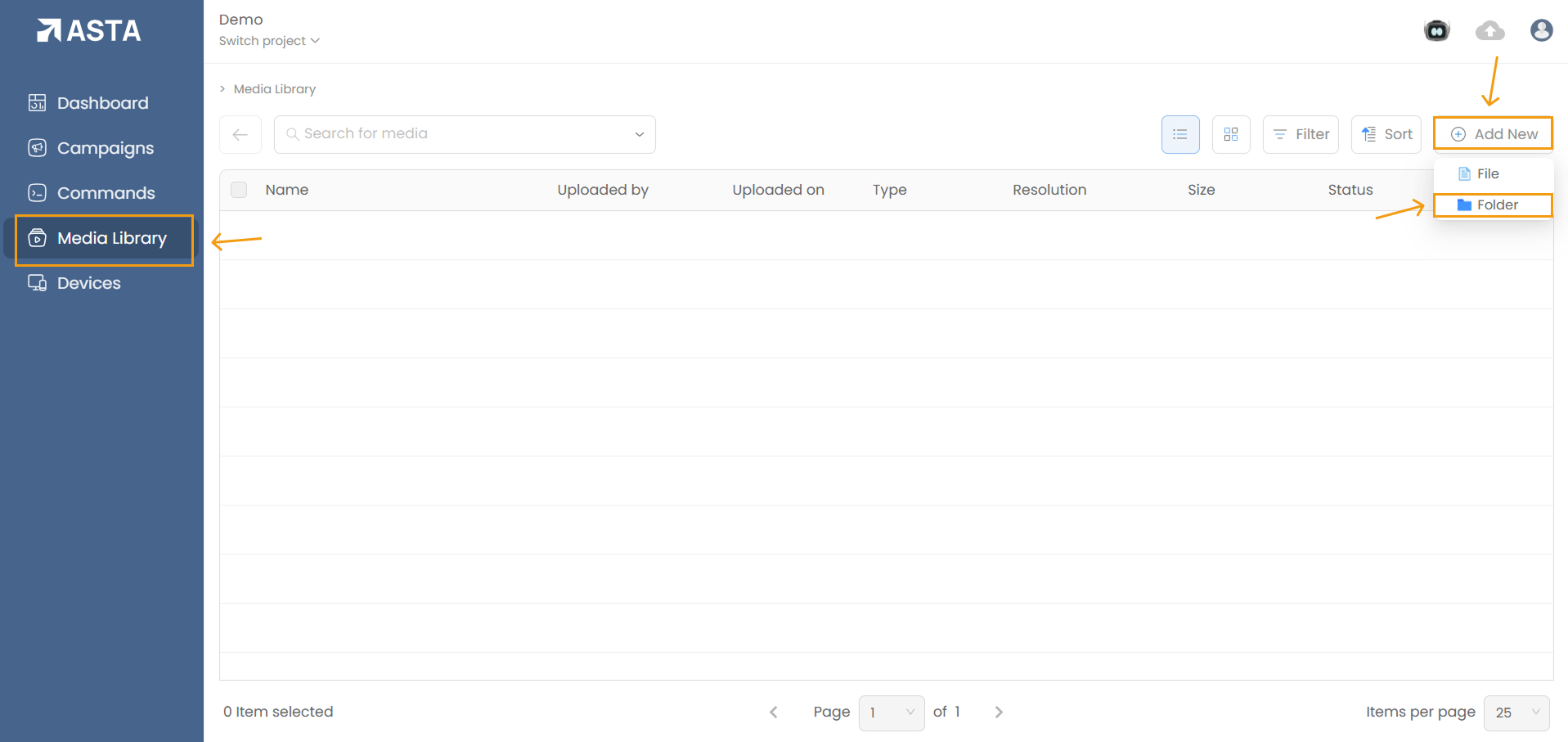
1. Navigate to the Media Library: Access the Media Library tab from the dashboard.
2. Organize Media with Folders: (Optional but is the best practice)
- Right-click or click the Add New button and select Folder.
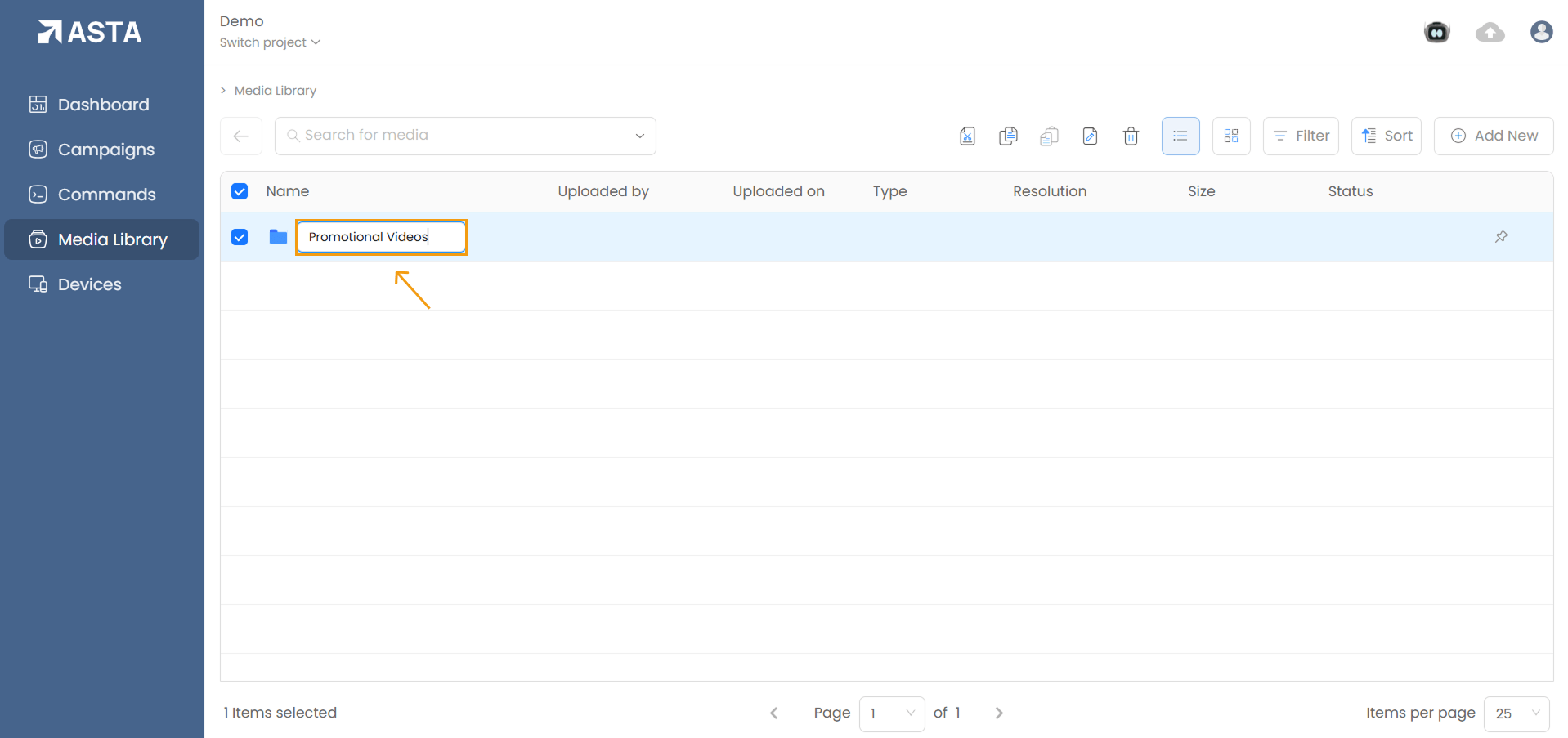
- Name the folder based on its content, such as "Promotional Videos" or "Seasonal Campaigns."
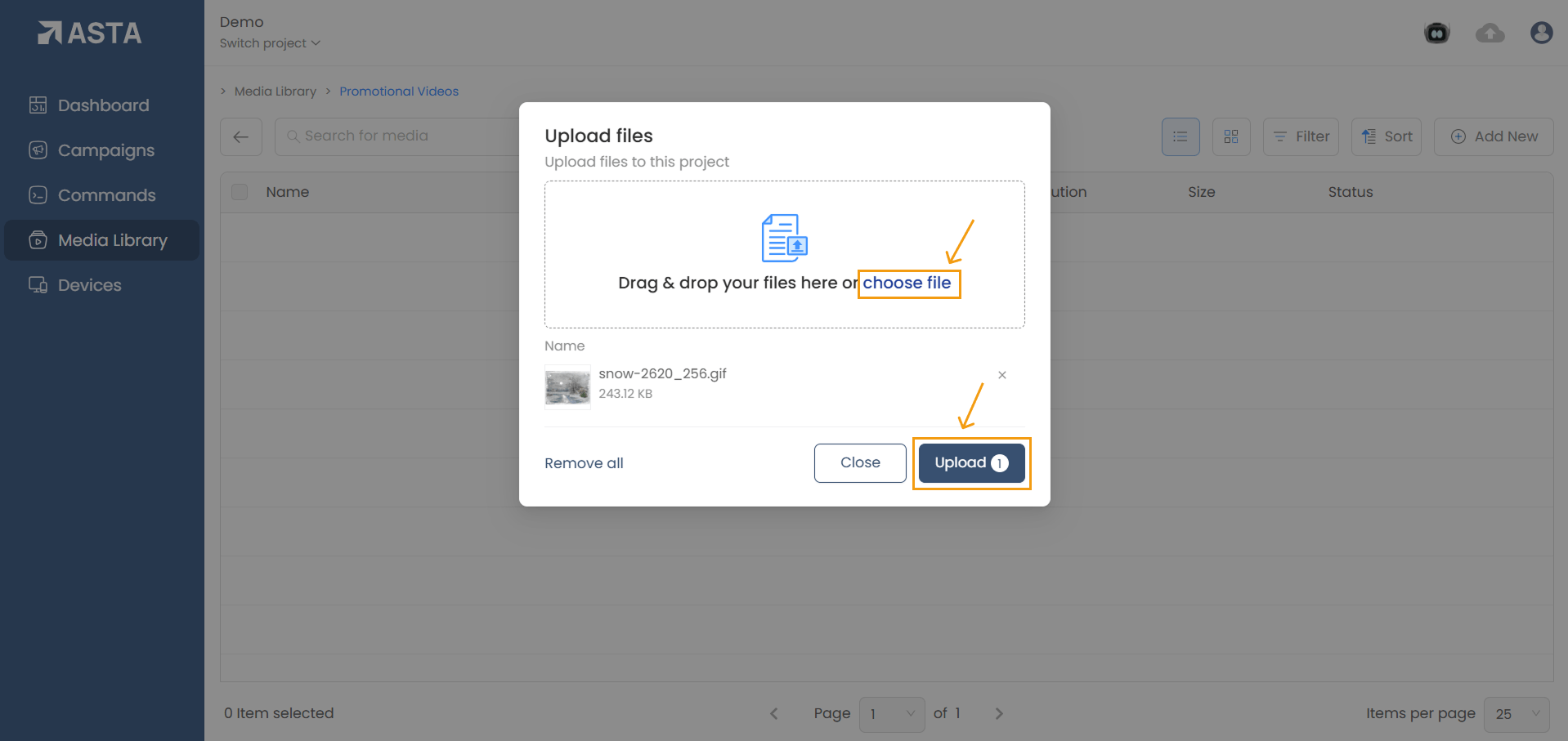
3. Upload Media Files:
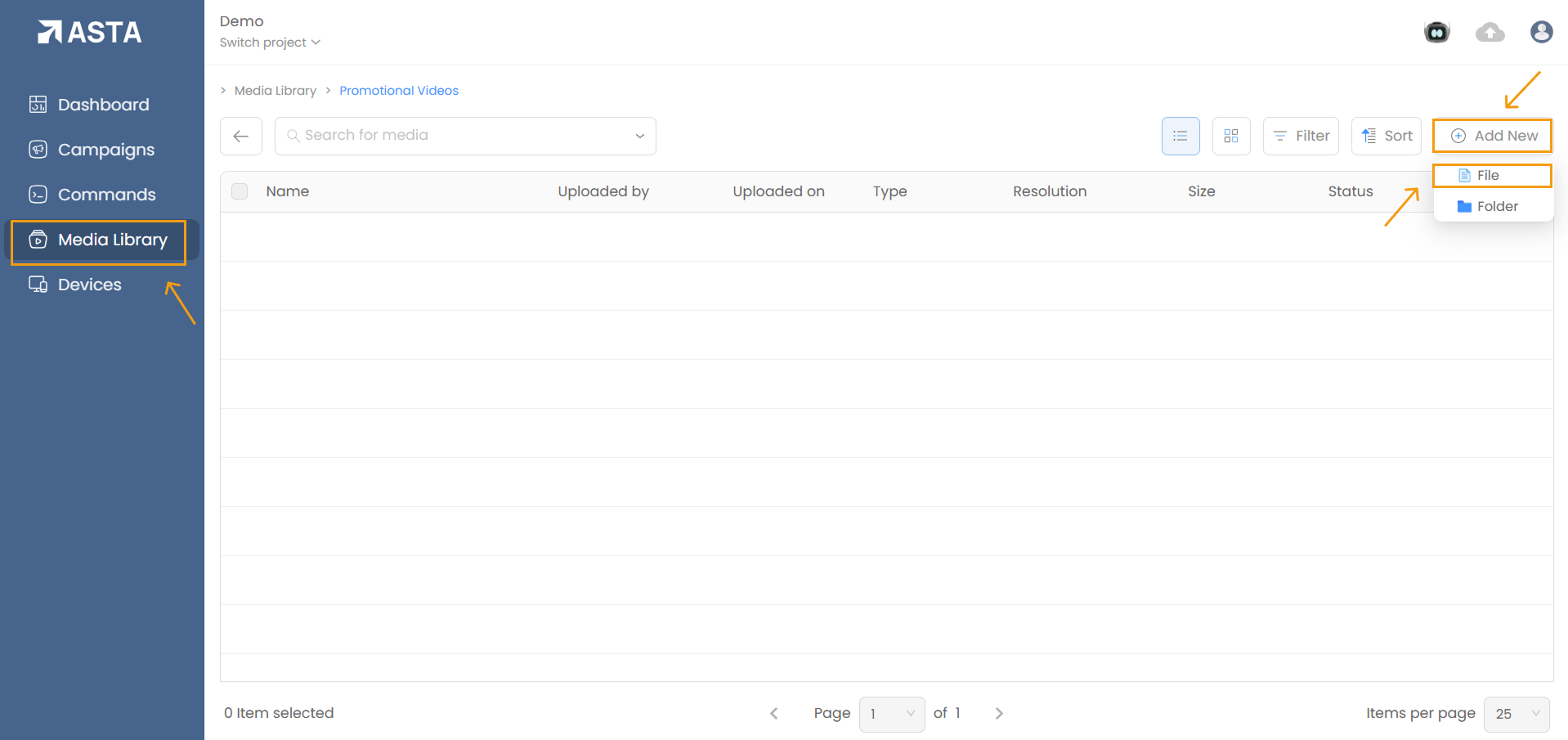
- Click Add New File to upload images, videos, or GIFs.
- You can upload multiple files simultaneously.
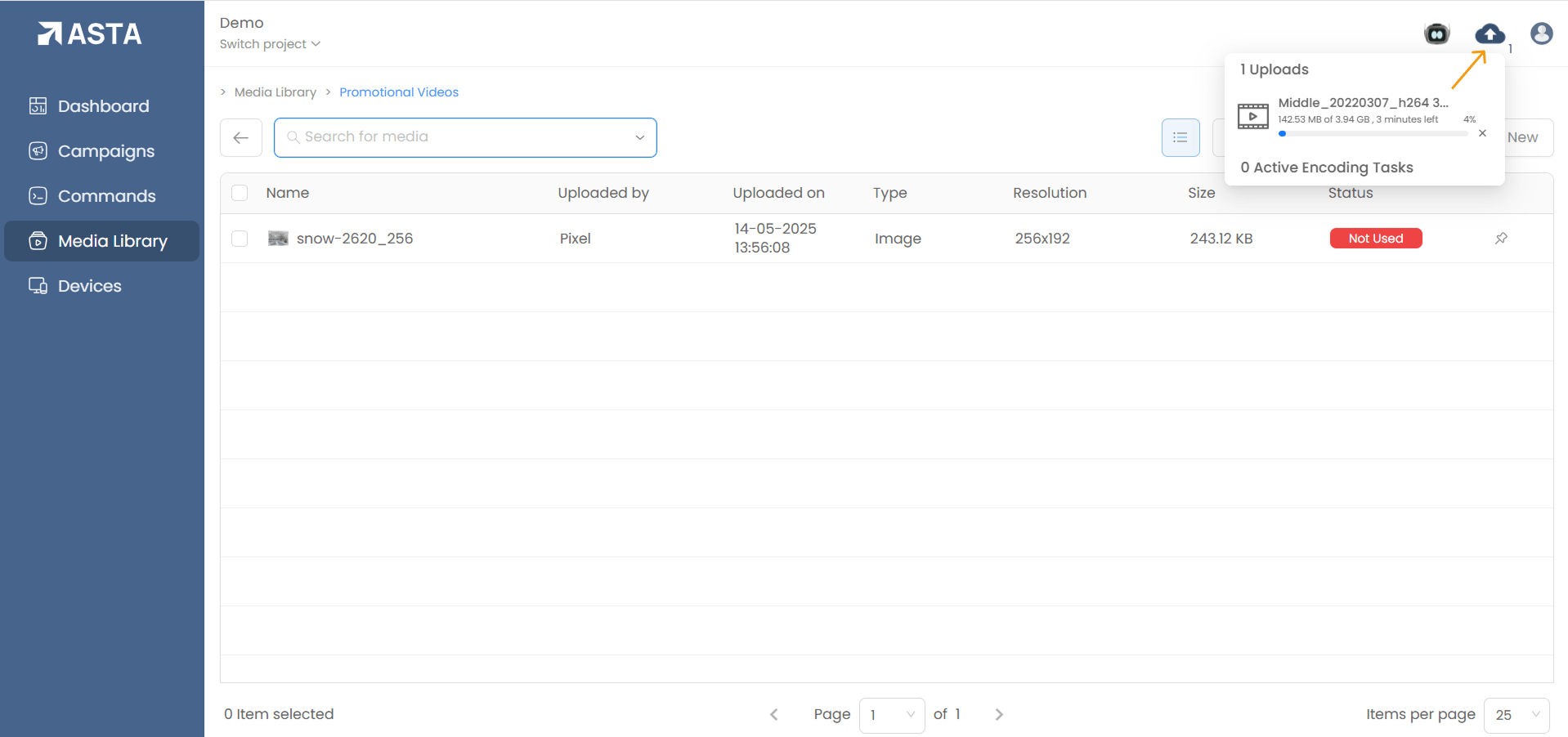
4. Monitor Upload Status:
- Track upload progress via the cloud icon in the top-right corner of the screen.
5. Wait for Processing and Encoding:
- The system processes and encodes uploaded files to ensure compatibility with connected devices.
- Processing time depends on file size and format.
6. Check File Visibility:
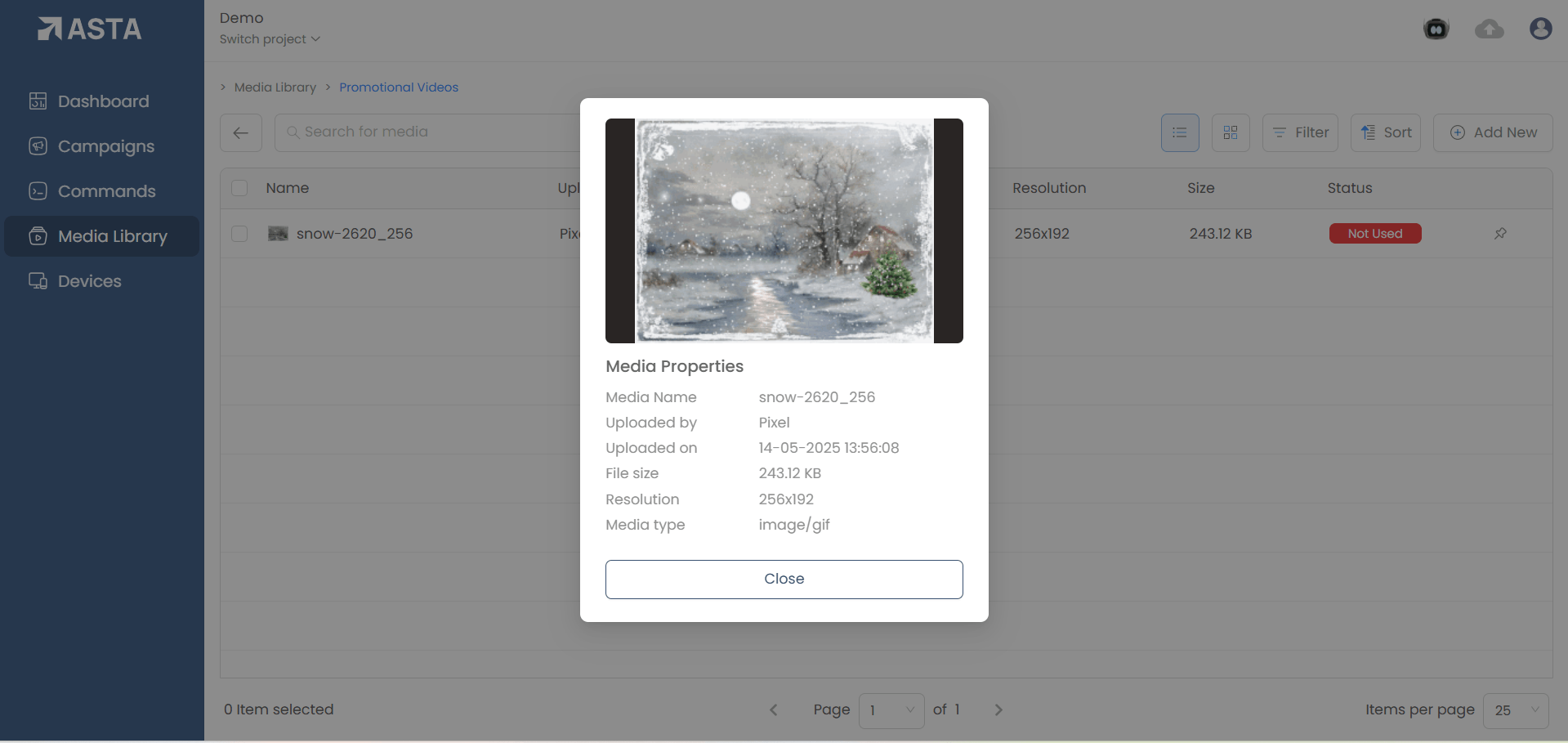
- Once processed, files will appear in the Media Library and are ready for use in campaigns or playlists.