
Welcome To Asta

Getting Started
Set-up guide
Platform Capabilities
Dashboard
Campaigns
Media Library
Device Management
Commands Management
Content Management
Add & Manage Media in Asta
Customize Your Media Experience
User & Role Management
Users
Roles & Permissions
Account Settings
Project Management
Projects Overview
Navigating the Project Dropdown Menu
Customization & Branding
Rebranding the Asta Application
Licensing & Legal
Licenses
Domain Quota
Navigating the Project Dropdown Menu
The Project Dropdown Menu is a central feature that helps users manage and switch between multiple projects. Below are the key functionalities of this menu:
1. Switching Between Projects
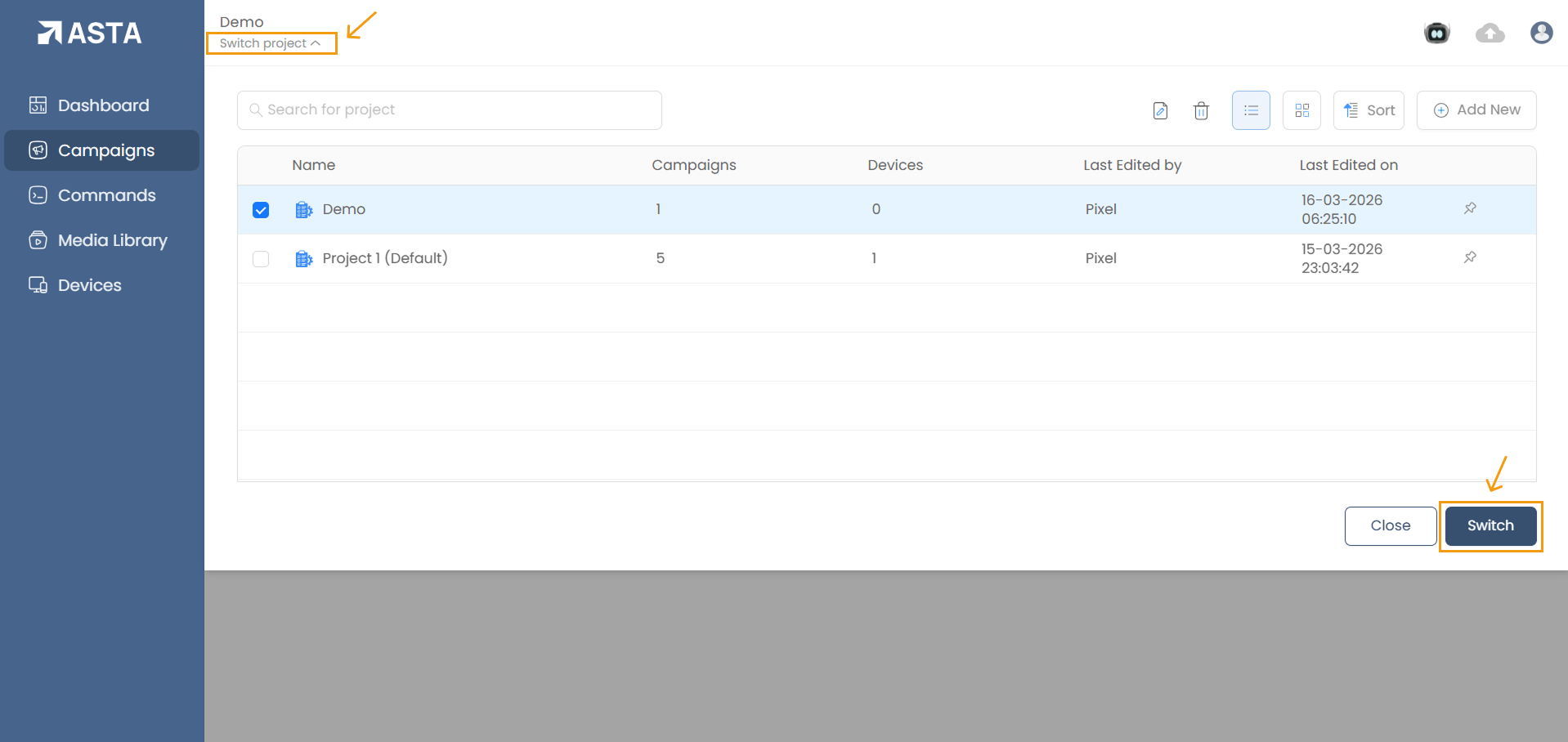
- Click the “Switch project” under the current project name at the top-left of the screen to open the dropdown menu.
- Select a project from the list or use the search bar to quickly locate a project by name.
- After selecting the desired project, click Switch to make it the active project.
2. Search Projects
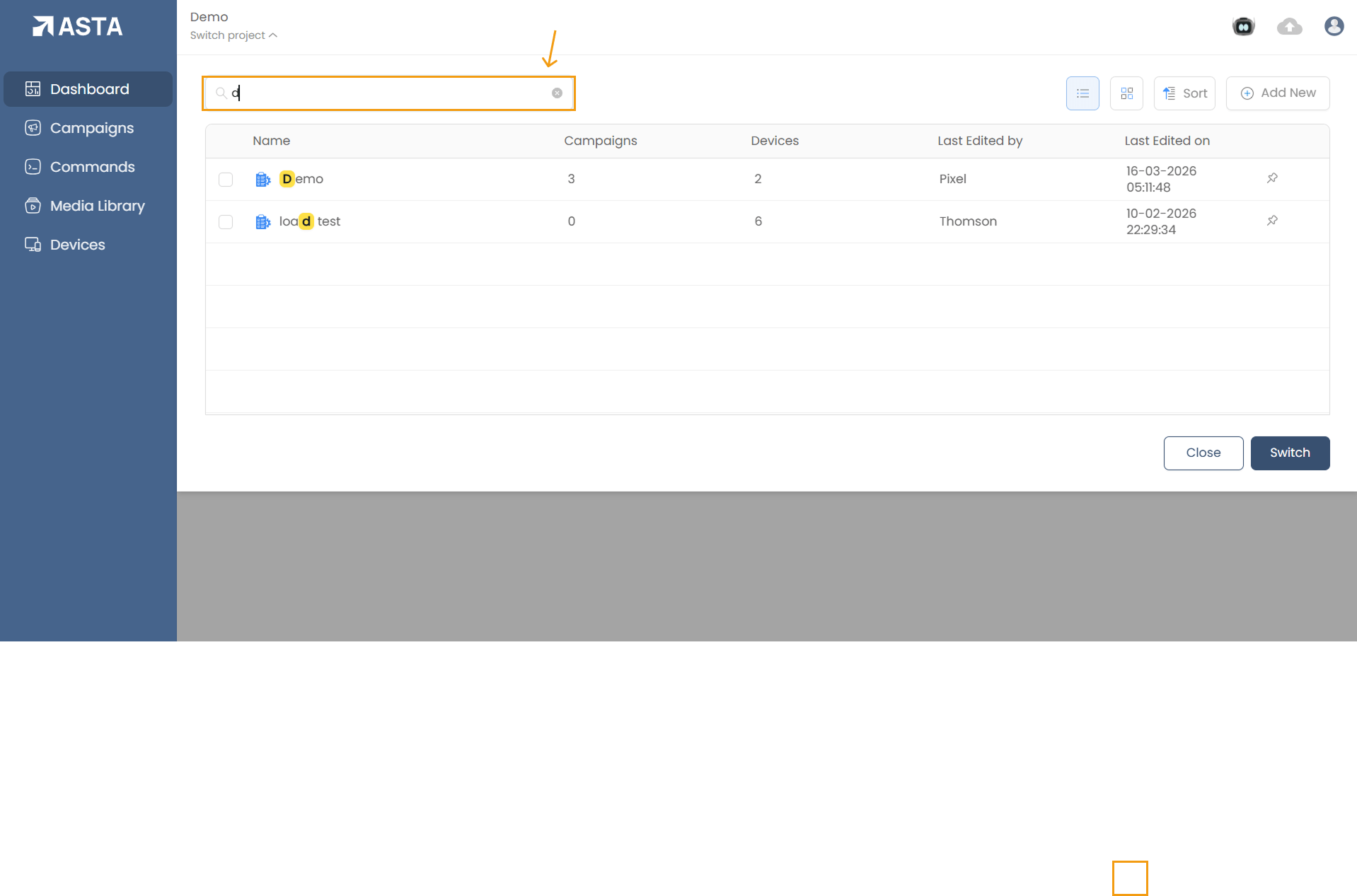
- Use the search bar in the dropdown menu to find a project by name. This is especially useful when managing a large number of projects.
3. View and Sort Projects
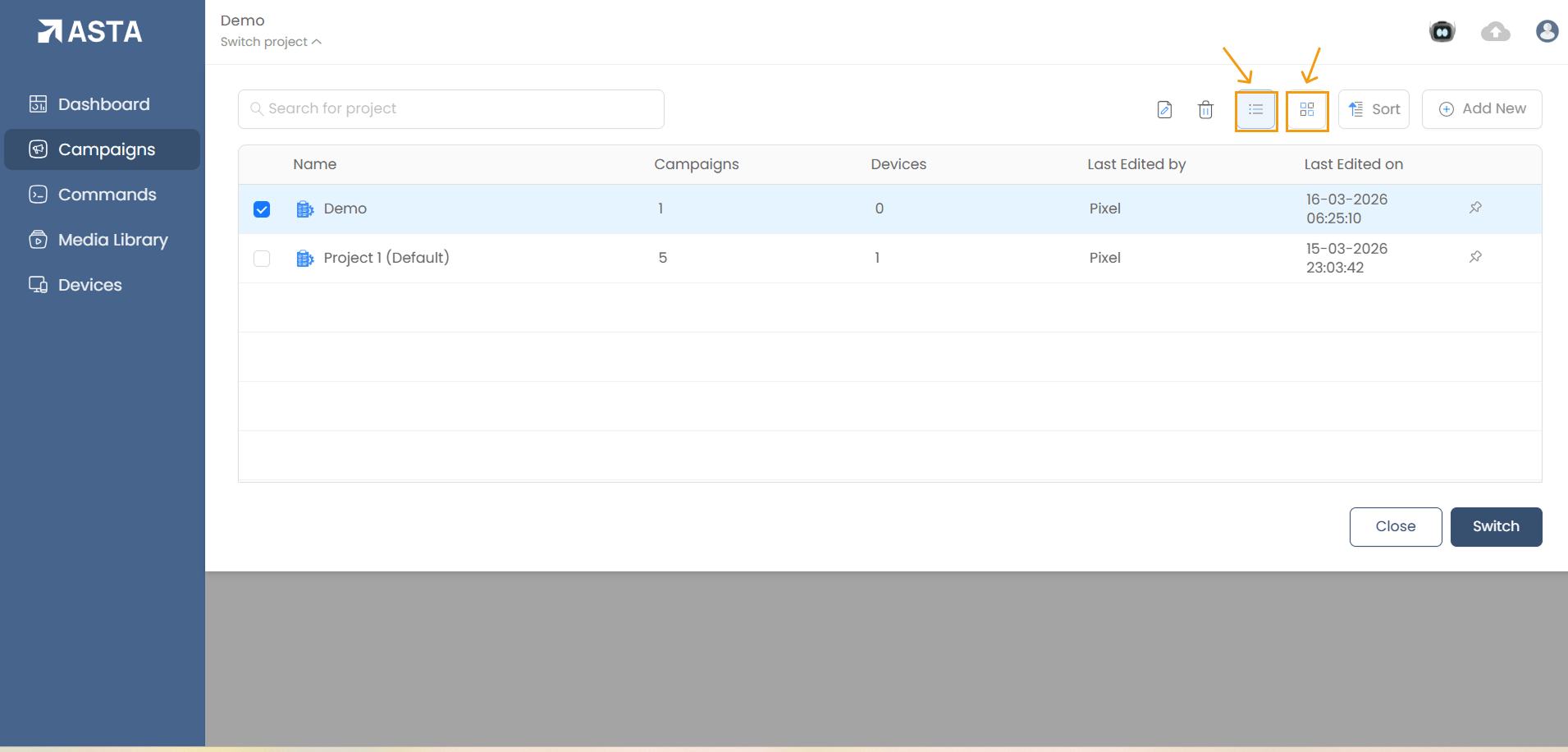
- View Options: Toggle between List View and Tile View for displaying projects.
- Sort Projects:
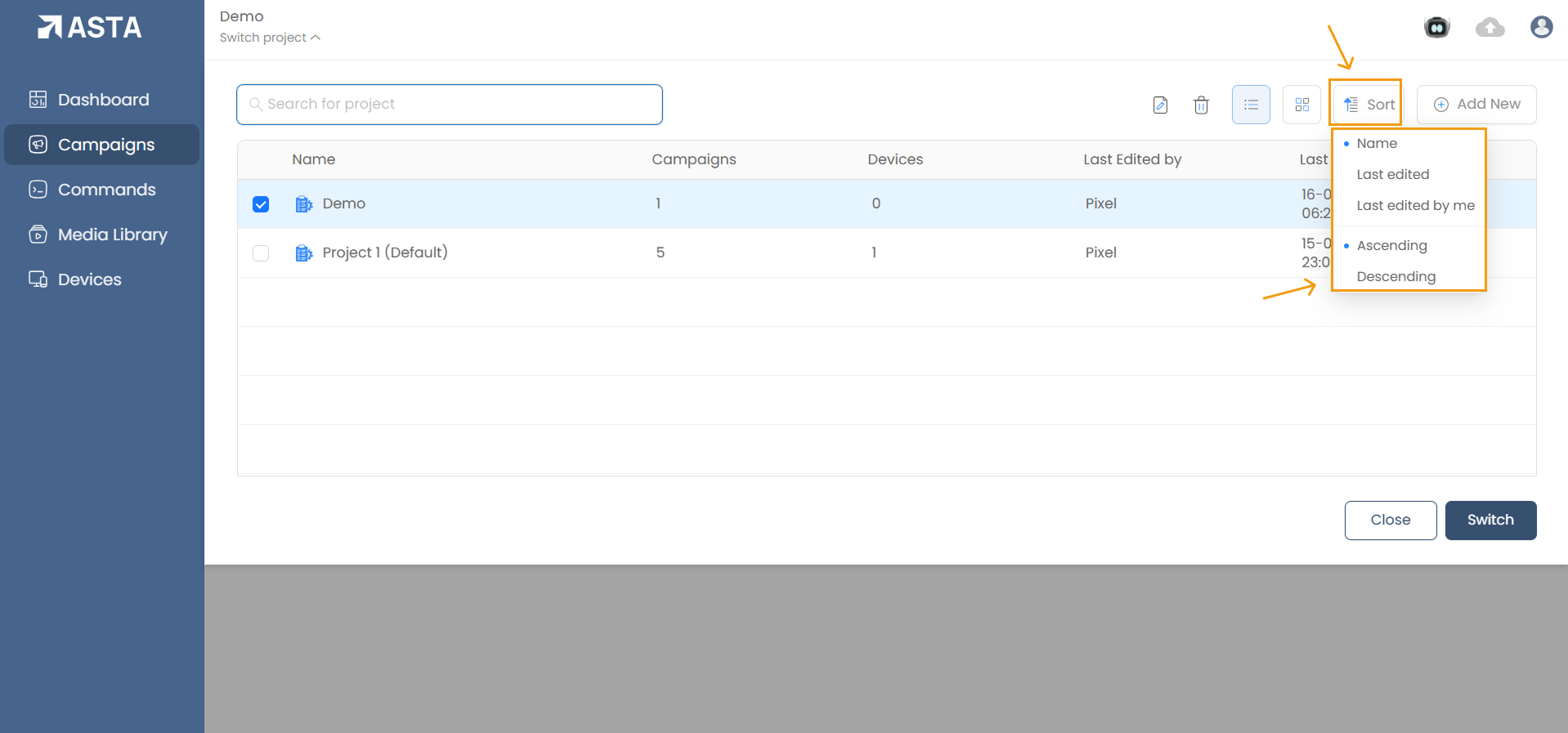
Organize projects by:
- By Name: Sort alphabetically.
- By Last Edited: Sort based on the most recent changes.
- By Last Edited By Me: Sort projects you have most recently worked on.
- Ascending/Descending: Applicable to all the above sorting options. You can choose whether to sort in ascending or descending order.
4. Adding a New Project
- To add a new project, click Add New.
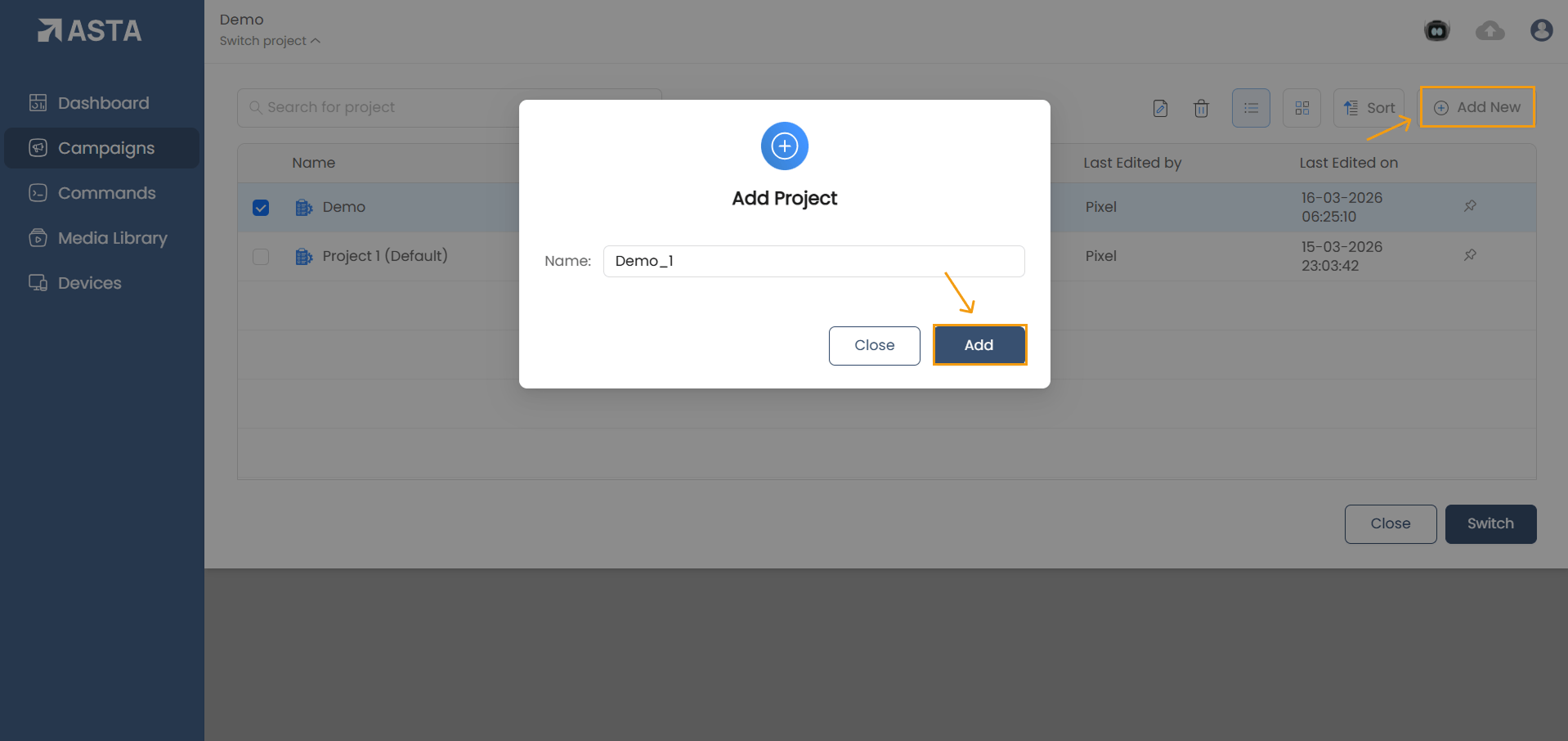
- Enter the project name in the modal window and click Add to create the project.
5. Renaming or Deleting a Project
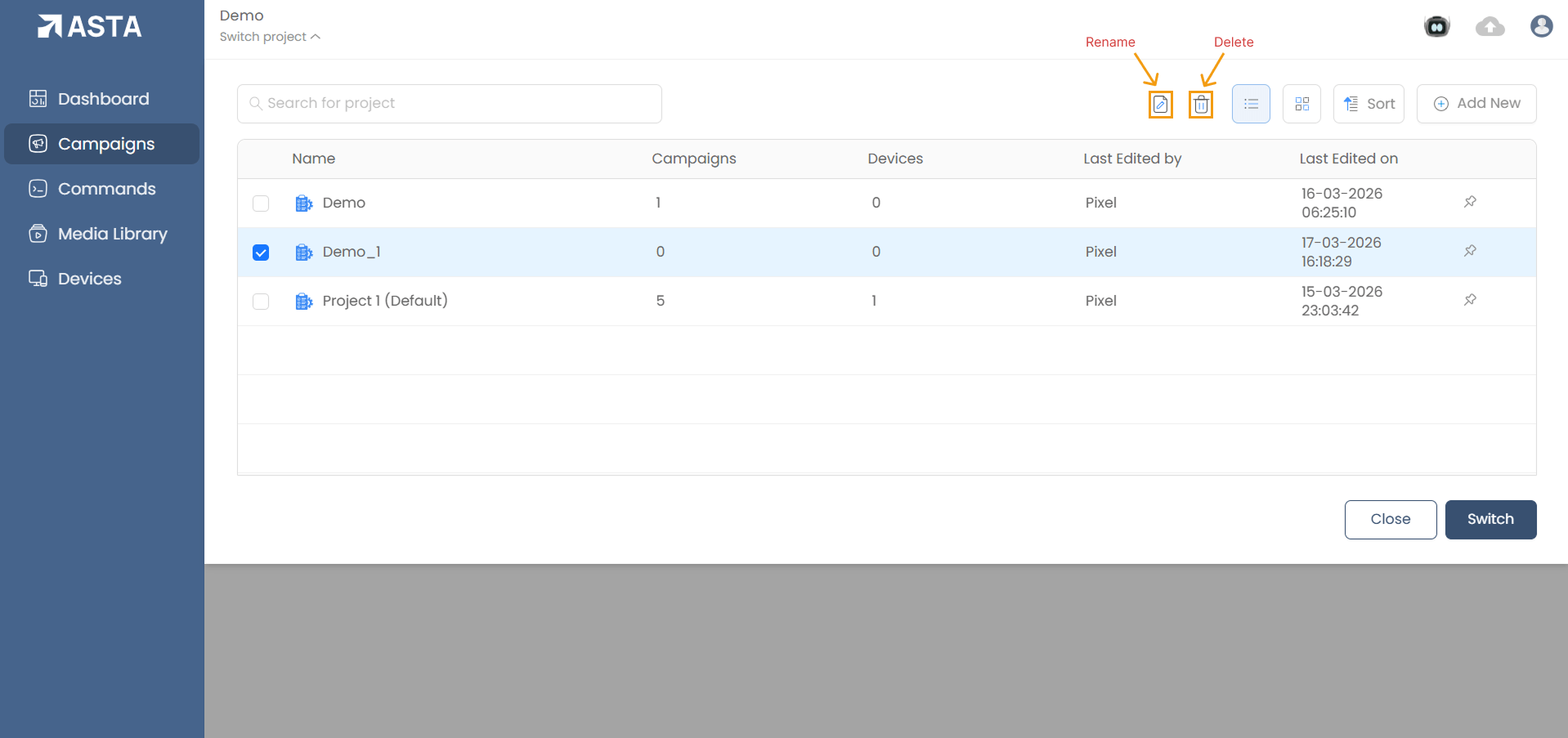
- To rename a project, select the project and click the Rename icon or right-click and choose Rename. Enter the new name and confirm.
- To delete a project, select the project and click the Delete icon or right-click and select Delete.