
Welcome To Asta

Getting Started
Platform Capabilities
Content Management
User & Role Management
Project Management
Customization & Branding
Licensing & Legal
How to Install the Asta App on Android Device
Getting started with the Asta app is quick and easy, follow these steps:
Install the Asta App
1. Find the Asta app file (APK) you downloaded and tap on it to start the installation.
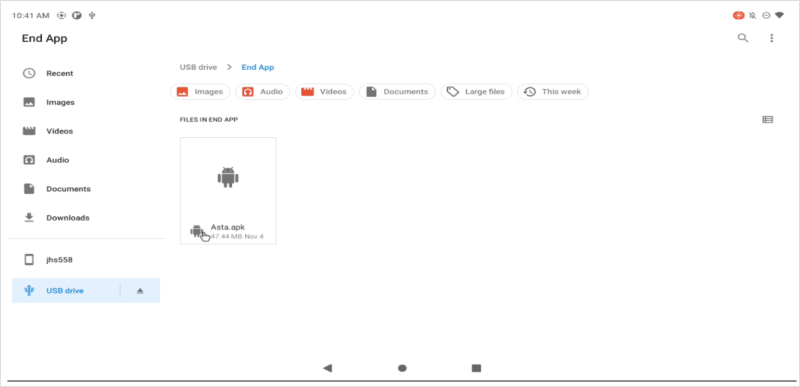
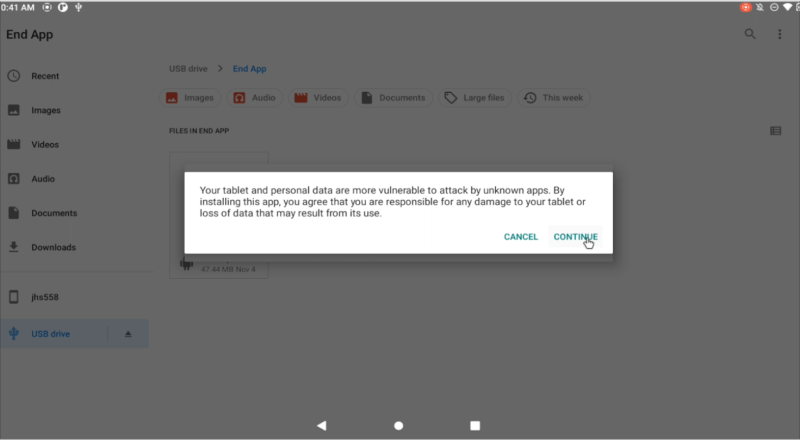
2. If the device asks for permission to install from unknown sources, it should be allowed by clicking on the continue.
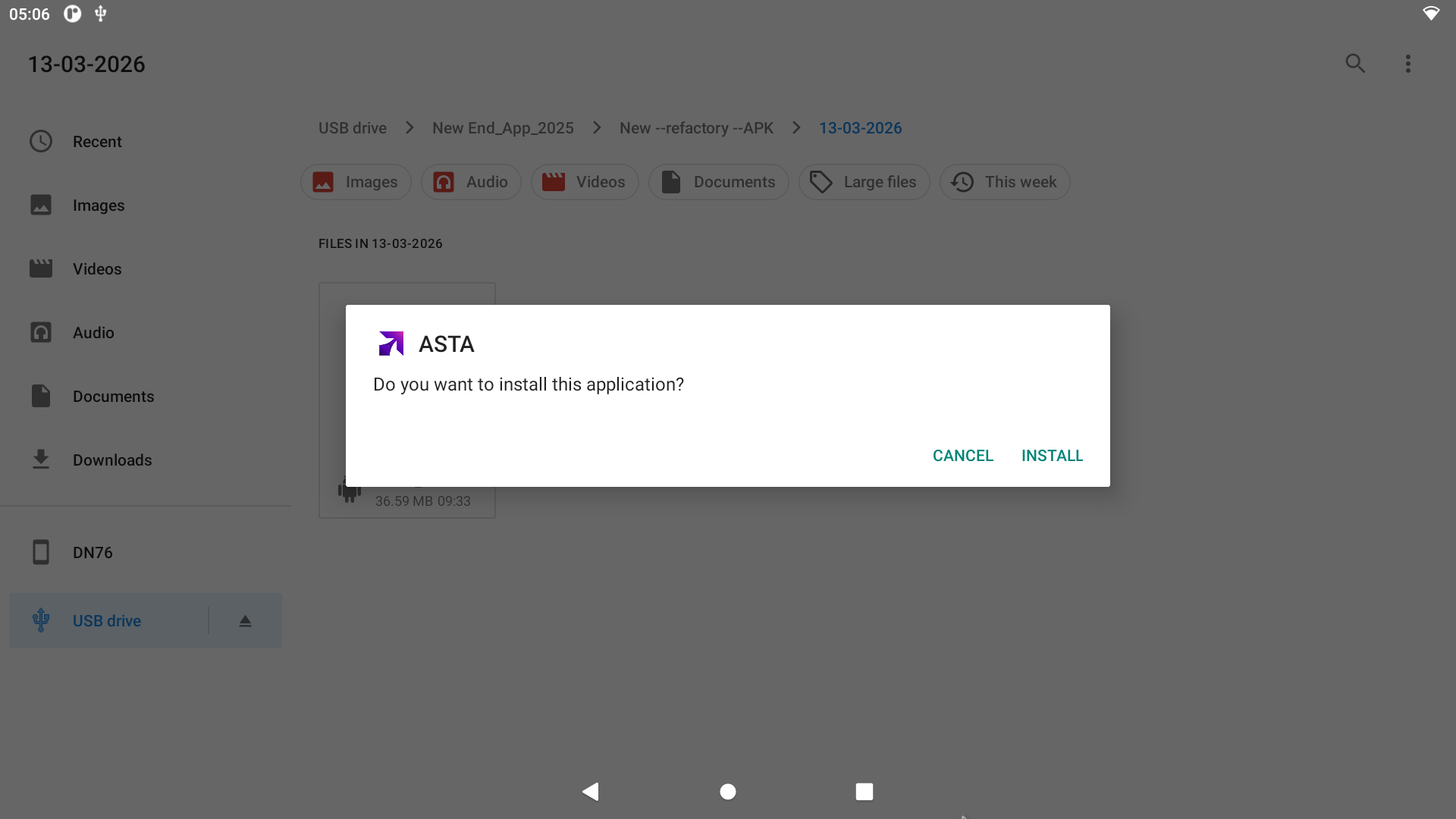
3. Allow the permission to install the application by clicking on install
💡 Note: If you haven't downloaded the Asta APK yet, visit our Downloads Page for instructions on obtaining the correct version.
Open the Asta App
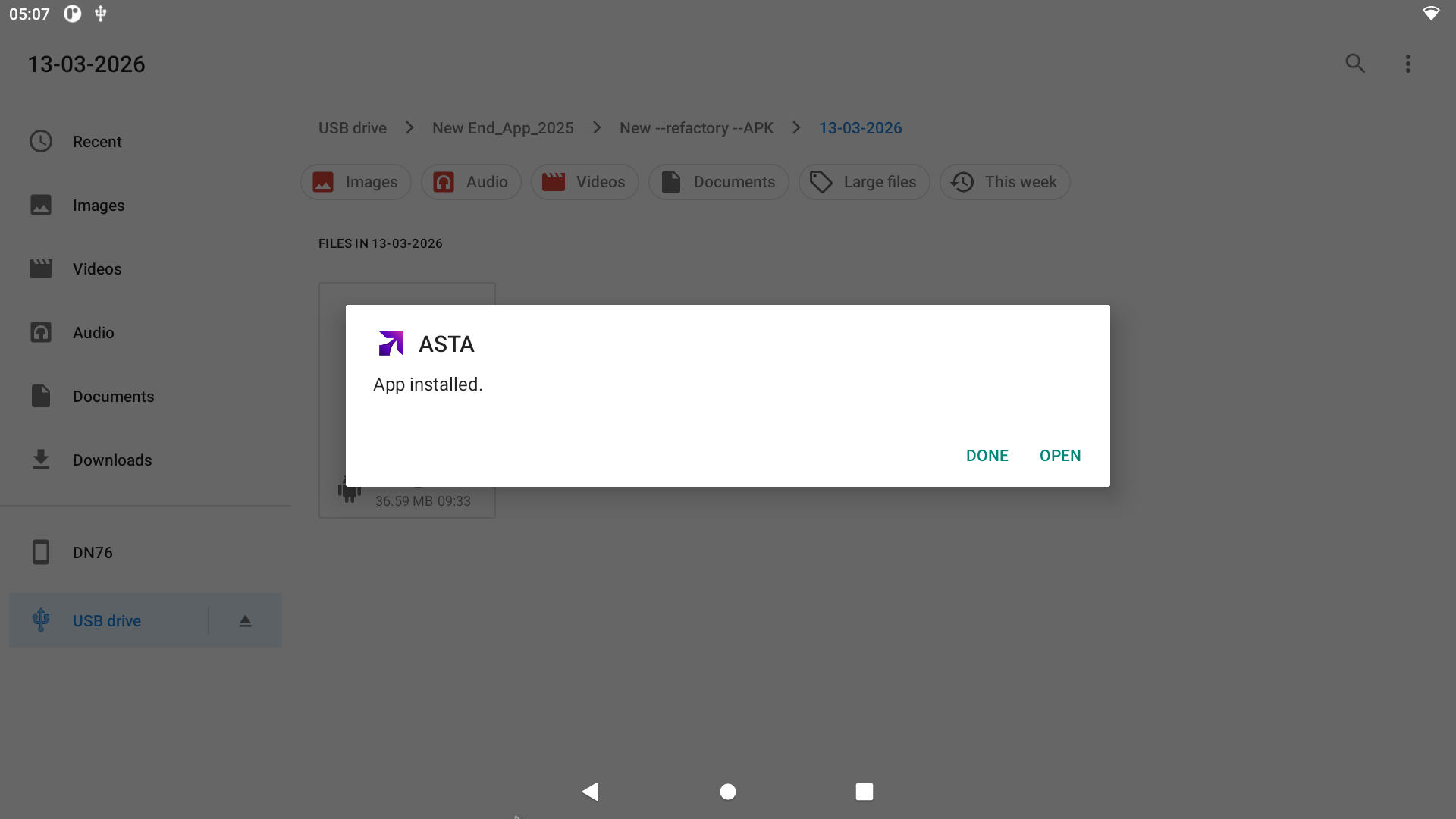
Once the installation is done, tap Open to launch the app.
Allow Permissions
Rooted Devices: All permissions are granted automatically upon installation — no action required.
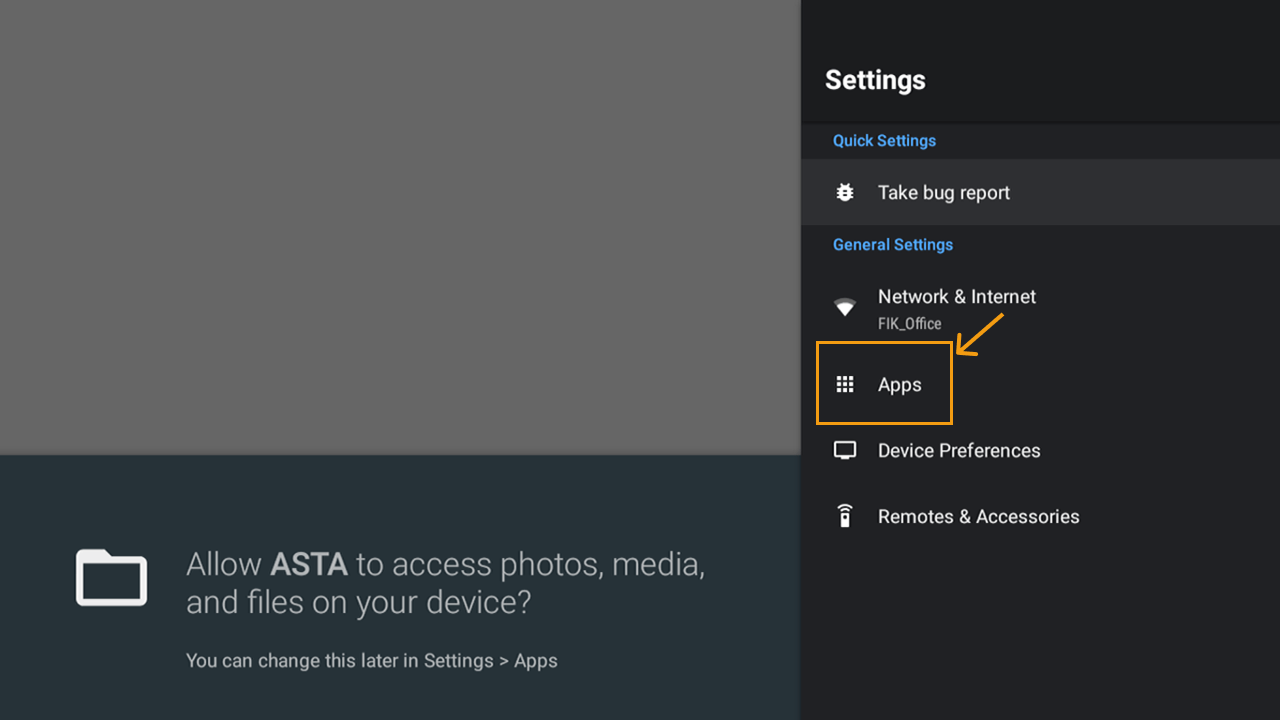
For Non-rooted devices , manually enable the required permissions by following the steps below:
Step 1: Go to Settings → Apps
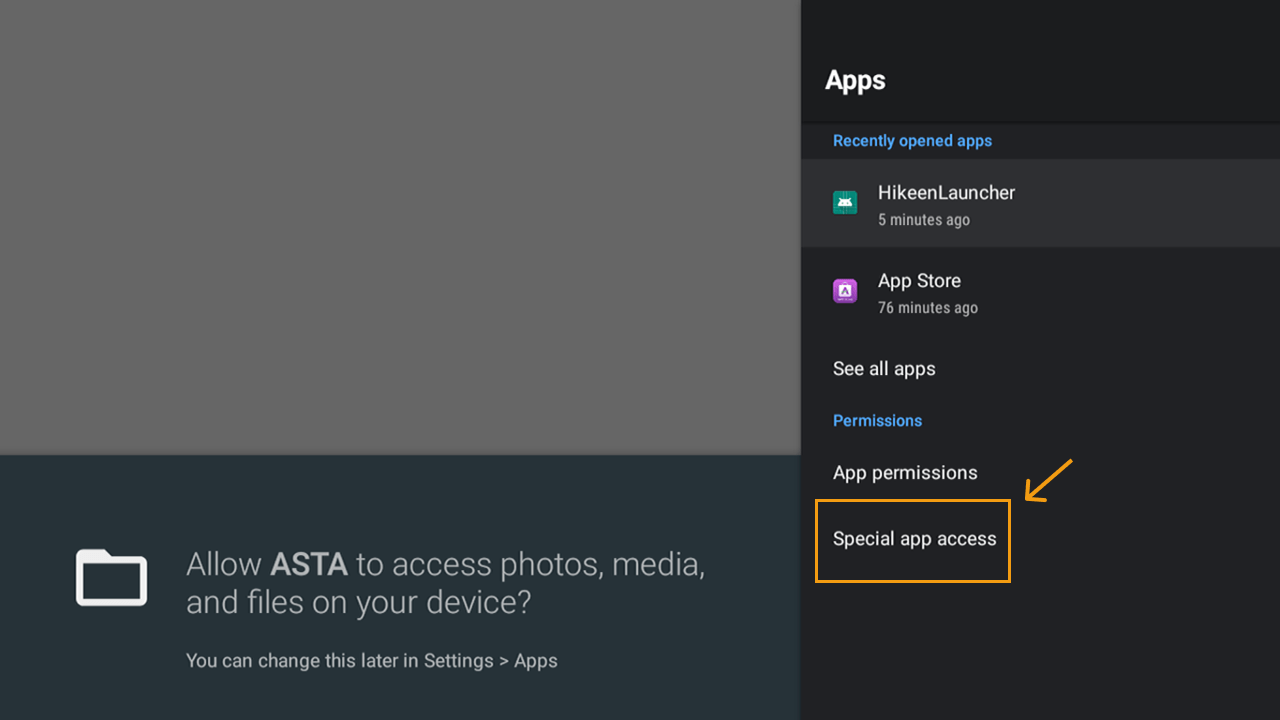
Step 2: Under the Permissions section, select Special App Access
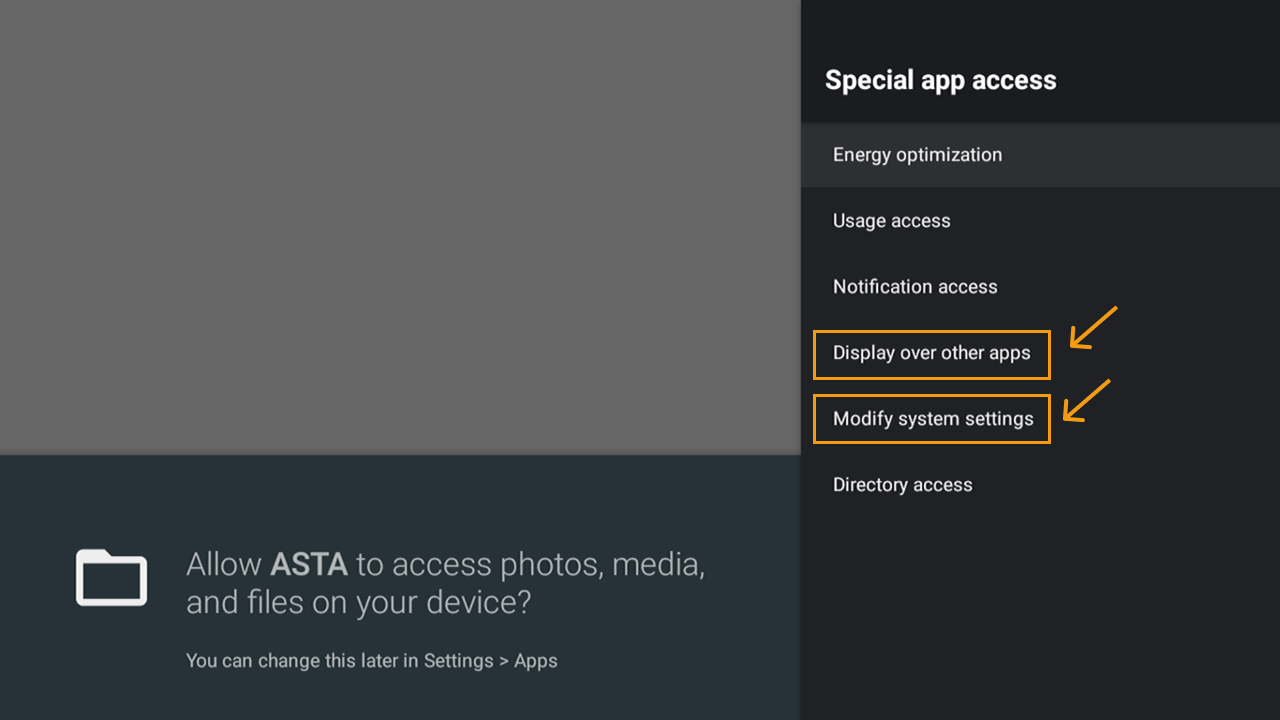
Step 3: Enable the following permissions:
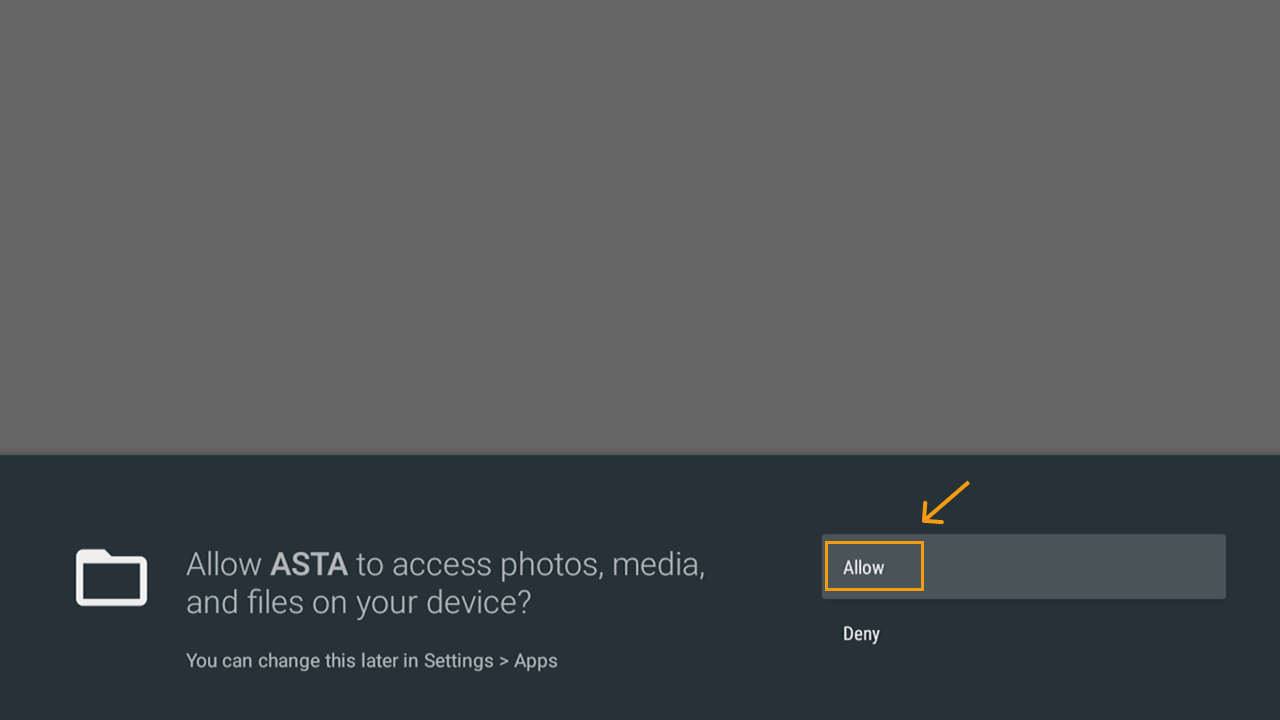
Tap Allow for each permission when prompted.
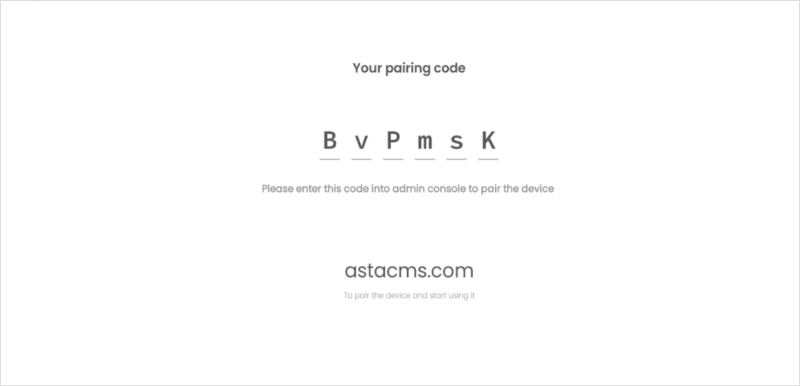
To pair your Android device with Asta:
For detailed instructions, check out the link learn about pairing the device