
Welcome To Asta

Getting Started
Platform Capabilities
Content Management
User & Role Management
Project Management
Customization & Branding
Licensing & Legal
Managing Application Settings
When you first install the app, the only screen you'll see is the pair code page. This page is where you need to enter the code displayed on the app into the Web Console to connect your device. Until you complete this step, the app will remain in the pair code page.
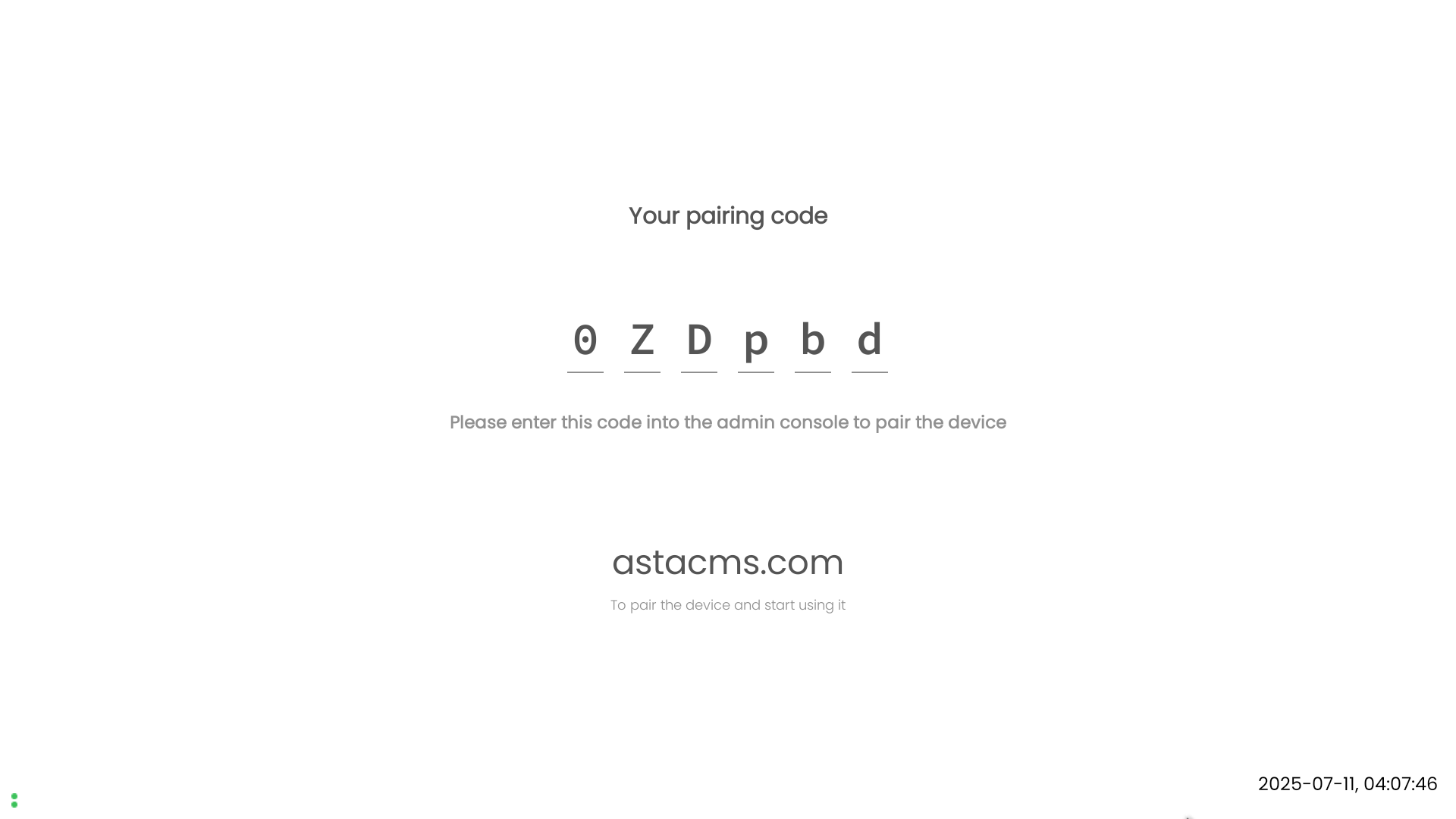
This is the Pair Code page that you'll see upon installation.
Now, you’ll be able to access the hamburger menu, which is where all the key settings are located. But here’s something important to note: The unpair option in the hamburger menu will only become available once your device is paired. To open the hamburger menu, simply tap on the hamburger icon in the top left corner of your screen.
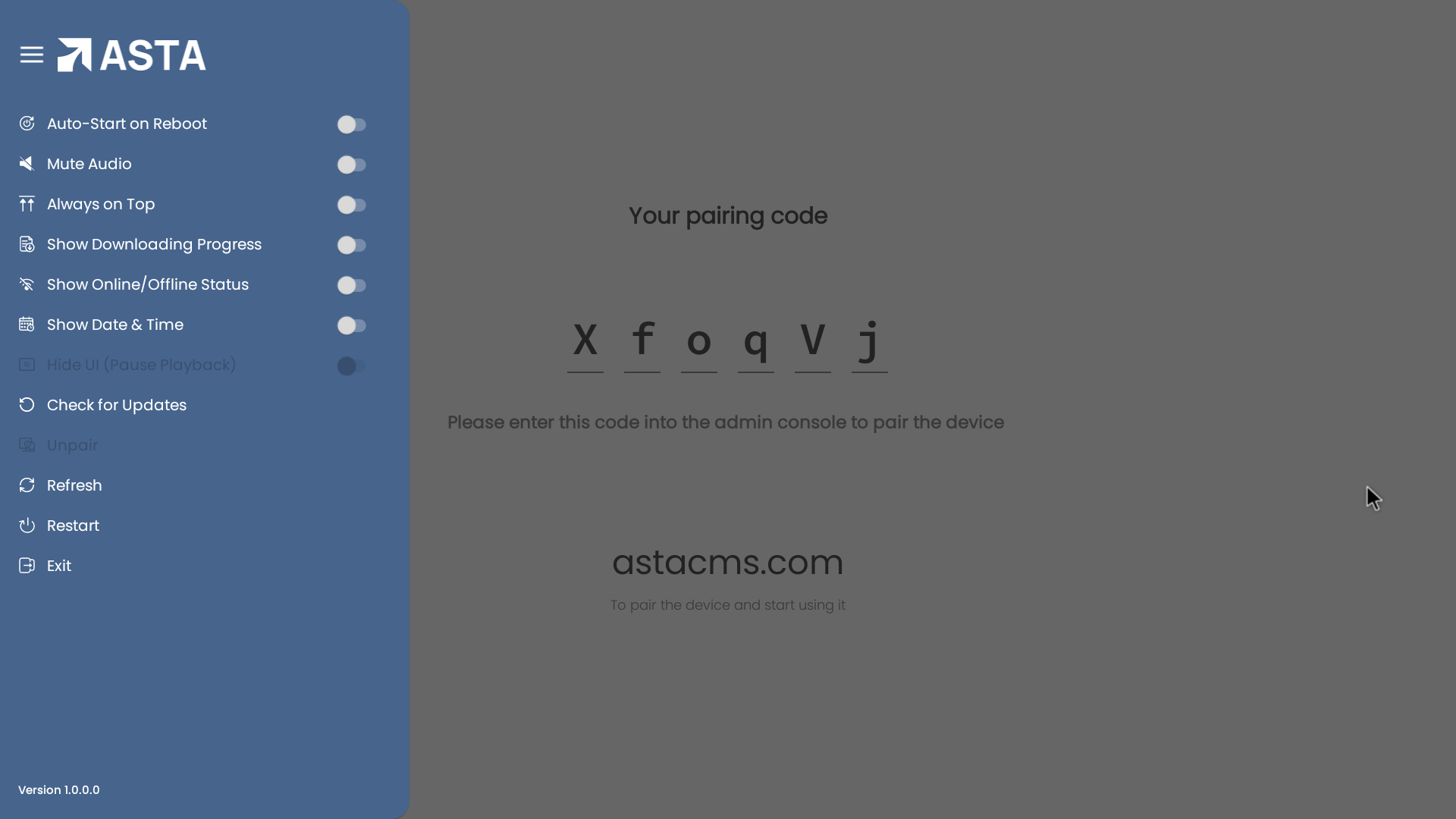
This is what the hamburger menu looks like before pairing. Notice the limited options available.
Options Available in the Hamburger Menu
After pairing, you'll see a variety of settings in the hamburger menu. Here’s a breakdown of the key options:
1. Auto-Start on Reboot: Controls whether the app will automatically start when the device is rebooted, ensuring that the app is always up and running without manual intervention.
2. Mute Audio:This setting completely mutes the device, overriding all other volume settings. For example, even if a campaign has sound, if the Mute option is turned on, you won’t be able to hear any audio, regardless of the campaign's volume settings. It ensures that the device remains silent until you manually disable the mute.
3. Always On Top: Keeps the app window always on top of other applications, preventing you from switching to other apps if this setting is enabled. This is useful when you want the app to stay visible at all times.
4. Show Downloading Progress: Displays the status of campaign downloads on the device. When a campaign is being published to the device, this option will let you track the download progress.
5. Show Online/Offline Status: This option displays an indicator when the device is either online or offline, helping you quickly assess the device's connection status.
6. Show Date & Time: Allows you to display the current date and time on the screen, providing users with real-time information..
7. HideUI (Pause Playback): This option remains disabled when you are on the pair code page. Once the device is paired, the HideUI option will be enabled, allowing you to pause the currently playing content and display a black screen. This feature lets you temporarily stop playback directly from the app for better control over the display
8. Check for Updates: Lets you manually check for app updates to ensure that you’re using the latest version of the app.
9. Unpair: This option remains disabled when you are on the Pair Code page. Once the device is paired, the Unpair option will be enabled, allowing you to disconnect the device from the application. This feature allows you to unpair the device directly from the app, in addition to unpairing it via the Web Console, giving you greater flexibility in managing your connections.
10. Refresh: This option allows you to refresh the app interface, ensuring that all changes, updates, or new content are properly loaded. It’s a simple way to ensure the app is in sync with the latest information.
11. Restart: This option lets you restart the app, which can be useful if you experience any issues or want to apply changes that require a restart. The app will close and reopen, starting from a fresh state.
12. Exit App: Allows you to close the app entirely. Use this option when you’re done with your session or need to shut down the app for any reason.
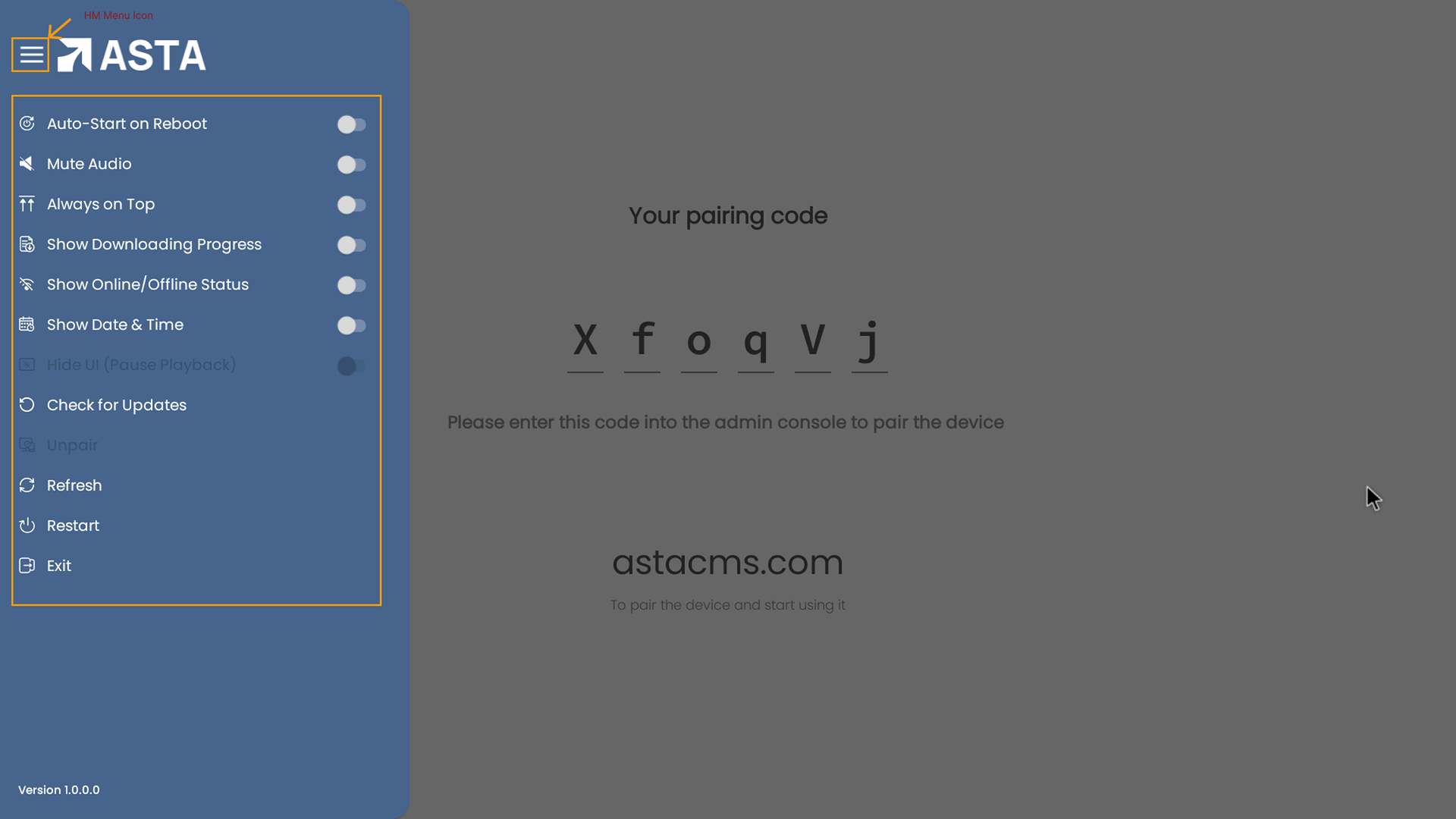
This is what the hamburger menu looks like after pairing.
Once your device is paired, it’s also important to know that these settings aren’t limited to the app itself. You can also manage them from the Web Console. This means you have full control over your device settings no matter where you are. You can customize and control everything from the app or remotely via the Web Console. To learn more about how to pair your device and manage it through the Web Console, check out our detailed article on Setting Up and Monitoring Devices.