
Welcome To Asta

Getting Started
Platform Capabilities
Content Management
User & Role Management
Project Management
Customization & Branding
Licensing & Legal
Asta: Quick Start Guide
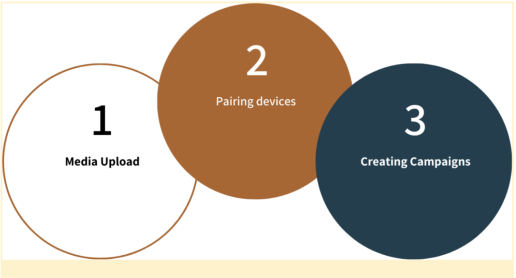
Welcome to Asta! Here, you'll find everything you need to get started with publishing your first campaign, we will explore uploading media, pairing devices, and creating campaigns and finally publishing it . Follow these simple steps to get your content playing on the screen in no time.
First things, you’ll need an account and to log in to the Asta CMS website. If you’re new here and someone (like the account owner) created your account, just double-check that you have the right permissions. For this tutorial, you’ll need at least Project Manager permissions to follow along.
Not sure about roles and permissions? No worries—here’s a handy guide to help you out: Learn about roles. Link to roles
If you’re the account owner, you’re all set! You’ve got full access, so feel free to dive right in. Let’s get started!
Here’s what we’ll cover:
Upload Media Files
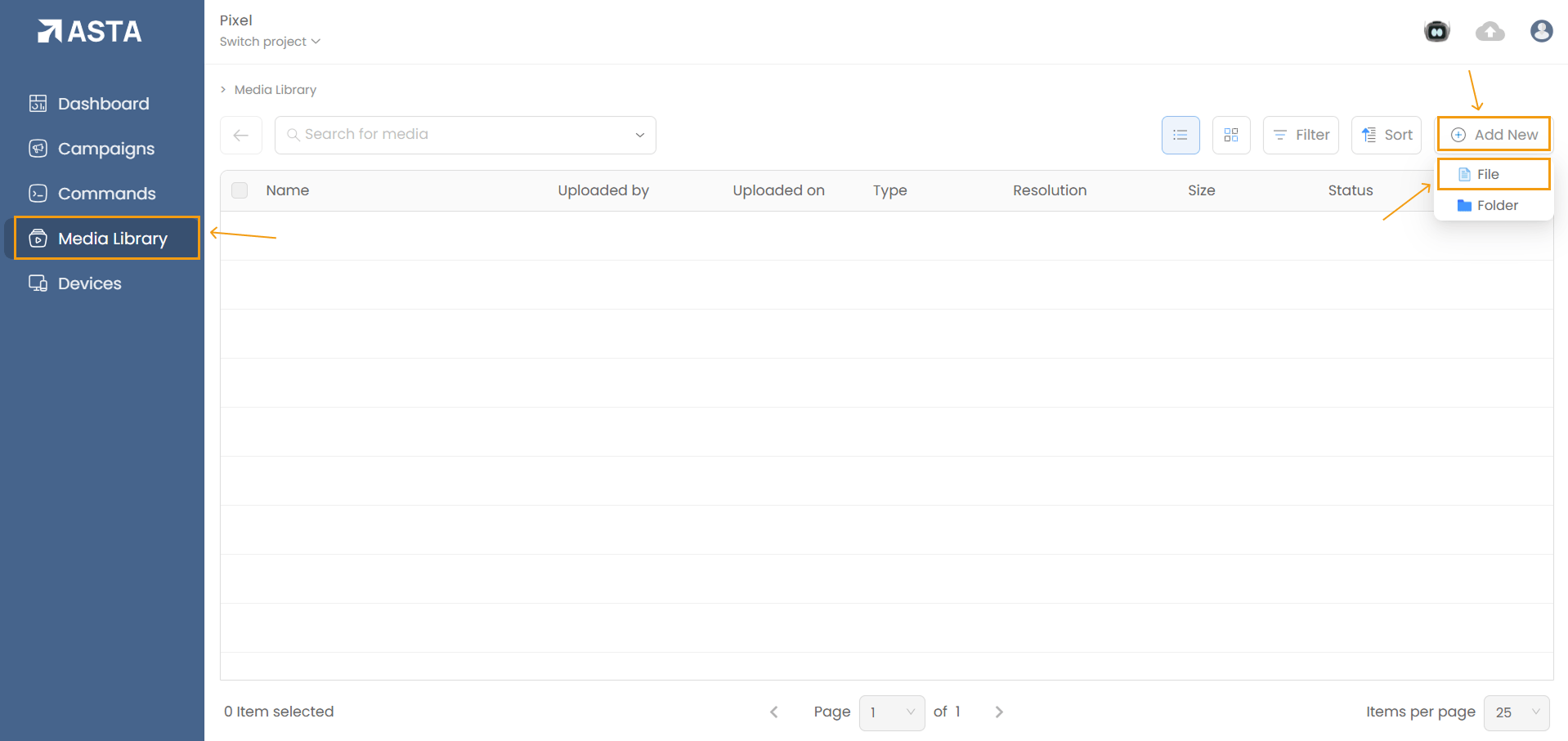
To upload media, go to the Media Library from the main menu and click the Add New button.
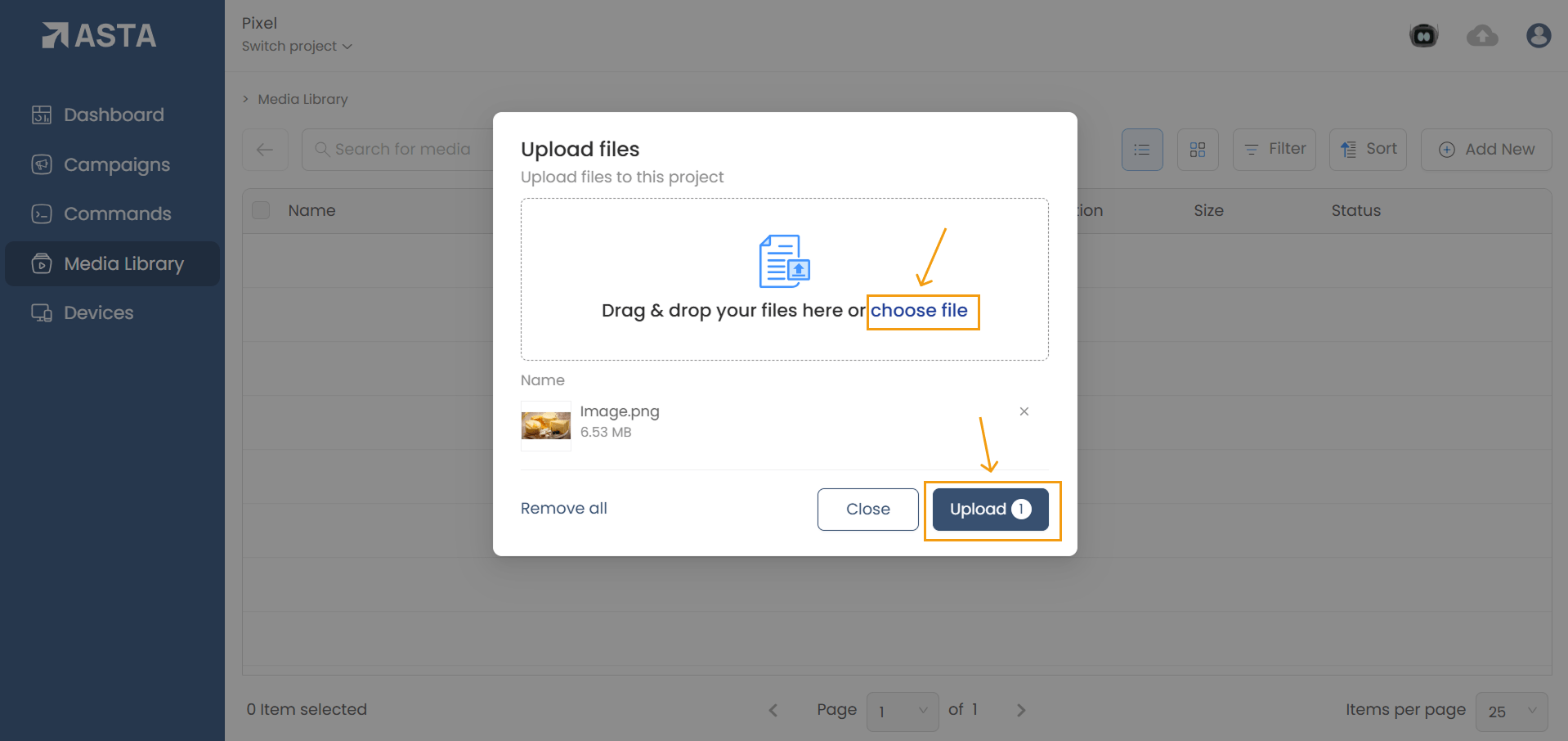
Drop your files into the window or click Choose File to select them from your computer. After selecting the media click on Upload .
Once your file is uploaded, it will appear in the Media Library, ready to be used in campaigns.
Pair a Device
Open the Asta app on the device where you want to display content. A Pair Code will appear, which you need to enter in the web console.
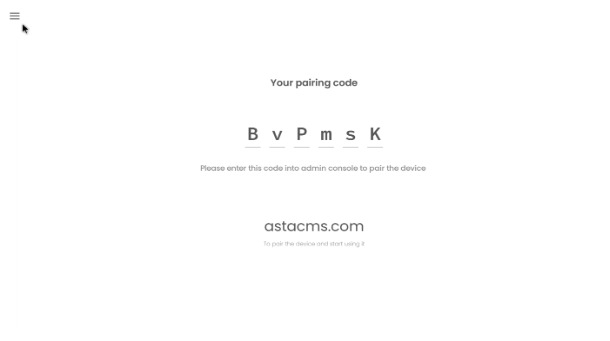
Go to the Devices section and click on Add New and select File. Enter a name for the device, click Next, then enter the Pair Code and click on Pair.
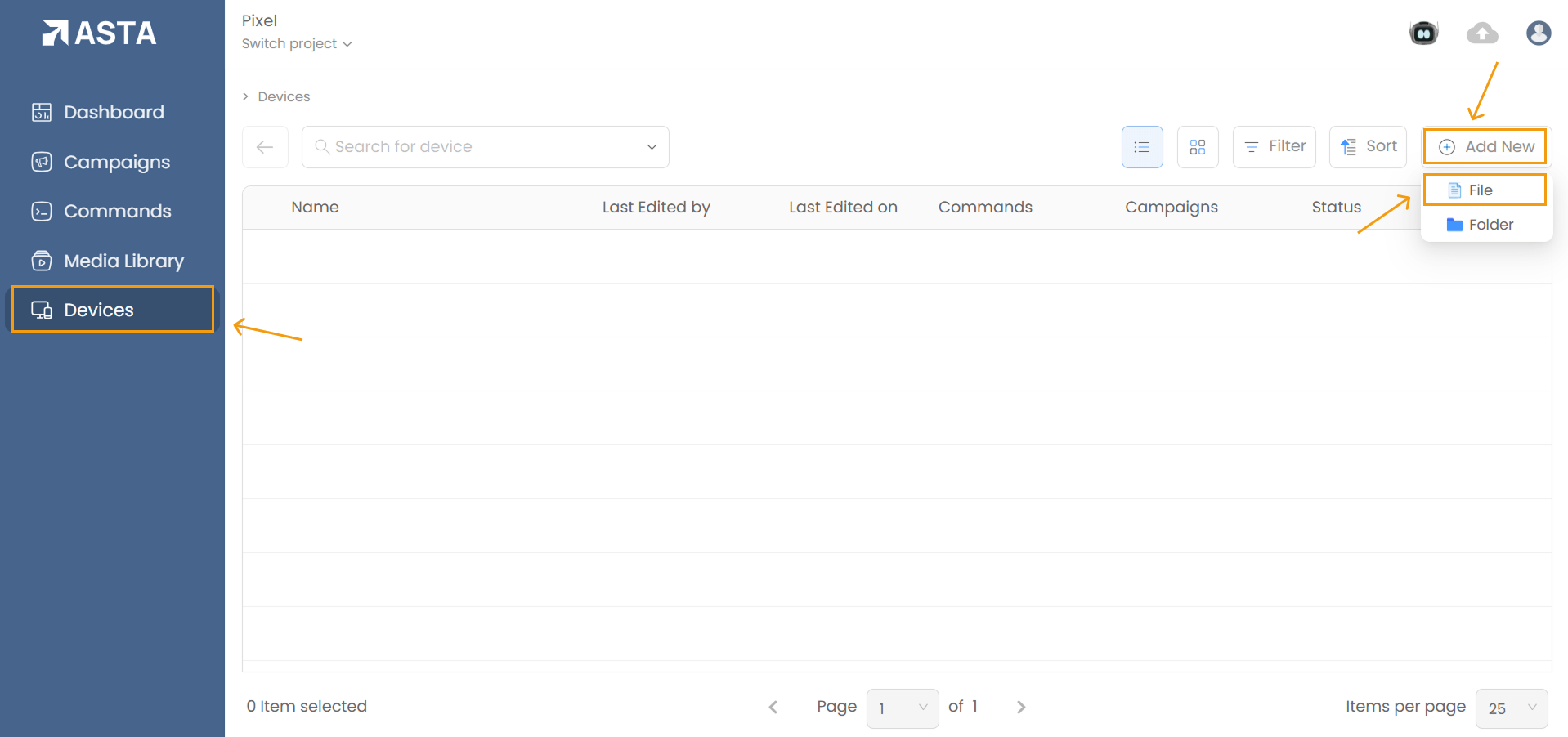
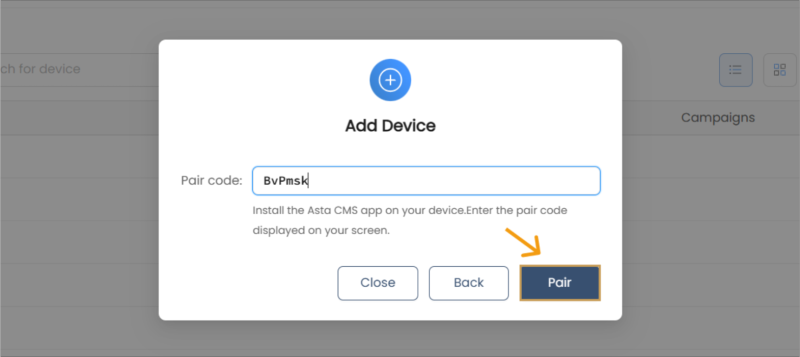
Once paired, you'll be redirected to the device’s page where you can turn on and tweak some settings of your device you can read about it more here
Create and Publish a Campaign
Go to the Campaigns section and click on Add New and select File . Enter a name for your campaign, then click on Create.
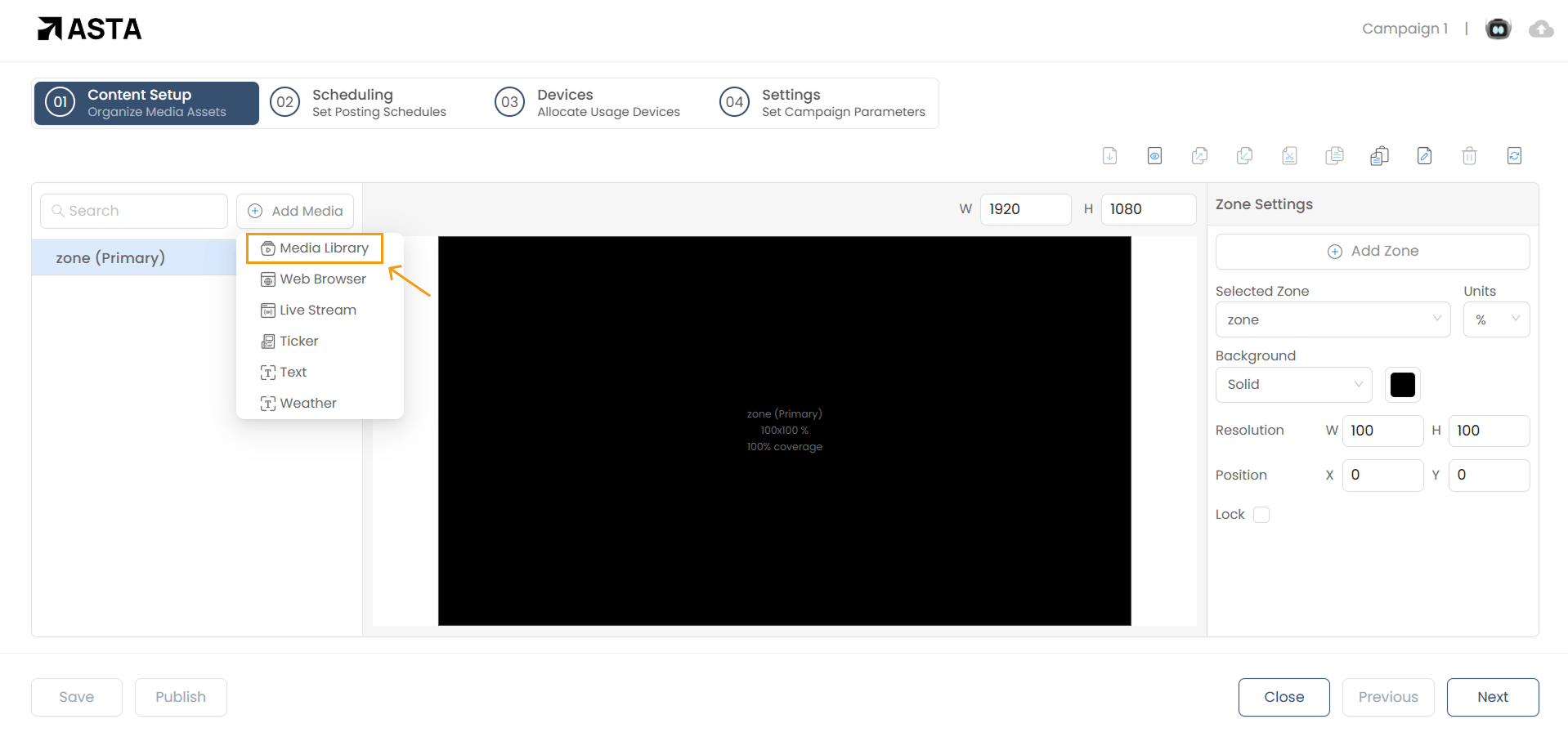
In the Content Setup section, click on Add Media, choose the files from your Media Library, and click on Import.
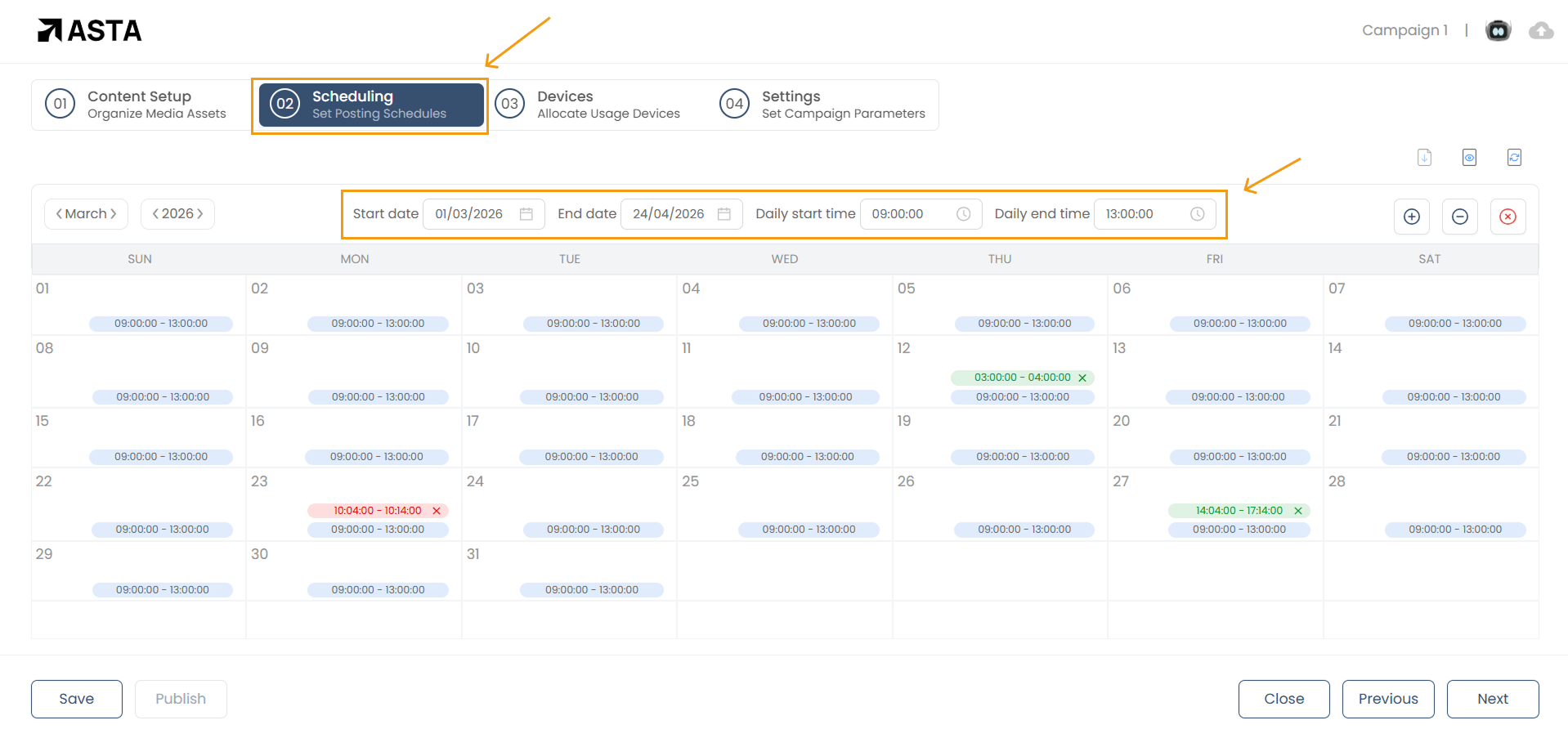
In the Scheduling section, set the start and end dates and times for your campaign.
In the Devices section, select the paired devices and click on Add.
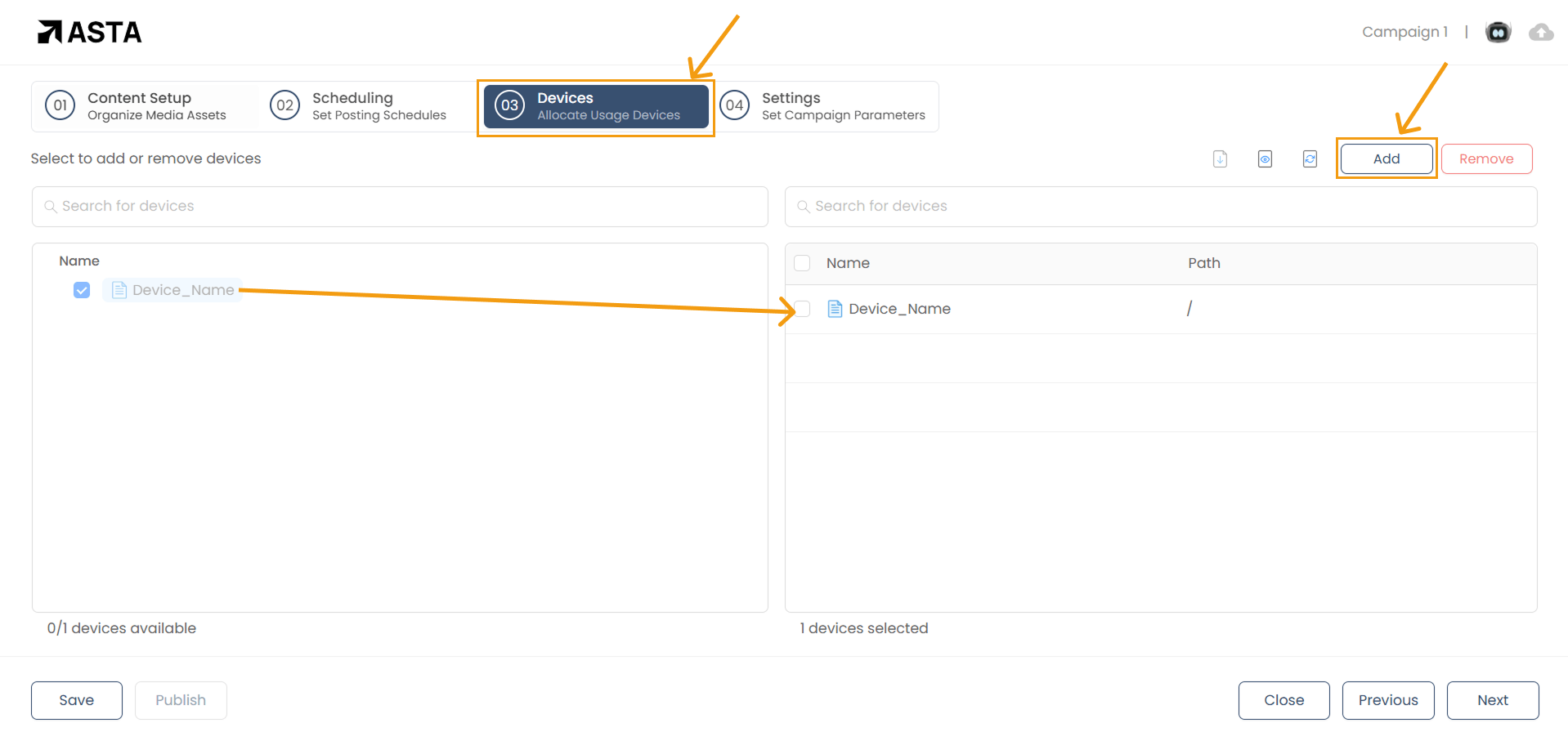
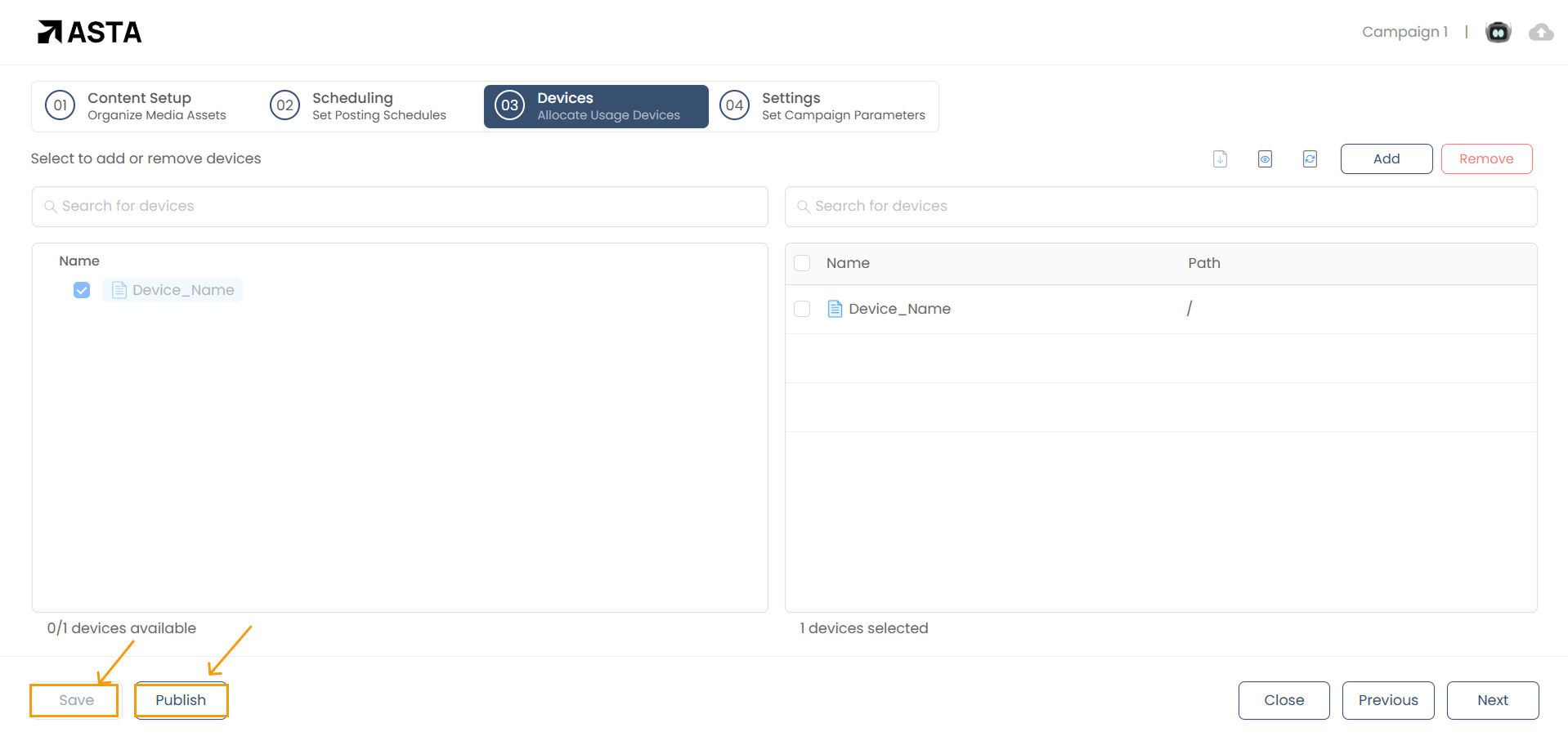
Finally, click on Save and then Publish to make your campaign live, and it will begin playing on your screens.
To know more about making campaigns click here
Congratulations!
You have successfully created and published your first campaign! Your screen will now display the content you selected. If you need to make changes or add more campaigns, simply repeat these steps.
For advanced features like Adding YouTube links or website integrations, check out these documentations.