
Welcome To Asta

Getting Started
Platform Capabilities
Content Management
User & Role Management
Project Management
Customization & Branding
Licensing & Legal
How to Install the Asta App on a WebOS Device
Follow this simple guide to install and set up the Asta app on WebOS device:
Requirements
Before begin, ensure you have:Steps to Install the Asta Application in Webos
Preparing the USB drive for installation
Locate the WebOS Player file in the Downloads section, Download and save this IPK file to the computer the IPK file should have this format com.lg.app.signage.ipk
Preparing the USB DriveFormat the USB drive to FAT32.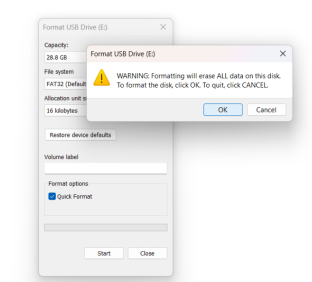
Create a folder named “application” in the root directory of the USB drive and Copy the downloaded IPK file into the “ application” folder.
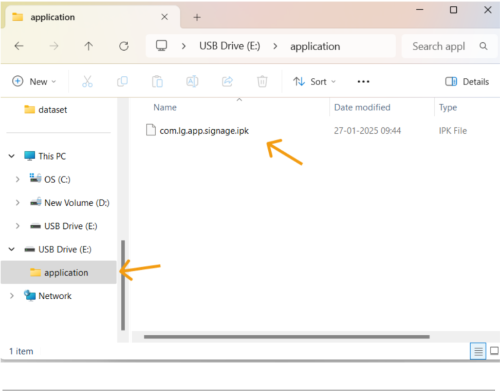
Formating the device
1. Acess the Settings menu on your WebOS device.
2. Select Admin from the settings.
3. Factory reset the device before installing the WebOs by going to the Admin and selecting factory reset.
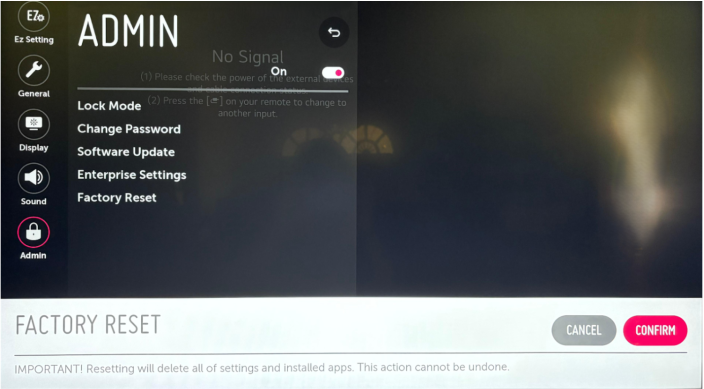
💡 Note: When configuring your webOS device as a new device, ensure the correct time zone is set .
Installing Asta on the WebOS Device
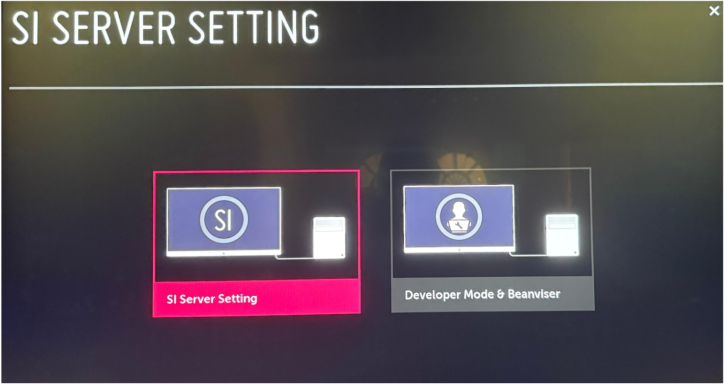
After configuring your device plug the USB drive the the WebOS device USB port then , Navigate to EZ Setting -> SI Server Setting
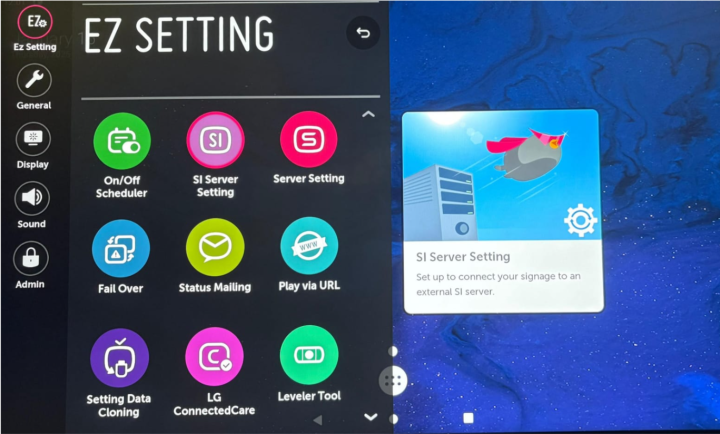
Select SI server setting
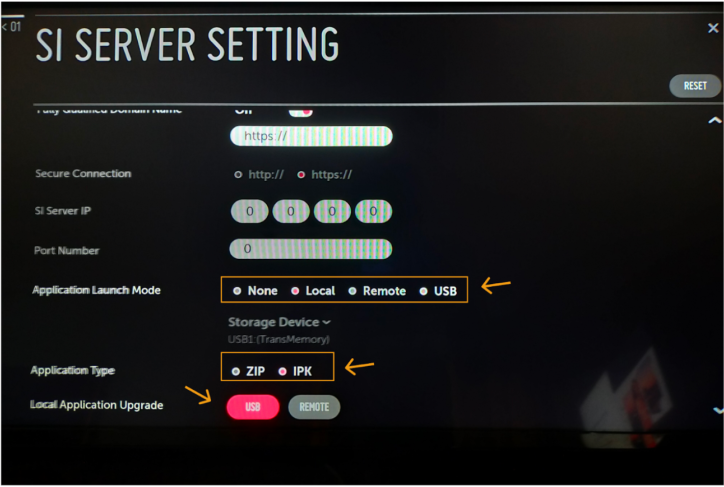
In this page, set the ‘ Application Launch Mode’ to ‘Local ’
Set the ‘ Application Type’ to ‘IPK’
Then finally Select Local Application Upgrade and choose USB to begin the installation.
Confirm the installation when prompted
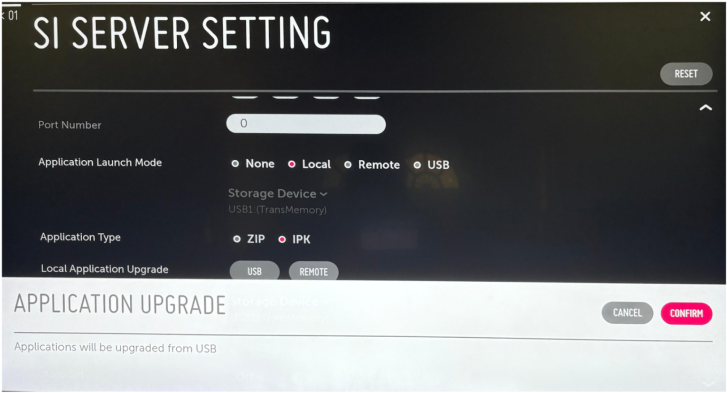
Confirming Installation
Wait for the confirmation message indicating a successful installation.
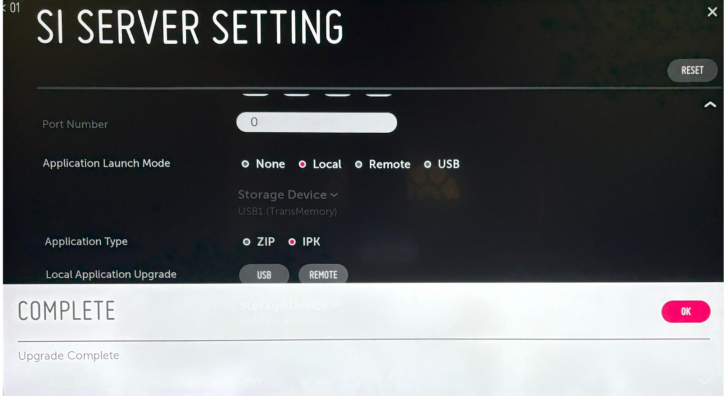
Restart the WebOS device (turn it off and on again).
The Asta app will launch automatically after the restart and you can see the pair code.
You can start pairing it on www.astacms.com and assign content to it there.
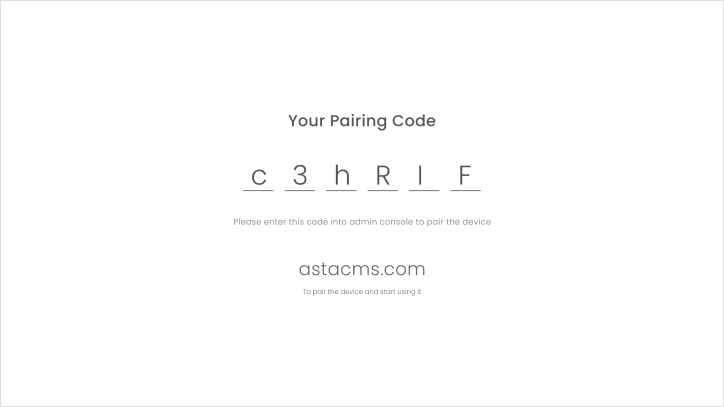
To pair your WebOS device with Asta:
For detailed instructions, check out our link to device pairing