
Welcome To Asta

Getting Started
Platform Capabilities
Content Management
User & Role Management
Project Management
Customization & Branding
Licensing & Legal
Adding Login Security to your Account
The Login Security section allows you to enhance the security of your account by enabling Email OTP (One-Time Password) or Multi-Factor Authentication (MFA). Follow the steps below to enable or disable these security options:
- Enabling Login Security
- Secure Your Account with Email OTP Authentication
- Secure Your Account with Multi-Factor Authentication
Enabling Login Security
1. Navigate to the Login Security Section:
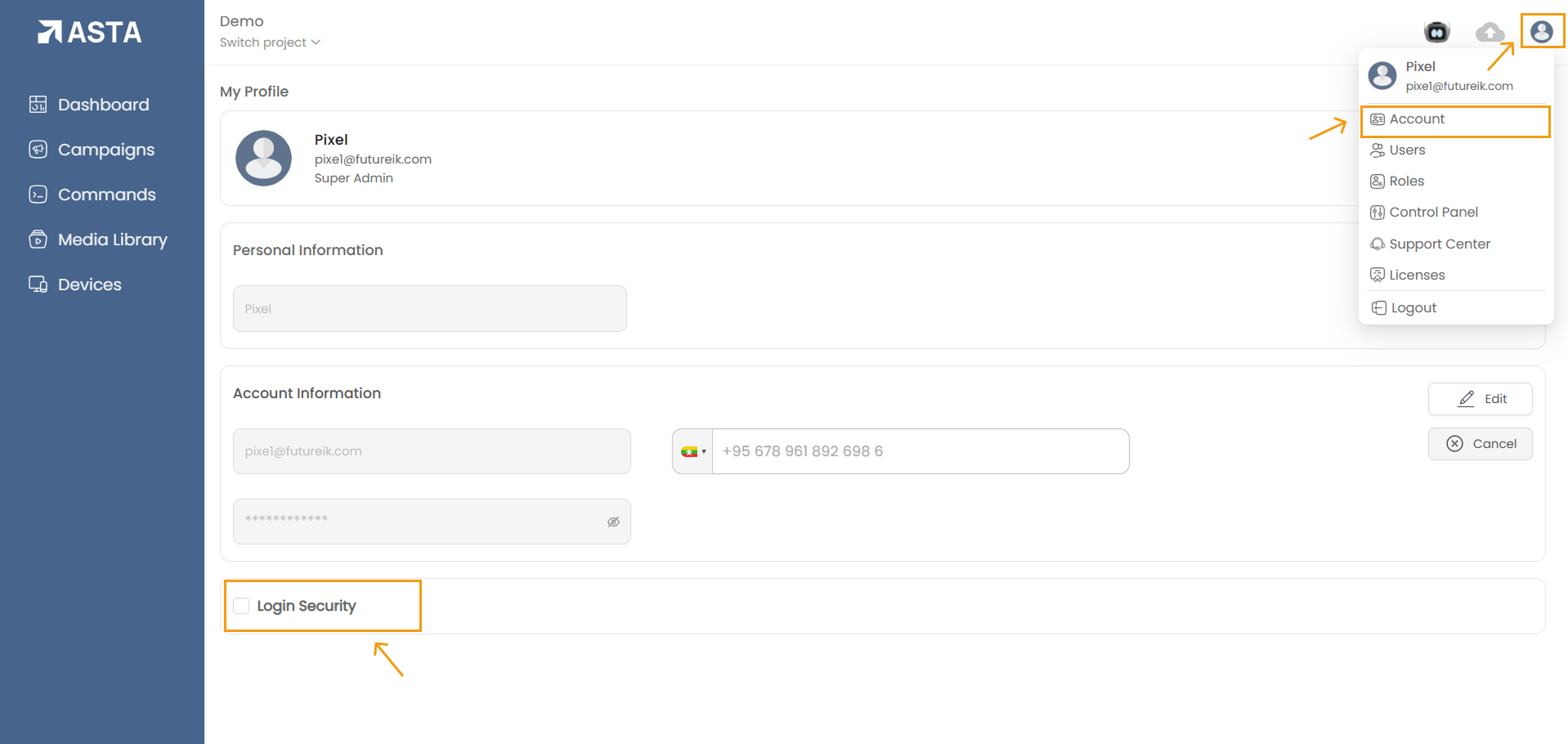
- Go to Account Settings and select the Login Security checkbox.
2. Confirm Security Enabling:
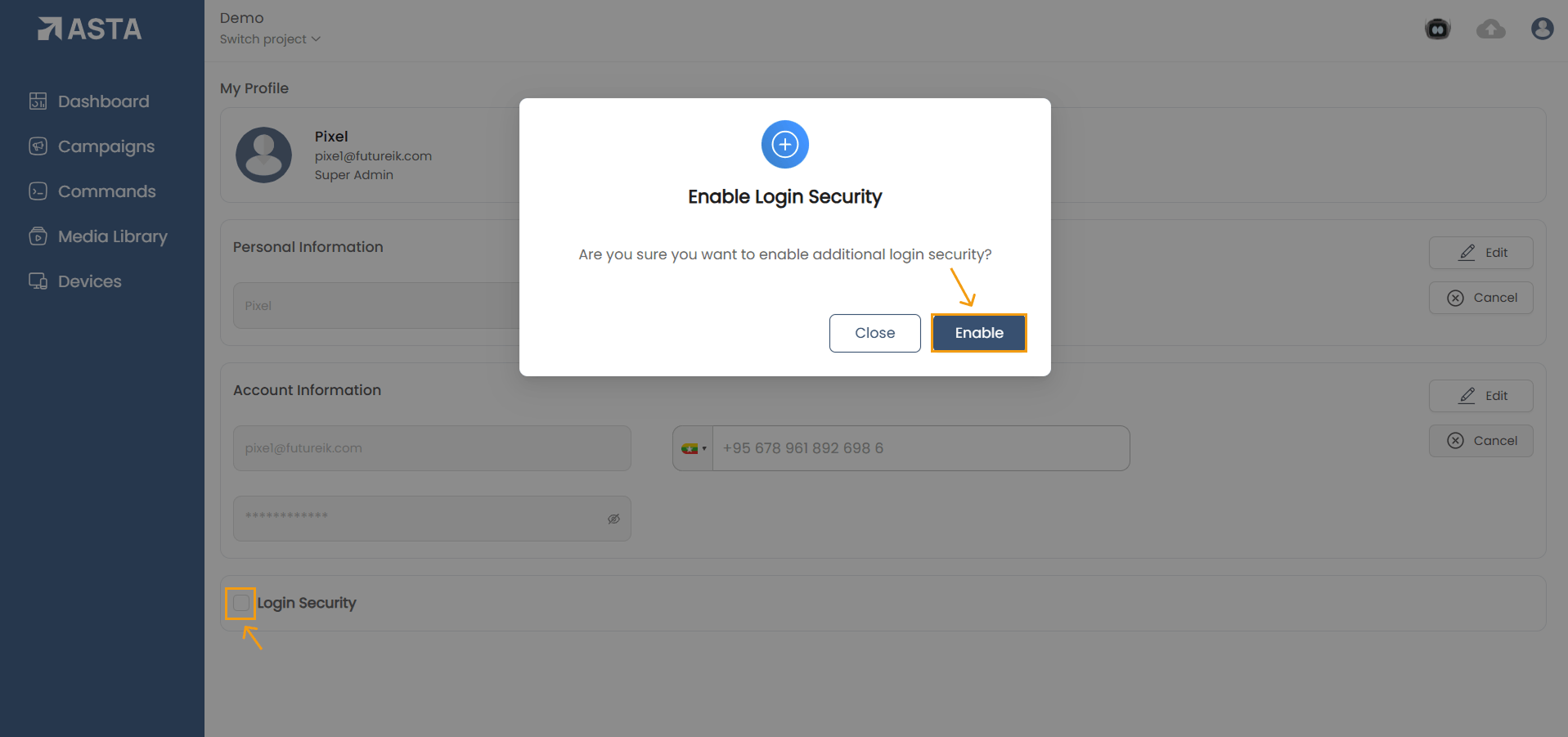
- A confirmation modal will appear with the prompt: "Are you sure you want to enable additional login security?"
- Click Enable to confirm the activation of login security.
3. Choose a Security Option:
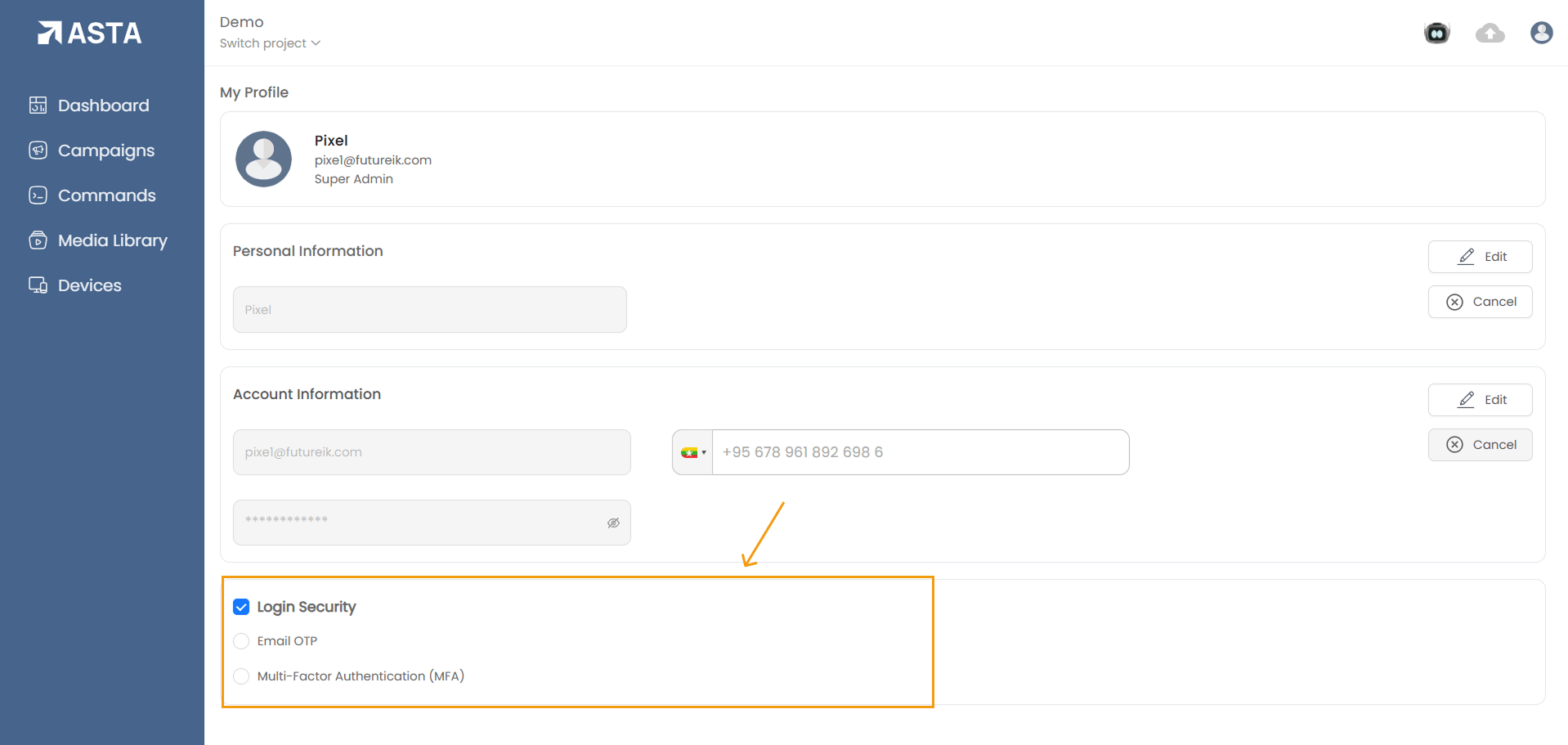
- You can choose one of the following options for added login security:
- Email OTP: A one-time password will be sent to your registered email address each time you log in.
- MFA (Multi-Factor Authentication): Adds a second layer of authentication, typically via an authenticator app.
- After selecting MFA, click Set Up MFA and follow the instructions for setup.
Disabling Login Security
1. Navigate to the Login Security Section:- Go to Account Settings and locate the Login Security checkbox
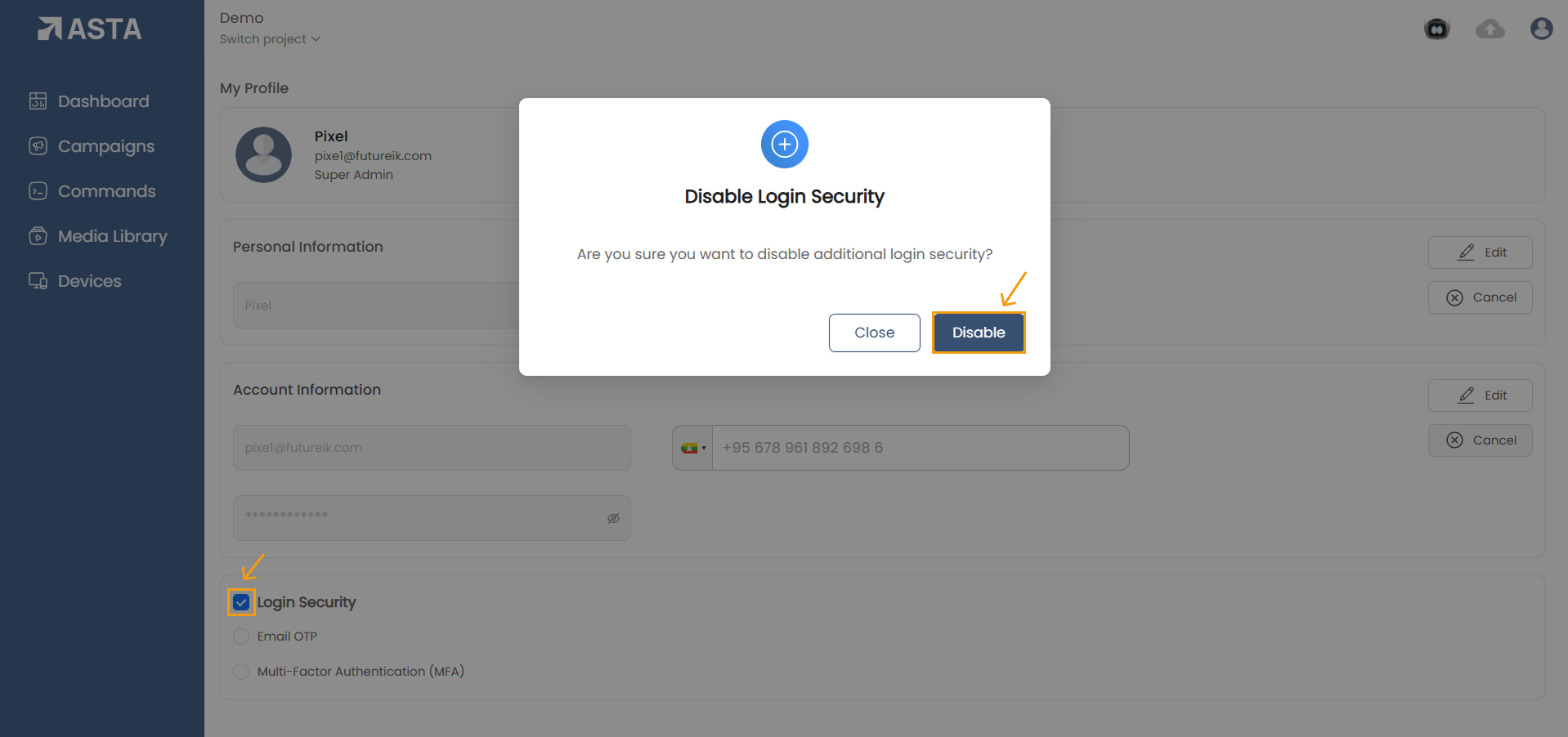
- Click on the Login Security checkbox to disable the enabled security feature.
- Confirm your action by clicking the Disable button.
- If you fail to authenticate using the Authenticator App during the MFA setup, the Login Security feature will not be enabled.
- You will need to retry the setup process to successfully enable the selected security method.
Secure Your Account with Email OTP Authentication
Email One-Time Password (OTP) is an additional security layer that enhances the safety of your account. By enabling Email OTP, you ensure that only authorized users can access the account, even if the password is compromised.
How Email OTP Works:- Once Email OTP is enabled, you will receive a unique OTP via your registered email address every time you log in.
- The OTP is valid for a limited time, typically 10 minutes, ensuring timely and secure access.
- Log in to your account:
- Navigate to the login settings under the Account section.
- Enable Email OTP:
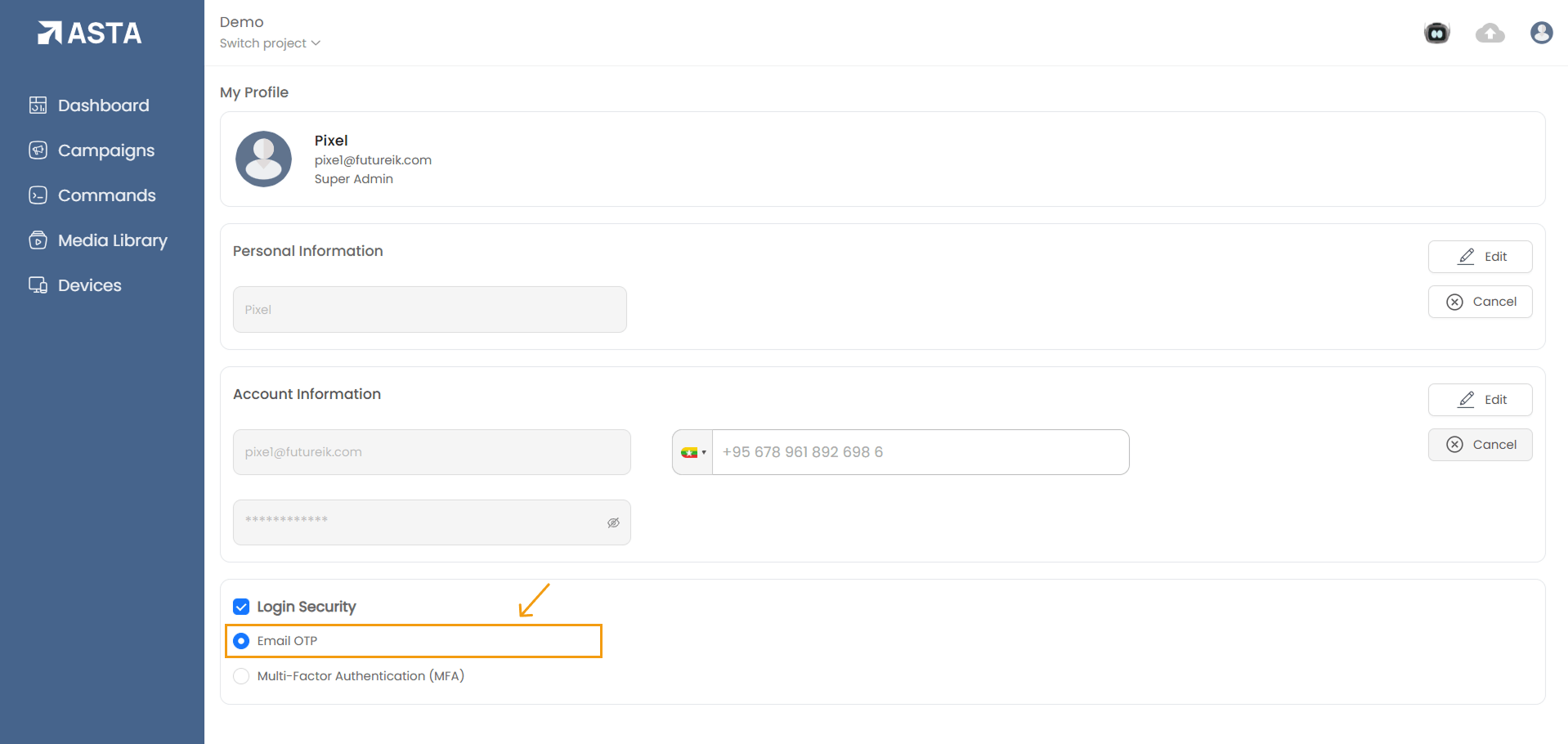
- Toggle the Email OTP option to selected.
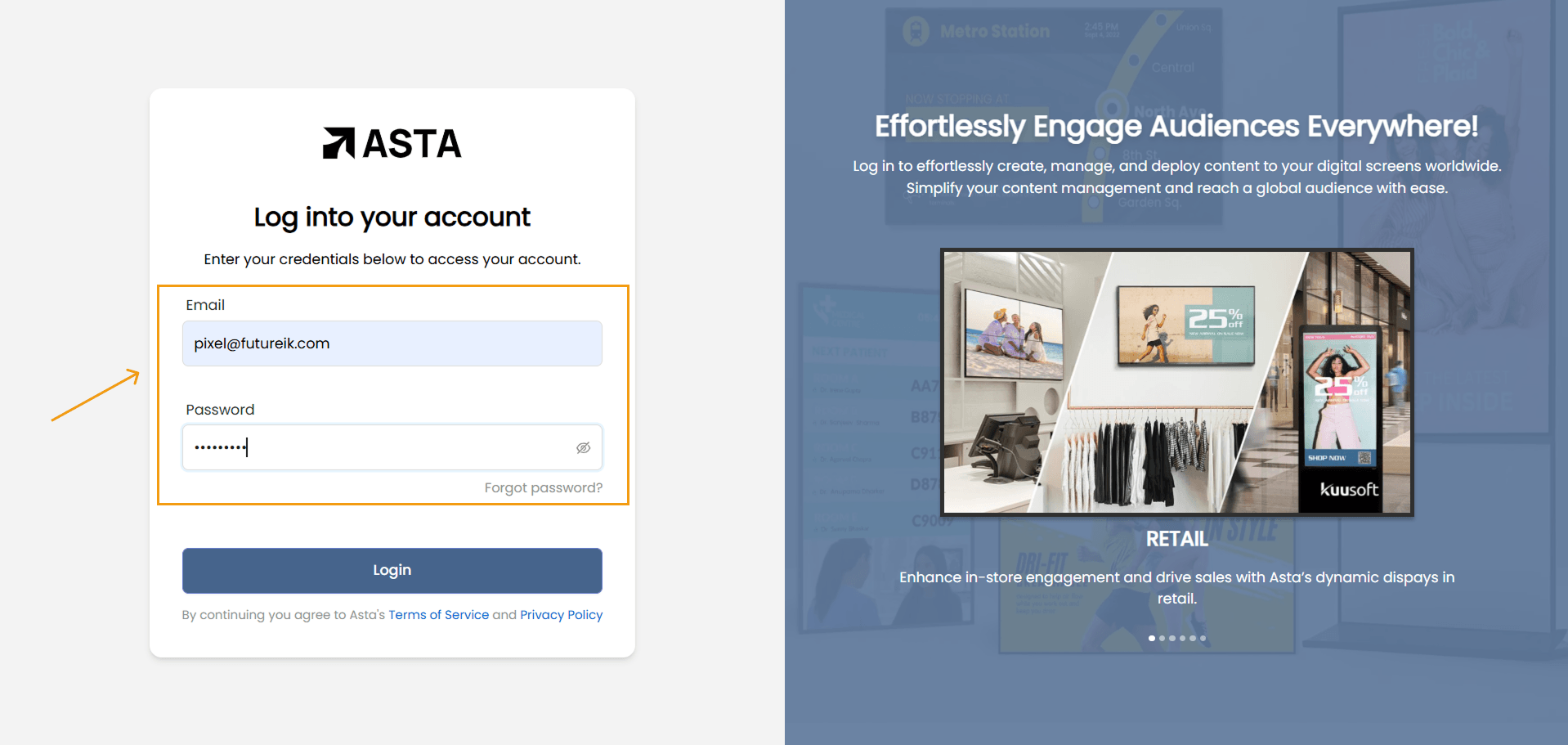
- Enter username and password on the login page.
- Upon successful password entry, an OTP will be sent to your registered email.
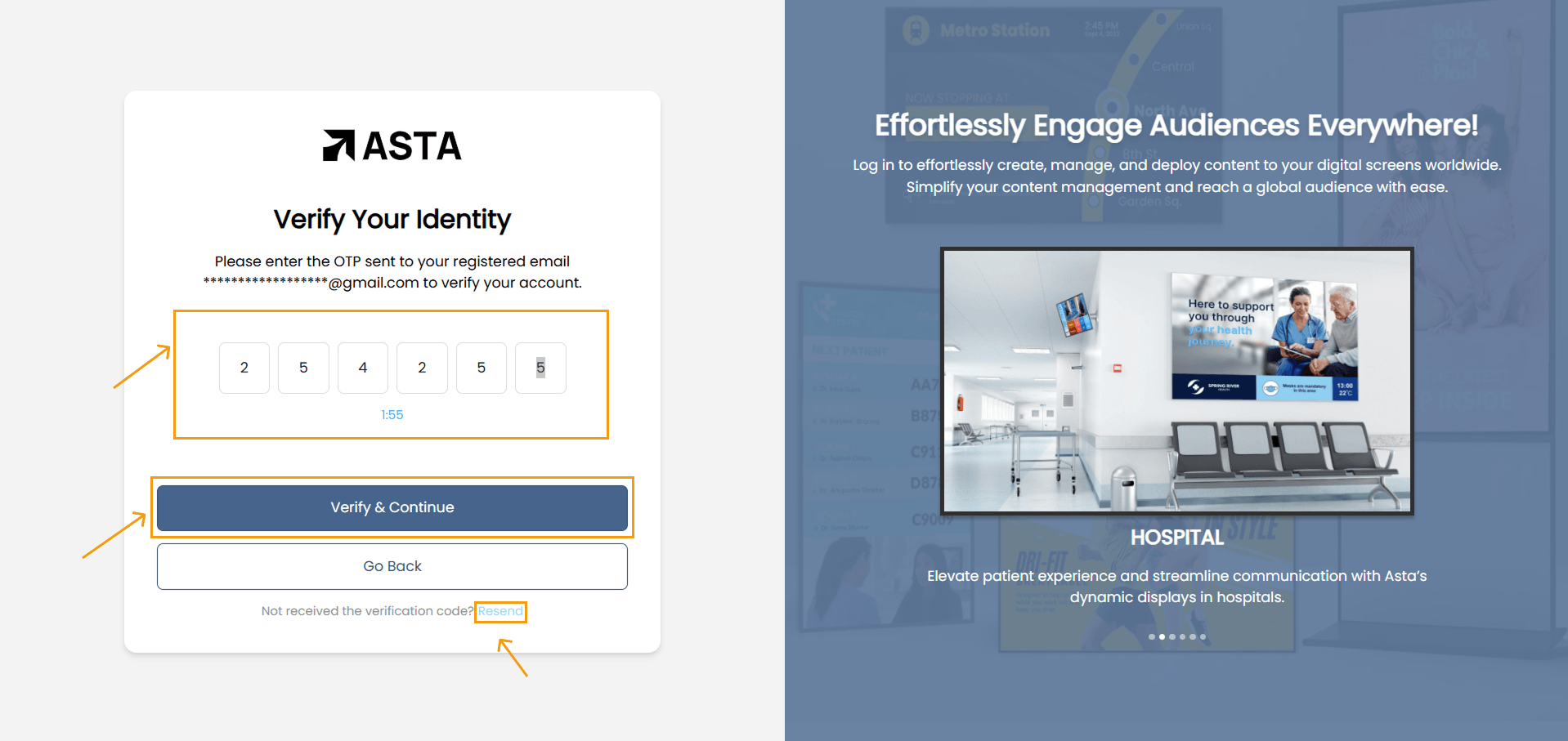
- Retrieve the OTP from your email and enter it in the designated field.
- Click Verify to complete the login process.
- Email Accuracy: Ensure your registered email is up-to-date and accessible.
- OTP Expiry: If the OTP expires, request a new one by clicking the "Resend" option.
- Do Not Share OTPs: Keep your OTP confidential and never share it with others.
- Didn’t Receive the OTP
- Check your spam or junk folder.
- Ensure your email inbox is not full.
- Verify the registered email address in your account settings.
- Multiple Failed Attempts:
- Wait a few minutes before trying again to avoid being locked out.
By enabling Email OTP, you enhance your account’s security, safeguarding it against unauthorized access. For further assistance, contact our Asta support team.
Multi-Factor Authentication (MFA) enhances the security of your account by requiring you to authenticate using an additional method beyond your username and password. This additional layer of security ensures that even if your password is compromised, unauthorized access to your account is prevented.
Supported Authenticator Applications: You can use any compatible authenticator application to set up MFA. Popular options include:
- Google Authenticator
- Microsoft Authenticator
- Duo Mobile
- Any other compatible authenticator app
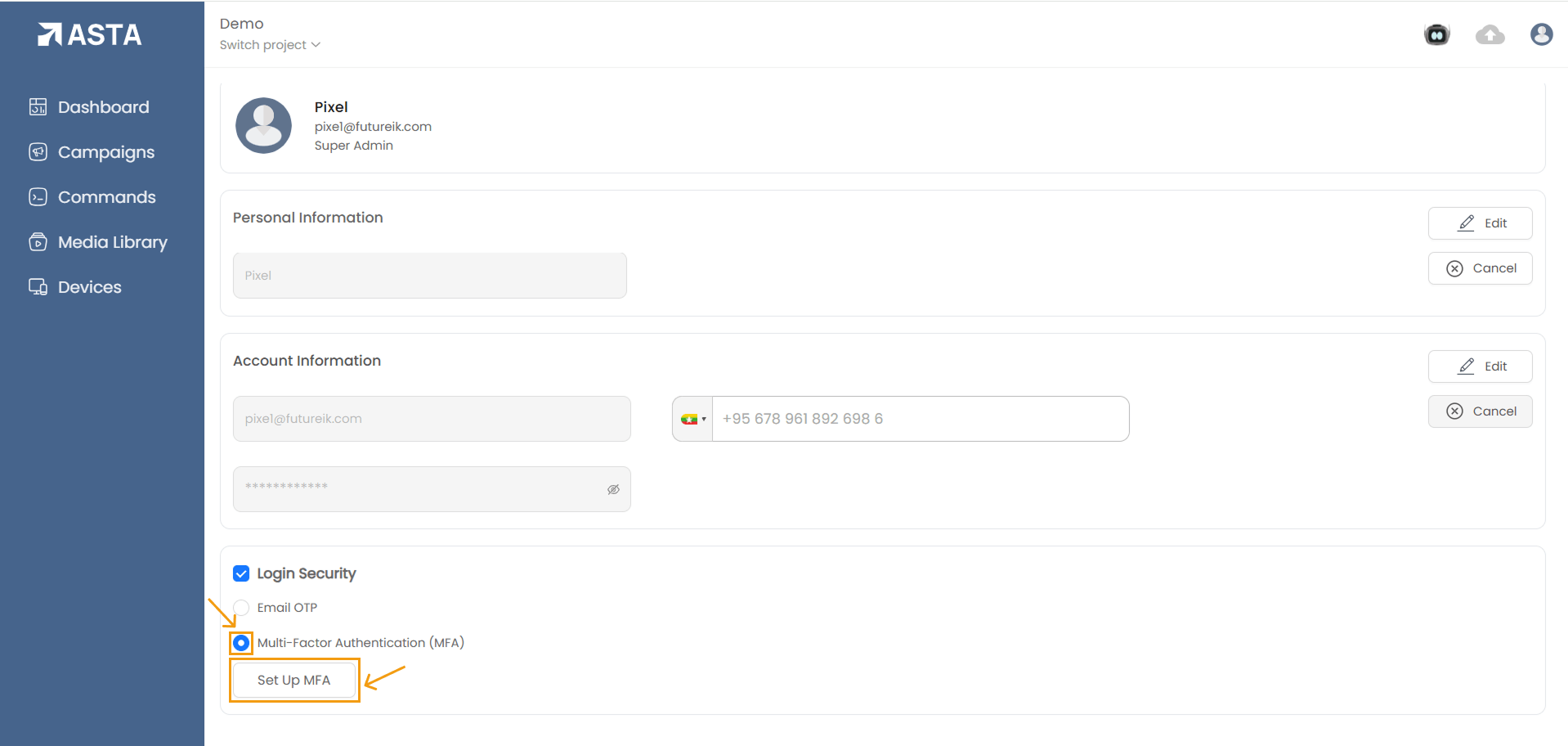
1. Navigate to the Security Settings: Go to the account settings and select the Security or MFA setup option.
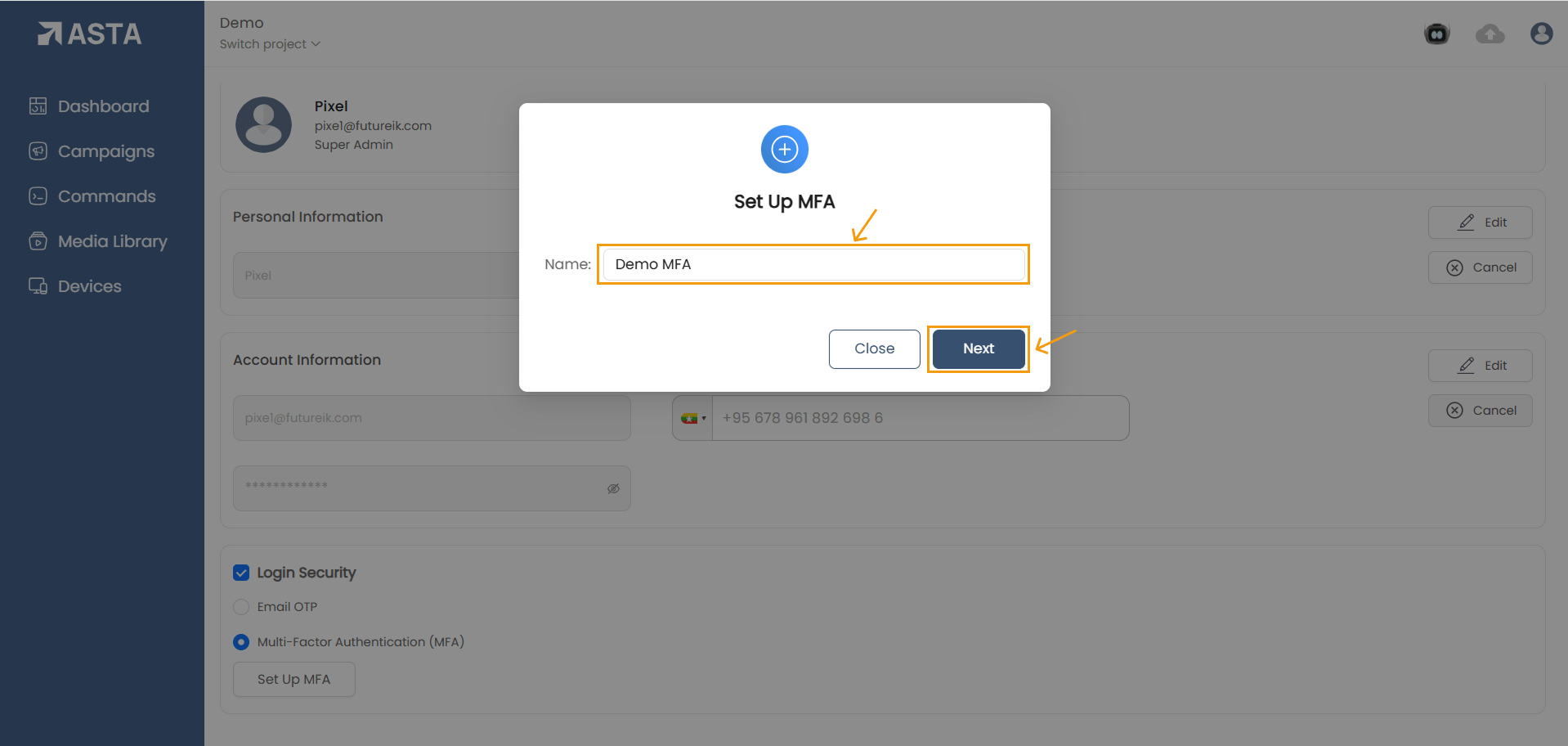
2. Set up a name for MFA and click the Next button to proceed with the next step.
3. Scan the QR Code: Open your authenticator app and scan the QR code displayed on your screen. After scanning, a 6-digit verification code will appear in the app.
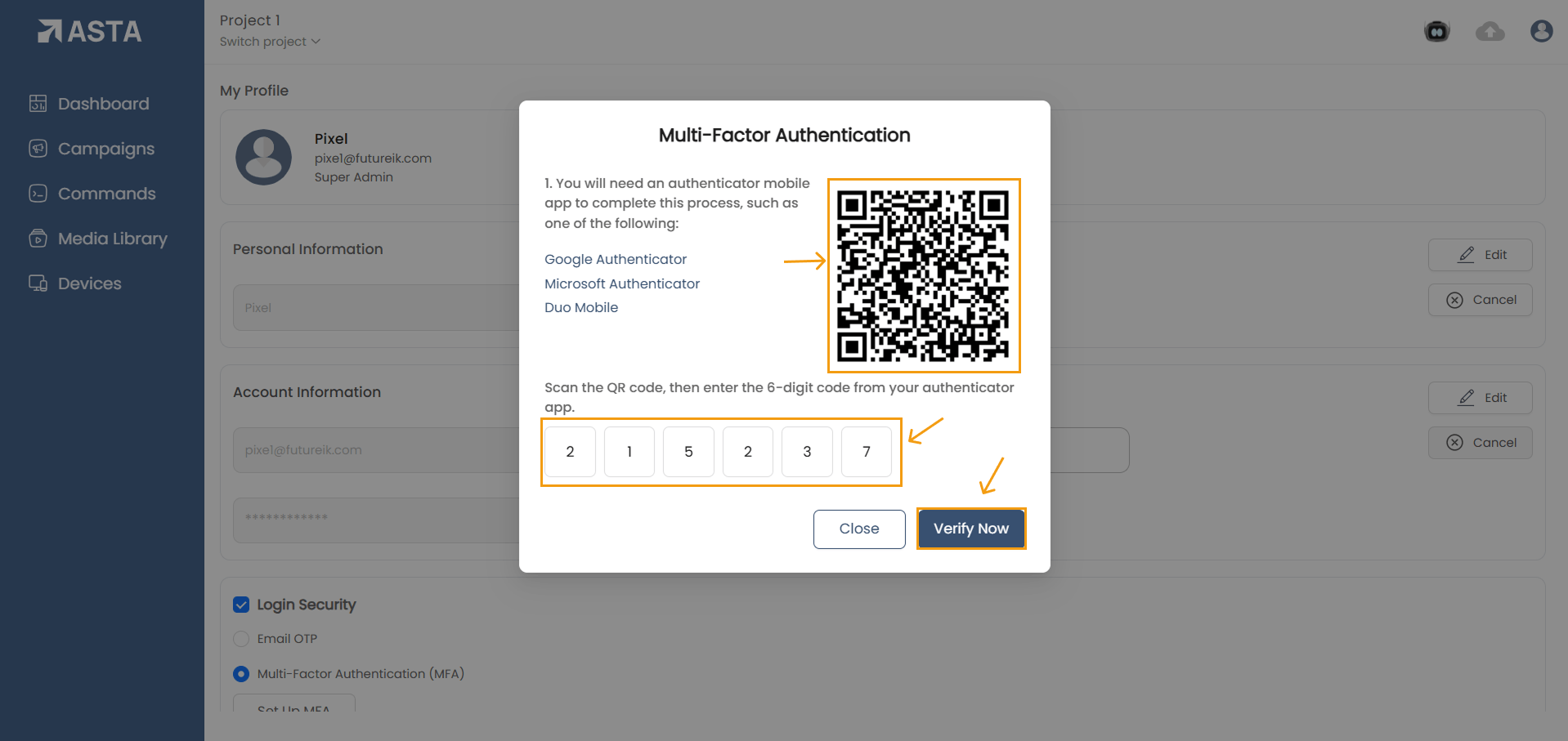
4. Save the Setup: Enter the verification code generated in the MFA setup field to confirm and click on verify now button.
Using MFA to Log In: Once MFA is enabled, follow these steps each time you log in:
1. Enter your username and password: Log in as usual.
2. Open your authenticator app: Access the app you set up during MFA configuration.
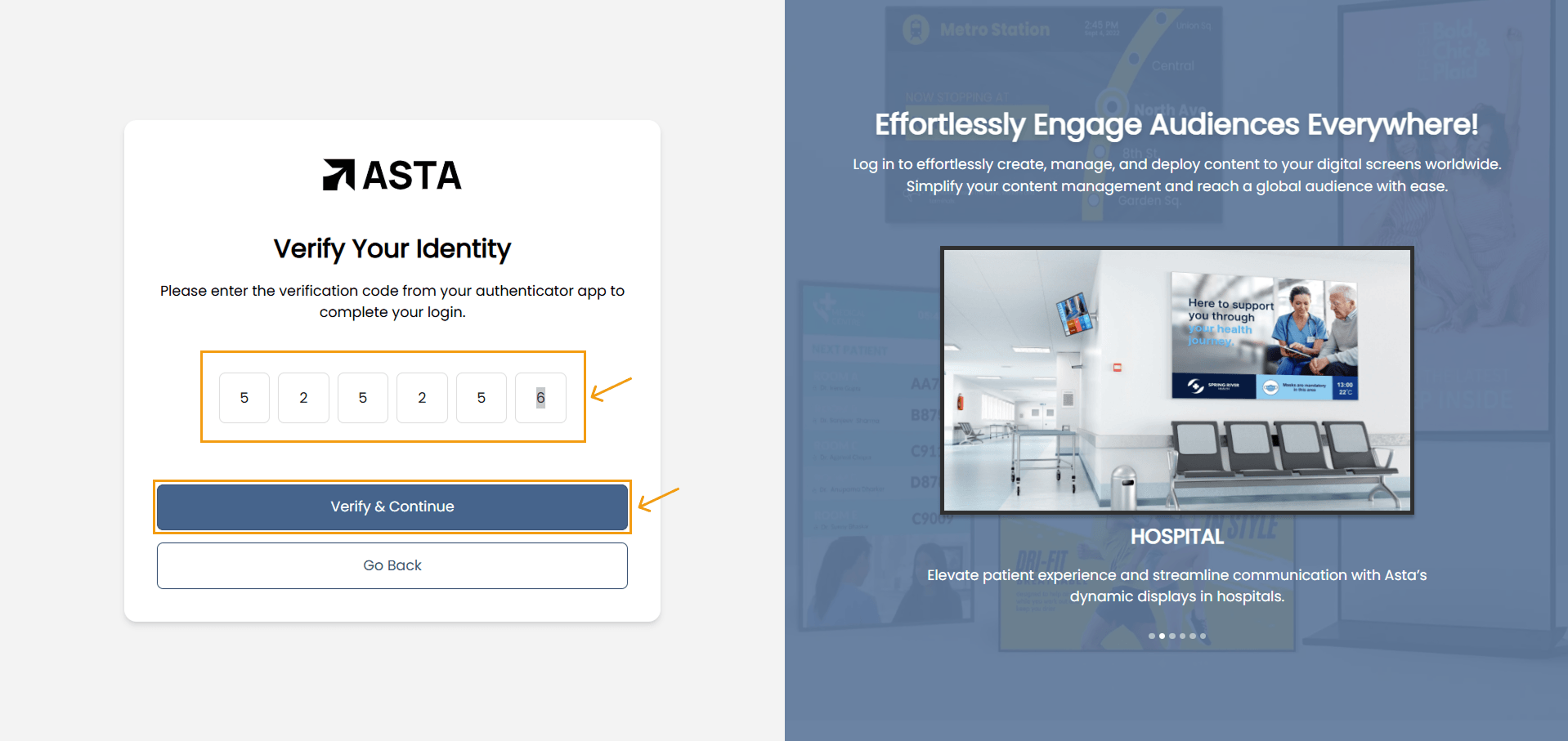
3. Enter the verification code: Use the code displayed in the app to authenticate your login. Note that codes typically refresh every 30 seconds. Click on verify and continue button for final verification.
- Backup Codes: Save any backup codes provided during setup in a secure location. These can be used if you lose access to your authenticator app.
- App Updates: Keep your authenticator app updated to ensure compatibility and security.
- Multiple Devices: If needed, set up MFA on more than one device to avoid being locked out.
- If you lose access to your authenticator app, contact support to regain access to your account.
- Ensure your device’s time settings are accurate to avoid code mismatches.
By using MFA, you significantly enhance the protection of your account and personal information.