
Welcome To Asta

Getting Started
Set-up guide
Platform Capabilities
Dashboard
Campaigns
Media Library
Device Management
Commands Management
Content Management
Add & Manage Media in Asta
Customize Your Media Experience
User & Role Management
Users
Roles & Permissions
Account Settings
Project Management
Projects Overview
Navigating the Project Dropdown Menu
Customization & Branding
Rebranding the Asta Application
Licensing & Legal
Licenses
Domain Quota
Managing Your Account Settings
The Account Settings section empowers users to manage their personal and login information. This feature ensures that users can maintain up-to-date information and secure their accounts effectively.
Accessing the Account Settings
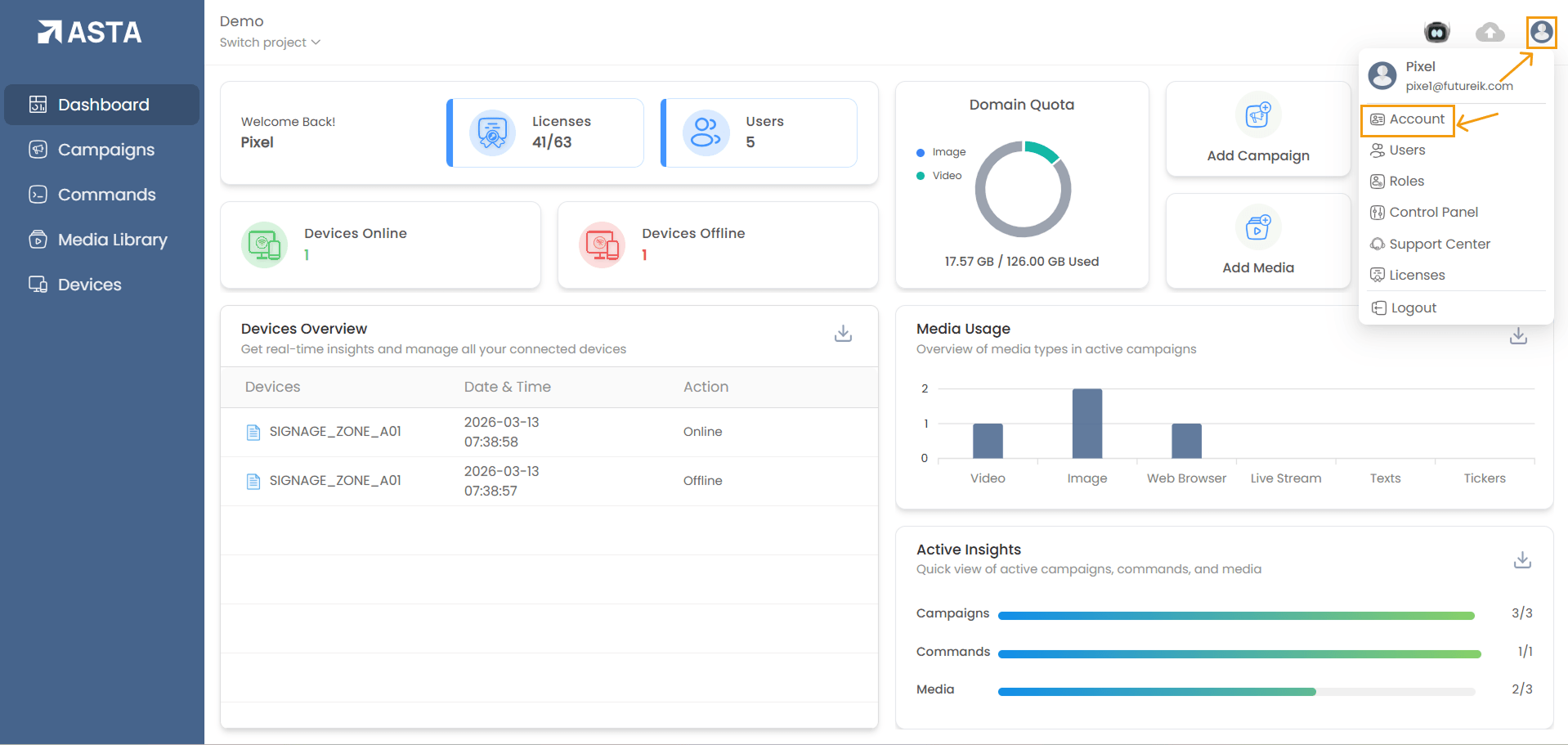
- The profile icon is typically located at the top-right corner of the interface.
- A dropdown menu will appear; choose the Account option to access account settings.
Update Account Information
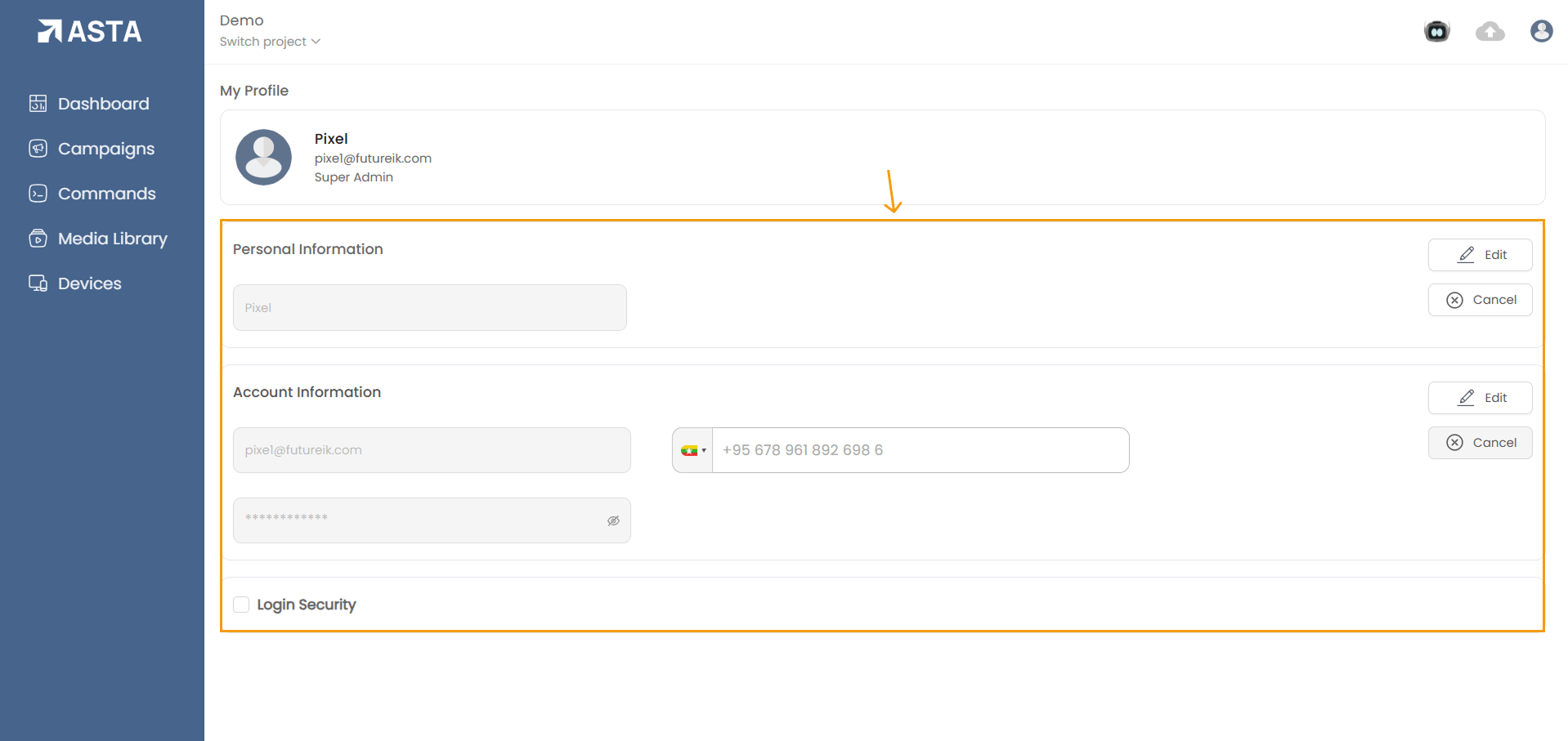
- You can update the following details:
- Account Name
- Phone Number
- Email ID
- Password
- Click the "Edit" button.
- Enter the new information in the respective fields.
- Click the "Save" button.
- Verify the changes by entering the One-Time Password (OTP) sent to your registered email address.
- Once verified, the updates will be applied immediately.
- Ensure your new password meets the required security standards (e.g. , use of special characters, minimum 8 characters Must be there).
Additional Tips:
- Email Accuracy: Always ensure your registered email address is accurate and accessible, as it is required for OTP verification.
- Regular Updates: Regularly review and update your account information to keep it current and secure.
- Secure Passwords: Use strong, unique passwords and avoid reusing old passwords to enhance security.
By keeping your account settings up to date, you ensure the safety and accuracy of your personal information, providing a seamless and secure user experience.