
Welcome To Asta

Getting Started
Platform Capabilities
Content Management
User & Role Management
Project Management
Customization & Branding
Licensing & Legal
How to Create Custom Roles
The Roles section provides a flexible way to manage user permissions and access levels. By assigning roles with specific permissions, administrators can control who can access and modify different entities within the Asta. Custom roles allow for tailored access, while default roles provide a standard set of permissions for common use cases.
1. Creating and Managing Roles
- Creating a Custom Role:
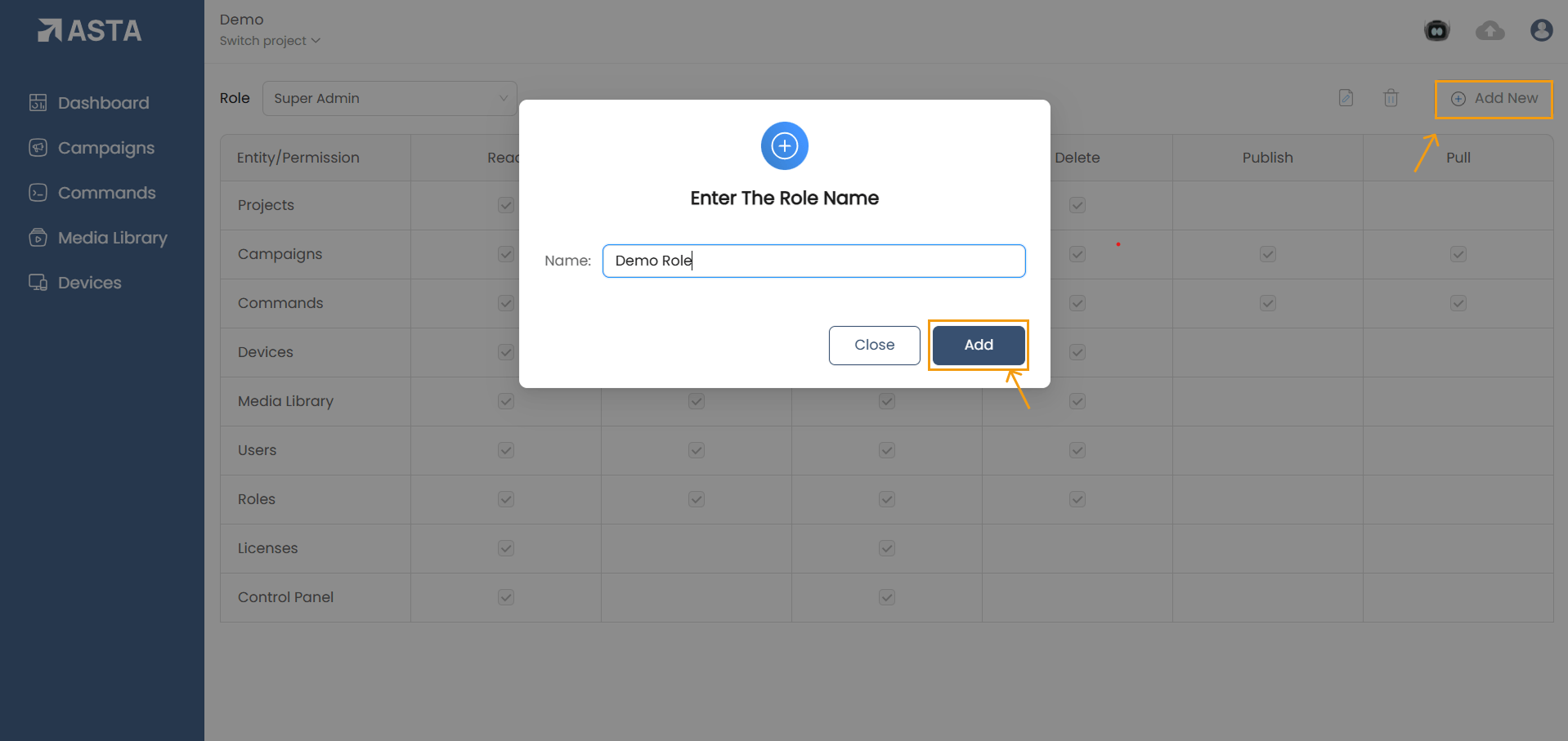
- Click the Add New button to open the Create Role modal.
- Enter a name for the custom role and click Add.
- Editing a Custom Role:
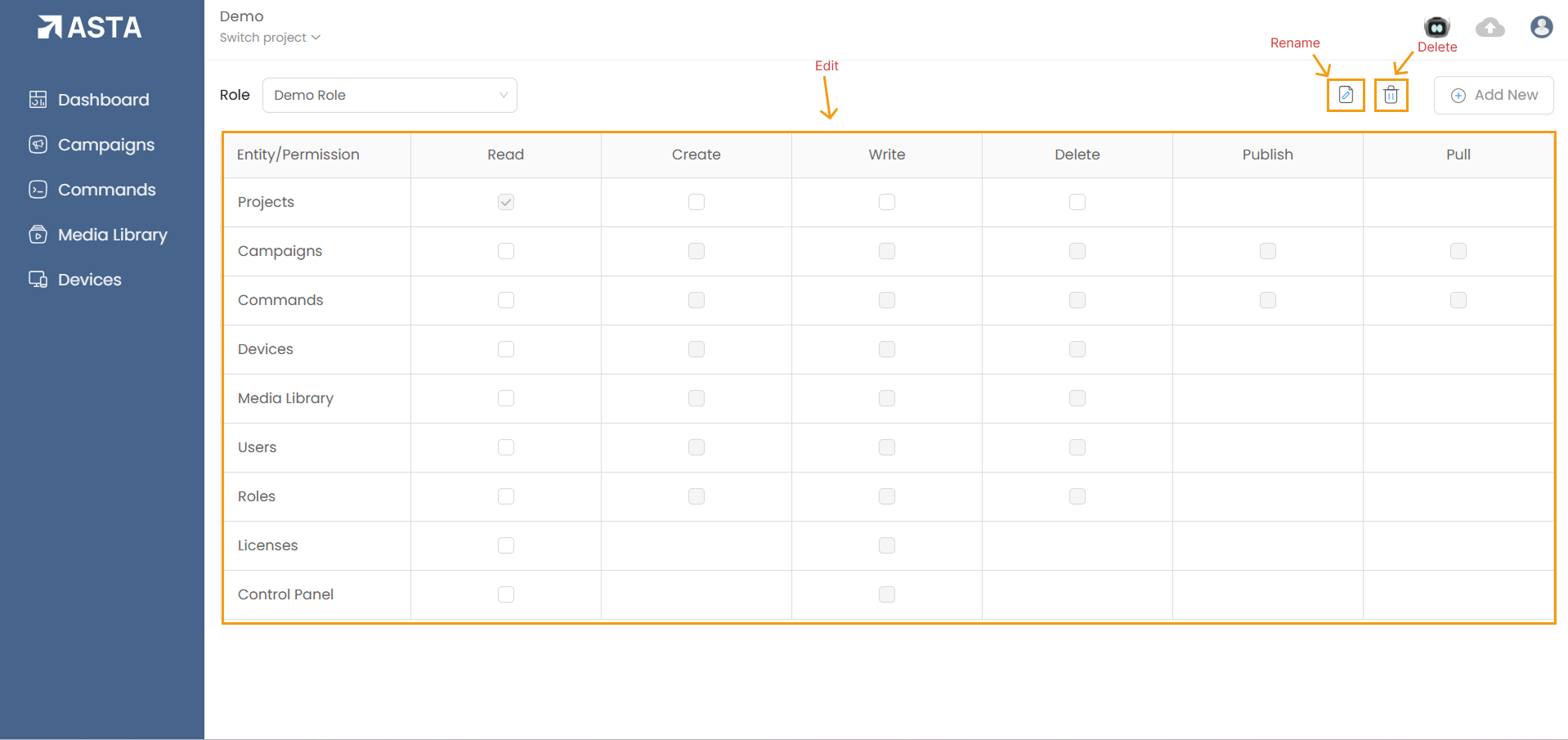
- Select a role from the dropdown.
- Modify the permissions by checking or unchecking the boxes.
Note: You cannot edit the permissions of default roles.
- Renaming a Custom Role:
- To rename a custom role, click the Rename option next to the selected role.
- Modify the permissions by checking or unchecking the boxes.
- You cannot edit the permissions of default roles.
- Deleting a Custom Role:
- Select the custom role to delete.
- Click the Delete option.
- A confirmation modal will appear, asking if you are sure you want to delete the role. Confirm the action to proceed.
2. Restrictions and Permissions
- Role Restrictions:
- A user can only have one role at a time.
- Only Super Admin users by default can create new roles or edit the created roles.
- Permission Propagation:
- Permissions do not propagate across related sections. For example, if a user has Read access to Campaigns, they do not automatically gain access to other related sections like Media Library or Commands.
Key Highlights:
1. Single Role Assignment: A user can only have one role at a time.
2. Custom Roles: Custom roles can be created, renamed, and deleted, and can be assigned all the permissions.
3. Clear Permissions: Permissions are assigned through a simple checkbox interface, with clear distinctions between what actions are available for each entity.
4. Security: Only Super Admins by default can create or edit roles, ensuring control over role management.