
Welcome To Asta

Getting Started
Platform Capabilities
Content Management
User & Role Management
Project Management
Customization & Branding
Licensing & Legal
Roles & Permissions
Overview
The Roles section allows administrators to define and manage user access permissions across various entities within the CMS. Roles determine the level of access each user has, with different permissions assigned to each role. The Super Admin has the highest level of access, while other roles such as Admin, Project Manager, Campaign Manager, and Content Manager have more limited permissions.
Role Hierarchy
Roles are structured in a hierarchy, with each role having specific privileges:
- Super Admin: Has full access to all entities and permissions, including Read, Create, Write, Delete, Publish, and Pull across all sections (e.g., Projects, Campaigns, Commands, Devices, Media Library, Users, Roles, Licenses, Control Panel).
- Admin: Has limited access. Admins can manage users and entities but cannot modify roles or licenses. They have read-only access in the Users section.
- Project Manager: Can manage projects and campaigns, but with limited permissions in other sections.
- Campaign Manager: Focuses on managing campaigns with permissions for creating and publishing campaigns.
- Content Manager: Manages content but has restricted permissions in other sections.
- Custom Roles: Users can create custom roles with specific permissions, but only the Super Admin by default has the authority to create these roles .If a custom role has this access of creating roles then they can also create ,edit the roles.
Navigating to the Roles Section
To access the Roles section:
- Click on the Profile Icon in the top-right corner of the Asta interface.
- From the dropdown menu, select Roles.
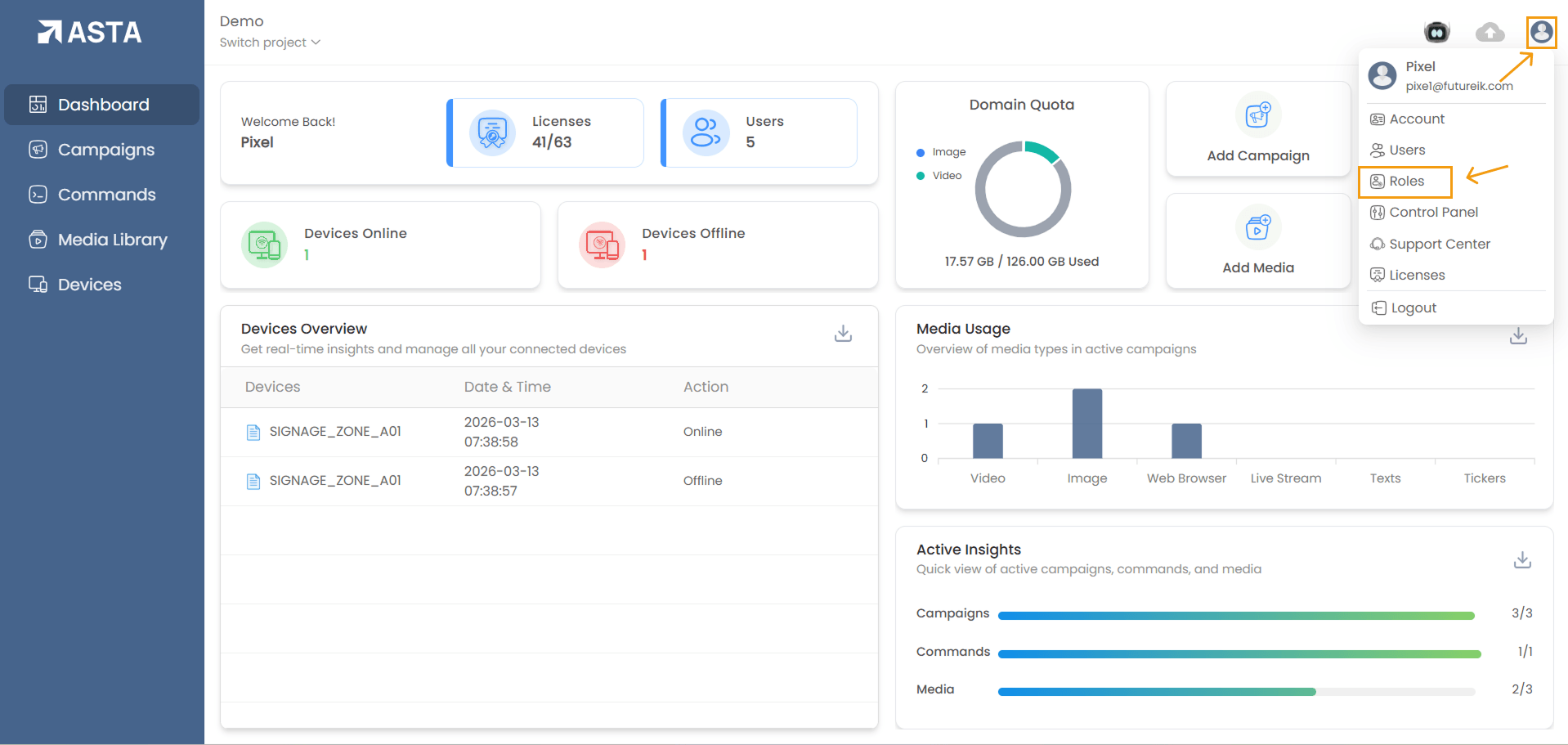
The Roles section appears as a table with rows representing different entities and columns for each permission type. The entities include:
- Projects
- Campaigns
- Commands
- Devices
- Media Library
- Users
- Roles
- Licenses
- Control Panel
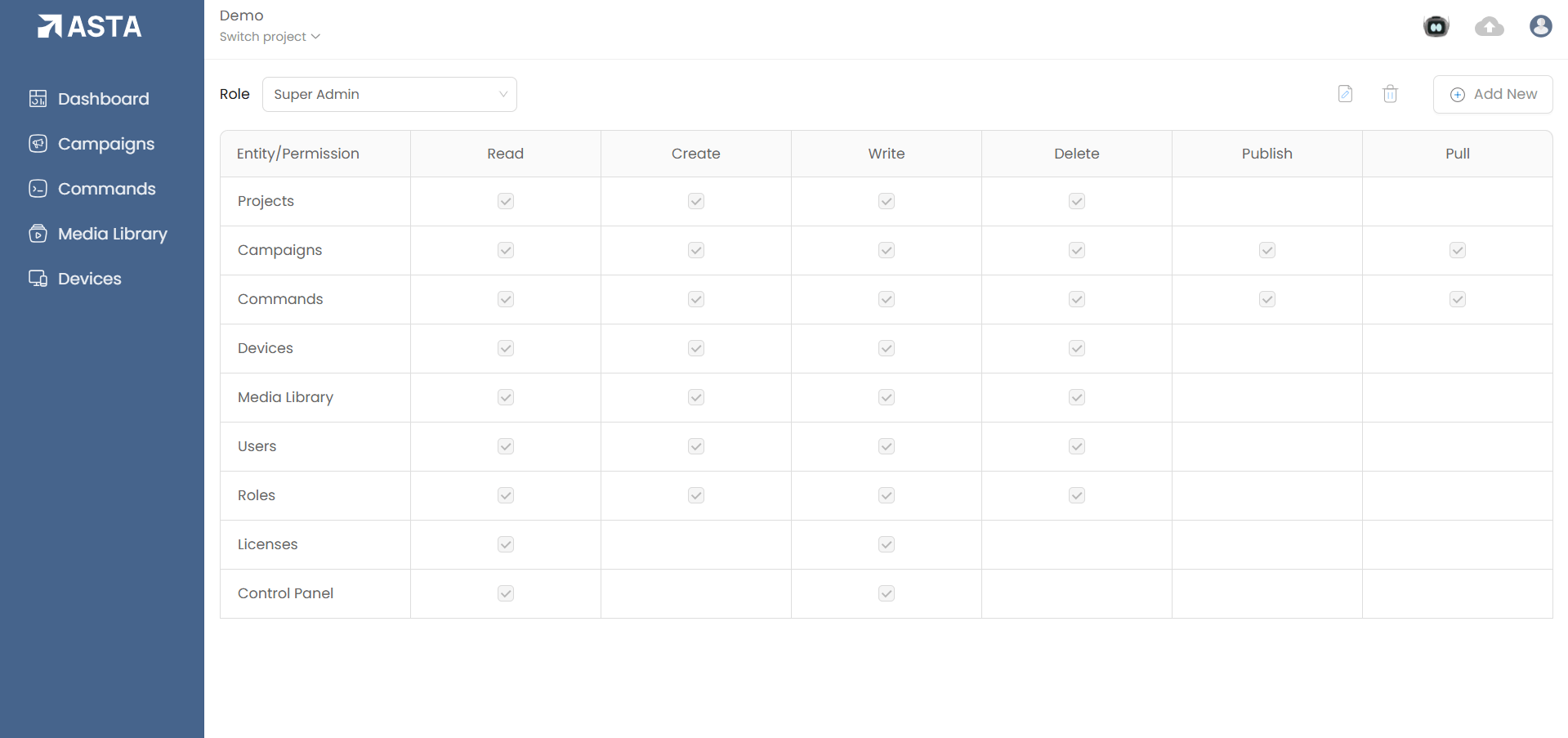
In the table, the first column lists the Entity/Permission, and the subsequent columns represent the following permissions:
- Read
- Create
- Write
- Delete
- Publish
- Pull
Each cell in the table contains a checkbox. If the checkbox is ticked, the corresponding permission is assigned to the selected role for that entity. Not all entities have all permissions available. For example, Media Library does not have the Publish or Pull permissions, whileCampaigns and Commands do.