
Welcome To Asta

Getting Started
Set-up guide
Platform Capabilities
Dashboard
Campaigns
Media Library
Device Management
Commands Management
Content Management
Add & Manage Media in Asta
Customize Your Media Experience
User & Role Management
Users
Roles & Permissions
Account Settings
Project Management
Projects Overview
Navigating the Project Dropdown Menu
Customization & Branding
Rebranding the Asta Application
Licensing & Legal
Licenses
Domain Quota
How to Create a User
The user section of the Asta allows each client to manage their users within their specific project. Clients can create, edit, assign roles, block/unblock, and delete users. Users can also search and sort through existing users.
1. User Creation
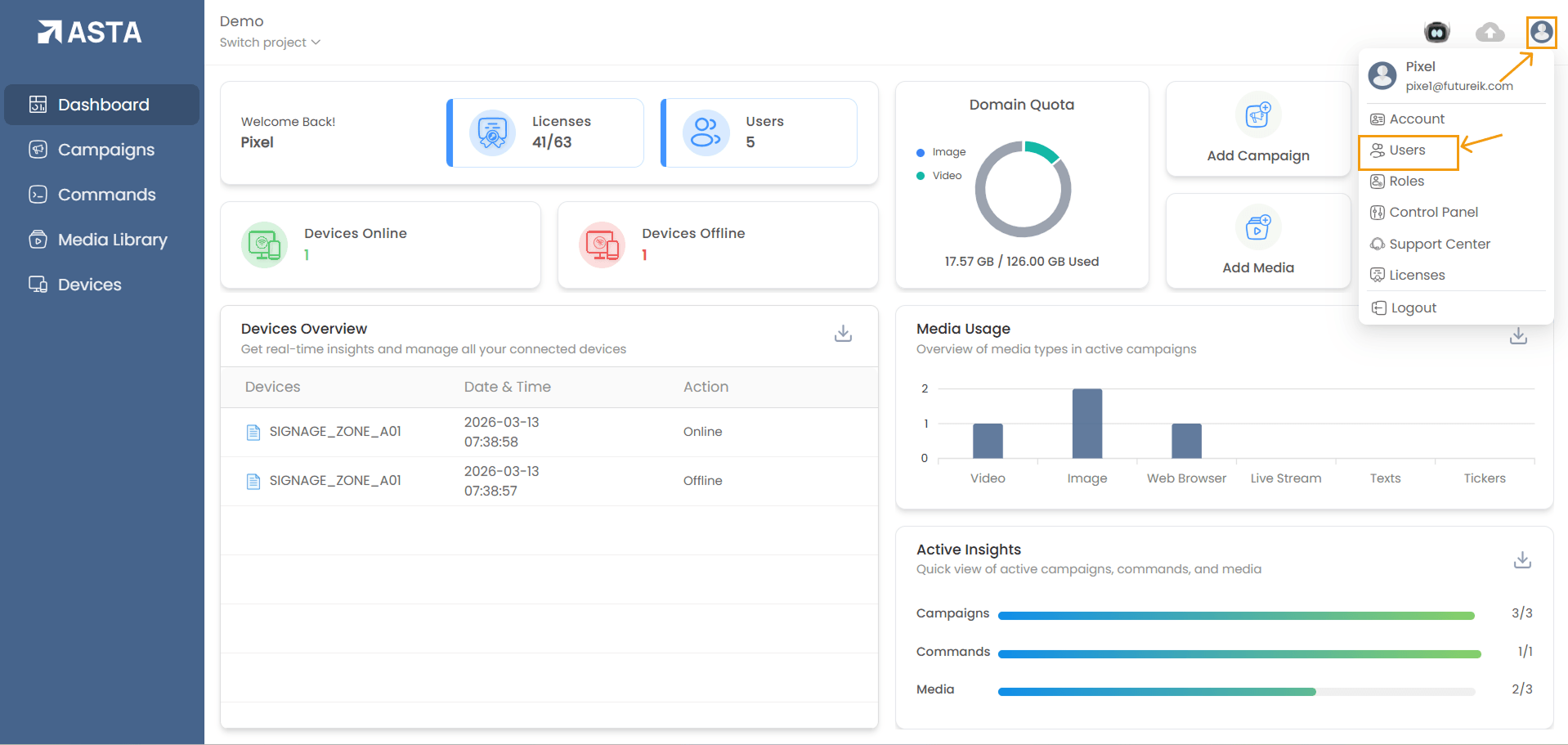
Steps to Create a User:- Navigate to Profile Icon:
- Click on the profile icon in the top-right corner of the Asta interface.
- A dropdown menu will appear.
- Select the Users option from the dropdown.
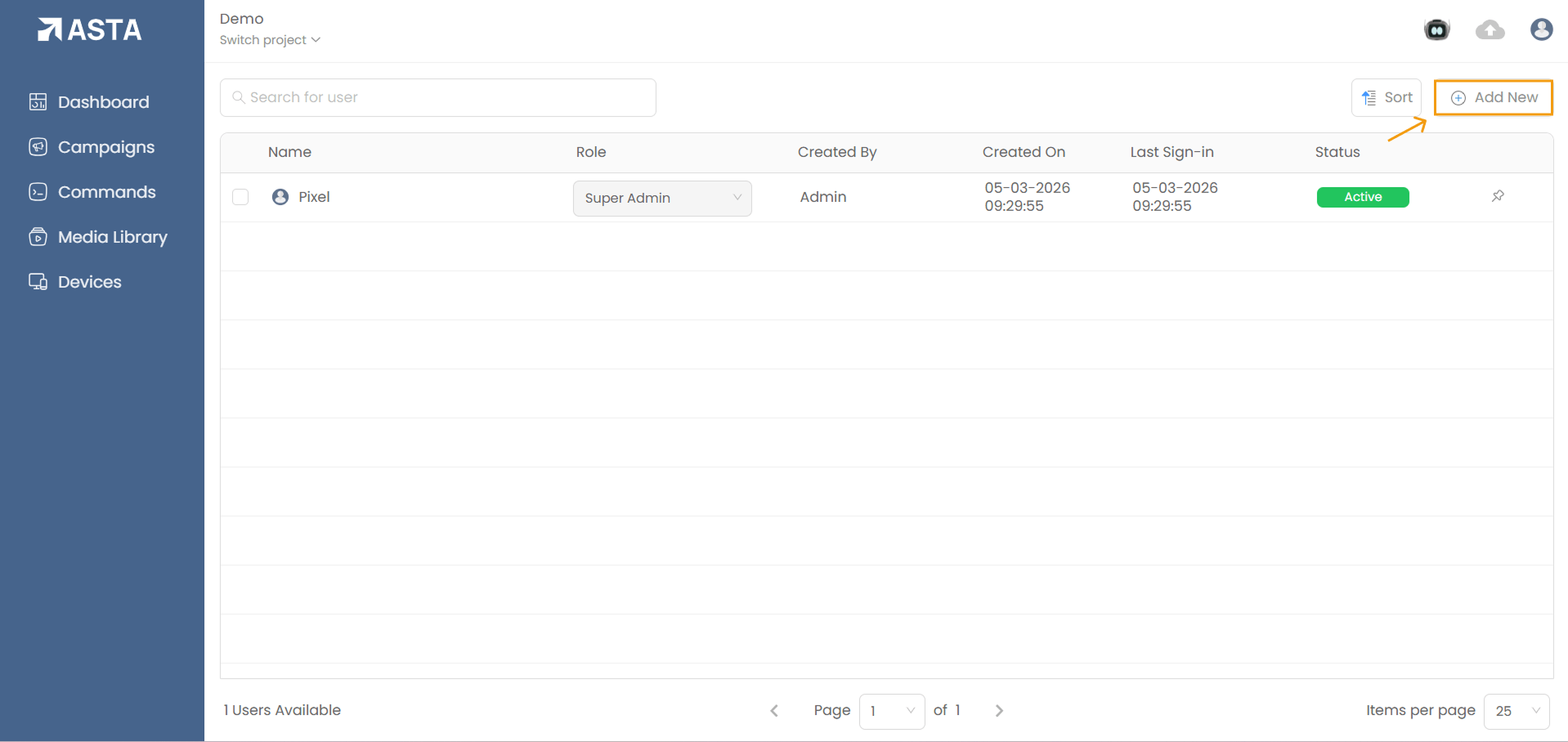
- Add New User:
- You can click the Add New button to open the user creation modal.
- Alternatively, you can right-click in the user section and select Add New from the context menu to open the same modal.
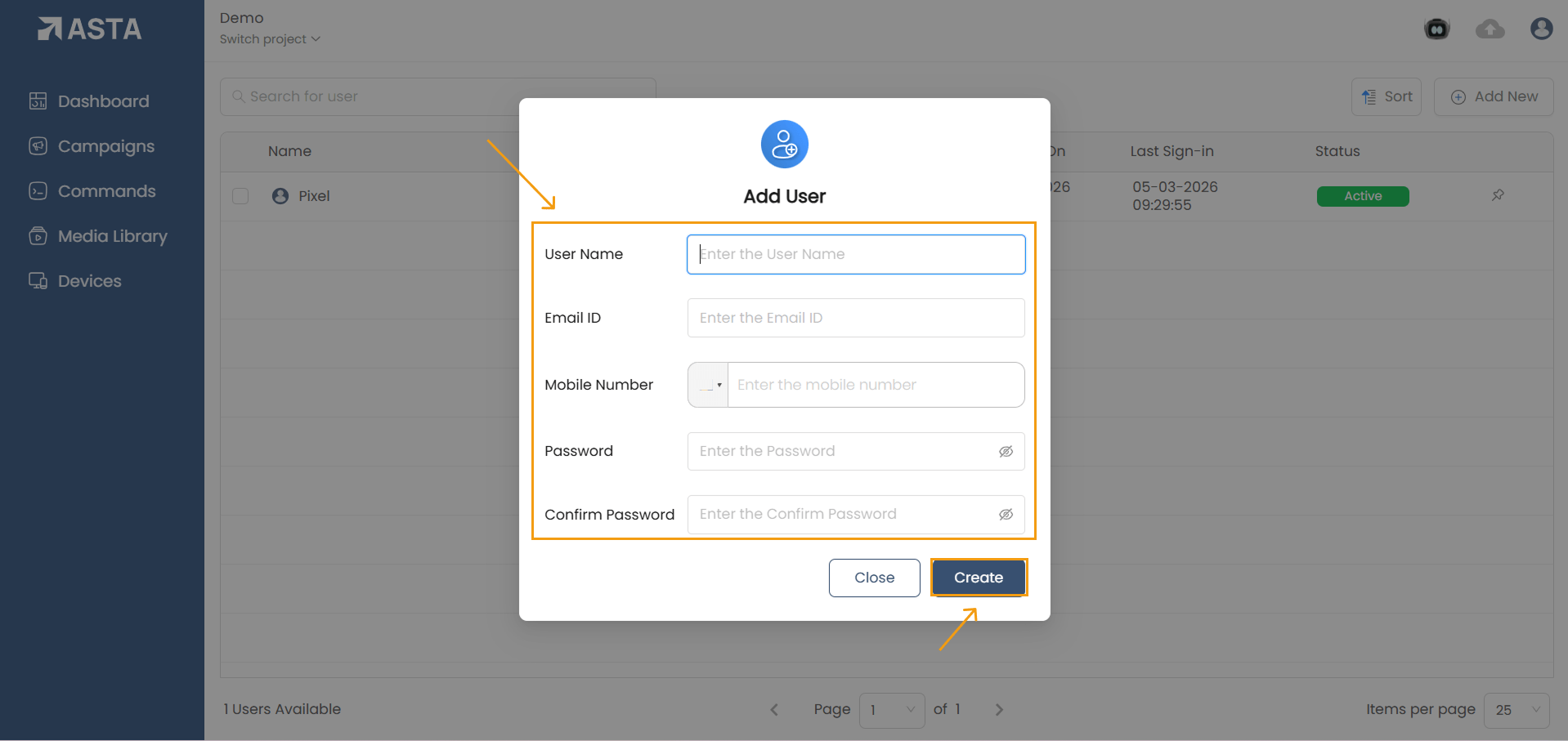
- Enter User Information:
- Username: Enter the desired username.
- Email: Provide a valid email address.
- Mobile Number: Enter a mobile number with the country code.
- Password: Provide a password of at least 8 characters, including uppercase and lowercase letters, a number, and a special character.
- Confirm Password: Re-enter the password for confirmation.
- Create User:
- After entering valid details, click the Create button to create the user.
- If you wish to cancel, you can click the Close button to exit the modal without saving.
2. Assigning Roles to Users
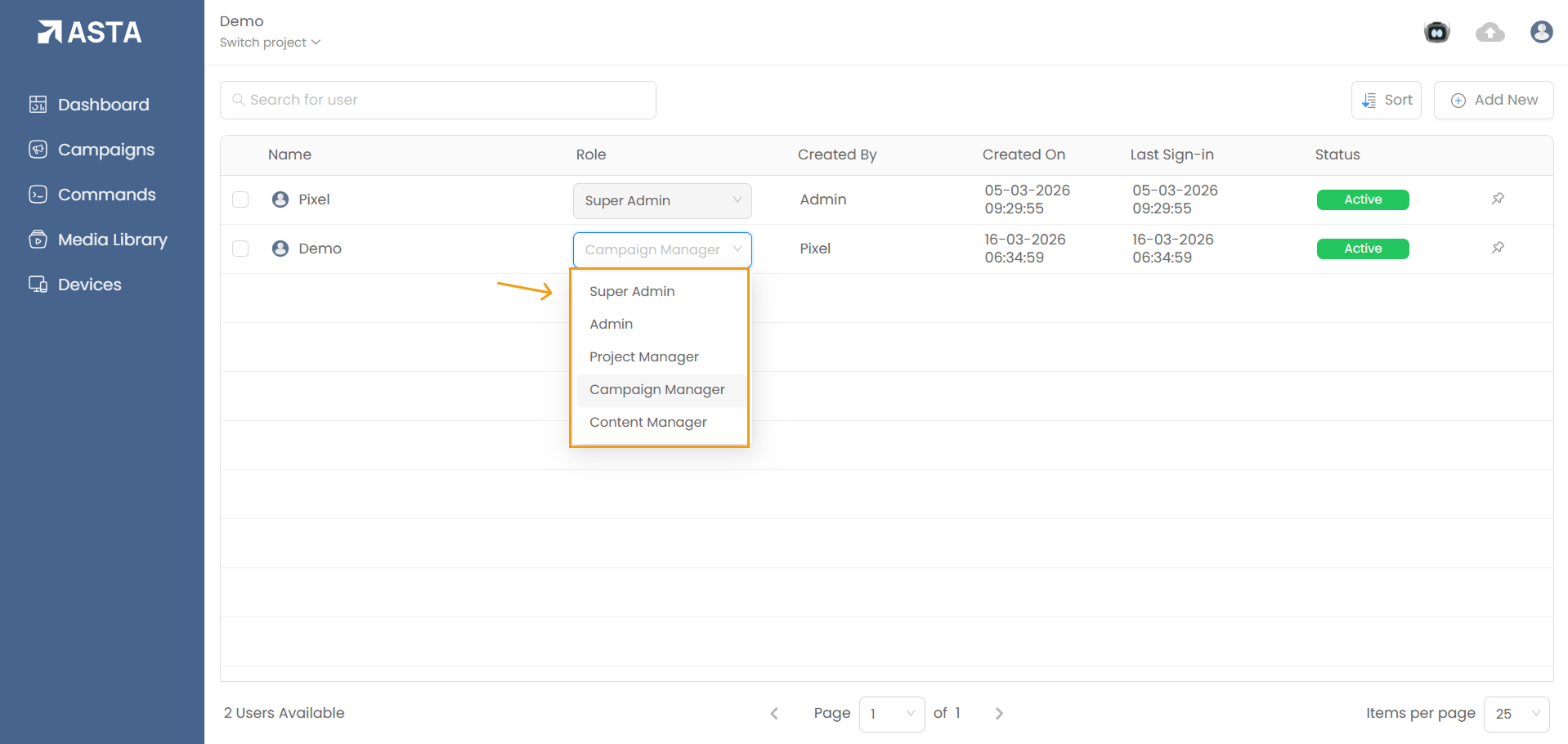
After creating a user, you can assign a role to the user. Available roles include:
- Super Admin
- Admin
- Project Manager
- Campaign Manager
- Content Manager
- Custom Role(Optional: Define a custom role)
3. Managing Users
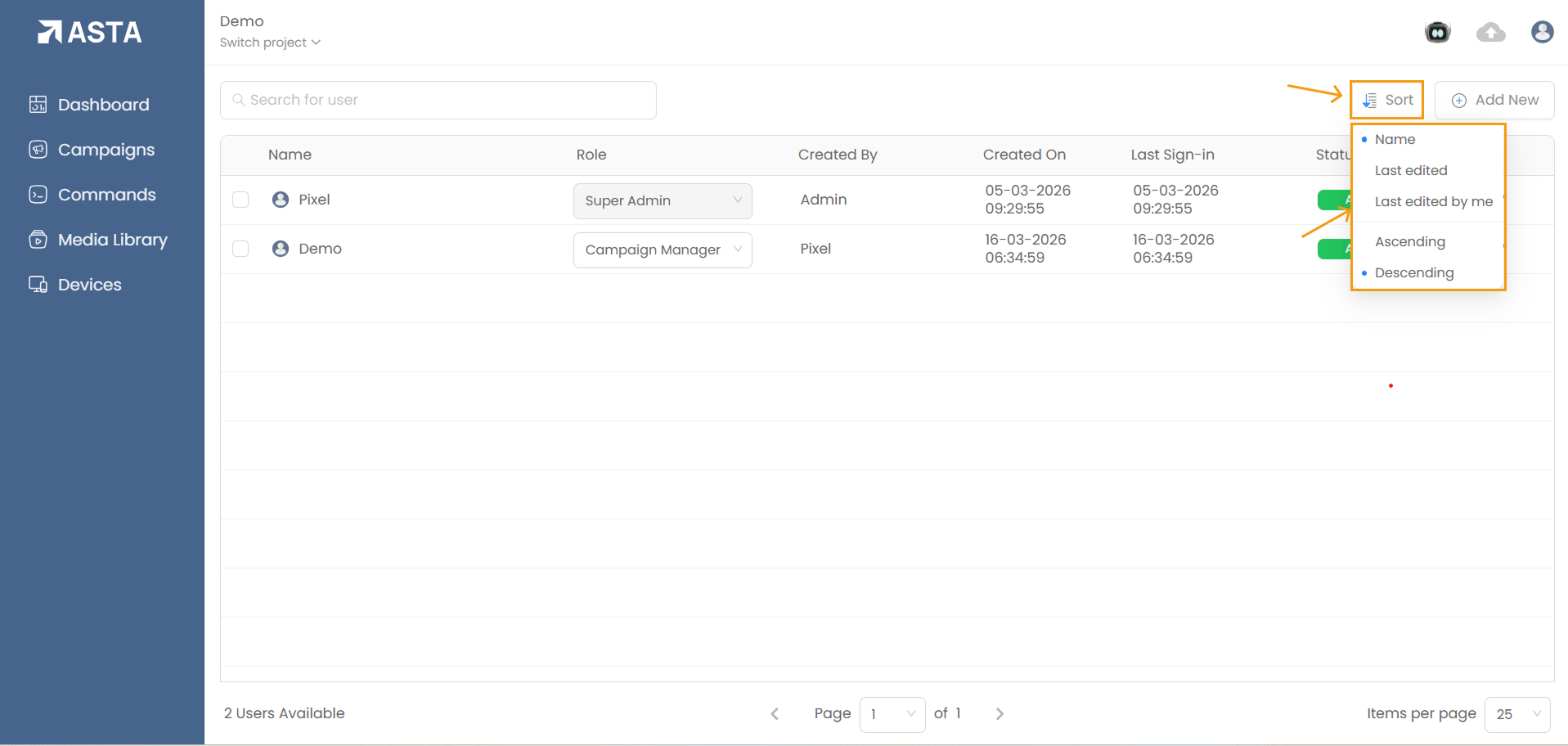
Search and Sorting Users:- Search: Use the search bar to search for users by their name.
- Sorting: You can sort users based on:
- Name
- Last Edited
- Last Edited By
- Sorting Order: Ascending or Descending
Editing User Information:
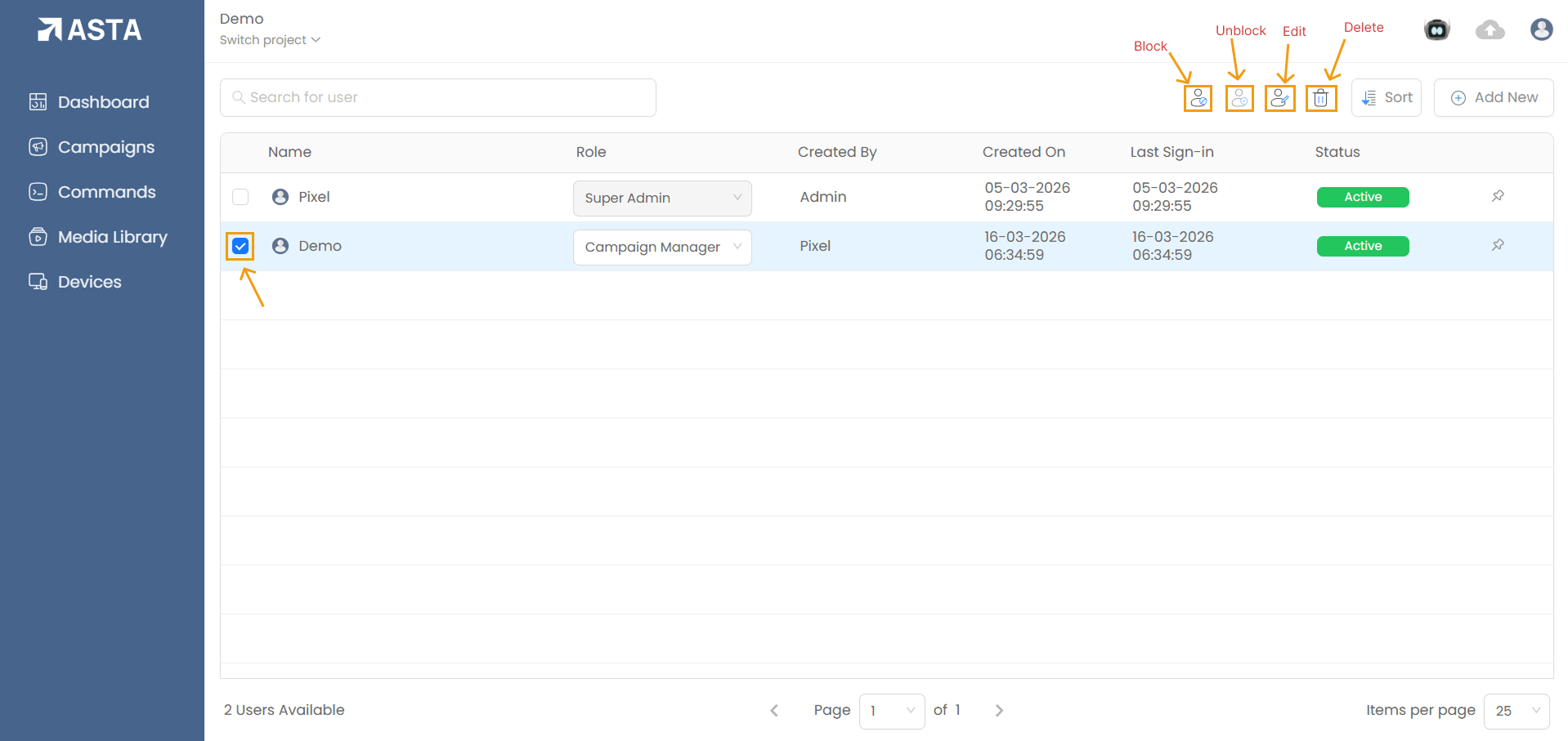
- Select the user checkbox next to the user you want to edit.
- Click on the Edit icon that appears, or alternatively, right-click the selected user and choose the Edit option from the context menu.
- Update the user details (e.g., phone number, name, email).
- Click Update to save changes or Close to cancel.
Blocking/Unblocking Users:
- Block User:
- Select the user checkbox and click the Block icon.
- Alternatively, right-click the selected user and choose Block from the context menu.
- The user will be blocked, and their status will show as Inactive.
- Unblock User:
- Select the blocked user checkbox and click the Unblock icon.
- Alternatively, right-click the selected blocked user and choose Unblock from the context menu.
- The user will be unblocked, and their status will show as Active.
Deleting a User:
- Select the checkbox for the user you want to delete.
- Click on the Delete icon that appears, or alternatively, right-click the selected user and choose the Delete option from the context menu.
- Copy the username and paste it into the input field.
- Click Delete to confirm.